Check PDF Viewer Preferences: Catch Wrong Open Views, Sidebar Surprises, and Print-Scaling Confusion Before You Share
To check PDF viewer preferences, inspect the final PDF's stored open-view and display settings, including page mode, layout, document title, and print-related hints, before you send the file.
If the PDF opens on the wrong page, shows the wrong sidebar, exposes a messy filename, or nudges people toward bad print behavior, fix those preferences or the underlying structure before sharing.
Viewer preferences sound minor until the first reader gets an awkward experience. A polished PDF can still open with a useless bookmarks pane, land on a cover instead of the working section, display a draft filename in the browser tab, or hint at print scaling that undermines the layout. A short review makes the file feel deliberate instead of accidental.
Fastest practical path: test the real outgoing PDF in a fresh viewer, confirm the first-open behavior, then check whether the issue belongs to viewer preferences, bookmarks, page labels, title metadata, or page geometry.
In a hurry? Jump to quick start: check PDF viewer preferences in about 5 minutes.
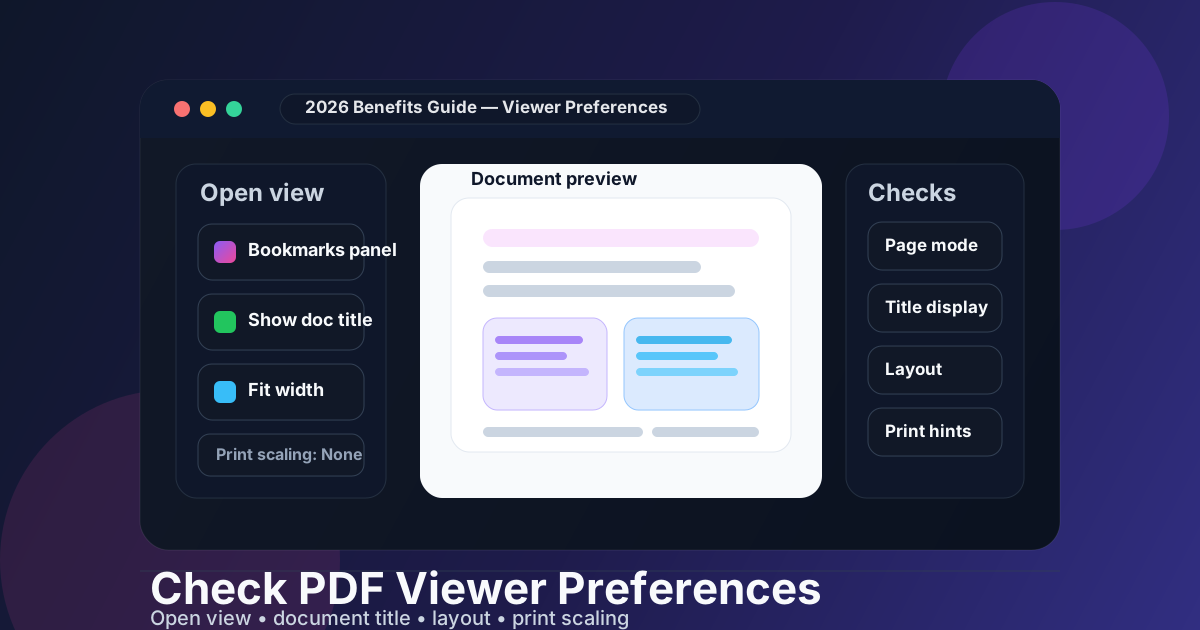
Table of contents
- Quick start: check PDF viewer preferences in about 5 minutes
- What PDF viewer preferences actually control
- Which viewer preferences matter most in real workflows
- Step-by-step: practical review workflow
- Common failure patterns and what they usually mean
- When to change viewer preferences versus fix the underlying PDF
- Final checklist before you share the PDF
- Related LifetimePDF tools and guides
- FAQ
Quick start: check PDF viewer preferences in about 5 minutes
If your real goal is simply make sure this PDF opens in a sensible, polished way for the next person, this is the fastest useful workflow:
- Open the exact final PDF you plan to send, upload, archive, or publish.
- Close other copies so you can see the true first-open behavior instead of a remembered state from the same app.
- Note what appears first: the landing page, zoom, side panel, tab title, and any print-oriented defaults or warnings.
- Inspect the stored properties through View PDF Properties or an equivalent workflow so you can read the preferences directly.
- If the PDF depends on bookmarks, page labels, or an opening action, test those pieces too before you blame the viewer setting alone.
- Reopen the PDF after the fix to confirm the first impression now matches the experience you intended.
What PDF viewer preferences actually control
PDF viewer preferences are stored instructions or hints inside the file that influence how many readers and apps present the PDF when it opens. They can affect whether a bookmark panel appears, whether the window shows the document title or a raw filename, how pages are laid out, and how some viewers think about printing.
They are not the same thing as the page content, the page boxes, the permissions, or the visible navigation on the page. They live one layer above the content and shape the opening experience. That is why they matter most when you care about how calm, trustworthy, and usable the PDF feels in the first few seconds.
| Preference group | What it influences | Why the reader notices |
|---|---|---|
| Initial view and page mode | Which page or panel is emphasized when the file opens, such as thumbnails, bookmarks, attachments, or no side panel at all. | It shapes the first scan of the document and can either guide the reader or distract them immediately. |
| Page layout and zoom hints | Single-page, continuous, two-page, or fit-style behavior in viewers that respect those preferences. | Bad defaults can make a document feel cramped, tiny, overzoomed, or awkward to navigate. |
| Title display behavior | Whether the app shows the internal document title or a storage filename in the tab or title bar. | A clean title feels polished; a draft export name can make the PDF look sloppy or internal. |
| Print-related preferences | Hints tied to scaling, paper handling, duplex, or printer-tray choices in some environments. | These settings can reduce avoidable print mistakes, especially in forms, packets, and production workflows. |
| Reading and navigation direction | How spreads or directional reading should behave in specialized documents. | It matters when the document is meant to feel orderly in book-like or language-specific reading flows. |
Important reality check
Not every viewer respects every preference. That does not make the review pointless. It simply means you should treat viewer preferences as high-value guidance that improves many reader experiences, while still making sure the underlying PDF works even when a particular app ignores part of the hint.
Which viewer preferences matter most in real workflows
Some viewer settings are technically interesting but rarely important. These are the ones that most often change whether a PDF feels smooth or mildly annoying in the real world.
Opening page and side panel behavior
If a long report depends on bookmarks, opening with the bookmark pane can help. If the outline is weak or the file is short, forcing the panel open can waste screen space and create clutter instead.
Page layout and zoom
Two-page spreads, fit-width views, or odd zoom defaults can help book-like documents and hurt everything else. Choose the layout that matches how the file will actually be consumed.
Document title versus filename
A client should not have to stare at final-v7-revised-2.pdf if the proper title is 2026 Benefits Guide. The title shown in the viewer is part of the presentation layer.
Print scaling and paper hints
These matter when the page size is deliberate, forms need consistent output, or production teams are trying to avoid quiet print drift caused by scaling shortcuts.
A useful rule is this: if the preference changes orientation, trust, navigation, or print accuracy for a first-time reader, it is worth checking. If it only changes a cosmetic detail that no real recipient will notice, do not over-engineer it.
Best pairing: check viewer preferences alongside bookmarks, page labels, and title metadata. Those pieces often work together, and one weak link can make a good preference look broken.
Step-by-step: practical review workflow
This workflow keeps you from chasing the wrong layer. The point is not just to read a property list. The point is to connect stored preferences with the real user experience.
1) Start with the exact outgoing file
If the recipient will get a downloaded export, test that export. Viewer preferences can change between drafts, merges, or final save steps.
2) Observe the first-open experience
Note the landing page, zoom, side panel, title bar text, and whether the file feels guided or confusing in the first few seconds.
3) Read the stored preferences directly
Use View PDF Properties so you can see what the file is actually asking the viewer to do.
4) Test the supporting navigation
If the file opens the bookmarks panel or depends on page labels, make sure those structures are accurate enough to deserve that spotlight.
5) Fix the real cause, not the visible symptom
A bad title belongs in metadata, a wrong landing destination may belong in bookmarks or JavaScript, and a print problem may really be a page-size problem.
6) Reopen in a clean session
Do one fresh re-test after saving. Otherwise you can mistake cached viewer state for a successful fix.
The common trap
People often change a viewer preference because the first-open experience feels wrong, when the real issue is that the bookmarks are messy, the page labels are misleading, or the document title was never set correctly. Viewer preferences can amplify a problem that already exists deeper in the PDF.
If the PDF behaves strangely on open, also review Check PDF JavaScript and Check PDF Permissions. Those layers do different jobs, but readers often experience them as one combined first impression.
Common failure patterns and what they usually mean
These patterns show up often because they mix a small setting problem with a bigger trust problem.
| What the reader experiences | What is often wrong | Better fix |
|---|---|---|
| The PDF opens with the bookmarks panel, but the outline is weak or broken. | The viewer preference may be fine, but the bookmarks are not ready to be featured. | Repair or simplify the bookmarks first, then decide whether the panel should still open by default. |
| The tab shows a draft filename instead of a clean title. | The document title metadata is missing, stale, or lower quality than the filename. | Set and verify the PDF title, then confirm whether the viewer is instructed to display it. |
| The file opens to a useless cover or random interior page. | The opening destination, bookmark target, or save-state behavior does not match the real reading flow. | Reset the opening logic and test against the final audience's starting point, not your editing habit. |
| Print output looks scaled or awkward even though the screen view seemed fine. | Print hints, page-size assumptions, or underlying page geometry are fighting each other. | Check print-related preferences, then verify page size, crop box, and media box before blaming the printer alone. |
| Two-page or spread view feels wrong in a normal report. | The layout preference suits book-like reading more than business-document reading. | Use a simpler layout unless the PDF truly benefits from spreads or facing pages. |
When to change viewer preferences versus fix the underlying PDF
A good review separates launch behavior from document quality. Sometimes the preference is the problem. Sometimes the preference is merely exposing that the PDF itself is not ready.
- Change the viewer preference when the document is structurally sound but opens in a way that adds friction, such as the wrong side panel, the wrong layout, or a poor title-display choice.
- Fix bookmarks or page labels first when navigation is unreliable. Opening a broken navigation layer by default only makes the weakness more obvious.
- Fix metadata first when the title, author, or other visible identifiers tell the wrong story about the file.
- Fix page size or page boxes first when print behavior or visual framing problems come from the underlying geometry rather than the launch setting.
- Check JavaScript or open actions when the PDF jumps somewhere unexpected or launches with behavior that feels too active or inconsistent.
This distinction matters because readers do not care which technical layer failed. They only notice that the PDF feels untrustworthy. Your job is to remove the mismatch between what the document is trying to say and how the software introduces it.
Useful sequence: first fix the title, navigation, and page geometry; then choose viewer preferences that highlight the parts of the PDF you actually trust.
Final checklist before you share the PDF
- The file was tested as the exact final copy that will be sent, uploaded, archived, or published.
- The first-open experience feels sensible for a new reader, not just familiar to the editor.
- The page mode and layout help the document instead of cluttering it.
- The viewer shows an intentional document title when that is the better presentation choice.
- Any print-related preferences were checked against the real page size and actual output needs.
- Bookmarks, page labels, and other navigation pieces were verified before being emphasized by default.
- The PDF was reopened in a fresh session to confirm the stored behavior really stuck.
Related LifetimePDF tools and guides
Useful tools and pages
Related quality checks
Need a PDF that feels clean the moment someone opens it? Review the properties, fix the title and navigation layers, then choose viewer defaults that support the real reading job instead of showing off editor leftovers.
FAQ
How do I check PDF viewer preferences?
Open the final PDF in a fresh viewer session, note how it launches, then inspect the stored initial view, page mode, layout, title display, and print-related settings. If the first-open experience feels wrong, fix the preference or the supporting navigation behind it.
Are PDF viewer preferences the same as PDF permissions?
No. Viewer preferences shape how the file opens and displays, while permissions relate to what the recipient may be allowed to do, such as print, copy, or edit.
Why does my PDF open differently in different apps even when preferences are set?
Different viewers respect different parts of the PDF specification. One app may honor the page mode, another may ignore the title-display setting, and a browser may preserve its own reading habits. That is why you should treat viewer preferences as strong guidance rather than a guaranteed universal result.
Should a PDF show the document title or the filename?
For polished external PDFs, showing the document title usually feels better than exposing a raw export filename. The title should still be accurate, current, and intentionally set.
Can viewer preferences fix broken bookmarks or wrong page labels?
No. They can spotlight a navigation layer, but they cannot make that layer trustworthy. If the bookmarks or labels are wrong, fix those directly before you decide to feature them on open.
Published by LifetimePDF — Pay once. Use forever.