Check PDF Title: Fix Missing, Generic, or Misleading Document Names Before You Share
To check PDF title, open the file properties or metadata and confirm the document title matches what readers should hear, see in browser tabs, and recognize later in downloads or search.
If the title is blank, generic, or still using an old template name, fix it before you publish, submit, archive, or share the PDF.
That sounds small until you open a file that looks polished on the page but still calls itself Document, Scan001, or last quarter's report title under the hood. A quick title check helps you avoid confusing screen reader announcements, messy browser tabs, vague cloud-storage labels, and PDFs that are harder to trust once they leave your desk.
Fastest practical path: inspect the stored title, compare it with the real document purpose, replace vague or stale names, and do one final accessibility-minded review before sending the file out.
In a hurry? Jump to quick start: check PDF title in about 5 minutes.
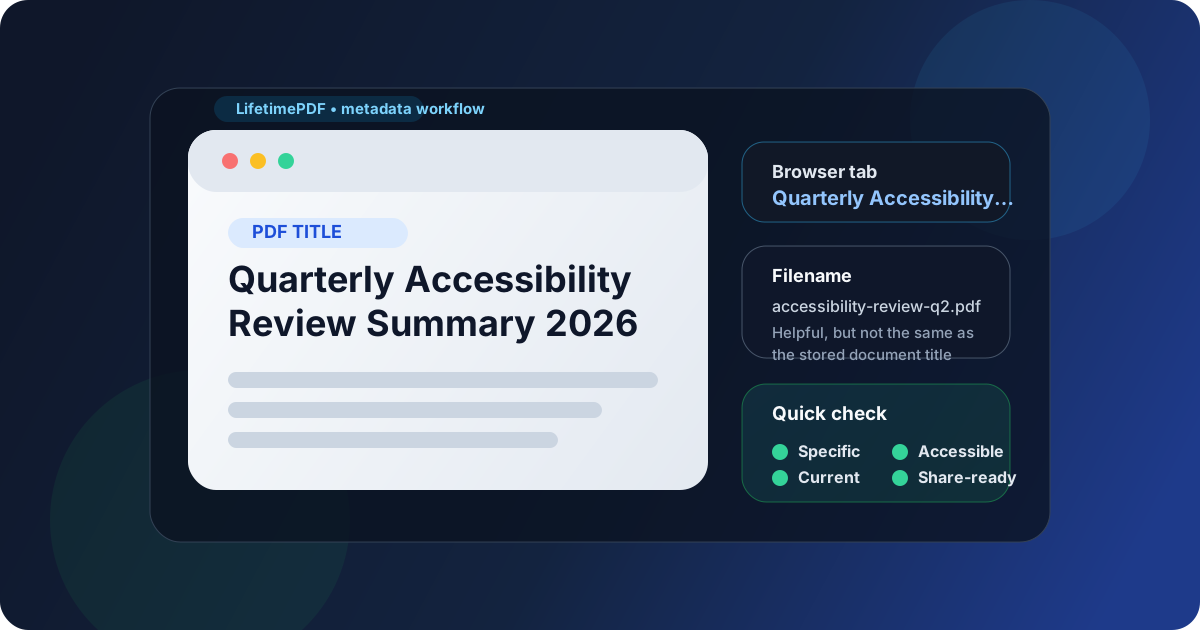
Table of contents
- Quick start: check PDF title in about 5 minutes
- What a PDF title actually affects
- Common PDF title failures
- Step-by-step: practical PDF title review workflow
- Filename vs PDF title vs visible heading
- When the real fix belongs in the source file
- Final checklist before you publish or share the PDF
- Related LifetimePDF tools and guides
- FAQ
Quick start: check PDF title in about 5 minutes
If your goal is simply make sure this PDF has a clear document title before anyone else opens it, this quick pass catches the usual problems fast:
- Open the file properties or follow View PDF Properties so you can see the stored title, not just the filename.
- Ask whether the title clearly identifies the document for someone who sees only a browser tab, downloads list, search result, or screen reader announcement.
- Replace vague names such as Document, Untitled, Scan001, or an old project name with something specific and current.
- Compare the title against the first-page heading and the filename. They do not need to be identical, but they should not contradict each other.
- If the PDF came from an editable source, repair the title there. If not, use Edit PDF Metadata or Change PDF Title and Author.
- Finish with one broader pass using Check PDF Accessibility so the title, language, tags, and visible structure all support the same reading experience.
What a PDF title actually affects
A PDF title feels invisible because it often does not change the printed page. The document can look completely finished while the title metadata is still sloppy underneath. That hidden layer matters because many real workflows identify a PDF before anyone reads page one.
Why title checks matter in real workflows
- Screen readers announce it: a good title gives people a clearer starting point before they move into the document body.
- Browser tabs rely on it: when several PDFs are open at once, the title is often the quickest way to tell them apart.
- Search and previews can expose it: generic or stale titles make results harder to trust and harder to scan.
- Cloud folders and email attachments get messy fast: a vague internal title adds friction when people are comparing multiple revisions.
- Accessibility reviews notice it: title quality is one of those small checks that signals whether the PDF was prepared thoughtfully.
Common PDF title failures
Most PDF title problems are not exotic. They usually come from rushed exports, stale templates, scanned files, or teams assuming the filename and the document title are automatically the same thing.
| Failure | What goes wrong | Better fix |
|---|---|---|
| Blank or missing title | Readers get a vague tab label or a fallback name that does not explain the file. | Add a concise, descriptive title that reflects the actual document. |
| Generic title like Document or Scan001 | The PDF is harder to identify in search results, shared folders, and accessibility tools. | Replace the placeholder with a real report, contract, statement, policy, or form name. |
| Stale title from an old template | The visible content changed, but the metadata still names a different document. | Fix the title in the source file before exporting again. |
| Filename and title point in different directions | One says Invoice April and the other says Proposal Draft, which makes the file feel unreliable. | Bring the title, filename, and first-page heading into the same general story. |
| Confidential or internal labels leak into the title | Readers may see draft labels, staff shorthand, or project codenames that were never meant for sharing. | Clean the title before publishing or sending the PDF outside the original team. |
One simple smell test: if you saw the title in a downloads folder with no other context, would you immediately know what the PDF is and whether it is the right one?
Step-by-step: practical PDF title review workflow
1. Inspect the title that lives inside the PDF
Start with the stored document properties, not your assumptions. The filename might be polished while the PDF title is still wrong, or the opposite might be true. If you need a refresher, use View PDF Properties to see what the file is really carrying.
2. Compare the title against the actual reader experience
Ask what the title needs to do in context. Is this a benefits form, a signed contract, a monthly statement, a class handout, a compliance report, or a scanned archive? Good titles help readers identify the file before they read the whole first page.
3. Check the visible heading, filename, and title together
They do not have to be word-for-word identical, but they should support each other. If the cover says Accessibility Audit Summary, the filename says client-audit-q2.pdf, and the title says Document, the PDF is wasting a simple opportunity to be clearer.
4. Pay extra attention after OCR, merging, or format conversion
Scans, merged files, and converted documents often inherit odd metadata. A clean-looking PDF can still carry the title from the scanner, a merged appendix, or the source file that happened to be exported first. That is one reason metadata checks belong near the end of the workflow, not only at the start.
5. Fix the source if you still control it
If the PDF came from Word, Docs, PowerPoint, LibreOffice, or another editable source, repair the title there first. That gives you a clean master file and reduces the odds of the same bad title reappearing next week. If you need to recover the source, use PDF to Word, make the correction, then export again with Word to PDF.
6. Update PDF metadata directly when the source is unavailable
Sometimes the source file is gone, the original author is unavailable, or the PDF is already the working master. In that case, direct metadata cleanup is better than leaving the title broken. Use Edit PDF Metadata or Change PDF Title and Author, then verify the new title appears where you expect.
7. Finish with one broader accessibility-minded review
Title is one small but meaningful piece of a usable PDF. After fixing it, do a broader pass with Check PDF Accessibility, and if needed, inspect related structure questions like document language and bookmarks so the file feels coherent from the outside in.
Reliable sequence: inspect properties, compare the title to the real document purpose, fix the source or metadata, then run one final accessibility-minded review before publishing.
Filename vs PDF title vs visible heading
These three elements often get mixed together, but they are not the same thing:
- Filename: what the operating system or cloud storage uses for the file itself.
- PDF title: metadata stored inside the document.
- Visible heading: what the page actually shows to the reader.
In a clean workflow, all three support the same purpose. They can vary slightly for length or formatting, but they should not describe three different documents. If they drift apart, readers lose confidence fast because the PDF feels stitched together rather than prepared intentionally.
When the mismatch is harmless
- The filename uses a date code while the title uses a cleaner reader-facing name.
- The title drops internal version noise that belongs in storage but not in a browser tab.
- The visible heading is slightly longer while the metadata title stays concise.
When the mismatch should be fixed
- The title still names an old client, report, or template.
- The filename is useful but the title is blank or generic.
- The title exposes confidential shorthand that should not travel outside the team.
- The visible heading and title suggest different versions of the document.
When the real fix belongs in the source file
A bad PDF title is often a source-document problem wearing a PDF costume. If the wrong name keeps coming back every time the PDF is exported, the metadata was probably inherited upstream.
Fixing the source usually makes several things better at once:
- The next export keeps the right title automatically.
- Visible headings and metadata are easier to align.
- Future revisions stay cleaner because the master file is no longer carrying stale properties.
- You reduce the chance of mismatched titles, authors, or subjects resurfacing during updates.
If the PDF is part of a recurring workflow, fix the root cause once instead of editing the same metadata by hand forever. When the source is inaccessible, direct PDF cleanup is still useful, but it is better as a deliberate choice than an accidental habit.
Final checklist before you publish or share the PDF
Before the file goes out the door, run through this short list:
- Did you inspect the stored PDF title instead of assuming the filename was enough?
- Would the title make sense in a browser tab, downloads list, search result, or screen reader announcement?
- Is the title specific instead of blank, generic, or inherited from an old template?
- Do the title, filename, and visible heading describe the same document?
- If the file came from a source document, did you fix the title upstream?
- Did you verify the change after editing metadata or re-exporting?
- Did you do one broader PDF accessibility check before publishing or sending the file?
You do not need a huge remediation project to fix a weak PDF title. You just need a workflow that treats document naming as part of usability instead of an afterthought.
Related LifetimePDF tools and guides
If your PDF title check uncovers bigger issues, these are the most useful next steps:
Properties and metadata cleanup
- View PDF Properties to inspect what the file is carrying
- Change PDF Title and Author for a focused title repair workflow
- Edit PDF Metadata when several document properties need cleanup at once
Source repair and final review
- PDF to Word when you need a repairable source
- Word to PDF for cleaner re-exports after source fixes
- Check PDF Accessibility, Check PDF Language, and Check PDF Bookmarks for a stronger final pass
FAQ
1) How do I check PDF title?
Open the PDF properties or metadata and compare the stored title against the actual document content, visible heading, and filename. If the title is blank, generic, or outdated, update it before sharing the file.
2) Is the PDF title the same as the filename?
No. The filename is what your storage system uses, while the PDF title is metadata inside the document. They can match, but one does not automatically guarantee the other is correct.
3) Why does PDF title matter for accessibility?
It gives screen readers and other tools a clearer document label, improves browser-tab clarity, and helps readers identify the file before they even start reading page one.
4) What makes a good PDF title?
A good PDF title is specific, current, and reader-facing. It should describe the document clearly without relying on internal shorthand, placeholders, or stale template names.
5) Should I fix the title in the source document or directly in the PDF?
If the source still exists, fix it there first so future exports stay clean. If the source is gone, edit the PDF metadata directly, then verify the updated title wherever the file will actually be opened or shared.
Ready to clean up the file? Inspect the stored title, fix the source or metadata, and send a PDF that is easier to recognize before anyone reads the first line.
Best workflow for messy files: inspect properties → compare title to content → fix source or metadata → verify the result → run one final accessibility check.
Published by LifetimePDF — Pay once. Use forever.