Check PDF Accessibility: What to Review Before You Publish or Share a Document
To check PDF accessibility, confirm the file has selectable text, a logical reading order, clear headings, understandable links and forms, and a useful document title before you publish or share it.
If any of those basics fail, the smartest next step is usually to run OCR or repair the source file before you trust an automated checker result.
Most broken PDFs announce themselves quickly. You try to select text and nothing happens. Copy and paste comes out in the wrong order. A form makes sense visually but not logically. A report looks polished on screen yet becomes frustrating the moment someone uses a keyboard, a screen reader, or a small mobile display. The good news is that a practical review catches many of these problems early, long before the document creates trouble for a real reader.
Fastest path: check for a real text layer first, then review reading order, headings, links, forms, and the document title before you publish the file.
Need the short version? Jump to Quick start: check PDF accessibility in 10 minutes.
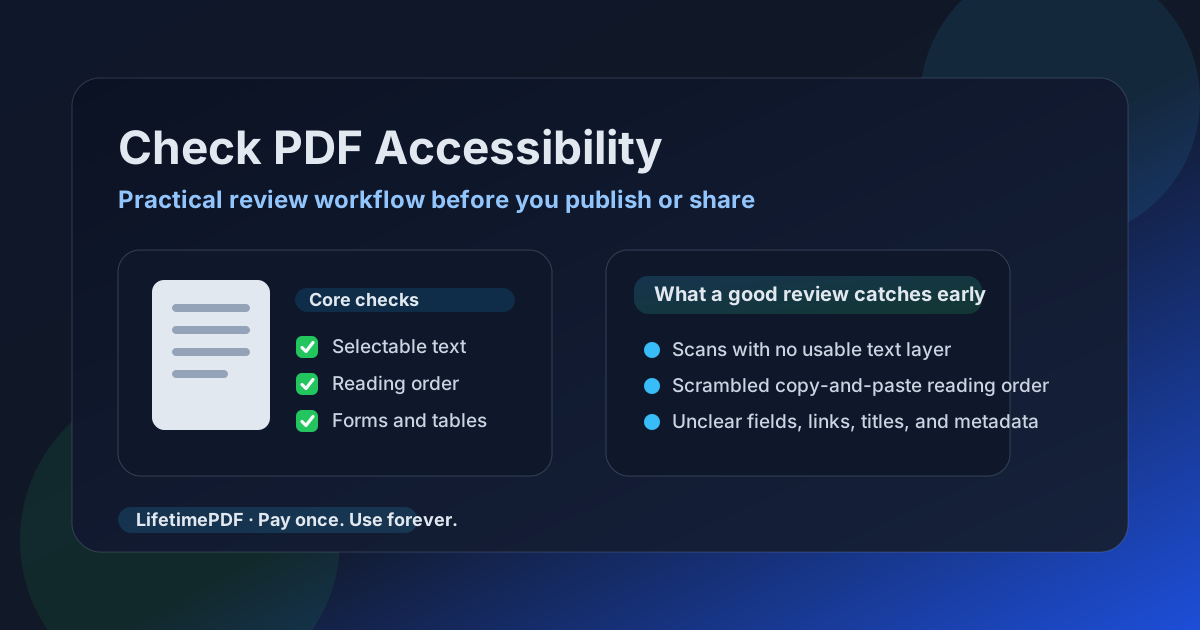
Table of contents
- Quick start: check PDF accessibility in 10 minutes
- What to check first in any PDF accessibility review
- Step-by-step: practical workflow
- Scanned PDFs, OCR, and text-layer problems
- Forms, tables, links, and document titles
- What automated checkers can and cannot tell you
- When to fix the source instead of patching the PDF
- Related LifetimePDF tools and internal guides
- FAQ (People Also Ask)
Quick start: check PDF accessibility in 10 minutes
If your goal is simply tell me whether this PDF is basically usable before I send it out, this order works well:
- Open the PDF and try to select text.
- Search for a word you can clearly see on the page.
- Copy part of the text or use PDF to Text to check whether the reading order comes out sensibly.
- Look at the headings, lists, tables, and links and ask whether the document still makes sense without visual styling.
- If the PDF is interactive, test whether the form flow is understandable and whether field labels are obvious.
- Check the document title, filename, and metadata so the file identifies itself clearly.
- If the basics fail, use OCR PDF, PDF to Word, or Word to PDF to rebuild a cleaner version.
What to check first in any PDF accessibility review
A good accessibility review is not about clicking a checker and hoping for a green light. It is about finding the points where the document becomes hard to understand or navigate. Most of the time, that means testing a handful of fundamentals in the right order.
| What to check | Why it matters | What failure usually looks like |
|---|---|---|
| Selectable text | Screen readers, search, and copy flow all depend on real text instead of page images | You cannot highlight words, search fails, or copied text turns into nonsense |
| Reading order | Readers need content to flow logically instead of jumping across columns, sidebars, or footers | Copied text comes out scrambled or the narrative feels out of sequence |
| Headings and structure | Documents need meaningful hierarchy, not just visual emphasis | Everything looks organized on screen, but sections become vague when style cues disappear |
| Forms, tables, and links | Interactive and structured content is where many users get stuck first | Fields are unclear, tables lose meaning, or links say only “click here” |
| Title and metadata | A clear title helps users identify the file before reading it deeply | The title is empty, generic, or mismatched with the document itself |
If a PDF holds up on those basics, you already have a much stronger starting point. If it fails several of them at once, the real problem is usually upstream in the way the source file was created or exported.
Step-by-step: practical workflow
Step 1: Confirm the file has real text
This is the first gate for almost everything else. Try selecting text, searching for words, or sending a page through PDF to Text. If the content behaves like a flat image, the file is not ready for a meaningful accessibility review yet. Start with OCR or rebuild the document from its editable source.
Step 2: Review reading order instead of trusting the layout
Two-column brochures, sidebars, callout boxes, and decorative cover pages often look fine visually while the extracted reading order becomes chaotic. Copy a few paragraphs, listen with assistive tools if you have them, or review extracted text to see whether the content flows logically. If the narrative jumps around, the PDF may still be visually polished and yet functionally frustrating.
Step 3: Check whether the structure survives without styling
A heading is not accessible just because it is large and bold. A list is not meaningful just because the bullets line up nicely. Ask whether the document still has understandable sections, sequence, and hierarchy when you stop relying on visual layout alone. If the answer is no, the source file probably needs cleaner structure before export.
Step 4: Inspect forms, tables, links, and labels
These are the places where accessibility problems become obvious to real users. Form fields need clear purpose. Tables need consistent organization. Links need useful wording. If someone has to guess what a field means or where a link goes, the document may technically open but still feel broken.
Step 5: Check the title, filename, and packaging details
Accessibility is not only about what happens inside the page area.
A clear document title and a sensible filename help users identify the file before they ever read the body content.
A PDF named meeting-notes-q2-accessibility-review.pdf is far more helpful than final-v7-new-2.pdf.
Step 6: Decide whether to repair or rebuild
If the document only has one small problem, a focused fix may be enough. If it has no text layer, confusing reading order, vague headings, and unclear forms at the same time, patching the final PDF is usually the slow road. Rebuilding from Word, Excel, PowerPoint, or HTML often produces a cleaner result with less effort.
Ready to review a real file? Start with the accessibility checker, then use OCR or source-file cleanup if the PDF fails the basics.
Scanned PDFs, OCR, and text-layer problems
Scanned PDFs are where many accessibility reviews stall. If the file is only a picture of text, search and selection will usually fail, and screen-reader support becomes far weaker. OCR is often the right first move, but it is not a magic fix for every structural problem.
- Use OCR when the PDF behaves like an image: start with OCR PDF.
- Check the extracted result: OCR can introduce errors, especially on skewed scans, low-contrast pages, or complex tables.
- Clean the source when possible: if you already have the original Word or HTML document, exporting a fresh accessible PDF is often better than rescuing a poor scan.
- Watch for mixed-content PDFs: some files contain both real text and scanned pages, which makes the review easy to underestimate.
A scanned PDF can become more usable after OCR, but that does not automatically mean the reading order, headings, tables, links, or form logic are solved. Think of OCR as the start of the repair path, not the finish line.
Forms, tables, links, and document titles
Once the text layer and reading order look sane, the next failures usually appear in the smaller details that people notice when they actually try to use the file.
Forms
A fillable PDF should make each field's purpose obvious. If the flow only makes sense because of nearby visual layout, users can get stuck quickly. When forms feel ambiguous, it is often worth simplifying the structure or recreating them from a cleaner source.
Tables
Tables should communicate relationships clearly, not just line up numbers inside boxes. If a table falls apart when copied to plain text or becomes confusing without visual cues, it needs more work than an automated pass/fail result can explain.
Links
Good link text tells the user where the destination goes. Repeated links named click here or learn more make navigation harder, especially inside long reports, policies, or handbooks.
Document title and metadata
The file should announce itself clearly before anyone reads page one. Use a descriptive title and clean metadata with PDF Metadata Editor when necessary. Good packaging is a quiet but important part of an accessible workflow.
What automated checkers can and cannot tell you
Automated tools are useful. They catch many common failures faster than manual review alone. They also give you a repeatable way to screen documents before they go live. But they are not the final judge of whether the file truly works for real people.
| Automated checks help with | Human review still needs to decide |
|---|---|
| Missing text layers, obvious metadata gaps, and some structural red flags | Whether the content order actually makes sense to a reader |
| Spotting repeated technical issues across many files | Whether tables, charts, forms, and links are understandable in context |
| Fast pre-publish screening for routine documents | Whether the reading experience is clear enough for the document's real audience |
The best workflow is usually both. Let the tool help you catch what it catches quickly, then use human review to judge meaning, sequence, and whether the file still works when the layout stops doing all the heavy lifting.
When to fix the source instead of patching the PDF
A PDF with one small issue can often be corrected in place. A PDF with several structural problems at once is usually telling you the source file was never set up cleanly. That is the moment to stop patching and rebuild upstream.
- Fix the source if the reading order is chaotic: start from Word, PowerPoint, Excel, or HTML and export again.
- Fix the source if headings are only visual: real structure is easier to create before export than after.
- Fix the source if the document was flattened into images: OCR can help, but a clean export is better.
- Fix the source if the PDF is a form with confusing flow: interactive logic usually belongs upstream.
When you do need that rebuild path, these tools are the practical helpers: PDF to Word to recover editable text, Word to PDF for a cleaner export, and HTML to PDF when a source-first web workflow makes more sense.
Best workflow for difficult files: OCR or recover the source, repair the structure, export a cleaner PDF, then run the accessibility review again.
Related LifetimePDF tools and internal guides
Checking accessibility usually works best as part of a small workflow rather than one isolated click. These are the most useful supporting tools and related guides:
- PDF Accessibility Checker - screen the document for common accessibility issues.
- OCR PDF - recover selectable text from scanned files.
- PDF to Text - review extraction quality and reading order quickly.
- PDF to Word - recover editable content for deeper repairs.
- Word to PDF - export a cleaner final file after source fixes.
- HTML to PDF - rebuild structured source documents for cleaner PDF output.
- PDF Metadata Editor - clean titles and packaging details before distribution.
For related reading around the same topic, these guides fit naturally next: Check PDF Accessibility Online, Check PDF Accessibility Online Free, Check PDF Accessibility Online Without Monthly Fees, and PDF Accessibility WCAG Compliance Guide.
Need the practical version? Run the file through the checker, verify the text layer, then repair the source if the structure is weak.
FAQ (People Also Ask)
1) How do I check PDF accessibility?
Start by checking for real selectable text, logical reading order, clear headings, understandable links, usable forms, readable tables, and a useful document title. If those basics fail, fix the source file or run OCR before final validation.
2) Can an automated checker prove a PDF is fully accessible?
No. Automated tools are valuable for catching common problems quickly, but they cannot fully judge meaning, reading experience, or whether the document truly works well with assistive technology.
3) What should I do if the PDF is only a scan?
Run OCR first so the file has a usable text layer, then review the extracted content for reading order and accuracy. If the scan quality is poor and you have the original source, rebuilding from that source is usually better.
4) What problems usually break PDF accessibility first?
The most common failures are missing text layers, scrambled reading order, fake headings, unclear form labels, confusing tables, vague link text, and generic or missing document titles.
5) When should I fix the source instead of patching the PDF?
Fix the source when the PDF has several structural issues at once. Rebuilding the document in Word, PowerPoint, Excel, or HTML often creates a cleaner and more maintainable final PDF than repeatedly patching the export.
Ready to review your document?
Best workflow: Check text layer - Review order - Fix source if needed - Validate again.
Published by LifetimePDF - Pay once. Use forever.