View PDF Properties: Check Title, Author, Metadata, and Hidden File Details Before You Share
To view PDF properties, open the file in a PDF metadata tool and check the title, author, subject, keywords, creator, producer, and dates before you send it anywhere.
If anything looks outdated, sloppy, or too revealing, clean the metadata first so the hidden details match the polished document people actually see on the page.
This is one of those small tasks that saves surprisingly awkward problems. A PDF can look perfect while still carrying a draft title, an old employee name, internal project keywords, or software history you never meant to share. Viewing the properties takes only a minute, and it is often the difference between a file that feels genuinely finished and one that quietly leaks context in the background.
Fastest path: use LifetimePDF's PDF Metadata Editor to inspect the hidden properties, then update or remove anything that should not travel with the file.
Want the short version? Jump to Quick start: check PDF properties in a few minutes.
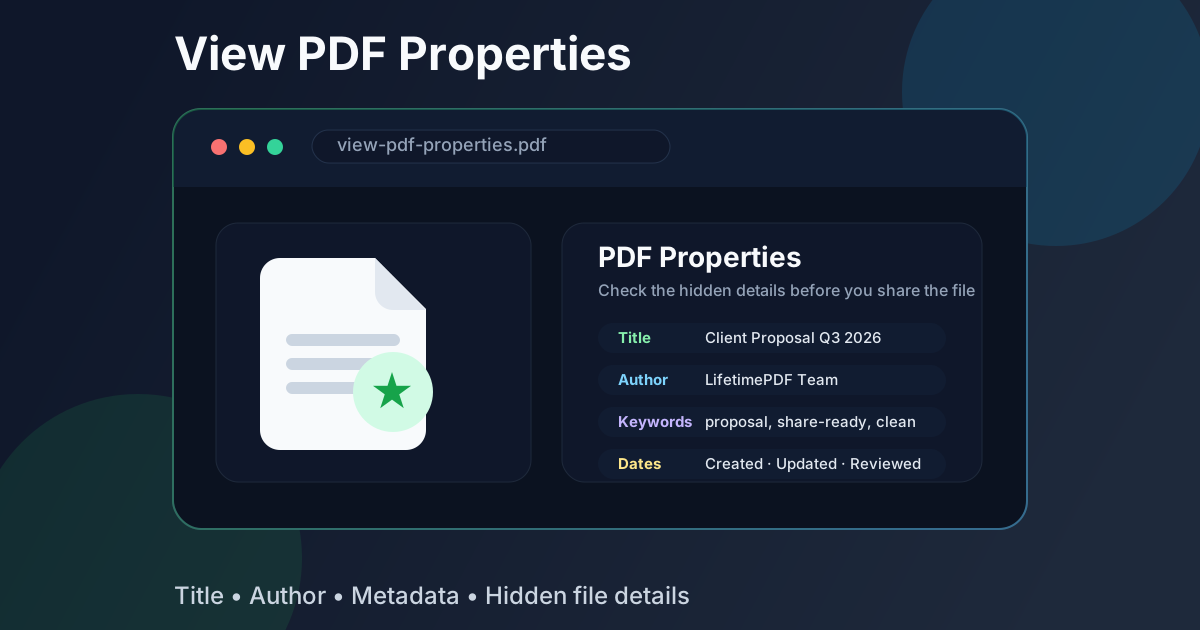
Table of contents
- Quick start: check PDF properties in a few minutes
- What “PDF properties” usually includes
- Why checking PDF properties matters before sharing
- Step-by-step: how to view PDF properties with LifetimePDF
- Which property fields deserve your attention first
- When to edit metadata vs remove it
- A safer final-file workflow
- Related LifetimePDF tools and guides
- FAQ (People Also Ask)
Quick start: check PDF properties in a few minutes
If your real goal is simply make sure this PDF is safe and presentable before I send it, the workflow is straightforward:
- Open PDF Metadata Editor.
- Upload the exact PDF you plan to share, archive, publish, or submit.
- Review the Title, Author, Subject, Keywords, Creator, Producer, Creation Date, and Modification Date.
- Fix anything inaccurate, messy, or too revealing.
- Download the cleaned version and protect it if the file is sensitive.
What “PDF properties” usually includes
People use the phrase PDF properties a little loosely. Sometimes they mean metadata. Sometimes they mean document info. Sometimes they mean “that hidden file stuff I forgot existed.” In practice, the most important properties are usually these:
| Property | What it usually tells you | Why it matters |
|---|---|---|
| Title | The intended document name | Can show in previews, browser tabs, and document libraries |
| Author | The person or organization attached to the file | May expose personal names, old staff details, or the wrong owner |
| Subject | A short description of the file | Useful for filing, but can reveal internal context |
| Keywords | Tags meant to help search or organization | Easy place for client names, project codes, or draft labels to leak |
| Creator / Producer | The software or workflow that generated the PDF | Sometimes harmless, sometimes needless technical clutter |
| Creation / Modification Dates | When the file was made or changed | Can reveal document history or timeline details you did not plan to share |
Some PDF viewers also expose things like page count, page size, permissions, or encryption status. Those can matter too, but the fields above are the ones most likely to affect professionalism, privacy, and document hygiene in everyday workflows.
Why checking PDF properties matters before sharing
The easiest mistake is assuming that because the PDF looks clean, the file itself is clean. That is not always true. Metadata can hang around long after the visible content was polished.
It keeps the file professional
A proposal with a perfect cover page still feels less polished if the hidden title says proposal-final-v8-really-final.
The recipient may never notice it, but if they do, it tells a distracting story.
Clean properties help the invisible side of the file match the visible side.
It reduces accidental privacy leaks
Old author names, department shorthand, internal keywords, export history, and timeline clues can all live inside the file. That matters for resumes, contracts, invoices, board packs, HR documents, medical paperwork, and anything public-facing.
It improves search and archive quality
Good metadata is not just defensive. It also helps later. Clean titles and useful subjects make shared drives, download folders, and document libraries easier to search when the file comes back months from now.
It helps you separate internal and external copies
Sometimes a PDF needs richer internal metadata but a cleaner external version. Viewing properties gives you a chance to make that decision deliberately instead of sending the internal history by accident.
Step-by-step: how to view PDF properties with LifetimePDF
1) Start with the exact PDF you plan to use
Do not inspect an earlier draft unless that is the file you are actually sending. Metadata often changes with each export, so the only version that matters is the final one you plan to upload, email, archive, or publish.
2) Open the PDF Metadata Editor
Go to LifetimePDF PDF Metadata Editor. Even if you only want to inspect the file and not change anything yet, it gives you a fast view of the hidden document properties.
3) Review the high-signal fields first
Read the metadata like a recipient would. Ask a few practical questions:
- Does the title look intentional?
- Is the author correct and current?
- Do the subject or keywords reveal anything internal?
- Do the dates create a confusing history?
- Is there any software or production detail you would rather not carry forward?
4) Decide what stays, what changes, and what goes away
Some fields should be improved, not deleted. A clean title is often helpful. A correct organization name can also be worth keeping. Other fields are just noise and can be removed entirely if they do not help the recipient or the archive.
5) Save the cleaned version
If you changed anything, download the updated PDF and treat that as the share-ready copy. That gives you a cleaner final file without rebuilding the visible content from scratch.
Need to inspect a file right now? Open the metadata tool, check the hidden properties, and clean the PDF before it leaves your workflow.
Which property fields deserve your attention first
Not every property matters equally. If you only have a minute, check the fields most likely to cause confusion or expose context.
Title
This is the biggest quality signal. It may appear in browser tabs, viewer headings, archive systems, and public download previews. A clean title makes the file feel intentional. A bad one makes the document feel like it escaped before it was ready.
Author
This is where old staff names, personal usernames, or the wrong organization often linger. If the file is leaving your team, this field is always worth checking.
Subject and keywords
These fields can help with search, but they are also where draft labels, client names, project nicknames, or internal shorthand tend to hide. If they are useful, keep them tidy. If they are just exposing internal workflow, clear them.
Dates
Creation and modification dates can be neutral, helpful, or awkward depending on the context. For public downloads or client-facing copies, they sometimes expose more drafting history than you intended.
Creator and producer
These fields often show which software created or processed the file. That is not always sensitive, but it is frequently unnecessary. If a field adds nothing useful to the recipient, it is fair to question whether it belongs in the final copy.
When to edit metadata vs remove it
A lot of people jump straight to deletion. That is not always the best move. Sometimes the file benefits from cleaner metadata rather than empty metadata.
Edit the fields when:
- the title should be clearer and more professional,
- the author should reflect your team or company correctly,
- the subject helps future filing and retrieval,
- the PDF is heading into an organized archive or document library.
Remove the fields when:
- the values expose internal project names or workflow details,
- the PDF is being shared externally and the metadata adds no value,
- the old values are misleading, noisy, or embarrassing,
- you want a simpler public-facing copy of the file.
If your real goal is specifically to rename metadata fields, the related guide on changing PDF title and author online is useful. If the file needs a more aggressive cleanup, see remove metadata from PDF online.
A safer final-file workflow
Viewing properties is only one part of a clean document handoff. The strongest workflow usually looks like this:
- Check hidden properties with PDF Metadata Editor.
- Remove or standardize metadata if the hidden details are wrong or too revealing.
- Redact visible sensitive content with Redact PDF if names, account details, signatures, or confidential text still appear on the page.
- Extract only the pages needed with Extract Pages if the recipient does not need the whole file.
- Protect the final copy with PDF Protect if the document should require a password.
That sequence is simple, but it covers both layers of the document: the visible page content and the hidden file properties. It is a much better handoff than focusing on one layer and forgetting the other.
Want the cleanest result? Inspect the hidden properties first, then decide whether the file also needs metadata cleanup, redaction, page extraction, or password protection.
Related LifetimePDF tools and guides
PDF properties are usually part of a broader cleanup workflow. These tools and guides pair especially well with this exact task:
- PDF Metadata Editor - inspect and edit title, author, subject, keywords, creator, producer, and dates
- Remove Metadata from PDF Online - practical guide for stripping hidden details you do not want to keep
- Redact PDF - remove visible sensitive information from the page
- Extract Pages - share only the pages that matter
- PDF Protect - secure the final document before sending it onward
Related guides worth reading
- View PDF Properties Online Free
- PDF Metadata Editor
- Change PDF Title and Author Online
- Remove Metadata from PDF Online
- PDF Metadata Editor Online Free
FAQ (People Also Ask)
How do I view PDF properties?
Open a PDF metadata tool, upload the file, and review the hidden fields such as title, author, subject, keywords, creator, producer, and dates. That gives you a fast check before the file is shared or archived.
What PDF properties should I check first?
Start with the title, author, subject, keywords, creator, producer, and the creation and modification dates. Those are the fields most likely to expose draft history, old staff names, or internal project labels.
Is viewing PDF properties the same as editing the PDF?
No. Viewing PDF properties only shows the hidden metadata attached to the file. It does not change the visible content unless you intentionally edit the metadata or use another PDF tool.
Can I remove PDF metadata before sending a file?
Yes. If the metadata is outdated, misleading, or sensitive, you can update or remove it before sharing the PDF so the hidden details match the final version on the page.
Why do PDF properties matter if nobody sees them right away?
They still travel with the document and can appear in previews, viewer tabs, document libraries, or later inspections. That makes them part of the file's professionalism and privacy story, even when they are not immediately visible on the page.
Published by LifetimePDF — Pay once. Use forever.