PDF Metadata Editor: Fix Title, Author, Keywords, and Hidden Document Details Without Changing the Pages
A PDF metadata editor lets you change the title, author, subject, keywords, creator, and other hidden document properties without changing the visible page content.
The fastest workflow is to open the file in LifetimePDF's PDF Metadata Editor, review the current values, fix what should stay, clear what should not, then download the cleaned copy.
That matters because PDFs do not stop speaking when the page design is finished. Hidden properties still affect document previews, search, archive quality, internal organization, client-facing polish, and privacy. A file can look clean on the page and still carry a draft title, an old employee name, irrelevant keywords, or software fingerprints you never meant to ship. A good metadata pass takes a few minutes and prevents a lot of avoidable sloppiness.
Fastest path: upload the PDF, scan the hidden properties once, keep the fields that help the document, remove the ones that do not, and download a cleaner file.
In a hurry? Jump to Quick start: clean PDF metadata in under 3 minutes.
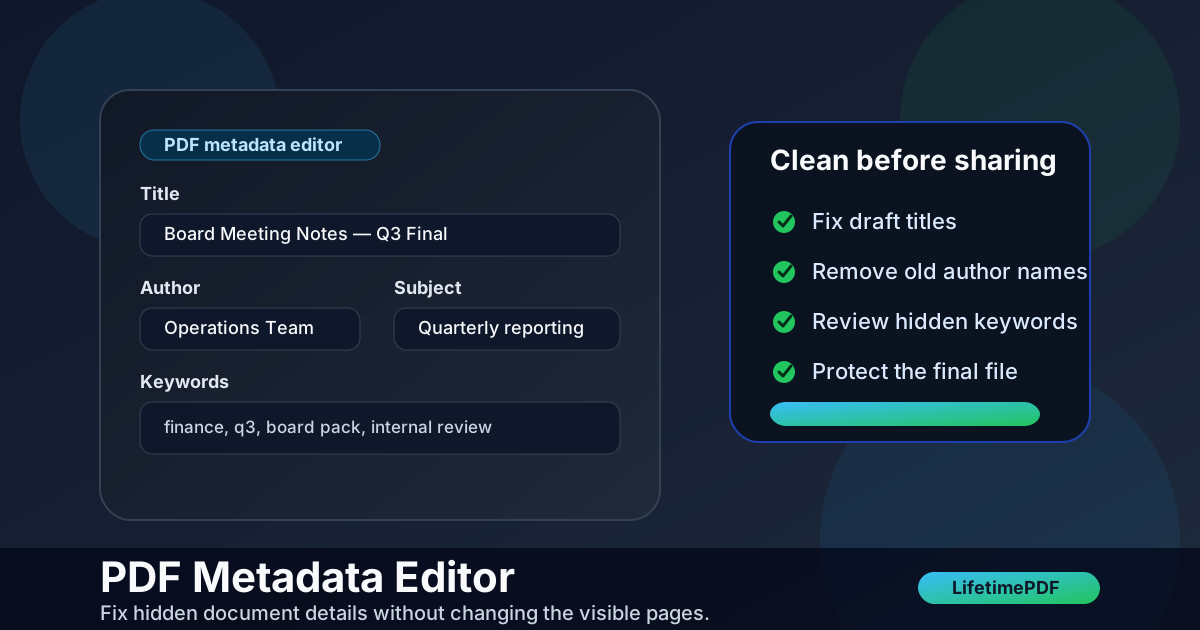
Table of contents
- Quick start: clean PDF metadata in under 3 minutes
- What a PDF metadata editor changes — and what it does not
- Which metadata fields matter most
- Why metadata still matters after the PDF looks finished
- Step-by-step: use LifetimePDF's PDF Metadata Editor
- Edit vs remove vs protect: choosing the right move
- Common PDF metadata mistakes
- A clean metadata workflow for teams, public downloads, and archives
- Related LifetimePDF tools and internal links
- FAQ (People Also Ask)
Quick start: clean PDF metadata in under 3 minutes
If your real goal is simply make sure this PDF does not carry the wrong hidden information, use this order:
- Open PDF Metadata Editor.
- Upload the PDF you plan to share, publish, archive, or hand off.
- Review the Title, Author, Subject, Keywords, Creator, Producer, and date fields.
- Change anything inaccurate, outdated, overly internal, or too revealing.
- Download the cleaned PDF and do one last property check before sending it onward.
What a PDF metadata editor changes — and what it does not
A PDF metadata editor works on the descriptive layer attached to the file. That layer helps systems identify, sort, preview, search, and classify the document. It is useful precisely because it can be fixed without reworking the document layout itself.
| What it changes | What it does not change |
|---|---|
| Title, author, subject, keywords, creator, producer, and some date fields | Visible text, page layout, page order, images, annotations, and signatures |
| How the document appears in file properties and some previews | What readers can literally see on the page |
| Background details used in document management and archive workflows | Passwords, permissions, and redactions unless you use separate tools |
That distinction matters because a lot of people expect metadata cleanup to solve every privacy or quality issue. It does not. It is one part of document hygiene, not the whole job.
Which metadata fields matter most
Not every field matters equally. These are the ones most likely to create confusion, clutter, or accidental disclosure.
| Field | Why it matters | Typical cleanup move |
|---|---|---|
| Title | Often appears in previews, tabs, archives, and search interfaces | Replace draft names and make it match the file's final purpose |
| Author | Can expose a person, a former employee, or the wrong team | Set it intentionally or clear it when it should not travel |
| Subject | Helps with internal classification and archive context | Use a short description or clear it if it adds noise |
| Keywords | Can improve findability but also reveal internal project labels | Keep useful terms and remove anything private or obsolete |
| Creator / Producer | May reveal the software or generation workflow behind the file | Review if software fingerprints are relevant to the share context |
| Dates | Can create audit confusion when they no longer match the version story | Confirm they make sense for the final handoff or archive copy |
The right metadata does not need to be verbose. It just needs to be intentional. A clean title, the right author, and sensible keywords do more than a pile of generic filler ever will.
Why metadata still matters after the PDF looks finished
Most PDF problems people notice are visible. Metadata problems are quieter, which is why they survive so long. They show up later in search results, cloud previews, archive exports, discovery requests, records management systems, and public download pages.
Common situations where metadata cleanup helps
- Client delivery: remove draft titles and internal project language before the file leaves your team.
- Public downloads: make the title and keywords match the final resource so the document looks intentional in previews.
- Compliance or legal records: keep the document identity consistent across versions and storage systems.
- Internal archives: standard metadata makes files easier to sort, search, and retrieve later.
- Privacy cleanup: clear hidden names, software details, or labels that should not be visible outside the workflow.
Step-by-step: use LifetimePDF's PDF Metadata Editor
Here is the practical workflow most people actually need.
1. Start with the final or nearly final PDF
Metadata cleanup works best near the end of the document workflow. If the file is still changing every few minutes, you will just keep repeating the same cleanup. Save it for the point where the document identity is stable.
2. Open the metadata tool and inspect the current values
Use PDF Metadata Editor to inspect the current title, author, subject, keywords, creator, producer, and date fields. Read them before changing them. A lot of messy files come from people overwriting things too quickly without noticing what the PDF already carries.
3. Fix the title first
The title is usually the most visible field, so fix that before anything else. Replace labels like final-final-v2, scan00041, or an outdated working draft name with a clean title that matches the real purpose of the document.
4. Review author and organization clues
Check whether the author name should remain attached to the file. In some workflows, a team or department name makes more sense than an individual person. In others, clearing the field is cleaner than exposing internal attribution that adds no value to the recipient.
5. Keep only useful subject and keyword data
Keywords should help retrieval, not act like a junk drawer. Keep the terms that make the file easier to find later. Remove stale campaign names, abandoned project codes, internal notes, or keyword stuffing that serves nobody.
6. Download the updated file and re-check once
Save the cleaned version, reopen it, and verify the properties actually look the way you intended. One quick re-check catches most mistakes immediately.
Edit vs remove vs protect: choosing the right move
People often treat these as the same job. They are not.
| Situation | Best move | Why |
|---|---|---|
| You want the PDF to look polished in previews and archives | Edit metadata | Accurate titles and authors help search, filing, and presentation |
| The metadata contains outdated or private hidden values | Clear or rewrite those fields | You remove noise without touching the visible pages |
| The visible page itself contains sensitive information | Redact the PDF | Metadata editing cannot remove what is printed on the page |
| You need to control access to the final file | Protect the PDF | Passwords and permissions solve a different problem than metadata cleanup |
The cleanest document workflows usually combine these. You fix the hidden properties, redact visible sensitive content when needed, then protect the finished file if the sharing context requires it.
Common PDF metadata mistakes
The same avoidable issues show up again and again.
Leaving draft titles in place
A polished proposal with a title like proposal-new-last-edit-really-final tells everyone the process was messier than it needed to be. It is a small thing, but small things stack.
Assuming the filename and metadata are the same
They are not. Renaming the file does not automatically update the internal title or author fields. That mismatch is one of the most common reasons PDFs look sloppy in previews.
Keeping internal keyword junk
Keywords can help with search, but long lists of campaign tags, staff shorthand, or abandoned project labels usually hurt more than they help.
Using metadata cleanup instead of redaction
If the sensitive information is visible on the page, metadata cleanup is the wrong tool. Use Redact PDF for that job.
Forgetting the final review
A quick re-open after saving catches accidental blanks, typos, and fields you meant to clear but did not. It is one of the cheapest quality checks in the whole PDF workflow.
A clean metadata workflow for teams, public downloads, and archives
If you handle PDFs regularly, it helps to treat metadata as a repeatable finishing step instead of a one-off cleanup task.
- Finish the content first. Lock in the real document purpose before you standardize the hidden fields.
- Set a naming convention. Decide how titles, authors, and subjects should look across your team or archive.
- Run one metadata review before release. Do it right before public sharing, client delivery, or archive storage.
- Redact visible secrets separately. Metadata editing is not a substitute for page-level privacy work.
- Protect the finished file if required. Add access controls only after the document content and metadata are clean.
That simple sequence is enough for most real workflows. You do not need a huge records management program to benefit from better metadata habits. You just need a short finishing checklist and the discipline to use it.
Related LifetimePDF tools and internal links
Metadata editing works best as part of a broader PDF cleanup workflow. These tools and guides fit naturally around it.
Helpful tool links
- PDF Metadata Editor - inspect and change hidden document properties
- Redact PDF - remove visible sensitive text and images properly
- PDF Protect - add password protection before sharing a finished file
- PDF to Text - inspect the visible wording when metadata is not the real issue
Suggested internal blog links
- PDF Metadata Editor Online
- PDF Metadata Checker
- Remove PII from PDF Metadata
- Change PDF Title and Author Online
- Browse all LifetimePDF articles
FAQ (People Also Ask)
How do I use a PDF metadata editor?
Open the metadata tool, upload the PDF, review the hidden title, author, subject, keywords, creator, producer, and date fields, then update or clear the values you do not want before downloading the cleaned file.
What can a PDF metadata editor change?
It can change hidden document properties such as title, author, subject, keywords, creator, producer, and some date fields. It does not rewrite the visible text, images, page order, or layout.
Does editing PDF metadata remove sensitive content from the page?
No. Metadata editing only affects hidden file properties. If the visible page contains private information, use redaction for that content.
Should I edit PDF metadata or remove it completely?
Edit it when accurate titles, authors, and keywords help search, filing, presentation, or records management. Clear or remove fields when they expose private, outdated, or irrelevant information that should not leave your workflow.
Does renaming a PDF file update the metadata too?
No. Renaming the file does not automatically change the internal PDF title, author, keywords, or other hidden fields. You need a metadata editor to update those directly.