PDF Metadata Checker: How to View Title, Author, Keywords, and Hidden Properties
If you need a PDF metadata checker, review the file's Title, Author, Subject, Keywords, Producer, and date fields before you share, publish, or archive it.
The fastest online workflow is to open the PDF in a metadata tool, inspect the hidden fields once, then edit or clear anything inaccurate, private, or outdated.
Most people judge a PDF by what is visible on the page. Metadata is the part they forget. That hidden layer can still carry old filenames, personal names, software fingerprints, and archive labels that no longer fit the document you are sending. A good metadata check takes a couple of minutes and saves you from avoidable privacy leaks, confusing file records, and sloppy public-facing downloads.
Fastest path: upload the PDF to LifetimePDF's metadata tool, scan the key fields, correct anything inaccurate, and save a cleaned copy before it leaves your hands.
In a hurry? Jump to Quick start: check PDF metadata in under 2 minutes.
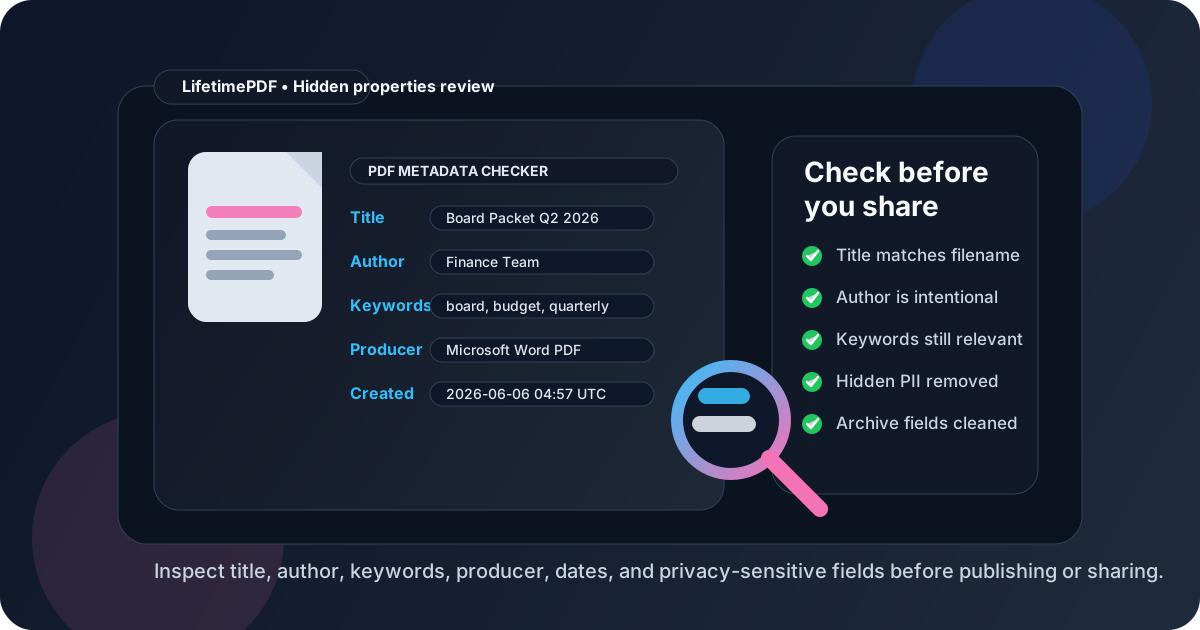
Table of contents
- Quick start: check PDF metadata in under 2 minutes
- What a PDF metadata checker actually shows
- Why metadata review matters before sharing
- Which PDF metadata fields matter most
- Step-by-step: how to inspect PDF metadata online
- When to edit metadata vs remove it
- Common metadata problems and quick fixes
- A practical PDF metadata workflow for teams
- Related LifetimePDF tools and internal links
- FAQ (People Also Ask)
Quick start: check PDF metadata in under 2 minutes
If your goal is simply make sure this PDF does not contain the wrong hidden information, use this checklist:
- Open PDF Metadata Editor.
- Upload the PDF you plan to send, publish, archive, or hand off to someone else.
- Review the Title, Author, Subject, Keywords, Creator, Producer, and date fields.
- Check whether the title matches the public filename and whether the author or organization names are intentional.
- Remove or rewrite anything that exposes private details, internal labels, or outdated project names.
- Save the cleaned copy and do one last spot-check before you share it.
What a PDF metadata checker actually shows
A PDF metadata checker is not reading the visible page text. It is showing the hidden properties attached to the file itself. Those properties help software sort, label, archive, preview, and identify the document. They can be useful when they are accurate and risky when they are wrong.
Common PDF metadata fields include:
- Title: the document name that viewers and search tools may display.
- Author: the person, team, or organization attached to the file.
- Subject: a short summary of what the PDF covers.
- Keywords: tags that help with organization and search.
- Creator: the original software or app used to make the document.
- Producer: the software engine that generated the PDF file.
- Created and modified dates: timestamps that can affect archives, reviews, and audit trails.
Some files also carry organization names, copyright notes, PDF standard details, or embedded XMP metadata. That is why a real metadata review is more than glancing at the filename.
Why metadata review matters before sharing
Metadata usually matters most at the exact moment a document leaves its original context. Inside your own folders, an ugly title or old author field might be harmless. The moment that file gets emailed to a client, published as a download, attached to a support ticket, or dropped into a legal archive, those hidden details become part of the document's professional footprint.
Where metadata checks pay off immediately
- Privacy: stop accidental leaks of personal names, usernames, internal departments, or software fingerprints.
- Professional presentation: keep the title and author fields aligned with the actual document you are sharing.
- Search and filing: make archived PDFs easier to sort and easier to distinguish later.
- Compliance: reduce the risk of sending out documents with stale or inappropriate hidden data.
- Content publishing: avoid embarrassing mismatches where a download still shows an old draft title or unrelated keywords.
Which PDF metadata fields matter most
Not every field carries the same weight. These are the ones worth checking first because they tend to cause the most confusion or leakage.
| Field | Why it matters | What to check |
|---|---|---|
| Title | Often displayed in PDF viewers and archives | Make sure it matches the final document, not an old draft name |
| Author | Can reveal a person, team, or device owner | Confirm the author is intentional and not an accidental personal username |
| Subject | Adds useful context for filing and search | Rewrite vague subjects like “Document” or clear them if unnecessary |
| Keywords | Help with internal organization when used carefully | Remove stale tags, unrelated campaigns, or irrelevant categories |
| Creator / Producer | Can expose workflow details and software fingerprints | Decide whether that information is fine to leave or better removed |
| Created / Modified dates | Useful for archives but can create confusion in reused files | Check that dates make sense for the version you are sending |
Step-by-step: how to inspect PDF metadata online
You do not need a bloated desktop workflow just to inspect document properties. For most people, a browser-based check is the fastest and least annoying way to do it.
- Go to PDF Metadata Editor.
- Upload the file you want to inspect.
- Read the metadata fields from top to bottom once.
- Compare the hidden title against the actual filename and the document's front page.
- Check whether the author and organization fields should stay public.
- Review keywords and subject fields for outdated project names, internal campaign labels, or irrelevant tags.
- Look at creator and producer fields if you care about privacy, software disclosure, or archive cleanliness.
- Save the corrected copy and verify it once before distribution.
Best workflow order: finish the visible document first, then check metadata, then redact page content if needed, and only then send or publish the file.
When to edit metadata vs remove it
A lot of people assume the safest move is to wipe every field. Sometimes that is right. Sometimes it makes the PDF harder to manage later. The better question is whether the metadata should be useful, neutral, or absent for the document's next destination.
Edit metadata when
- the PDF is a public download and should carry a clean, accurate title
- the document belongs to a team or brand rather than an individual device owner
- keywords or subjects help archives, portals, or internal search work better
- you want consistent document properties across a professional library
Remove or minimize metadata when
- the file contains sensitive legal, financial, HR, or investigative material
- the author field exposes a personal identity that should not travel with the file
- the creator or producer data reveals more about your internal environment than you want
- the document is being shared externally and the extra fields add no useful value
For many teams, the right answer is not blank metadata. It is intentional metadata. Keep what helps the document function and remove what only creates noise or risk.
Common metadata problems and quick fixes
These are the issues people run into most often when they finally inspect a PDF properly:
- Old draft title still attached: rewrite the title to match the final PDF.
- Personal username showing as author: replace it with the correct team or organization name, or clear it.
- Useless default labels like “Document”: add a real subject or remove it entirely.
- Outdated keywords from another project: delete them so archives and searches stay clean.
- Producer fields exposing unnecessary workflow details: decide whether those fields are acceptable for the audience receiving the file.
- Filename and metadata title do not match: align them so the PDF looks consistent wherever it is opened.
A practical PDF metadata workflow for teams
The cleanest approach is to make metadata review part of the finishing step, not a rescue task after the file is already out in the world.
- Create or finalize the PDF.
- Run a metadata check. Confirm title, author, subject, keywords, and dates.
- Clean privacy-sensitive fields. Use the guidance from our PII metadata guide if the file is going outside the company.
- Redact visible confidential information if needed.
- Protect or password-lock the final copy when the workflow calls for it.
- Archive the cleaned version, not the messy draft.
If your team processes a lot of files, consistent metadata pays off quickly. Clean titles make archives easier to search. Intentional author fields make ownership clearer. Fewer accidental leaks mean fewer embarrassing follow-up emails and fewer “please resend the cleaned copy” moments.
For larger document libraries, it also helps to standardize naming and review habits across the group. Even a simple checklist can save time when dozens or hundreds of PDFs move through the same workflow every month.
Related LifetimePDF tools and internal links
Checking PDF metadata is usually one step in a broader cleanup workflow. These tools fit naturally around it:
- PDF Metadata Editor - inspect and update the hidden properties directly
- Redact PDF - remove sensitive page content, not just hidden fields
- Protect PDF - add password protection when the final file needs tighter access control
- Remove PII from PDF Metadata - deeper guidance for privacy-sensitive files
- Batch Metadata Editing Efficiency - ideas for cleaning larger document sets faster
- LifetimePDF Blog - browse more PDF workflow guides
FAQ (People Also Ask)
What does a PDF metadata checker show?
A PDF metadata checker shows hidden file properties such as title, author, subject, keywords, creator, producer, and created or modified dates. Some PDFs also include organization names or extended XMP metadata that is not obvious from the visible page content.
Why should I check PDF metadata before sharing a file?
Because hidden fields can reveal personal names, internal project labels, old draft titles, and software details you never meant to send. A quick review helps keep the file more professional, easier to archive, and safer to share.
Can I edit PDF metadata online?
Yes. An online metadata editor lets you inspect and change the title, author, subject, keywords, and related document properties without needing a heavyweight desktop tool for a small finishing task.
Should I remove metadata completely?
Not always. For public-facing or archived files, accurate metadata is often better than empty metadata. For sensitive files, you may want to clear fields that expose personal or internal information while keeping only the essentials.
Does changing the filename update PDF metadata automatically?
No. Renaming the file does not automatically change the internal title, author, subject, or keyword fields. If you want those values updated, you need to review them directly in a metadata tool.
Ready to inspect the hidden properties?
Good default workflow: finalize the PDF → inspect metadata → remove sensitive details → share the cleaned copy