PDF Metadata Editor Online: Edit Title, Author, Subject & Keywords in Your Browser
Yes — a PDF metadata editor online lets you change a file's title, author, subject, keywords, creator, and other document properties directly in your browser without changing the visible pages.
The fastest route is to open LifetimePDF's PDF Metadata Editor, review the current fields, update only what should travel with the document, then download the cleaned PDF.
This matters more than most people expect. Hidden PDF properties can affect search, archive quality, client presentation, document previews, and privacy. A file can look polished on the page while still carrying an ugly draft title, an old employee name, stale project keywords, or software fingerprints you never meant to share.
Fastest path: upload the PDF, fix the metadata fields that matter, clear the ones that do not, and download the updated file in a few minutes.
In a hurry? Jump to Quick start: edit PDF metadata online in under 3 minutes.
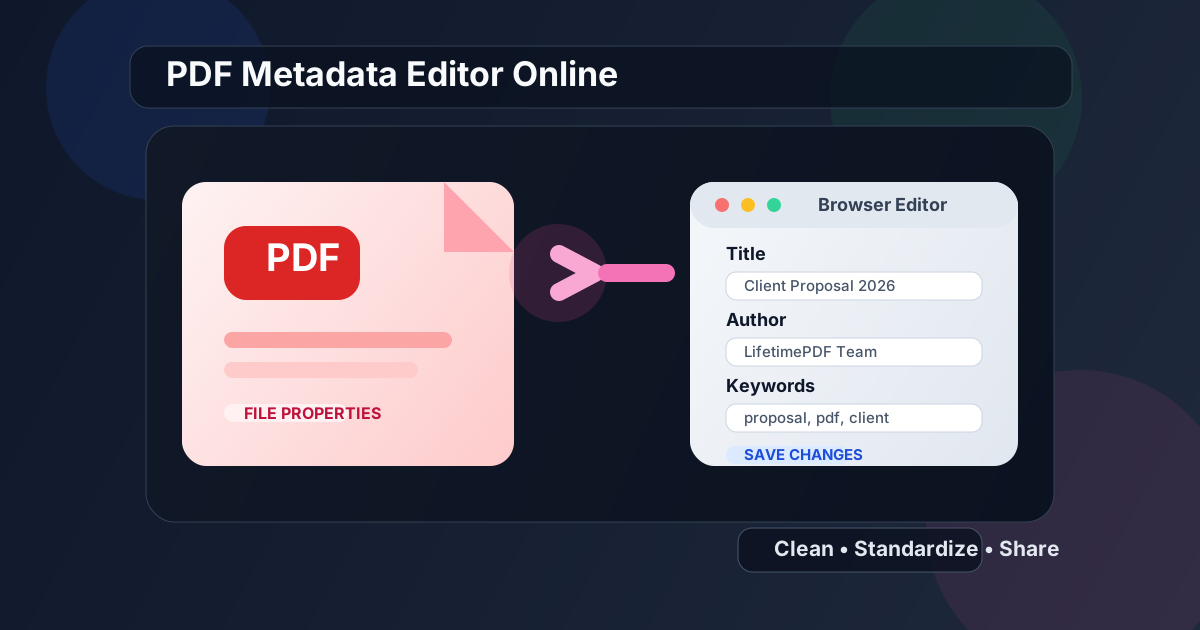
Table of contents
- Quick start: edit PDF metadata online in under 3 minutes
- What a PDF metadata editor changes — and what it does not
- Which PDF metadata fields matter most
- Why edit PDF metadata before sharing or archiving
- Step-by-step: use LifetimePDF's PDF Metadata Editor
- Smart metadata workflows for teams, freelancers, and personal archives
- Common mistakes people make when editing metadata online
- Edit metadata vs remove metadata vs protect the PDF
- Related LifetimePDF tools and guides
- FAQ
Quick start: edit PDF metadata online in under 3 minutes
If your goal is simply to fix the document properties before sharing the file, the workflow is short:
- Open PDF Metadata Editor.
- Upload the PDF you want to clean up.
- Review the current values for Title, Author, Subject, Keywords, Creator, Producer, and the document dates.
- Edit the fields that should stay with the file and clear the fields that are noisy, outdated, or too revealing.
- Download the updated PDF and do one quick final review.
What a PDF metadata editor changes — and what it does not
The phrase PDF metadata editor online sounds technical, but the core job is simple: it edits the background properties stored inside the file. Those properties help systems identify, sort, preview, index, and classify a document.
| Changes | Does not change |
|---|---|
| Title, author, subject, keywords, creator, producer, timestamps | Visible text, page layout, page order, images, signatures, and annotations |
| How the PDF appears in file properties and some document previews | What readers can see on the page itself |
| Background details used for organization or compliance cleanup | Passwords, permissions, or redactions unless you use separate tools |
That distinction matters. People often assume that cleaning metadata removes all hidden risk, but it only solves one part of the problem. If the page content contains something private, metadata editing alone will not save you.
Which PDF metadata fields matter most
Not every field deserves the same attention. Some help with search and organization. Others mostly reveal software history or stale workflow details.
| Field | What it usually means | Best practice |
|---|---|---|
| Title | The formal document name shown in file properties or previews | Use a clean public-facing title instead of a draft filename |
| Author | The person or organization associated with the document | Standardize it to the right person, team, or brand |
| Subject | A short summary or classification label | Keep it short and useful, or leave it blank if it adds noise |
| Keywords | Search tags or indexing terms | Use controlled, intentional labels instead of random internal jargon |
| Creator | The application or workflow that originally made the file | Keep only if it serves a real records or audit purpose |
| Producer | The software that generated the final PDF | Clear it if you do not want to expose internal tooling details |
| Dates | Creation and modification timestamps | Review them when timeline clarity or privacy matters |
The biggest win usually comes from fixing the title and author first. Those are the fields that most often look sloppy, outdated, or inconsistent across a folder full of PDFs.
Why edit PDF metadata before sharing or archiving
Metadata is invisible until it suddenly matters. That usually happens when a client downloads the file, a teammate searches an archive, or a system preview exposes details you forgot existed.
1) Cleaner presentation
A polished proposal should not carry a title like final-v7-use-this-one. Small hidden details still shape how professional a document feels.
2) Better archive quality
Long-term file libraries get messy fast. Consistent metadata makes contracts, reports, manuals, onboarding packets, and compliance records easier to sort and retrieve later.
3) Less accidental oversharing
Hidden properties can reveal employee names, internal project labels, dates, or software history that the recipient does not need. Cleaning those fields reduces unnecessary leakage.
4) Simpler team standards
Teams often want outgoing PDFs to follow a naming and ownership convention. An online metadata editor is an easy final checkpoint before upload, e-signature, or external delivery.
Step-by-step: use LifetimePDF's PDF Metadata Editor
If you want a browser-based workflow that stays focused, this is the practical sequence to follow.
- Open the tool. Go to LifetimePDF PDF Metadata Editor.
- Upload the PDF. Start with the finished version of the file, not an older draft that still needs content changes.
- Read the current values first. Do not overwrite fields blindly. Check whether some values are still useful and only certain ones need cleanup.
- Update the document identity fields. Title, author, subject, and keywords usually deserve first attention.
- Review the software and date fields. Keep them only if they serve a real purpose for records, compliance, or internal control.
- Download the edited PDF. Open the file once after saving so you confirm the properties now match the version you actually intend to send or archive.
Ready to clean a file now?
Smart metadata workflows for teams, freelancers, and personal archives
The best metadata strategy depends on why the PDF exists and where it is going next.
Client-facing files
Clean up the title, author, and subject so the file looks intentional when downloaded, previewed, or forwarded. Remove internal project shorthand that the client should never need to decode.
Internal document libraries
Use consistent keywords and naming conventions. Metadata becomes much more useful when the whole team follows the same pattern instead of improvising from file to file.
Legal, HR, finance, or compliance records
Be more deliberate with dates and author fields. Sometimes those details should stay because they support retention, approval, or audit workflows. The goal is not to strip everything out blindly. The goal is to make the file accurate.
Personal archives
If you are organizing tax records, certificates, applications, or scanned personal paperwork, clean titles and subjects make future retrieval much less annoying.
Common mistakes people make when editing metadata online
The tool itself is easy. The mistakes usually come from assumptions.
- Changing metadata before the PDF content is final. Finish the document first, then clean the properties last.
- Assuming metadata cleanup equals privacy cleanup. It does not. Visible sensitive content still needs redaction.
- Leaving inconsistent titles across a file set. One cleaned PDF is nice. A whole folder with a consistent standard is better.
- Keeping junk keywords. Random export labels, internal abbreviations, or software leftovers rarely help anyone later.
- Ignoring the final check. Open the saved file once. Two minutes of verification beats sending a PDF with the wrong public title.
Edit metadata vs remove metadata vs protect the PDF
These are related jobs, but they are not interchangeable.
| If you need to... | Best tool/action |
|---|---|
| Fix titles, author names, keywords, and document identity | PDF Metadata Editor |
| Remove sensitive visible content from pages | Redact PDF |
| Add a password before sending the file externally | PDF Protect |
| Shrink a heavy file after cleanup | Compress PDF |
In real workflows, people often do more than one of these. For example, you might clean metadata first, redact one page, then password-protect the final version before upload.
Related LifetimePDF tools and guides
If metadata editing is only one step in your workflow, these are the next places to go:
- PDF Metadata Editor — update title, author, subject, keywords, creator, and other document properties.
- Redact PDF — permanently hide visible sensitive information on the page.
- PDF Protect — add a password before external sharing.
- Change PDF Title and Author Online — narrower guide for the two fields people fix most often.
- Remove Metadata From PDF Online — useful when cleanup matters more than keeping polished file properties.
Want a cleaner handoff for the final file?
FAQ
How do I edit PDF metadata online?
Open an online PDF metadata editor, upload the file, review the current document properties, change the fields you want to keep, clear the fields you do not want, then download the updated PDF.
What does a PDF metadata editor change?
It changes hidden file properties such as title, author, subject, keywords, creator, producer, and dates. It does not rewrite the visible page text or layout.
Can I change the PDF title and author without editing the content?
Yes. That is one of the most common metadata edits. You can update those fields without touching the visible pages of the PDF.
Should I remove metadata completely instead of editing it?
It depends on the workflow. If the PDF needs clean public-facing properties, edit the metadata. If the hidden details serve no purpose or create privacy concerns, removing them can be the better move.
Is metadata cleanup enough for sensitive PDFs?
No. Metadata cleanup helps with hidden file details, but sensitive text or images on the visible page still require proper redaction. For external sharing, password protection may also make sense.