Change PDF Title and Author: Fix Hidden Document Details Before You Share the File
Yes — you can change PDF title and author fields without changing the visible pages by editing the file's metadata, saving the updated copy, and checking the document properties once before you share it.
If the wrong name or a messy draft title keeps appearing in previews, search results, or document libraries, a quick metadata pass usually fixes it faster than renaming the file.
This matters more than most people expect. A PDF can look finished on the page and still carry an old proposal title, an employee name that should not travel with the file, internal keywords, or leftover creator details from an earlier workflow. Those hidden fields shape previews, search, organization, and sometimes privacy. Cleaning them takes only a few minutes, but it can make the document feel far more polished and far less risky.
Fastest path: open the metadata editor, update the title and author on the exact copy you plan to send, then verify the cleaned result once before sharing.
Need the short version? Jump to Quick start: change PDF title and author in under 3 minutes.
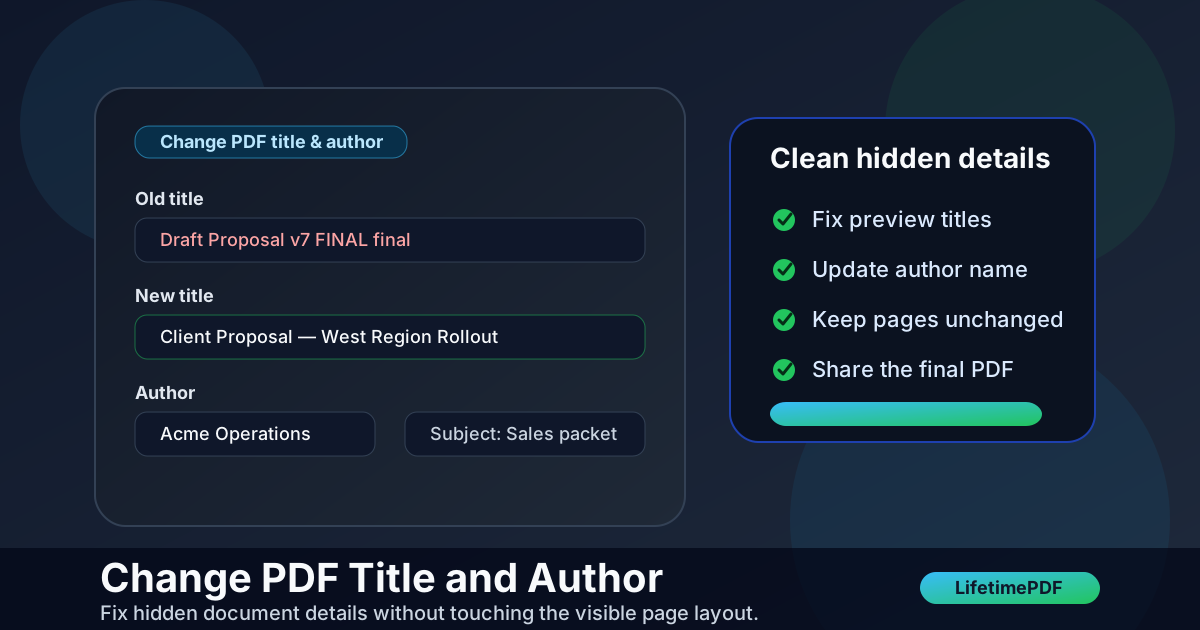
Table of contents
- Quick start: change PDF title and author in under 3 minutes
- What changes when you edit a PDF title and author
- Why these two fields matter more than they seem
- Step-by-step: the clean workflow
- What to put in the title and author fields
- When to edit the metadata and when to clear it
- Why the old title still shows up sometimes
- A safer final-sharing checklist
- Common mistakes that make metadata messy
- FAQ
Quick start: change PDF title and author in under 3 minutes
If you already know the PDF is carrying the wrong hidden details, the workflow is simple:
- Open PDF Metadata Editor.
- Upload the exact PDF you plan to send, publish, or archive.
- Replace the current Title and Author with the values that should stay with the file.
- Review the rest of the metadata quickly so old keywords, subjects, or creator details do not slip through.
- Download the updated PDF and verify the properties once in your PDF viewer.
What changes when you edit a PDF title and author
Editing the title and author changes the PDF's metadata, not the visible page design. The text, images, tables, signatures, and layout can remain untouched while the hidden document identity gets cleaned up.
What it does change
- Preview titles in some PDF viewers and content libraries
- Author attribution inside document properties
- How the file is labeled in some archive and search workflows
- Whether old draft names or personal author details travel with the file
What it does not change
- The visible words printed on the PDF pages
- Headers, footers, logos, signatures, or page numbers
- Sensitive information that is still visible in the content
- The filename unless you rename it separately
That distinction matters because people often expect metadata editing to behave like page editing. It does not. Think of it as cleaning the label on the box, not repainting what is inside the box.
Why these two fields matter more than they seem
The title and author fields look small, but they shape a lot of downstream behavior. When they are wrong, the file feels sloppy even when the content itself is fine.
1. Cleaner previews and better first impressions
A strong title helps the PDF look intentional in browser tabs, document viewers, email attachments, archive systems, and client portals. "Draft 7 Final v2" is noise. "Vendor Security Review — June 2026" is useful.
2. Better privacy habits
An author field can expose more than you intend. Maybe the PDF still lists a former employee, a freelancer, a personal machine name, or a name that does not belong on a client-facing deliverable. Cleaning the author field is a small but worthwhile privacy win.
3. Easier internal organization
Teams working with many PDFs benefit from consistent labels. Accurate titles and authors make search, sorting, and archiving less chaotic, especially when filenames change across uploads or exports.
4. Fewer embarrassing leftovers
Metadata is where a lot of forgotten draft history lingers. If you are sending proposals, board packs, HR forms, legal packets, school records, or client documents, it is worth checking what the hidden fields still say.
Step-by-step: the clean workflow
Here is the practical way to change PDF title and author without creating rework.
Step 1: Work on the final or near-final copy
Do not fix metadata on a file that will immediately be replaced. If the PDF still needs visible edits, page deletions, redaction, or signatures, finish those first when possible. Otherwise you may clean one copy and accidentally send another.
Step 2: Open the metadata editor
Use LifetimePDF's PDF Metadata Editor and upload the PDF. This gives you a direct view of the document properties without forcing a bulky desktop workflow.
Step 3: Replace the title with something a real recipient can understand
Good PDF titles are short, specific, and stable. They tell a human what the file actually is. If the title would confuse a client, colleague, or future you, change it.
- Board Report — Q2 2026
- Client Proposal — West Region Rollout
- Employee Onboarding Packet — Final
- Property Inspection Summary — 18 Oak Street
Step 4: Set the author to the right identity
The right author value depends on how the file should be understood later. In many business cases, the company or team name is cleaner than an individual person's name. In academic or personal work, a real personal name may be the correct choice.
Step 5: Scan the rest of the metadata before you save
Once you are already inside the editor, take the extra few seconds to review subject, keywords, creator, producer, and date fields. The title and author may be your main concern, but old keywords or draft subjects can still undermine the polish of the file.
Step 6: Save and verify the result
Download the updated PDF and re-open it once. Check the document properties directly. This is how you catch the classic mistake of editing the wrong file, checking the wrong copy, or trusting a stale preview cache.
What to put in the title and author fields
Many people know the current values are wrong, but they are not sure what the replacement should be. A good rule is simple: write what will still make sense when the file is opened later by someone else.
| Field | Best practice | Avoid |
|---|---|---|
| Title | Use a clear document name with purpose, audience, or date if needed. | Draft clutter, internal version sprawl, vague labels like "Document1". |
| Author | Use the person, team, or organization that should own the file's identity long term. | Old employee names, personal laptop usernames, irrelevant software defaults. |
If you publish PDFs externally, keep the title aligned with the way you want people to recognize the document. If the file is internal, optimize for clarity and findability. If the PDF is sensitive, optimize for minimal exposure.
When to edit the metadata and when to clear it
Not every file needs rich metadata. Sometimes the right move is to improve the fields. Sometimes the right move is to strip them down.
Edit the title and author when:
- The PDF is client-facing or public-facing
- The file will live in a shared archive
- You want better search and cleaner preview behavior
- The current values are wrong but useful replacements exist
Clear or neutralize them when:
- The current metadata exposes personal or internal information
- The file is leaving a private workflow
- No author attribution is necessary
- You want the file to travel with less hidden baggage
You do not need to over-engineer this. The goal is simply to make the metadata accurate, useful, and appropriate for the file's destination.
Why the old title still shows up sometimes
This is one of the most common frustrations after a metadata edit. You change the title, save the file, and some app still appears to show the old value.
Reason 1: the app is showing the filename, not the title
Some viewers prioritize filenames in tabs, downloads, or side panels. That does not always mean the metadata failed. Check the document properties directly.
Reason 2: you edited one copy and opened another
This happens constantly when a folder contains several drafts. Verify the modified file path and the download location before assuming the tool failed.
Reason 3: preview caching is in the way
Some systems keep old previews for a while. Re-open the file, refresh the library, or test in another viewer to confirm the change.
Reason 4: more metadata still needs cleanup
The title may be fixed while the subject, keywords, or creator information still looks messy. That can make the file feel only half-cleaned.
A safer final-sharing checklist
Changing title and author is a strong cleanup step, but it is only one part of a careful PDF workflow. Before you send a sensitive or polished document out into the world, use this quick checklist:
- Fix visible content first if the pages still need edits.
- Check metadata so the hidden title and author are accurate.
- Redact visible sensitive content if names, account numbers, comments, or IDs appear on the page.
- Protect the final copy if the recipient should not receive an open PDF.
- Re-open once before sending so you know the final file is the one you intended.
Useful next steps: check the hidden fields, clean them, redact what must disappear from the page, and only then protect the outgoing copy.
Common mistakes that make metadata messy
- Renaming the file but never editing the metadata — the preview still shows the old embedded title.
- Using version clutter as the title — titles like "Final FINAL 3" help nobody six weeks later.
- Leaving a personal name in the author field when the organization should own the document identity.
- Cleaning title and author but ignoring keywords or subject — the file still carries avoidable leftovers.
- Assuming metadata cleanup equals redaction — visible sensitive content still needs proper removal.
- Forgetting to verify the saved copy — the edit may be correct, but the wrong file may get shared.
None of these are difficult problems. They are just easy to miss when you are moving fast. A short metadata review near the end of the workflow is usually enough to prevent them.
FAQ
How do I change the title and author of a PDF?
Use a PDF metadata editor, upload the file, change the title and author fields, save the updated copy, and verify the result in the document properties before sharing it.
Does changing the filename also change the PDF title?
No. The filename and the embedded PDF title are separate. A renamed file can still carry the old internal title until you edit the metadata directly.
Should the author field contain my name or my company?
Use whichever identity should stay attached to the file long term. For many client-facing or team-owned documents, the organization name is cleaner than an individual person's name.
Can I change the title and author without changing the visible pages?
Yes. Metadata editing changes the hidden document properties and leaves the visible page content alone unless you make separate page-level edits.
What if the PDF still shows the old title after I save it?
Check whether the app is showing the filename instead of the metadata title, make sure you opened the updated copy, and verify the document properties directly instead of relying only on a cached preview.