Check PDF Bookmarks: Catch Broken Outline Links, Vague Labels, and Dead Jumps Before You Share
To check PDF bookmarks, open the outline, click the high-value entries, and confirm the labels, hierarchy, and jump targets still match the real structure of the file.
If bookmarks land on the wrong page, use vague names, or reflect an older draft, clean them up before you send, archive, publish, or sign off on the PDF.
That is the short answer. The useful part is knowing what to test quickly, which failures matter most in long reports and merged packets, and when the right fix is rebuilding the outline instead of pretending the sidebar is good enough. A bookmark check is not busywork. It is one of the fastest ways to make a PDF feel dependable instead of sloppy.
Fastest practical path: scan the outline for obvious label problems, click the main jumps, compare them with visible headings and page order, then trim or rebuild stale entries before you share the file.
In a hurry? Jump to quick start: check PDF bookmarks in about 7 minutes.
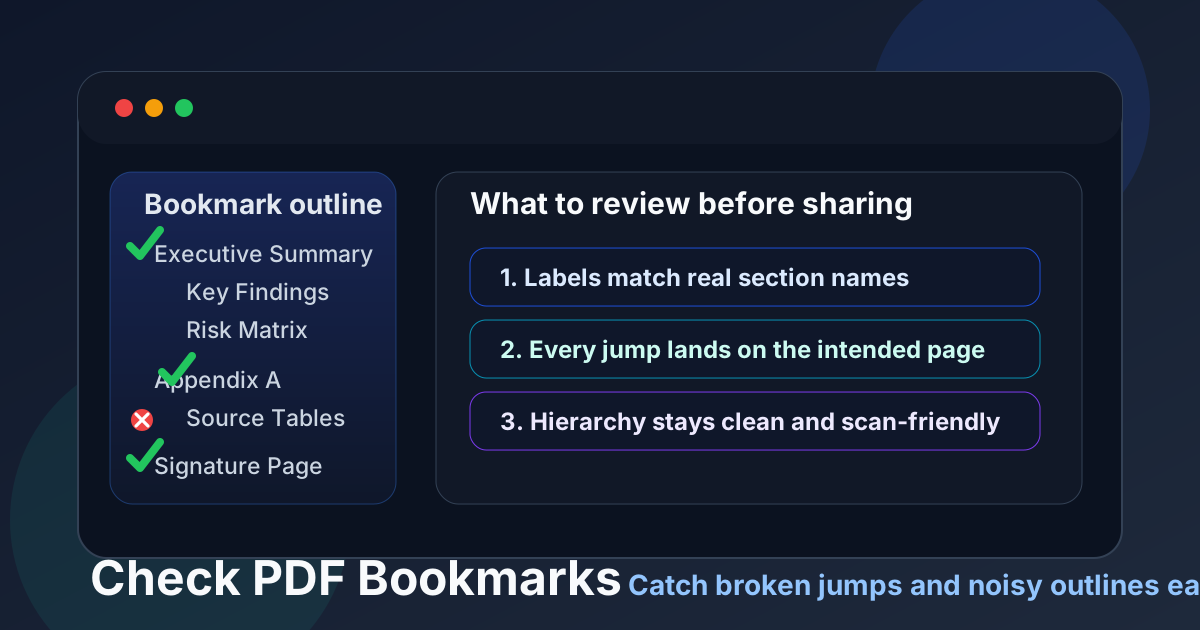
Table of contents
- Quick start: check PDF bookmarks in about 7 minutes
- What good PDF bookmarks actually do
- Step-by-step: practical PDF bookmark review workflow
- Common bookmark failures
- Merged packets, scans, and visible tables of contents that need extra care
- When to rebuild the outline instead of patching one bad jump
- Final checklist before you share or archive the PDF
- Related LifetimePDF tools and guides
- FAQ
Quick start: check PDF bookmarks in about 7 minutes
If your goal is simply tell me whether this outline is safe to send, this quick review catches most real-world problems:
- Open the bookmark panel and scan the top-level outline. It should show the major structure without looking noisy or cryptic.
- Click the bookmarks readers are most likely to use: summary, chapters, appendices, exhibits, pricing, or the signature page.
- Check whether the labels match the actual headings, section names, or filing labels inside the PDF.
- Look for signs of stale editing: duplicates, vague names, jumps that land one page early or late, or entries that still reflect an older page order.
- If the PDF was merged, extracted, OCR-recovered, or had pages inserted later, test more than one section before trusting the rest.
What good PDF bookmarks actually do
Good bookmarks are not just decorative sidebar entries. They are a navigation layer that helps a reader move through a long PDF without re-learning the document every time they reopen it.
That matters in obvious places like manuals and reports, but it also matters in proposals, legal packets, board decks, multi-part applications, due-diligence binders, and scanned archives that somebody has to revisit under time pressure. If the outline is wrong, the whole PDF feels less trustworthy.
| What a healthy bookmark outline does | What a weak outline does instead | Why it matters |
|---|---|---|
| Uses labels readers recognize instantly | Uses vague names like “Section 2” or stale draft language | People hesitate because the navigation does not feel trustworthy |
| Lands on the right page every time | Jumps one page off or to an outdated section | Reviewers waste time and lose confidence fast |
| Shows a clean hierarchy | Buries the main structure in an over-detailed wall of entries | The sidebar becomes harder to use than scrolling |
| Matches the final document order | Reflects a pre-merge or pre-edit version of the PDF | Merged packets and revised reports feel sloppy or misleading |
| Supports visible navigation aids | Conflicts with headings, page numbers, or the table of contents | Readers stop trusting both the outline and the page itself |
In plain English: a bookmark check asks whether the sidebar still tells the truth about the document a real person is about to use.
Step-by-step: practical PDF bookmark review workflow
1. Start with the visible structure, not the sidebar alone
Before you click anything, skim the major headings, chapter openers, appendix labels, or exhibit dividers in the PDF itself. That gives you a quick mental map. Then compare the bookmark outline against that map. If the language already feels out of sync, the bookmarks probably need more than a cosmetic rename.
2. Test the high-value jumps first
You do not need to click every bookmark in a 200-page file before you know whether the outline is healthy. Start with the destinations people actually revisit: executive summary, scope, pricing, appendix tabs, schedules, exhibits, signature pages, or troubleshooting sections. If those are wrong, the rest of the outline needs skepticism too.
3. Check whether the labels sound like navigation
A good bookmark label should feel clear before the click. Appendix B - Vendor Responses is useful. More Info is not. Bookmark labels should match the terms readers already see in headings, indexes, filing lists, or meeting language.
4. Look for hierarchy that helps instead of overwhelms
Parent-child layers should make the outline easier to scan, not denser for the sake of density. A clean first layer usually shows the big sections. Child entries can help in manuals, policy binders, and exhibit packets, but only when they genuinely reduce searching.
5. Compare bookmarks with the visible table of contents or page numbers
If the PDF has a visible table of contents, section divider pages, or page numbering system, compare them against the bookmark panel. Mismatches often expose old edits: a bookmark still says Appendix C while the page now says Appendix D, or the page numbers shifted after pages were deleted.
6. Recheck after merges, deletes, OCR, or packet assembly
Bookmarks break surprisingly often when files are combined, pages are moved, or scans are OCR-cleaned late in the workflow. If the PDF came from several source files, assume the outline needs a final review. The most common failure is not a missing bookmark. It is an old bookmark that still exists and now lands in the wrong place.
Reliable sequence: compare the outline with the visible structure, click the important jumps, clean vague labels, then recheck after any merge or page-order change.
Common bookmark failures
Bookmark problems repeat themselves. Once you know the common failure patterns, you can spot them in minutes.
| Failure pattern | What goes wrong | Better approach |
|---|---|---|
| Draft-language bookmarks | The bookmark names reflect internal editing terms rather than the final section names readers see. | Rename the outline to match final headings and packet labels. |
| Dead or shifted jumps | Bookmarks land on the wrong page after merging, inserting, or deleting pages. | Retarget the important entries after the final page order is locked. |
| Too much hierarchy | The sidebar becomes a dense tree that hides the major structure. | Keep the top layer clean and only add child entries that help real navigation. |
| Visible TOC and sidebar disagree | The on-page contents and the bookmark panel refer to different names or destinations. | Update both so the navigation system feels consistent. |
| Scanned packet false confidence | The PDF looks organized visually, but bookmarks point to generic scan pages or stale packet sections. | Test the outline after OCR and packet assembly instead of assuming it survived intact. |
One simple warning sign: if the bookmarks look like they were built for the editor instead of the final reader, the PDF is not finished yet.
Merged packets, scans, and visible tables of contents that need extra care
Some files deserve a more skeptical bookmark review than others.
Merged packets and combined exhibits
These are the classic place where bookmarks drift. A packet may start with clean navigation in each source file, then lose accuracy once pages are combined, inserts are added, or appendices are moved. If the PDF was assembled from multiple documents, assume the final outline needs testing.
Scanned archives and OCR-recovered documents
OCR can restore text and improve search, but it does not automatically create a trustworthy navigation outline. Older archive packets often carry vague labels, generic section names, or bookmarks copied from an earlier version of the file.
Long manuals, policies, and board books
These files benefit from hierarchy, but they also suffer most when the hierarchy gets noisy. If the outline is overloaded with tiny entries, readers stop using it and go back to random scrolling.
PDFs with a visible table of contents
A visible contents page can make a file look more finished than it really is. But if the sidebar uses different labels or jumps to different destinations, readers notice the inconsistency quickly. The visible TOC and the bookmark panel should reinforce each other, not compete.
Where people get fooled
The first few bookmarks work, the page thumbnails look tidy, and the PDF opens on a polished cover page. That visual neatness creates false confidence. A real bookmark check asks whether the navigation stays accurate deeper in the file, after inserts, appendices, merged exhibits, and page-order changes.
When to rebuild the outline instead of patching one bad jump
Sometimes one broken bookmark really is just one broken bookmark. But when the problems repeat, a full outline cleanup is usually faster than tapping at the symptoms one by one.
Rebuild or substantially trim the outline when:
- major section names changed during editing,
- multiple bookmarks land on outdated pages,
- the top-level structure no longer reflects the final packet order,
- the sidebar is cluttered with old draft entries or tiny subitems nobody needs,
- the PDF was merged from several source files and the outline now feels stitched together.
If the broader PDF is under quality review, pair bookmark checking with link review, heading review, reading-order review, and accessibility review. Weak navigation often travels with other structural problems.
Final checklist before you share or archive the PDF
- The top-level bookmarks reflect the real final structure of the PDF.
- The labels match visible headings, exhibit names, chapter titles, or appendix names.
- The high-value bookmarks land exactly where they should.
- The hierarchy helps scanning instead of overwhelming it.
- Merged files, inserted pages, and OCR-recovered sections were tested deliberately.
- The bookmark panel and any visible table of contents agree with each other.
- Stale, duplicate, or editor-only entries were removed before the file was shared.
Related LifetimePDF tools and guides
Related structure checks
Need cleaner navigation before a client review, filing, board packet, or archive handoff? A quick bookmark audit catches the kind of errors that make a PDF feel unreliable even when the content itself is solid.
FAQ
How do I check PDF bookmarks quickly?
Open the bookmark panel, scan the top-level labels, click the most important jumps, and compare the outline with the real section names in the PDF. If anything feels vague, outdated, or off-target, clean it before you share the file.
What makes a PDF bookmark outline bad?
Weak outlines usually have vague labels, dead jumps, duplicates, missing major sections, or so much hierarchy that the sidebar becomes harder to use than the document itself.
Should PDF bookmarks match the visible headings?
Usually yes. The closer the bookmarks sound to the actual chapter names, appendix labels, or exhibit titles, the more trustworthy the navigation feels.
Do bookmarks still matter if the PDF already has a table of contents?
Yes. A visible table of contents helps on the page, but bookmarks stay available while the reader is already deep inside the file, so the two features work best together.
Should I recheck bookmarks after merging or OCR?
Definitely. Page order changes, inserted scans, and OCR cleanup can all leave old labels or broken targets behind, so a final outline review is worth the minute or two it takes.
Published by LifetimePDF — Pay once. Use forever.