Add Page Numbers to PDF: Pick the Right Start Page, Format, and Placement for a Clean Final File
To add page numbers to a PDF, finish the document first, choose where the numbers should appear, decide which physical page should show the first visible number, then export and review the final file.
The clean workflow is to treat numbering as a finishing step so cover pages, roman-numeral front matter, appendices, blank sheets, and merged packets all stay easy to understand.
Most people searching this are not stuck on the idea of putting a digit in a footer. They are stuck on the little decisions that make numbered PDFs either feel polished or feel strangely wrong. Should the cover stay blank? Should page two show “1”? Should the appendix use letters or should the front matter use roman numerals? Should the file be merged before numbering? Once you answer those workflow questions, adding page numbers becomes easy and the finished PDF feels far more deliberate.
Fastest path: finalize the packet first, then use LifetimePDF's PDF Page Numbers tool to choose placement, visible numbering, start page, and skipped pages in one pass.
Need the short version? Jump to Quick start: add page numbers in a few minutes.
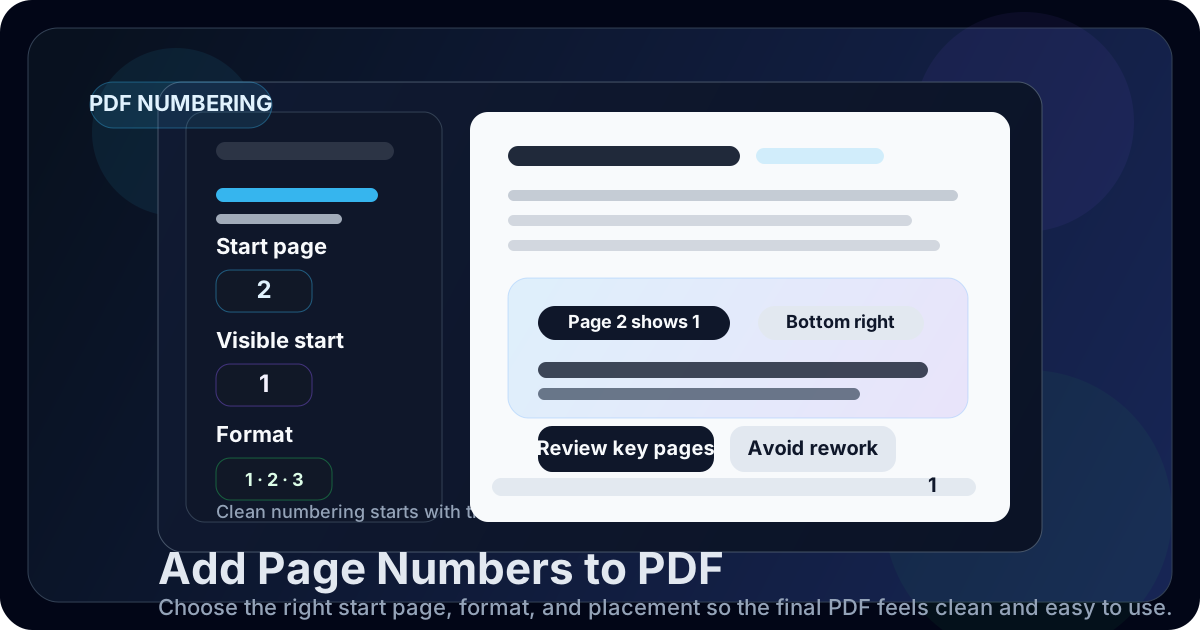
Table of contents
- Quick start: add page numbers in a few minutes
- What “add page numbers to PDF” usually means in real workflows
- Step-by-step: add page numbers with LifetimePDF
- Common numbering setups that solve most page-numbering problems
- Start page vs start number vs skip pages
- Mistakes that make a numbered PDF feel sloppy
- Best workflow order before you number the PDF
- Related LifetimePDF tools and internal guides
- FAQ (People Also Ask)
Quick start: add page numbers in a few minutes
If you only need the dependable workflow, use this order:
- Open PDF Page Numbers.
- Upload the final PDF, not a draft that still needs page moves or deletions.
- Choose the position for the numbers: top or bottom, left, center, or right.
- Pick the numbering style you want, such as regular digits or roman numerals.
- Set the physical start page and the visible start number.
- Skip any pages that should remain unnumbered.
- Export the file and spot-check the first numbered page, a middle page, and the last page.
What “add page numbers to PDF” usually means in real workflows
In practice, adding page numbers to a PDF is almost never just about stamping every sheet with 1, 2, 3. It is usually about making the final file easier to read, reference, print, archive, or review. The correct numbering setup depends on what kind of document you are finishing and what readers will expect when they open it.
| Document type | What readers usually expect | Good numbering choice |
|---|---|---|
| Reports and proposals | A clean footer that helps people reference sections during review | Standard digits, often bottom center or bottom right |
| Cover page + body packet | A blank cover with the next page showing 1 | Start numbering on physical page 2 with visible number 1 |
| Manuals, books, and handbooks | Front matter separated cleanly from the body | Roman numerals for front matter, standard digits for the body |
| Merged exhibit or review packets | One continuous sequence after the files are assembled | Merge first, then apply one final numbering pass |
| Forms and application packets | Numbers that do not cover instructions, signatures, or boxes | Use a quiet corner and review every landscape or dense page |
That is why a good page-numbering workflow always starts with the final document behavior, not just the numbering button itself. The right question is not “How do I force numbers onto every page?” The right question is “What should the finished document feel like when someone reads it, prints it, or cites it?”
Step-by-step: add page numbers with LifetimePDF
1) Start with the final PDF
If you still need to merge files, remove blanks, rotate sideways scans, crop giant margins, or split front matter from the main body, do that first. Page numbering works best when the page order is already locked.
2) Open the numbering tool
Go to LifetimePDF PDF Page Numbers and upload the finished file. This is the point where you decide how readers will experience the final page sequence, not just how the numbers will look.
3) Choose the placement carefully
Placement affects readability more than people expect. A number in the wrong corner can sit on top of legal footer text, page artwork, page labels, or form fields. For many business documents, bottom center or bottom right feels natural. For forms or scans with heavy footer content, top right may be safer.
4) Pick the numbering style that matches the document
Standard digits are the right default for most reports, contracts, decks, manuals, and packets. Roman numerals can help for prefaces or tables of contents. Letter-based numbering can make sense for appendices or labeled sections, but only if it genuinely helps the reader. If the extra formatting creates more explanation than clarity, stick with simple digits.
5) Set the physical start page and the visible start number
This is the setting pair that solves most real-world problems. The physical start page tells the tool which sheet in the file begins numbering. The visible start number tells the tool what printed number should appear there. When people want the cover page unnumbered and page two to display 1, this is the step that makes it happen.
Physical start page =
2Visible start number =
1Result = the cover stays unnumbered, and the second page becomes the visible start of the document.
6) Skip pages only when skipping is truly useful
Skip-page controls are great when you have a cover, inserted blank sheets, or signature pages that should stay visually clean. They are less great when you use them to patch a messy page order that should really be fixed upstream. If you find yourself skipping a lot of random pages, it is usually a sign that the packet should be cleaned before numbering.
7) Export and review a few representative pages
Always check the first numbered page, a middle page, and the last page. If the PDF includes landscape sheets, scans, or pages with crowded headers and footers, review those too. Thirty seconds of checking can prevent a file that looks careless or has to be redone later.
Common numbering setups that solve most page-numbering problems
Cover page stays blank, body starts at 1
This is the most common setup for proposals, reports, board packets, school submissions, and handbooks. The document looks cleaner when the cover stays untouched and the first real content page starts the visible sequence. If that is your case, use the page-two workflow described in this dedicated guide.
Front matter uses roman numerals, body uses standard digits
Longer documents sometimes need a more book-like structure. A title page, table of contents, acknowledgements, or preface can use roman numerals while the main chapters begin at page 1. The clean way to handle this is to split the sections, number them separately, then merge the finished file back together. If you want that front-matter style, see Add Roman Numerals to PDF Pages.
Continue numbering after a merged packet or prior section
Sometimes you do not want the numbering to restart. You may be adding an appendix, continuing a larger report, or inserting an updated section into a packet that already has an established sequence. In that case, set the visible start number to whatever number should appear on the first newly numbered page. The physical file might start on page 1, but the visible sequence can begin at 12, 38, or 201 if the workflow calls for it.
Dense forms or scans need safe placement
Forms, receipts, scanned paper files, and application packets can have cramped footers or handwritten notes close to the edge. In those cases, the biggest win is often not the numbering style but the placement choice. Try the quietest corner first and review every page type that differs from the rest of the packet.
Legal-style citation needs something stronger than ordinary page numbers
Regular page numbers help navigation. If you need a stable page-level reference for production, review, or formal citation, a Bates-style sequence may be better. That workflow deserves its own setup, which is why LifetimePDF also has a dedicated guide for adding Bates numbers to a PDF.
Start page vs start number vs skip pages
These three controls sound similar, but they solve different problems. Once you separate them mentally, most numbering confusion disappears.
| Control | What it changes | Example |
|---|---|---|
| Start page | The physical sheet where numbering begins | Set 2 if the cover should stay blank |
| Start number | The visible number printed on the first numbered page | Set 1 on page 2 so the second sheet displays 1 |
| Skip pages | Specific physical pages that should remain unstamped | Use 1,4,8-10 for a cover, divider, and a short blank range |
The important idea is this: the PDF's internal page order and the printed page labels do not always need to start at the same point. Once you understand that difference, you can create much more natural-looking documents without resorting to awkward manual workarounds.
Mistakes that make a numbered PDF feel sloppy
Numbering before the document is actually finished
This is the big one. If pages still need to be merged, deleted, split, or reordered, numbering early almost guarantees rework. Finalize structure first, then number once.
Using a placement that fights the page design
A bottom-right number is not automatically correct just because it is common. If the original PDF already uses that space for dates, signatures, footnotes, or design elements, the result can look pasted on. Pick the quietest location, not the default-looking one.
Confusing physical page count with visible numbering
A PDF can have 24 physical pages while the visible numbering starts later or continues from an earlier packet. That is normal. Problems happen when people expect the tool to guess the difference for them. Decide what readers should see, then set the controls intentionally.
Forgetting to review landscape pages, scans, and attachments
Mixed-orientation files are where ugly numbering mistakes hide. A footer that looks perfect on portrait pages can crash into content on a landscape spreadsheet or a scanned attachment. Review the unusual page types, not just the easy ones.
Using ordinary page numbers when the workflow really needs Bates numbering
If the goal is everyday navigation, ordinary page numbers are enough. If the goal is stable production references, exhibit citations, or page-level review identifiers, ordinary numbering may not be specific enough. Choose the system that fits the job.
Best workflow order before you number the PDF
Page numbering is usually not the first PDF task in the chain. It is a finishing task that works best after structure and cleanup are already done.
- Merge related files into the final packet if they belong together.
- Rotate any sideways pages so the reader does not have to fight the document.
- Crop oversized margins if the footer area feels too far from the content.
- Delete or extract pages that should not be part of the numbered deliverable.
- Split the PDF if different sections need different numbering styles.
- Add page numbers once the structure is stable.
- Bookmark or protect the final file if the workflow calls for easier navigation or a locked deliverable.
Related LifetimePDF tools and internal guides
Page numbering gets better when it sits inside a complete PDF workflow. These tools and guides are the most useful companions:
- PDF Page Numbers – add visible numbering with control over placement, start page, and format
- Merge PDF – combine sections before you number the final packet
- Split PDF – separate front matter or appendices when different numbering styles are needed
- Delete Pages – remove blanks, duplicates, or wrong inserts first
- Rotate PDF – fix landscape and sideways pages before numbering
- Crop PDF – clean up excessive margins so the footer placement looks more intentional
- PDF Protect – lock the finished numbered file before sharing it externally
Suggested internal blog links
- Add Page Numbers to PDF Starting on Page 2
- Add Roman Numerals to PDF Pages
- Add Bates Numbers to PDF
- Bookmark PDF
- Delete Pages From PDF Without Monthly Fees
- Merge PDF Without Monthly Fees
FAQ (People Also Ask)
1) How do I add page numbers to a PDF?
Finish the PDF first, upload it to a page-numbering tool, choose the placement and numbering style, set the physical start page and visible start number, then export and review the file. LifetimePDF's PDF Page Numbers tool is built for exactly that workflow.
2) Can I start numbering on page 2 but show 1?
Yes.
Set the start page to 2 and the visible start number to 1.
That leaves the cover unnumbered while the next page becomes the visible beginning of the document.
3) Can I use roman numerals for the introduction and normal numbers for the rest?
Yes. For clean results, split the front matter from the main body, number the intro pages with roman numerals, number the body with standard digits, then merge the final PDF again.
4) What is the difference between ordinary page numbers and Bates numbers?
Ordinary page numbers mainly help with navigation. Bates numbers are more formal page identifiers that are better suited to production, citation, and review workflows where every page needs a stable reference.
5) Will adding page numbers reduce PDF quality or alter the original content?
Usually no. Page numbers are typically added as an overlay while the original page content stays intact. It is still smart to review a few pages afterward to make sure the placement does not cover important text or artwork.
Ready to number your PDF cleanly?
Best workflow for tricky files: Merge/Clean → Split if needed → Add Page Numbers → Bookmark/Protect → Share.
Published by LifetimePDF — Pay once. Use forever.