Add Roman Numerals to PDF Pages: A Practical Workflow for Front Matter and Main Body Numbering
To add roman numerals to PDF pages, choose a roman numbering style in a PDF page-numbering tool, set the first physical page that should show a number, and export the updated file.
If the main body should still begin at page 1, split the front matter first, number the intro pages separately, then merge the finished sections back together.
This is one of those formatting jobs that sounds minor until the document has a blank cover, a table of contents, and a chaptered body that needs to look polished. A proposal packet may need i, ii, and iii in the opening pages, but regular numbers for the actual report. A dissertation may need roman-numbered preliminaries before chapter 1. A board pack may need a clean handoff from front matter to the main content without any messy duplicates. Once you separate where numbering starts from what the first visible numeral should be, the workflow becomes much easier.
Fastest path: split the front matter if needed, apply roman numerals with PDF Page Numbers, number the body separately, then merge everything back together.
Need the short version? Jump to Quick start: roman numerals in a few minutes.
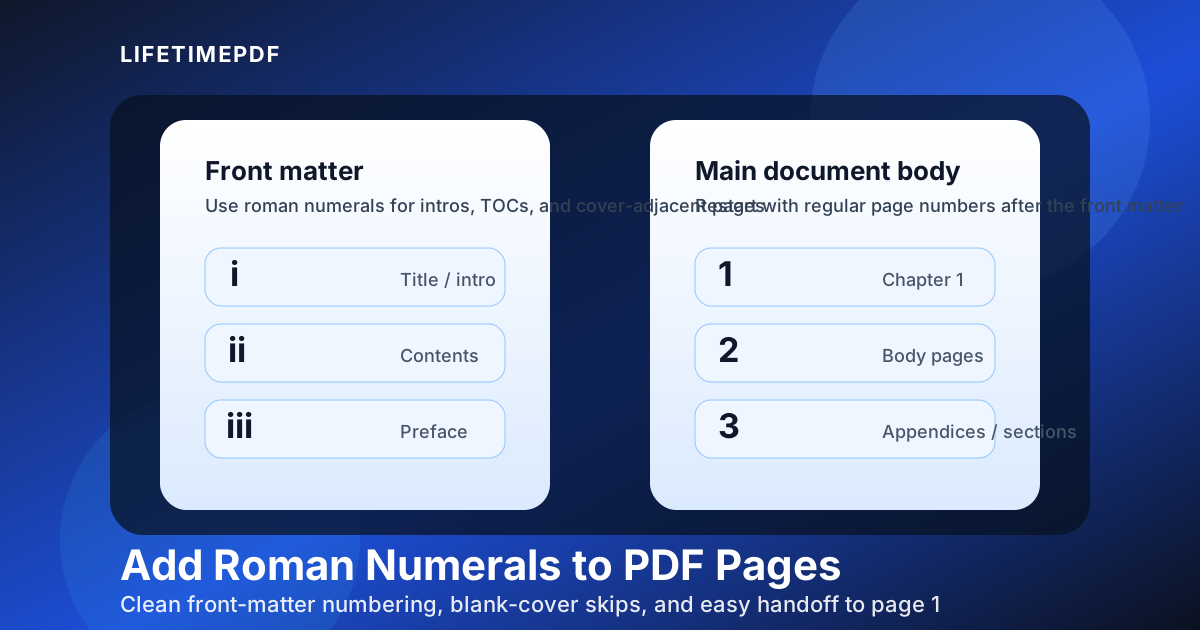
Table of contents
- Quick start: roman numerals in a few minutes
- When roman numerals actually make sense in a PDF
- Step-by-step: add roman numerals without a messy reset
- How to switch from roman numerals to page 1
- Lowercase vs uppercase, blank covers, and numbering choices
- Common mistakes that make page numbering look amateur
- Related LifetimePDF tools for the full workflow
- FAQ
Quick start: roman numerals in a few minutes
If you just need the dependable workflow, this is the version to follow:
- Decide whether the entire PDF needs roman numerals or only the opening section.
- If the body should restart at page 1, separate the front matter with Split PDF.
- Open PDF Page Numbers.
- Choose lower roman numerals (
i, ii, iii) or upper roman numerals (I, II, III). - Set the physical start page and the visible starting numeral.
- If the cover should stay blank, begin numbering on page 2 instead of page 1.
- Apply standard numbering to the main body if needed, then merge the sections with Merge PDF.
When roman numerals actually make sense in a PDF
Roman numerals work best when the opening pages belong to the document, but do not belong to the main reading sequence. They signal that the reader is still in the setup material rather than the body of the file.
Common pages that use roman numerals
- Title and copyright pages in books, manuals, and reports
- Prefaces, forewords, and introductions
- Tables of contents that appear before chapter 1
- Executive-summary packets before the main report begins
- Academic front matter for theses, dissertations, and research papers
- Proposal or board-book intros that should stay separate from the main page count
In most of those cases, the body of the document should restart at 1, 2, 3. That reset is not cosmetic. It tells the reader where the actual document begins and keeps references, chapters, and appendices easier to follow.
| Document section | Typical numbering | Why it works |
|---|---|---|
| Blank cover | No visible number | Keeps the title page or cover page clean |
| Intro pages / TOC | i, ii, iii or I, II, III |
Separates front matter from the main content |
| Main body | 1, 2, 3 |
Gives chapters and references a normal page count |
Step-by-step: add roman numerals without a messy reset
The actual tool workflow is simple once you keep two different settings straight: the physical page where numbering begins and the visible numeral that appears there first.
1) Decide whether the entire file needs roman numerals
If the PDF is only a preface, appendix front section, or other short file, you can number the whole thing directly. But if the document has an introduction plus a body that must restart at page 1, separate the sections first so each part can use its own logic.
2) Split the front matter when the body needs its own numbering
Use Split PDF to isolate the front matter. This is especially helpful when you have a blank cover, a table of contents, or a set of intro pages that should use roman numerals while the main content should begin with standard digits.
3) Choose the right roman numeral style
Upload the front section to PDF Page Numbers and choose the format that matches your document:
- Lowercase
i, ii, iiiis the most common for front matter - Uppercase
I, II, IIIworks for more formal or archival layouts
4) Set the physical start page correctly
This tells the tool which actual page in the file should receive the first visible number. If the cover should stay blank and the second page should show i, then the physical start page is page 2.
5) Set the visible start value
This tells the tool what should appear on the first numbered page. Most of the time that will be i or I. If you are continuing an already-structured section, it could be a later numeral instead.
6) Export and spot-check the result
Review the first numbered page, the last roman-numbered page, and the page where the body begins. Most numbering problems show up immediately once you check those three moments in the document.
How to switch from roman numerals to page 1
Mixed numbering is where people get stuck, but it becomes clean when you treat the front matter and body as two separate jobs.
The clean workflow
- Split the intro pages away from the body.
- Apply roman numerals to the intro section.
- Apply standard page numbers to the body section starting at page 1.
- Merge the sections back together in the correct order.
This avoids two common headaches: having the body continue with roman numerals by accident, and having the cover or table of contents pick up a visible page number when it should stay visually clean.
When you also need to update the table of contents
If your PDF already includes a table of contents, review it after you apply numbering. The visible page numbers may change even if the content order stays the same. This is another reason to do a quick final check instead of assuming the footer settings took care of everything automatically.
If you are rebuilding or editing content before the final export, it can also help to use Split PDF and Merge PDF first so the pages are in the right order before you lock the numbering in place.
Lowercase vs uppercase, blank covers, and numbering choices
The tool settings are only half the job. The other half is choosing a numbering style that suits the document.
Lowercase vs uppercase roman numerals
Lowercase numerals like i, ii, iii are the usual choice for front matter because they feel familiar and unobtrusive. Uppercase numerals like I, II, III can work when the document is more formal, more legal, or already uses an uppercase styling system elsewhere.
Should the cover stay blank?
Usually yes. Most polished documents leave the cover or title page without a visible page number. That means your first displayed numeral often belongs on the second physical page even though it is still the first page in the roman-numbered sequence.
What if the intro is longer than expected?
That is fine. Roman numerals do not need to stay short to be useful. The important part is that the reader can still tell the difference between preliminary pages and the main document body.
What if only one page needs roman numbering?
You can still use the same method. Even a single contents page or prefatory note can benefit from a separate numbering style if the rest of the document needs a clean page 1 start.
Common mistakes that make page numbering look amateur
- Numbering the cover by accident when it should stay blank
- Confusing the physical start page with the visible numeral
- Forgetting to restart the body at page 1
- Applying one numbering style to the entire PDF when the document really has two sections
- Skipping the final review and missing a broken handoff between roman numerals and regular digits
If the PDF already feels complicated, do not fight it in one giant pass. Split the sections first, make each numbering decision obvious, then merge the pieces when they are finished.
Related LifetimePDF tools for the full workflow
Roman numerals are usually part of a bigger document-finishing process. These tools are the most useful companions:
- PDF Page Numbers for applying roman numerals or standard page numbers
- Split PDF for separating front matter from the body
- Merge PDF for rebuilding the final document after numbering both sections
- Add Roman Numerals to PDF Pages Online if you want an online-first walkthrough
- Add Roman Numerals to PDF Pages Without Monthly Fees if recurring subscription costs are part of the decision
Ready to fix the numbering? Start with the page-numbering tool, then split or merge only if the document needs a separate front section and body reset.
FAQ
How do I add roman numerals to PDF pages?
Use a PDF page-numbering tool, choose a roman format, set the first physical page that should display a number, and export the updated file. If the main body must restart at page 1, split the intro pages first and number them separately.
Can I leave the cover blank and start roman numerals on page 2?
Yes. Set the physical start page to 2 and the visible starting numeral to i or I. That keeps the cover clean while the first interior page begins the sequence.
Should I use lowercase or uppercase roman numerals?
Lowercase is the default choice for most front matter. Uppercase can work for more formal or archival styles. Match the numbering style to the tone already established in the document.
Can I use roman numerals for the intro and standard numbers for the body?
Yes. That is one of the most common use cases. Split the sections, number the front matter with roman numerals, number the body with regular digits, then merge the document back together.
Why do roman numerals matter in a PDF at all?
They help readers distinguish front matter from the main body, especially in reports, books, dissertations, manuals, and formal document packets where the visible page count should restart when the real content begins.