Check PDF Headings: Find Missing Structure Before Screen Readers Do
To check PDF headings, confirm the file contains real text, then review whether it uses a logical H1, H2, and H3 structure instead of random bold styling or visually large text that only looks like headings.
If headings are missing, skipped, or out of order, repair the source document and export a cleaner PDF before you publish, submit, archive, or share the file.
That is the short answer. The useful part is knowing how to spot fake headings quickly, why visually tidy PDFs can still be structurally weak, and when the real fix belongs upstream in Word, Docs, PowerPoint, HTML, or another editable source. A heading check is not academic cleanup. It affects navigation, screen-reader usability, table-of-contents reliability, and whether long documents feel organized or exhausting.
Fastest practical path: confirm the text layer exists, inspect the heading hierarchy, run an accessibility check, and repair the source if the PDF is relying on visual formatting instead of real structure.
In a hurry? Jump to quick start: check PDF headings in about 8 minutes.
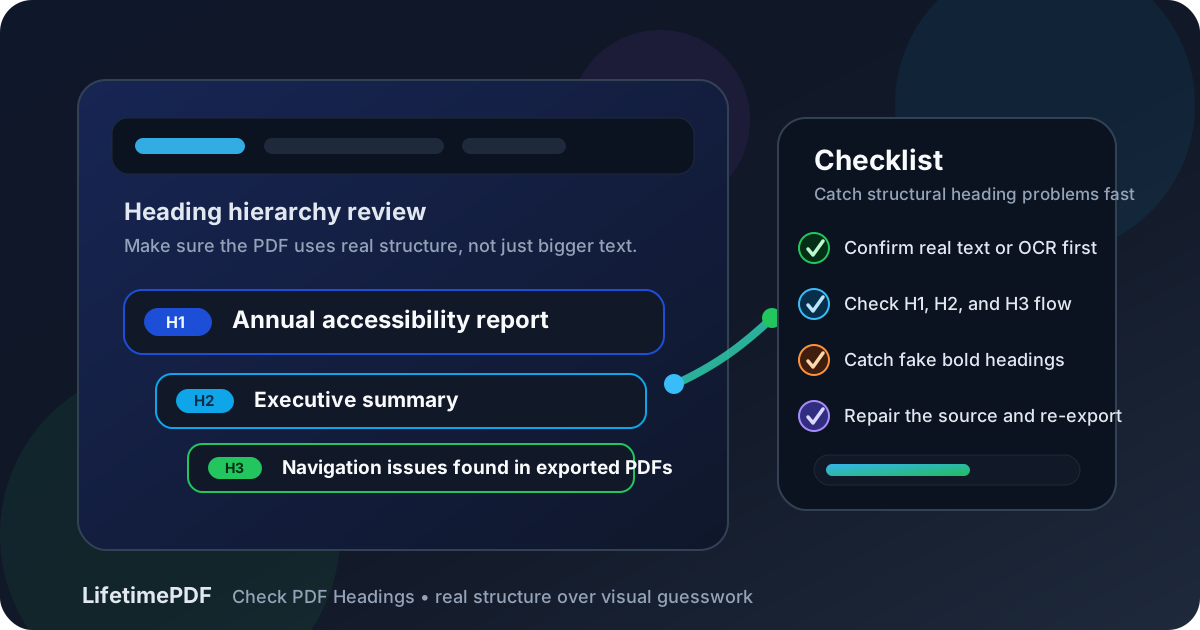
Table of contents
- Quick start: check PDF headings in about 8 minutes
- What PDF headings actually do
- Fake visual headings vs real heading structure
- Step-by-step: practical PDF heading review workflow
- Common PDF heading failures
- Scans, slide decks, generated reports, and other tricky files
- When to fix the source instead of patching the PDF
- Final checklist before you publish or share the PDF
- Related LifetimePDF tools and guides
- FAQ
Quick start: check PDF headings in about 8 minutes
If your goal is simply tell me whether this PDF has usable heading structure before I send it out, this quick review catches the most common failures fast:
- Confirm the PDF has real selectable text. If it behaves like an image, run OCR first.
- Look for the document's top-level title. There should be one clear starting point rather than several competing headline styles.
- Review a few section breaks and ask whether the hierarchy makes sense: major section, subsection, supporting detail.
- Watch for skipped levels, such as a jump from a top heading straight into a much deeper subsection with no middle layer.
- Check whether visually large text is functioning like a real heading or just styled body text that happens to look important.
- Run PDF Accessibility Checker and spot-check the areas that usually break first: long reports, forms, generated exports, and slide-based PDFs.
What PDF headings actually do
Headings are not just visual labels. In a well-structured PDF, they create the document's outline. They tell assistive technology where major sections begin, help readers jump through long files, and give the content a shape that still makes sense when the layout disappears.
That matters for more than accessibility. Clear headings also help when a PDF is converted to text, exported into another format, reviewed on a phone, quoted in a report, or reused in a knowledge base. If the structure is weak, the file becomes harder to navigate, harder to skim, and easier to misunderstand.
Why heading checks fail in real workflows
- People mistake appearance for structure: bigger, bolder text can look right while exposing no meaningful hierarchy underneath.
- Exports flatten the source badly: Word, Docs, slide decks, design tools, and generated reports can lose or damage structure on the way to PDF.
- Scanned files hide the issue: without a usable text layer, there is almost no practical heading structure to review.
- Teams skip outline thinking: a document may be written section by section without anyone checking whether the hierarchy still makes sense as a whole.
- Long files drift over time: reports with many editors often collect inconsistent heading levels, repeated section names, or subsections that no longer belong where they sit.
Fake visual headings vs real heading structure
One of the most common PDF problems is fake heading behavior: text is made bigger, darker, or farther from the paragraph below, so it looks like a heading to sighted readers, but it is not organized as a real heading in the document structure.
| What you see | Why it fails | What better structure looks like |
|---|---|---|
| Big bold line above a paragraph | It may only be styled text with no meaningful heading role. | Use a real heading level that fits the document hierarchy. |
| Heading levels skipped randomly | The outline becomes hard to follow and inconsistent to navigate. | Move in a sensible sequence from major sections to subsections. |
| Several section titles all styled differently | Readers cannot tell what counts as a peer section versus a child section. | Make same-level headings look and behave consistently. |
| All-caps labels used like headings everywhere | Visual emphasis replaces real structure and makes the outline noisy. | Reserve headings for actual section changes, not every highlighted line. |
| Repeated section names with no context | Navigation becomes confusing in long reports or exported outlines. | Use clear, distinct headings that match the document's purpose. |
A practical heading review asks two questions at once: Does the hierarchy make sense logically? And does the PDF expose that hierarchy clearly enough for real navigation?
Step-by-step: practical PDF heading review workflow
1. Confirm the file is not just an image
If you cannot search, select, or extract text, the heading review is premature. Run OCR PDF first so the file has a usable text layer. OCR will not magically create a perfect structure, but it gives you something real to inspect instead of a picture of a document.
2. Identify the document's true top level
Most strong PDFs have one clear title or primary section entry point. That top level should anchor the rest of the hierarchy. When you see three different headline styles on page one, or a report that starts with subsection-looking labels before the main title is established, the outline is already wobbling.
3. Test a few section transitions, not just one pretty page
Weak structure often hides in the middle of the document. Review how the PDF moves from one major section into the next, then from a section into a subsection. A clean hierarchy feels predictable. A messy one jumps, repeats, or starts using styling tricks where actual structure should be doing the work.
4. Extract or convert when the outline is hard to judge visually
Use PDF to Text to see how much structure survives without layout polish. If the file still looks messy, move it into an editable source with PDF to Word so headings, lists, and paragraphs are easier to repair deliberately.
5. Run an accessibility check as a triage tool
PDF Accessibility Checker helps surface structural red flags quickly. It is useful for triage, not as a substitute for judgment. The real question remains human: if someone navigated this PDF by headings, would the sections make sense?
6. Repair the source and re-export if the hierarchy is fundamentally weak
When a PDF relies on manual font sizing, ad hoc spacing, or inconsistent section labels, the cleanest fix is usually upstream. Rebuild the heading structure in Word, Docs, PowerPoint, HTML, or another editable source, then export a new PDF with Word to PDF or the equivalent final workflow.
Reliable sequence: OCR if needed, inspect the hierarchy, run an accessibility check, repair the source, then export and retest the final PDF.
Common PDF heading failures
Most heading problems repeat the same patterns. Once you know what to look for, they become much easier to catch before the file goes live.
| Failure | What goes wrong | Better approach |
|---|---|---|
| Styled paragraphs pretending to be headings | The document looks organized visually but lacks dependable structure. | Convert those section labels into a real heading hierarchy in the source. |
| Skipped heading levels | The outline feels abrupt and harder to navigate logically. | Use a sensible progression that reflects how sections actually relate. |
| Too many top-level headings | The document has no stable frame and everything looks equally primary. | Reserve the top level for true major sections and nest the rest clearly. |
| Repeated generic section names | Readers jump around without learning where they really are. | Write headings that distinguish sections by purpose, not just formatting. |
| Scan cleanup treated as structure repair | Searchable text returns, but meaningful hierarchy still does not. | Use OCR as recovery, then rebuild headings where needed. |
One strong smell test: if you had to explain the document's outline from memory and could only describe font size changes, the heading structure is probably not doing enough real work.
Scans, slide decks, generated reports, and other tricky files
Some PDFs are much more likely to have heading problems than others. Knowing the usual trouble spots helps you review faster.
Scanned PDFs
Scans often have no usable heading structure until OCR restores a text layer. Even after OCR, the hierarchy may still be weak if the original document was skewed, low quality, or assembled from mixed sources.
Slide-deck exports
PDFs made from slide tools can look crisp while relying heavily on visual arrangement instead of real section hierarchy. Repeated page titles, oversized callouts, and decorative labels can all masquerade as headings without forming a coherent outline.
Generated reports and dashboard exports
Auto-generated PDFs often repeat generic section labels, flatten tables into awkward layouts, or skip meaningful middle levels entirely. These files deserve special attention because the design can feel consistent even when the structure is not.
Legacy policy manuals and long hand-edited reports
Documents that have been edited for years tend to accumulate structural drift. A heading style gets copied badly, a subsection turns into a major section, or a table-of-contents label no longer matches what the section actually does. If the PDF is long, heading mistakes multiply quickly.
When to fix the source instead of patching the PDF
Source-first repair usually wins when the problem is broad rather than local. If many sections are inconsistent, if multiple editors touched the file, or if the PDF came from a tool that flattens structure badly, fixing one symptom at a time inside the final PDF is rarely the fastest long-term move.
Repair the source when:
- the PDF has many fake visual headings across multiple pages
- heading levels drift throughout a long report
- the document will be revised again later
- the file came from Word, Docs, PowerPoint, HTML, or another source you still control
- the heading issue sits alongside reading-order, alt-text, or tab-order problems
If the PDF is part of a broader accessibility review, pair this heading check with reading order, tab order, alt text, and a broader tagged-PDF check. Headings matter on their own, but they work best as part of a document structure that is coherent end to end.
Final checklist before you publish or share the PDF
- The PDF has real searchable text, or OCR was completed first.
- The document has one clear top level and a consistent section hierarchy underneath it.
- Headings are not just bigger or bolder paragraphs pretending to be structure.
- Section transitions make sense in the beginning, middle, and end of the document.
- Long reports, forms, exports, and slide-derived PDFs were spot-checked deliberately.
- Structural problems were repaired in the source file when possible.
- The final PDF was retested after export instead of being assumed correct.
Related LifetimePDF tools and guides
Useful tools
Need a cleaner accessibility workflow without juggling scattered tools? LifetimePDF combines accessibility checks, OCR, source-recovery tools, and export utilities in one pay-once toolkit.
FAQ
How do I check PDF headings quickly?
Confirm the file has real text, identify the top-level title, review a few section transitions, and check whether the hierarchy behaves like a real outline instead of random bold styling.
Can a PDF look organized and still have bad headings?
Yes. Many PDFs look polished because of font size, spacing, and color, while the actual structure underneath is inconsistent or missing.
Are large bold lines automatically real headings in a PDF?
No. Visual emphasis is not the same thing as a meaningful heading hierarchy. The document still needs logical structure that supports navigation.
Should I OCR a scanned PDF before checking headings?
Usually yes. OCR restores searchable text so the file can be reviewed more like a document and less like an image.
Should I fix PDF headings in the final PDF or in the source file?
If you still control the source, fix it there first. A clean source document usually produces a better and more repeatable PDF export than after-the-fact patching.
Published by LifetimePDF — Pay once. Use forever.