How to Check if a PDF Is Tagged: Quick Accessibility Test Before You Publish
To check if a PDF is tagged, confirm the file has real selectable text, then test whether headings, paragraphs, lists, and reading order behave like structured content instead of a visual-only layout.
If the PDF is untagged or weakly structured, fix the source document and export a cleaner PDF before you publish, upload, or share it.
That is the short answer. The more useful answer is that many PDFs look organized on the page while still being structurally thin underneath. They may search fine, print fine, and even impress the person who made them, yet still create a rough experience for screen-reader users because the document was exported as appearance first and structure second. This guide shows you how to spot that problem quickly and what to do next.
Fastest path: check for selectable text first, review the file with an accessibility workflow second, and rebuild the source if the PDF behaves like a picture of a document instead of a real structured document.
In a hurry? Jump to quick start: check whether a PDF is tagged in a few minutes.
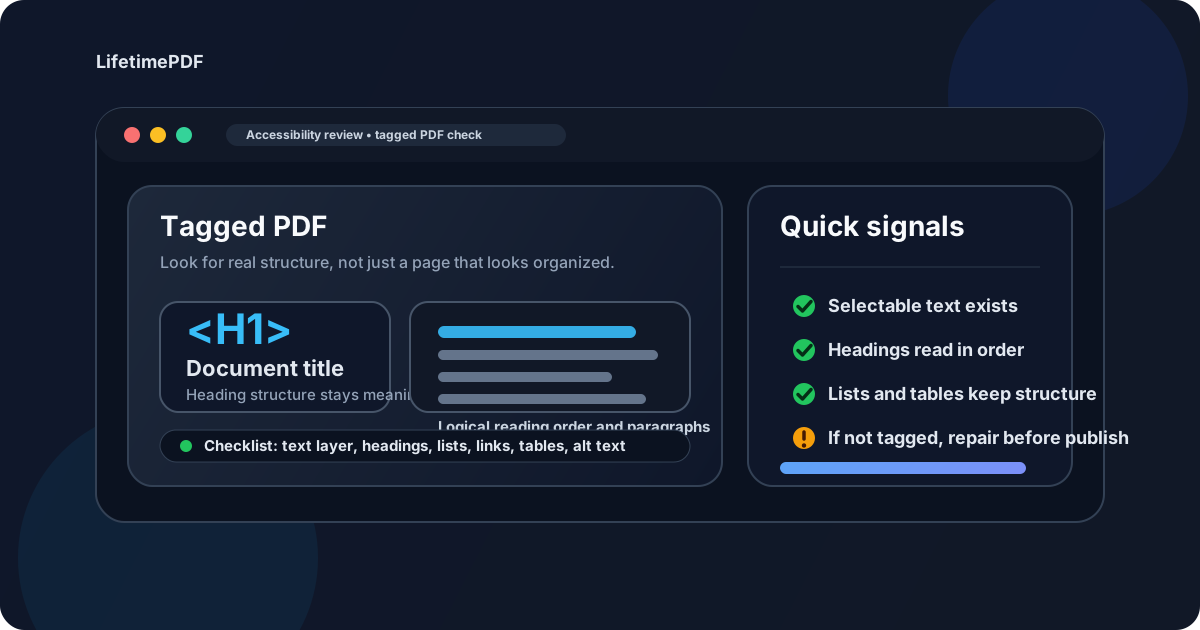
Table of contents
- Quick start: check whether a PDF is tagged in a few minutes
- What a tagged PDF actually means
- Why tagging matters even when the PDF looks fine
- Step-by-step: how to check if a PDF is tagged
- What good and bad signals usually look like
- What to do if the PDF is not tagged well
- When to fix the source instead of patching the PDF
- Related LifetimePDF tools and accessibility guides
- FAQ
Quick start: check whether a PDF is tagged in a few minutes
If you want the shortest useful workflow, use this order:
- Open the PDF and try to select text.
- Search for a visible word in the file.
- Copy a section into plain text or run it through PDF to Text.
- Check whether headings, paragraphs, and lists still come out in a sensible order.
- Run a more deliberate review with PDF Accessibility Checker.
- If the file is a scan or the structure is weak, repair the source and export a cleaner PDF.
What a tagged PDF actually means
A tagged PDF includes structural information that helps software understand what the document parts actually are. That means a heading can behave like a heading, a paragraph can behave like a paragraph, and a list can behave like a list instead of just looking that way because the font is larger or the spacing is wider.
In plain language, tagging helps turn the PDF from a visual artifact into a document with structure. That structure matters for accessibility, especially for screen-reader users, keyboard navigation, and workflows where the content needs to be read in a logical order rather than merely admired on a screen.
| Question | Tagged PDF behavior | Weak or untagged PDF behavior |
|---|---|---|
| Can text be selected and searched? | Usually yes | Sometimes no, especially if it is a scan |
| Does copied text come out in a sensible order? | Usually close to the intended reading flow | Often scrambled across columns, headers, or side notes |
| Do headings and lists behave like structure? | More likely | Often only visual styling with weak document logic underneath |
| Will assistive technology have a better chance? | Yes, if the tags are meaningful | Usually not enough, even when the page looks polished |
Tagged does not automatically mean perfect. A PDF can still have weak headings, messy tables, or confusing form fields. But tagging usually puts the file in a much better place than a document that was exported with almost no structure at all.
Why tagging matters even when the PDF looks fine
This is where people get fooled. A brochure, report, handout, or policy PDF can look excellent and still be frustrating to use non-visually. Clean typography, even spacing, and a professional cover page do not prove that the file has good underlying structure.
Tagging matters because accessibility is not only about appearance. It is about whether the document can be understood and navigated by people using different tools and different workflows. If a PDF reads in the wrong order, loses heading hierarchy, or turns lists and tables into a blur of text, the visual polish stops helping very quickly.
- Screen-reader users rely on structure to move through the document meaningfully.
- Keyboard users need predictable flow, especially in interactive PDFs.
- Teams publishing public documents need something better than “it looked okay on my laptop.”
- Anyone maintaining a PDF archive benefits from documents that behave like real content instead of flat visual output.
Step-by-step: how to check if a PDF is tagged
1) Start with the text layer
Try selecting a sentence and searching for a visible word. If the PDF behaves like an image, you are not ready to judge the structure yet. Run OCR PDF first so the file has usable text.
2) Inspect the reading behavior, not just the appearance
A fast practical check is to copy a block of content into plain text or use PDF to Text. If the output keeps the heading, paragraph, and list flow reasonably intact, that is a good sign. If it jumps between columns, captions, or footers, the structure is probably weak.
3) Review the file with an accessibility workflow
Open PDF Accessibility Checker and review the document deliberately. You are looking for the broader signals: whether the file seems like a structured document, whether common accessibility issues show up, and whether it feels safe to publish without deeper repair.
4) Check the obvious structure cues
Ask yourself a simple question: if all colors and font styling disappeared, would the content still make sense? Good structure survives style removal. Weak structure depends on style to fake organization.
- Do section headings feel like real sections?
- Do lists read like lists instead of awkward sentence fragments?
- Do tables still communicate row and column relationships?
- Do links and labels make sense in context?
5) Decide whether the PDF is publishable or needs repair
If the content behaves like structure, you are probably in decent shape. If the document still acts like a visual composition first and content second, stop before publishing and repair the source.
Best sequence for uncertain files: confirm text exists, inspect text order, run an accessibility review, then repair the source if the structure still feels shaky.
What good and bad signals usually look like
You do not always need a huge formal checklist to catch the problem. Most PDFs send strong clues very early.
| Signal | Usually a better sign | Usually a warning sign |
|---|---|---|
| Text extraction | Readable order with sensible breaks | Jumbled content from multiple columns or page furniture |
| Headings | Sections feel clear and consistent | Everything is just bold or larger without real hierarchy |
| Lists | Bullet points remain understandable | Items collapse into one messy paragraph |
| Tables | Relationships still make sense when extracted | Cells become a confusing stream of values |
| Overall impression | The PDF behaves like content | The PDF behaves like a styled screenshot of content |
One important nuance: a PDF can have selectable text and still be weakly tagged. That is why searchable text is the starting point, not the finish line.
What to do if the PDF is not tagged well
If the PDF is untagged or poorly structured, the right fix depends on how bad the problem is.
If the file is just a scan
Run OCR PDF first. That gives you a text layer, which is essential. After that, review whether the text order and structure are actually usable.
If the file has text but the order is messy
Use the text extraction result as your reality check. If the content falls apart when copied or exported, the source probably needs structural cleanup.
If headings, lists, or tables are weak
Rebuild those elements in the source document rather than hoping the final PDF can be patched elegantly after export.
If the document is public, regulated, or high-stakes
Treat a weakly tagged PDF as not ready. Accessibility fixes are much cheaper before publication than after the file has already gone live or been distributed widely.
When to fix the source instead of patching the PDF
This is the decision that saves the most time. If the PDF has multiple structural problems, the source file is almost always the better repair point.
Fix the source when:
- the reading order is scrambled across many pages,
- headings only work visually,
- tables do not survive extraction,
- the file began as a scan and still feels messy after OCR,
- you are preparing a document for public download, compliance, education, HR, or policy use.
For many teams, the cleanest path is simple: recover the content in Word or another editable source, repair the structure properly, then export again with Word to PDF or a semantic HTML workflow using HTML to PDF.
If you keep trying to save a bad export after the fact, you often end up doing more work for a worse result.
Need a faster accessibility triage path?
Check the structure first, then rebuild the source if the PDF still behaves like layout instead of content.
Related LifetimePDF tools and accessibility guides
A tagged-PDF check usually belongs inside a broader accessibility workflow. These tools and guides work well together:
- PDF Accessibility Checker - review structural accessibility risks before publishing.
- PDF to Text - reveal whether the reading order survives extraction.
- OCR PDF - recover a text layer from scanned documents.
- Word to PDF - export a cleaner PDF after structural fixes.
- HTML to PDF - useful when semantic HTML is the better source.
Helpful related reading
- Check PDF Accessibility Online
- Check PDF Reading Order Online
- Check PDF Alt Text
- Check PDF Tab Order Online
- How to Make PDF Accessible
FAQ
How do I check if a PDF is tagged?
Start by confirming the PDF has selectable text, then inspect whether the content behaves like real structure. If headings, paragraphs, and lists survive extraction in a sensible order, that is a better sign than a file that only looks organized visually.
What does it mean if a PDF is not tagged?
It usually means the file is missing some of the structural information that helps assistive technology understand the document. The PDF may still look fine while being harder to navigate or interpret non-visually.
Can a PDF have selectable text and still be untagged?
Yes. Searchable text is important, but it does not prove the structure is strong. A PDF can let you copy text while still having weak headings, poor reading order, or missing structure.
Is OCR enough to make a PDF tagged?
No. OCR helps turn scans into searchable text, but tagging is about structure. You may still need to repair headings, lists, tables, and reading order afterward.
Should I fix the PDF or the source document?
If the file has several structural issues, fix the source document. Rebuilding the structure upstream usually gives you a cleaner result than trying to rescue a weak final export.
Published by LifetimePDF — Pay once. Use forever.