Check PDF Alt Text: Audit Image Descriptions Before You Publish or Share
To check PDF alt text, review every meaningful image, chart, screenshot, logo, and figure and confirm the description tells a non-visual reader what matters in context.
If the PDF says nothing about a critical visual, or reads decorative artwork out loud like it is important content, the file is not ready yet.
Good alt text is not about writing a novel for every image. It is about making sure the document still works when someone cannot see the visual. That means describing the purpose of meaningful graphics, keeping decorative elements quiet, and fixing weak exports before the PDF reaches customers, staff, students, applicants, or the public.
Fastest practical path: identify meaningful visuals, run an accessibility check, inspect the descriptions manually, repair weak source files, and retest the exported PDF before you publish it.
In a hurry? Jump to quick start: check PDF alt text in about 9 minutes.
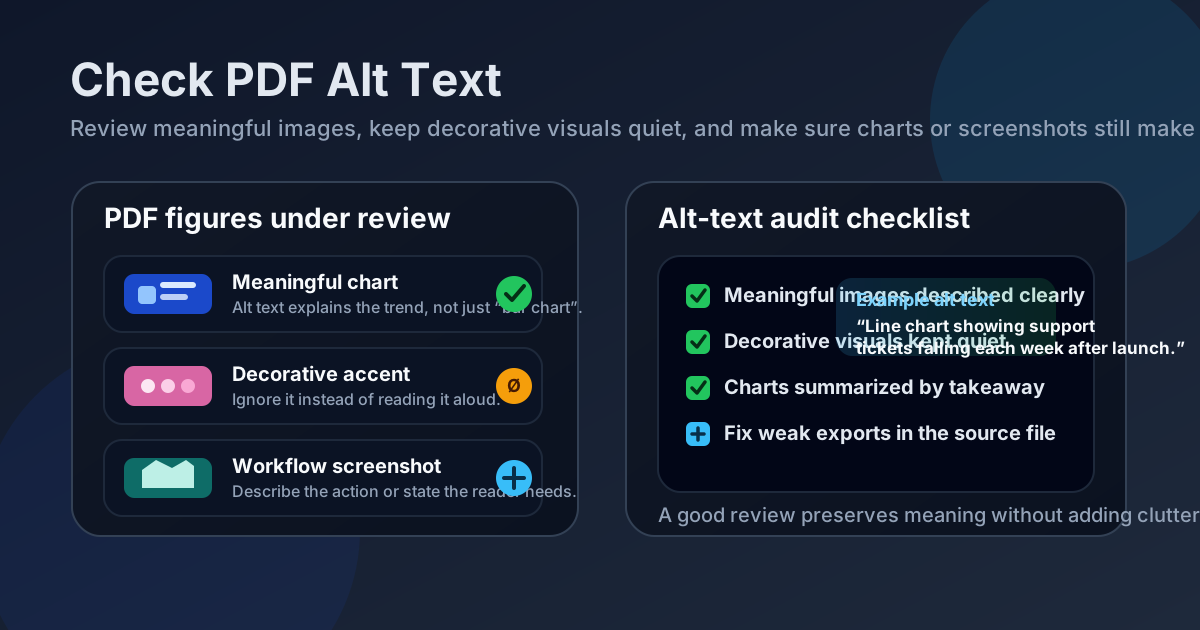
Table of contents
- Quick start: check PDF alt text in about 9 minutes
- What PDF alt text actually does
- What needs alt text and what should stay decorative
- Step-by-step: practical PDF alt-text review workflow
- Common PDF alt-text mistakes
- Scans, charts, logos, screenshots, and complex figures
- When the real fix belongs in the source file
- Final checklist before you publish or share the PDF
- Related LifetimePDF tools and guides
- FAQ
Quick start: check PDF alt text in about 9 minutes
If your goal is simply tell me whether the images in this PDF are described well enough before I send it out, this workflow catches the biggest real-world problems fast:
- List the visuals that actually matter: charts, screenshots, diagrams, maps, forms with visual cues, logos used as identifiers, and explanatory figures.
- Ignore decorative flourishes for the moment. Background shapes, divider lines, and visual polish are not the same as meaningful content.
- Run PDF Accessibility Checker so you know where manual review should focus first.
- Read each description as if you could not see the image. Does it explain the point of the visual, or does it just repeat something vague like image or graphic?
- For charts and diagrams, check whether the alt text communicates the takeaway rather than just naming the object.
- If the PDF came from Word, PowerPoint, Canva, or another editable source, repair the descriptions there and export a cleaner PDF instead of endlessly patching symptoms.
What PDF alt text actually does
Alt text gives assistive technology a way to communicate the purpose of an image when the reader cannot rely on sight. In a well-structured PDF, it helps someone understand what a chart shows, what a screenshot demonstrates, what a diagram is explaining, or whether a logo identifies the organization behind the document.
That does not mean every image needs a paragraph. The job is not to narrate every pixel. The job is to preserve meaning. If the image matters, the description should say why. If the image is decorative, it should usually stay out of the reading experience entirely.
Why alt-text checks fail in practice
- People confuse file accessibility with image accessibility: a PDF can have selectable text and still have terrible image descriptions.
- Teams rely too heavily on automated passes: a checker can surface warnings, but it cannot fully judge whether a description is actually helpful.
- Source-file exports are often weak: a polished Word or slide deck can export with missing, empty, or low-value descriptions.
- Decorative visuals create noise: if dividers, borders, and harmless branding flourishes are announced like meaningful content, the document becomes tiring to navigate.
- Complex graphics need judgment: charts, process diagrams, and annotated screenshots usually need a more thoughtful summary than a basic label.
What needs alt text and what should stay decorative
A lot of PDF accessibility confusion disappears once you separate meaningful visuals from decorative ones.
| Visual type | Usually needs alt text? | What a good decision looks like |
|---|---|---|
| Charts and graphs | Yes | Describe the takeaway, trend, or comparison the chart is meant to communicate. |
| Screenshots with instructions | Yes | Explain what step or interface state the screenshot is supporting. |
| Diagrams and process flows | Yes | Summarize the structure or sequence the diagram adds to the page. |
| Brand logos used as identifiers | Usually yes | If the logo identifies the organization, the name is often enough. |
| Decorative icons, lines, flourishes, and background shapes | No | Keep them out of the reading experience rather than describing them. |
| Photos that are purely decorative | No | If the photo adds no meaning, it should usually be treated as decorative. |
The test is simple: if removing the image would remove meaning, it probably needs alt text. If removing the image would only remove visual polish, it probably should not be announced at all.
Step-by-step: practical PDF alt-text review workflow
1. Start with the visuals that carry meaning
You do not need to obsess over every decorative accent first. Focus on the images a reader actually depends on: charts, process diagrams, screenshots, maps, infographics, product photos with instructional value, and figures referenced in the surrounding text.
2. Use the accessibility checker as a triage tool, not a final judge
Run PDF Accessibility Checker to surface obvious issues quickly. That helps you find empty descriptions, structural red flags, and other accessibility concerns while you are already auditing the document. But the real question is still human: does this description help someone understand the image?
3. Read each description in context
A chart description that says bar chart is technically not empty, but it is still weak. A screenshot description that says settings page may also be too vague if the screenshot is there to show one specific action. Read the surrounding paragraph, heading, or instructions, then judge whether the description actually completes the meaning.
4. Keep decorative content quiet
Decorative separators, accent icons, abstract background shapes, and purely ornamental photography should not clutter the reading experience. A common accessibility failure is not just missing descriptions but unnecessary descriptions that make screen-reader output longer and more distracting than it needs to be.
5. Judge charts and diagrams by the insight they add
Charts are where lazy alt text breaks down fastest. Saying line chart is rarely enough. The description should communicate the key point: a trend, a spike, a comparison, a ranking, or a warning the visual is meant to reinforce. If the chart is very dense, pair a short description with nearby supporting text or data, rather than trying to cram the entire chart into one sentence.
6. Repair the source and re-export when the PDF came from an editable workflow
If the document originated in Word, PowerPoint, Canva, or another source you still control, the cleanest fix is usually upstream. If the source is gone, you may need to recover content with PDF to Word, repair the descriptions, and create a fresh export with Word to PDF.
Reliable sequence: run the checker, inspect the figures manually, repair the source, then export and retest the final PDF.
Common PDF alt-text mistakes
Most weak PDFs repeat the same few mistakes. Catching them early saves a lot of frustration later.
| Mistake | What goes wrong | Better approach |
|---|---|---|
| Descriptions like “image” or “graphic” | The reader learns nothing useful. | Say what the visual contributes, not just what type of object it is. |
| Decorative art announced as content | The document becomes noisy and tiring. | Hide decorative visuals from assistive technology instead of describing them. |
| Charts labeled without the takeaway | The structure is named, but the meaning is missing. | Summarize the trend, comparison, or warning the chart is meant to show. |
| Screenshots described too literally | The output becomes long without helping the reader complete the task. | Describe the step, state, or control the screenshot is illustrating. |
| Assuming OCR solved the problem | Text becomes searchable, but image meaning is still weak or missing. | Treat OCR as text recovery, not as a substitute for image-description review. |
One useful smell test: if the alt text would make sense on almost any image, it is probably too generic to be useful.
Scans, charts, logos, screenshots, and complex figures
Not every image deserves the same treatment. Some PDF alt-text problems are harder than others, and it helps to know where the trouble usually lives.
Scanned PDFs
A scan can contain searchable text after OCR, but OCR does not automatically produce meaningful alt text for the document's visuals. OCR helps you recover words. It does not reliably decide what a logo, figure, chart, or screenshot means in context.
Charts and data visuals
Charts should usually communicate the conclusion, not just the format. For example, the reader often needs to know that revenue rose steadily, error rates spiked after deployment, or one category dominates the comparison. If the data is complex, support the visual with nearby text or a table instead of forcing one long description to do everything.
Logos
If a logo is only decorative, keep it quiet. If it identifies the organization or sponsor of the document, a brief label is usually enough. Long descriptions of color, shape, and branding style usually add little value unless the design itself is part of the point.
Screenshots
Screenshots should describe the task they support. If the screenshot exists to show which button to click, which setting to toggle, or which warning the user should notice, that is what the alt text should emphasize.
Complex diagrams
Process flows, maps, architectural diagrams, and annotated technical figures often need a short description plus surrounding explanatory text. If the only way to understand the document is to see the visual, the PDF may need richer supporting content rather than a single overloaded alt-text field.
When the real fix belongs in the source file
Many PDF accessibility issues are export problems, not isolated PDF problems. Maybe the Word file had weak or missing descriptions. Maybe the slide deck relied on visuals without clear supporting text. Maybe the design workflow treated accessibility as an afterthought right until export.
Source-first repair usually wins when:
- the PDF has multiple image-description problems across many pages
- the file will be updated again later
- charts, screenshots, and diagrams are coming from Word, PowerPoint, or Canva
- you are trying to improve the whole accessibility workflow, not just patch one file once
If the PDF is part of a broader accessibility review, pair this check with reading order, tab order, and a full PDF accessibility checker pass. Alt text matters, but it works best inside a cleaner overall document structure.
Final checklist before you publish or share the PDF
- Every meaningful image, chart, screenshot, logo, or figure was reviewed intentionally.
- Descriptions explain the purpose of the visual, not just the existence of an image.
- Decorative visuals are not creating noise for assistive technology.
- Charts and diagrams communicate the takeaway, not just the format.
- Scanned documents were OCRed where needed, without assuming OCR solved image meaning automatically.
- Weak exports were repaired in the source file when possible.
- The final PDF was retested after export instead of being assumed correct.
Related LifetimePDF tools and guides
Need a clean accessibility workflow without bouncing between scattered tools? LifetimePDF combines accessibility checks, OCR, source-recovery tools, and conversion utilities in one pay-once toolkit.
FAQ
How do I check PDF alt text quickly?
Review each meaningful image, chart, screenshot, or figure and ask whether the description tells a non-visual reader what matters. Then make sure decorative visuals are not being announced as if they carry meaning.
What should good PDF alt text sound like?
Good alt text is short, specific, and contextual. It explains the purpose of the image in the document instead of merely saying that an image, chart, or graphic exists.
Do decorative images in a PDF need alt text?
Usually no. Decorative accents, dividers, background flourishes, and non-informational visuals should generally stay out of the assistive-technology reading experience.
Can OCR fix missing or weak alt text in a PDF?
Not by itself. OCR helps recover searchable text from scans, but it does not reliably understand what a chart, logo, diagram, or screenshot means inside the document.
Should I fix alt text in the PDF or in the original document?
If you still control the source file, fix it there first. A cleaner export from Word, PowerPoint, Canva, or another source usually produces a better long-term result than repeated patching in the final PDF.
Published by LifetimePDF — Pay once. Use forever.