PDF Accessibility Checker: What It Catches, What It Misses, and How to Review a File Properly
A good PDF accessibility checker should confirm the file has real text, flag obvious reading-order and metadata problems, and help you focus on forms, links, tables, and titles before the document goes live.
If the checker only gives you a green badge but you never verify OCR quality, label clarity, or source-file structure, you can still ship a PDF that technically passes a scan and still feels broken to real readers.
That is why the best workflow is not just run checker and hope. It is screen quickly, inspect intelligently, then repair the real cause. Some PDFs only need a metadata cleanup. Others need OCR. Others are telling you the source file itself was never built in a way that could produce a dependable accessible PDF in the first place.
Fastest path: confirm the text layer first, run the accessibility checker, then review reading order and labels before deciding whether OCR or source-file repair is the smarter fix.
Want the short version? Jump to Quick start: use a PDF accessibility checker in about 10 minutes.
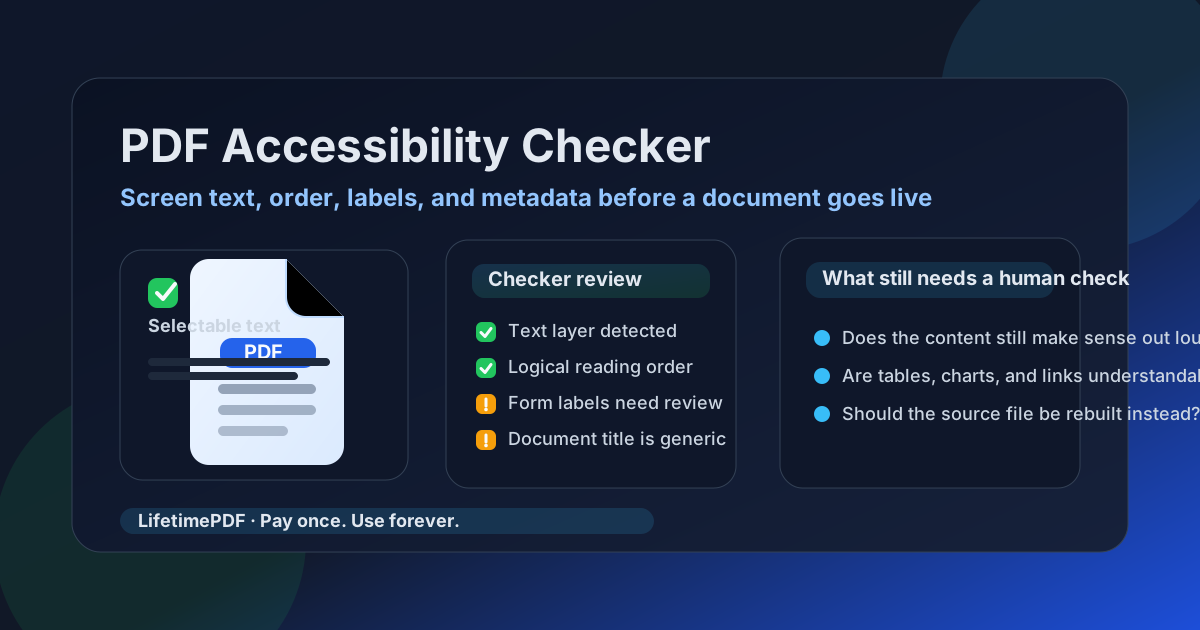
Table of contents
- Quick start: use a PDF accessibility checker in about 10 minutes
- What a PDF accessibility checker should do first
- Step-by-step: how to use a checker without overtrusting it
- What automated checks usually catch well
- What a checker still cannot prove for you
- Scanned PDFs, OCR, and why text comes before everything else
- When to fix the source file instead of patching the PDF
- Related LifetimePDF tools and internal guides
- FAQ (People Also Ask)
Quick start: use a PDF accessibility checker in about 10 minutes
If you need a practical workflow instead of theory, use this order:
- Open the PDF and try to select text or search for a word you can clearly see.
- If the file behaves like a picture, run OCR PDF before you trust the checker output.
- Run the file through PDF Accessibility Checker to catch fast technical red flags.
- Use PDF to Text or a simple copy-and-paste test to review whether the reading order still makes sense.
- Inspect forms, tables, links, and the document title instead of assuming the checker covered the whole experience.
- If the file fails several basics at once, recover or repair the editable source with PDF to Word and export a cleaner version again.
What a PDF accessibility checker should do first
A useful checker is not there to replace judgment. It is there to show you where judgment is needed fastest. In practice, that means surfacing the failures that most often make a PDF frustrating to navigate or understand.
| What the checker should test | Why it matters | What a bad result usually looks like |
|---|---|---|
| Real text layer | Search, selection, copy flow, and screen-reader usefulness all start here | You cannot highlight text, search fails, or copied content turns into nonsense |
| Basic reading order signals | Multi-column or design-heavy PDFs often look fine while the content order is scrambled underneath | Paragraphs jump around, sidebars interrupt the narrative, or extracted text feels out of sequence |
| Links, forms, and labels | Interactive content is where real users often feel friction first | Fields are vague, links say only "click here," or the form flow depends too heavily on layout |
| Title and metadata | The file should identify itself clearly before anyone reads page one | The title is empty, generic, or mismatched with the actual document purpose |
| Obvious structural gaps | Repeated red flags usually point back to a weak export or a poor source file | The PDF needs multiple repairs that all feel like patching symptoms instead of solving the cause |
If your checker is only telling you pass or fail without helping you understand which of these areas needs attention, it is not giving you enough to make good publishing decisions.
Step-by-step: how to use a checker without overtrusting it
Step 1: Confirm the PDF contains real text
Do this before anything else. Try highlighting a few sentences, searching for a visible word, or extracting text with PDF to Text. If the result is blank, garbled, or obviously image-based, the file needs OCR or a rebuilt export before any accessibility checker can tell you much that is truly reliable.
Step 2: Run the checker for fast technical screening
Once the text layer is believable, run the document through the accessibility checker. This is the fast pass that helps you catch common problems without manually hunting through every page. Think of it as triage. It tells you where to look first, not whether the whole document experience is already safe to trust.
Step 3: Review the reading order like a human reader would experience it
Many PDFs fail here in subtle ways. Annual reports, policy documents, brochures, presentations, and forms can all look polished while the underlying reading flow jumps between columns, footers, charts, and side notes. Extracted text is a good reality check because it reveals whether the file still tells the story in a logical order once the visual layout stops doing all the explaining.
Step 4: Inspect links, forms, tables, and titles directly
These elements are too important to leave entirely to automation. A checker can point at them, but you still need to decide whether link wording is meaningful, whether form fields are understandable, whether tables communicate relationships clearly, and whether the document title sounds like something a real person can identify quickly.
Step 5: Decide whether this is a repair job or a rebuild job
If the only problem is a generic title or one weak link label, you can probably repair the PDF directly. If the file has no proper text layer, confusing order, weak headings, and unclear form logic all at once, the source file is usually the better place to fix it. That is where a checker saves time: it helps you stop patching in circles.
Need a practical starting point? Screen the PDF first, then use OCR or editable-source recovery only if the checker and manual review show bigger structural trouble.
What automated checks usually catch well
Automated review is genuinely useful when you use it for the jobs it is good at. It can catch repeated technical mistakes quickly and consistently, which is exactly what makes it valuable in a busy publishing workflow.
- Missing or weak text layers: especially when a PDF is really just a scan or flattened export.
- Metadata gaps: missing or generic document titles are often easy wins.
- Repeatable structural warnings: the kind of red flags that appear across many reports, forms, or exported packets.
- Fast pre-publish screening: useful when you need a first filter before deeper review.
- Workflow consistency: teams can use the same order every time instead of relying on memory or guesswork.
This is why a checker belongs in the process. It saves time. It spots patterns. It keeps small issues from reaching the final publishing step unnoticed.
What a checker still cannot prove for you
The problem starts when people expect automation to answer human questions. A checker can tell you something is missing. It cannot fully judge whether the document makes sense, flows clearly, or respects the intent of the content itself.
| Automation helps with | Human review still has to decide |
|---|---|
| Spotting obvious text-layer, metadata, and structural warnings | Whether the reading flow is actually clear and understandable |
| Flagging technical trouble across many files quickly | Whether headings, tables, links, and forms make sense in context |
| Standardizing first-pass review for teams | Whether the final document experience is usable for real readers and assistive-technology users |
In other words, a checker can tell you where to look. It cannot replace the act of looking.
Scanned PDFs, OCR, and why text comes before everything else
If the PDF started as paper, camera images, or a bad scan, OCR is often the gatekeeper step. Without a usable text layer, search fails, copy tests become meaningless, and accessibility review turns into guesswork.
- Run OCR first when the file behaves like an image: use OCR PDF.
- Check the extracted text afterward: OCR can introduce mistakes, especially with skewed scans, low contrast, handwritten notes, or complex tables.
- Do not confuse OCR with a complete accessibility fix: OCR creates text, but it does not automatically solve weak order, labels, or document structure.
- Prefer the source file when you have it: if the original Word, HTML, or slide deck still exists, a clean re-export is often better than rescuing a poor scan.
This is where many people waste time. They keep rerunning the checker when the real answer is that the file needs readable text first. Once the text layer is real, the checker becomes much more useful.
When to fix the source file instead of patching the PDF
A single accessibility issue can often be repaired in the final PDF. Multiple issues at once usually mean the source was weak from the beginning. That is the moment to step back and rebuild upstream.
- Fix the source if reading order is chaotic: clean structure is easier to preserve before export than after.
- Fix the source if headings are only visual styling: real hierarchy belongs in the editable document.
- Fix the source if the file came from a flattened image workflow: a fresh export is often cleaner than repeated rescue steps.
- Fix the source if the form logic is confusing: interactive flow usually needs deeper structural correction.
When you need the rebuild path, these tools fit naturally together: PDF to Word to recover editable text, Word to PDF to export a cleaner final file, and PDF Metadata Editor to clean up document titles and packaging details before distribution.
Best workflow for difficult files: OCR or recover the source, repair the structure, export a cleaner PDF, then run the accessibility checker again.
Related LifetimePDF tools and internal guides
A checker works best as part of a small workflow, not as a single isolated click. These are the most useful supporting tools and related guides:
- PDF Accessibility Checker - screen the file for common accessibility trouble spots.
- OCR PDF - recover searchable, selectable text from scanned files.
- PDF to Text - inspect extraction quality and reading order quickly.
- PDF to Word - recover editable content for deeper source repairs.
- Word to PDF - export a cleaner final file after source fixes.
- PDF Metadata Editor - improve titles and metadata before the file gets shared.
For related reading around the same topic, these guides fit naturally next: Check PDF Accessibility, Check PDF Accessibility Online, Check PDF Accessibility Online Free, and PDF Accessibility & WCAG Compliance Guide 2026.
Need the practical version? Check the text layer, run the checker, review the actual reading experience, and rebuild the source only when the file keeps failing the same basics.
FAQ (People Also Ask)
1) What should a PDF accessibility checker test first?
A useful checker should look for a real text layer, obvious reading-order trouble, weak metadata, and common issues around links, forms, and structural clarity. Those checks give you the fastest picture of whether the file is ready for deeper review or needs repair first.
2) Can a PDF accessibility checker prove WCAG or PDF/UA compliance?
No. It can catch common problems quickly, but it cannot fully judge meaning, clarity, or whether the file works well for real readers using assistive technology. Human review still matters.
3) Should I run OCR before a PDF accessibility checker?
Yes, if the file is a scan or behaves like an image. OCR gives the PDF a usable text layer, which makes checker results and manual review much more trustworthy.
4) What if the checker says pass but the PDF still feels broken?
Treat the pass as one signal, not the final answer. Review the reading order, headings, tables, form labels, and link wording manually because those details are where many frustrating PDFs hide their real problems.
5) When should I fix the source file instead of patching the PDF?
Fix the source when several structural issues show up at the same time. If the PDF has weak order, weak hierarchy, weak labels, and a weak text layer together, rebuilding the editable document usually creates a cleaner result than repeated patching.
Ready to review your document?
Best workflow: Confirm text - Run checker - Review actual reading flow - Repair source if needed - Validate again.
Published by LifetimePDF - Pay once. Use forever.