Check PDF Reading Order: Catch Column Jumps, Sidebar Detours, and OCR Problems Before You Publish
To check PDF reading order, copy or extract the text and confirm headings, columns, tables, captions, sidebars, and notes appear in the same sequence a person should read them.
If the text jumps from a sidebar to a footer to column two, the file may look polished on screen while still being frustrating for screen readers, keyboard users, and anyone reusing the content.
The useful test is simple: treat the PDF like structure, not decoration. A good document still makes sense when the visual layout disappears. A weak one falls apart the moment you extract text, OCR a scan, or listen to the content in sequence. That is why the fastest workflow is to confirm the text layer first, test the sequence in a few high-risk areas, and repair the source when the export is fundamentally broken.
Fastest practical path: confirm the PDF has real text, test the extracted sequence, OCR scans before judging them, and fix the source if the order is structurally wrong.
In a hurry? Jump to Quick start: check PDF reading order in about 8 minutes.
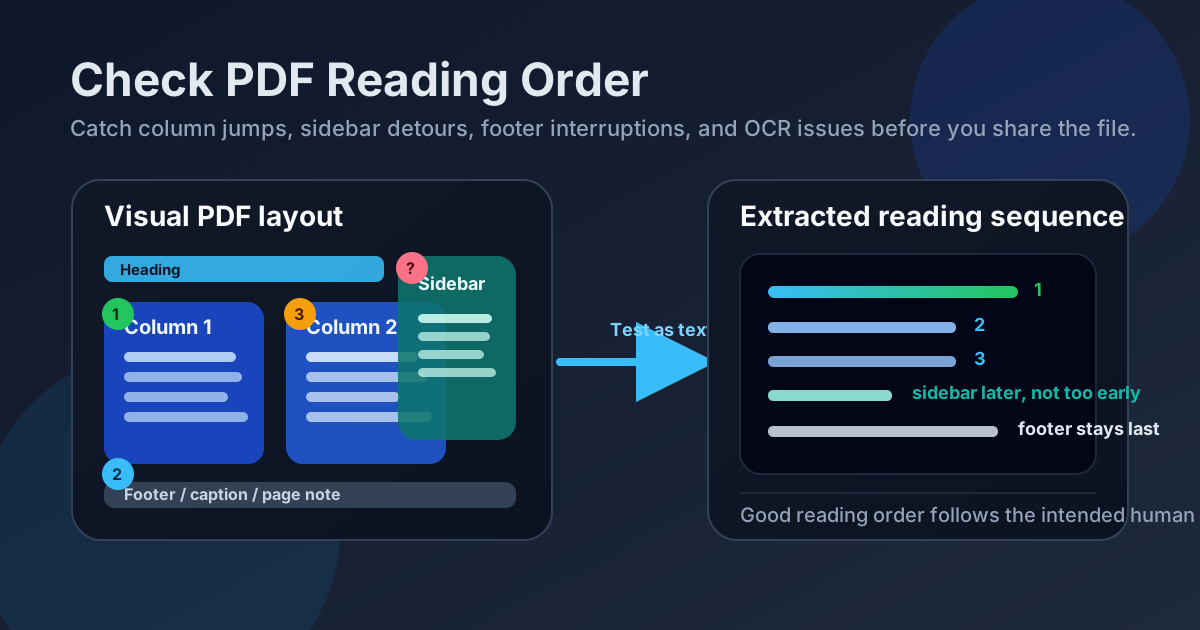
Table of contents
- Quick start: check PDF reading order in about 8 minutes
- What reading order means in a PDF
- Where PDF reading order usually breaks
- Step-by-step: practical workflow
- Scanned PDFs, OCR, and image-only files
- Reading order vs. tab order
- When the real fix belongs in the source document
- Final checklist before you publish or send the PDF
- Related LifetimePDF tools and guides
- FAQ
Quick start: check PDF reading order in about 8 minutes
If your goal is simply tell me whether this PDF reads in the right sequence before I send it out, this workflow catches most real problems fast:
- Open the PDF and try to select text. If you cannot, the file may be image-only and needs OCR first.
- Search for a word you can clearly see on the page. Search failure is often the first clue that the text layer is missing or weak.
- Copy a representative block of content or use PDF to Text and check whether the extracted order matches the intended reading flow.
- Test the layouts most likely to fail: two columns, sidebars, tables, footnotes, headers, footers, captions, and callout boxes.
- If the document is a form, separately test the keyboard path because tab order and reading order are not the same thing.
- If the sequence is fundamentally broken, recover the content into an editable source with PDF to Word, fix the structure there, and export a cleaner PDF.
What reading order means in a PDF
Reading order is the sequence in which the content is exposed when someone reads, copies, extracts, or hears the document through assistive technology. A human looking at a page can usually infer the correct path from spacing and design. Software cannot rely on guesswork that way. It needs the document structure to say, in effect, this heading comes first, then the left column, then the right column, then the sidebar note, then the footer.
That is why a PDF can look completely normal while still failing a real reading-order check. The page might be visually elegant, but if the internal sequence says sidebar, footer, column two, column one, the file becomes confusing the moment the layout is not doing all the work.
Why this matters in everyday workflows
- Accessibility: screen readers depend on the content sequence to make sense of the page.
- Search and reuse: copied text, extracted text, and indexed content are only useful if they come out in the right order.
- Compliance reviews: accessibility checks often surface reading-order issues long before someone files a complaint.
- Translation, summarization, and AI workflows: weak reading order produces poor summaries, messy extraction, and unreliable downstream automation.
- Internal team handoffs: what looks “fine” in a design review can become a mess when someone else edits, archives, or republishes the document.
Where PDF reading order usually breaks
You do not need to inspect every pixel on every page. Most failures cluster in the same trouble spots. Check those first.
1) Multi-column pages
Reports, brochures, academic articles, and newsletters often look clean in two columns. They also fail reading-order tests all the time. Instead of reading all of column one and then moving to column two, extraction may jump back and forth between the columns line by line.
2) Sidebars and callout boxes
Sidebars, pull quotes, and fact panels are visually obvious to a sighted reader. In the wrong structural order, they interrupt the main flow too early or end up buried after unrelated content.
3) Headers, footers, and page furniture
Repeating page numbers, running headers, footers, and decorative labels can leak into the extraction in awkward places. If every paragraph begins with a header or ends with a page number, the document is harder to read than it looks.
4) Tables, captions, and floating objects
Tables can expose cells in a strange sequence, and captions may detach from the chart or image they are meant to explain. Exported slide decks and design-tool PDFs are common offenders because objects may have been layered visually rather than structured logically.
5) Scanned or OCRed documents
A scan may have no text layer at all, or OCR may create one that follows image fragments instead of the intended reading path. Skewed pages, dark borders, merged columns, and handwritten notes make the sequence worse.
6) Interactive forms
Forms bring two different problems: text reading order and keyboard focus order. The visible labels may look fine, but the fields can still be confusing when someone navigates without a mouse. That is why forms deserve both a reading-order check and a tab-order check.
Step-by-step: practical workflow
The best reading-order workflow is lightweight on clean files and deeper only when the document shows warning signs. This sequence keeps you from over-testing good PDFs while still catching the failures that matter.
Step 1: confirm the text layer
Start with the obvious. Can you select text? Can you search for a visible word? If not, the file is either image-only or badly OCRed. In either case, do not waste time debating reading order until the document has usable text.
A clean first pass is to run PDF Accessibility Checker and then verify a real sample yourself. Automated checks help, but they are not the final judge.
Step 2: test the sequence as extracted text
Copy a section of the PDF into a text editor, or use PDF to Text. You do not need to inspect the whole file first. Choose the pages most likely to break: title page, a dense content page, a two-column spread, a table-heavy section, and the last page.
Ask three questions:
- Does the text follow the intended top-to-bottom, left-to-right logic?
- Do side notes and captions appear at a sensible point?
- Do headers, footers, and page numbers stay out of the main content flow?
Step 3: inspect high-risk layouts directly
If the extracted text looks suspicious, go back to the page and identify why. You are usually dealing with a layout problem rather than a mysterious PDF bug. Multi-column pages, positioned text boxes, layered graphics, scanned inserts, and template leftovers are common causes.
Step 4: decide whether OCR, cleanup, or source repair comes next
If the PDF is mostly a scan, run OCR PDF first. If the document is text-based but structurally weak, move it into an editable format with PDF to Word or another source-friendly workflow, fix the structure, and export again. If the issue is only on one or two pages, a lighter repair may be enough.
Step 5: re-export and retest
After you fix the source, export a fresh PDF with Word to PDF or the appropriate export path and repeat the extraction test. If the corrected version still reads cleanly when the layout disappears, you are in much better shape than before.
Scanned PDFs, OCR, and image-only files
Scanned PDFs deserve their own section because people often misdiagnose them. An image-only scan does not really have a usable reading order yet. It only has a picture of a page. The moment OCR creates text, the reading-order question becomes meaningful.
What improves OCR-driven reading order
- Pages rotated the right way before OCR
- Cleaner crops with reduced black borders and shadows
- Separated columns that are not bleeding into each other
- Legible contrast and reduced skew
- Consistent page size and alignment in scan batches
If you are working with a messy scan packet, do the cleanup in the right order. Rotate first, crop second, OCR third. That sequence usually produces better text, which then produces a more trustworthy reading-order test.
If the scan remains chaotic after cleanup, the better answer may be to rebuild the document from the source, not to keep forcing OCR through a poor image.
Working with scans? Clean orientation and text recognition before you judge the reading sequence.
Reading order vs. tab order
This distinction saves a lot of confusion. Reading order is about text content. Tab order is about how keyboard focus moves through interactive fields. A form can have readable text instructions but terrible keyboard flow. It can also have passable keyboard flow while the surrounding text is still structurally messy.
If the PDF is a form, test both:
- Reading order: do instructions, labels, and surrounding text make sense when extracted?
- Tab order: does focus move through fields in the sequence a person would naturally complete them?
For a deeper keyboard-focused check, review Check PDF Tab Order Online after you finish the text-structure review.
When the real fix belongs in the source document
Many broken PDFs are symptoms of weak exports, not isolated PDF mistakes. Maybe the Word file relied on visual spacing instead of real headings. Maybe the slide deck used floating text boxes everywhere. Maybe the design file stacked objects in a sequence that only looks logical on screen.
When you see several issues at once—bad column flow, detached captions, noisy headers, awkward tables, broken form labels, scan artifacts—the cheapest fix is rarely endless patching inside the final PDF. The better move is to repair the source and create a cleaner export.
Source-first usually wins when:
- the PDF has multiple structural issues on many pages
- the document will be updated again later
- the file came from Word, PowerPoint, Excel, HTML, or a design tool you still control
- the document is part of a public publishing, compliance, or client-delivery workflow
If your file is already close to correct, a lighter repair path is fine. If it is fundamentally weak, fix the place where the structure starts.
Final checklist before you publish or send the PDF
- Text is selectable and searchable.
- Extracted text follows the intended reading sequence.
- Two-column pages do not zigzag across columns.
- Sidebars, captions, and notes appear where they make contextual sense.
- Headers, footers, and page numbers are not polluting the main flow.
- Scanned pages were OCRed after rotation and cleanup.
- Forms were checked for both reading order and tab order.
- The repaired or re-exported PDF was retested, not just assumed to be fixed.
Related LifetimePDF tools and guides
Useful tools
Want a cleaner PDF workflow without recurring tool sprawl? LifetimePDF combines OCR, text extraction, accessibility checks, and conversion tools in one pay-once toolkit.
FAQ
How do I check PDF reading order quickly?
Confirm the file has selectable text, then copy or extract a representative section and see whether the sequence still makes sense. Focus first on columns, sidebars, tables, captions, headers, and footers because those areas usually expose problems fastest.
Can a PDF look correct but still fail a reading-order test?
Yes. A visually polished page can still expose text in a chaotic sequence behind the scenes, especially if the layout depends on floating objects, sidebars, or messy exports from design tools.
Should I OCR a scanned PDF before testing reading order?
Yes. Without OCR, many scanned PDFs are only images. OCR creates a text layer, which is what makes a real reading-order check possible.
What is the difference between reading order and tab order?
Reading order is about the sequence of text content. Tab order is about how keyboard focus moves through form fields. Interactive PDFs should be tested for both.
When should I repair the source document instead of the PDF?
If the file has several structural problems across many pages, source repair is usually the better long-term fix. Rebuilding the structure in Word, PowerPoint, Excel, HTML, or another editable source often produces a cleaner PDF than repeated patching.