Rotate Scanned PDF: Fix Sideways, Upside-Down, and Mixed-Orientation Pages Before OCR
To rotate a scanned PDF, open the file in a Rotate PDF tool, turn the affected pages 90°, 180°, or 270° until the text reads upright, then save the corrected copy.
If you need a searchable or easier-to-review file, rotate first, crop away black edges second, and run OCR last.
That is the short answer, but the real win is not just making the document look upright. It is preventing OCR mistakes, fixing mixed scan packets without damaging the good pages, and turning a messy image-only file into something another human can read, search, print, or archive without friction.
Fastest practical path: correct the page direction first, then do cleanup work only if the rotated file still needs it.
In a hurry? Jump to Quick start: rotate a scanned PDF in about 4 minutes.
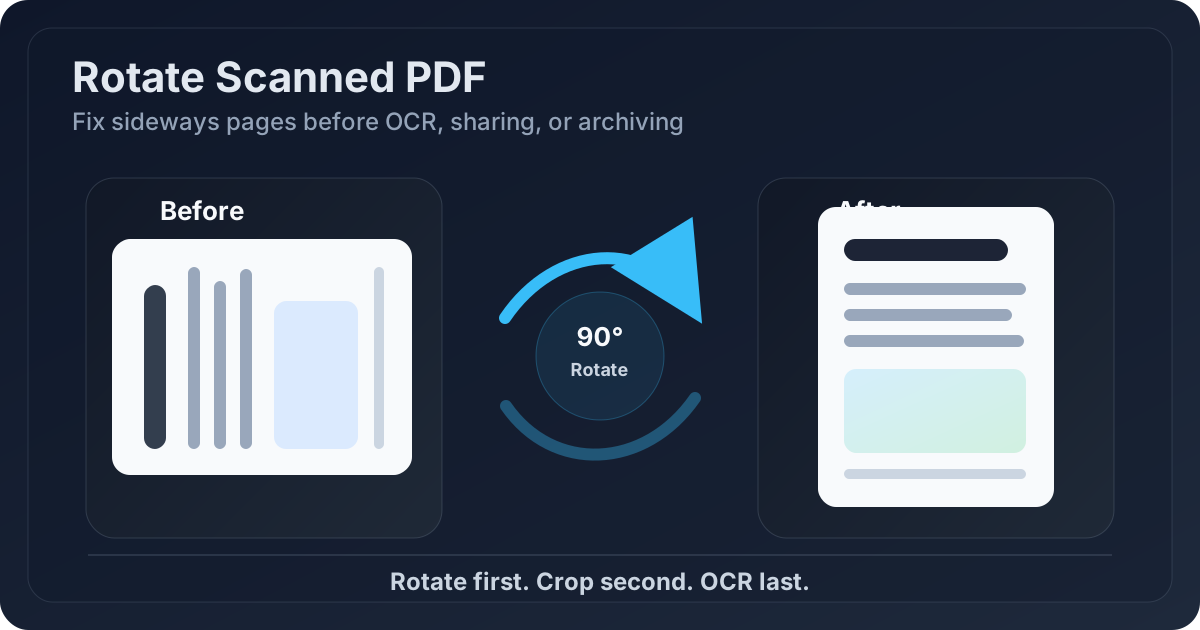
Table of contents
- Quick start: rotate a scanned PDF in about 4 minutes
- When rotation is the right fix and when it is not
- Step-by-step: rotate scanned PDF pages safely
- How to handle mixed-orientation scan batches
- Best order: rotate, crop, OCR, then share
- Mistakes that make scanned PDFs harder to fix
- Related LifetimePDF tools and guides
- FAQ
Quick start: rotate a scanned PDF in about 4 minutes
If the document is readable but facing the wrong direction, this is the simplest useful workflow:
- Open Rotate PDF.
- Upload the scanned file and check whether every page is wrong or only a few pages are.
- Rotate the affected pages 90°, 180°, or 270° until the text is upright.
- Download the corrected PDF and spot-check the first page, one middle page, and the last page.
- If the scan still has black borders, giant margins, or image-only text, continue with Crop PDF and OCR PDF.
When rotation is the right fix and when it is not
People often bundle several scan problems together. A page can be sideways, slanted, dark around the edges, blurry, or all four at once. Rotation is powerful, but it only solves one specific problem: page direction.
| If the problem looks like this... | It usually means... | Best first move |
|---|---|---|
| The page is sideways or upside down | Orientation is wrong | Use Rotate PDF |
| The page is upright but text lines lean | The scan is skewed, not rotated | Review Deskew Scanned PDF |
| Dark scanner edges make the page look worse | Border noise is distracting the eye | Use Crop PDF |
| The page looks warped like a phone photo taken from the side | The source capture is weak | Rescan or recapture that page if possible |
That distinction matters because it saves time. If the page is simply facing left, do not overcomplicate it. Rotate it. If the page is already upright but still ugly, a different fix is probably needed.
Step-by-step: rotate scanned PDF pages safely
1) Check whether the whole file is wrong or only certain pages are
A single-page receipt and a fifty-page document packet are different jobs. If every page is sideways, the fix is easy. If only a few pages are wrong, slow down and make page-specific changes instead of rotating the whole file out of habit.
2) Open the file in Rotate PDF
Upload the scan to LifetimePDF Rotate PDF. At this stage, you are only trying to restore normal reading direction. Do not worry about OCR, text extraction, or file size yet.
3) Rotate the affected pages until the document reads naturally
Use 90°, 180°, or 270° turns depending on the page direction. Read the top few lines or look at page numbers, headers, and signatures. If they read naturally, the orientation is probably right.
4) Review a few representative pages before saving
For a longer packet, check page 1, a middle page, and the last page. Mixed scan batches are common, especially when documents came from a phone app, a shared office scanner, or multiple people. A quick review catches most avoidable mistakes.
5) Save the rotated copy and continue only if needed
Once the pages are upright, save the corrected file. If the document is now readable and you are only sending it for casual review, you may be done. If the file still looks messy or needs searchable text, continue with crop and OCR.
Best working sequence for most scans: Rotate → Review → Crop → OCR.
How to handle mixed-orientation scan batches
This is where most people lose time. A packet may include one upside-down page from a feeder jam, two sideways phone scans, and twenty pages that were already fine. One global rotation does not help that kind of file.
When page-by-page rotation is the safer choice
- Only a few pages were scanned incorrectly.
- The document combines scans from different devices.
- Attachments, receipts, or IDs were added into an otherwise normal packet.
- Portrait and landscape pages are mixed together.
When rotating the whole file is fine
- Every page faces the same wrong direction.
- The scan came from one device with one consistent orientation mistake.
- You already spot-checked multiple pages and confirmed the issue is uniform.
If the file is long and only one section is affected, isolate that section first with Extract Pages. That lets you fix the real problem area without repeatedly handling pages that never needed correction.
Best order: rotate, crop, OCR, then share
Rotating scanned pages is often the first step in a more useful workflow. If the document needs to be searchable, client-ready, or archived cleanly, the order matters.
Why rotation should come before OCR
OCR performs better when text already reads in the correct direction. Upright text is easier to segment into lines, tables, and paragraphs. If you OCR a sideways scan first, you often get weaker text recognition and more cleanup later.
Why cropping often comes after rotation
Once the page faces the right direction, it is easier to judge black borders, scanner shadows, and wasted outer margins. If the rotated file still looks messy, use Crop PDF or review Remove Black Borders from Scanned PDF.
A practical scanned-PDF cleanup sequence
- Rotate pages into the correct reading direction.
- Crop black edges or empty margins if they distract from the page.
- Run OCR to make the corrected file searchable.
- Compress the final copy if upload size still matters.
- Share or archive the cleaned version, not the original messy scan.
If you are working with paper records, contracts, forms, receipts, or compliance files, that order usually feels much calmer than trying every tool at once on the worst possible version of the document.
Need a cleaner final file, not just an upright one?
Mistakes that make scanned PDFs harder to fix
- Running OCR first: this often bakes weaker recognition into the file because the text was facing the wrong way.
- Rotating the whole document without checking page variety: mixed batches rarely reward guesswork.
- Confusing rotation with deskewing: an upright but slanted page needs a different fix.
- Ignoring black borders and giant margins: direction may be correct, but the file can still look messy and unprofessional.
- Skipping the final spot-check: it only takes a few seconds to catch the one page that still points the wrong way.
If the page still looks crooked after rotation, the better next step may be Deskew Scanned PDF. If the page is upright but image-only, the better next step may be creating a searchable PDF with OCR.
Related LifetimePDF tools and guides
- Rotate PDF - fix sideways or upside-down scanned pages.
- Crop PDF - remove black borders, shadows, or wasted margins after rotation.
- OCR PDF - make the corrected scan searchable.
- Extract Pages - isolate the pages that actually need fixing.
- Merge PDF - rebuild the final packet after page-level repairs.
- Rotate Scanned PDF Online - more online-specific rotation guidance.
- Remove Black Borders from Scanned PDF - clean dark scanner edges after orientation is fixed.
Bottom line: fix the page direction first, then do the heavier cleanup only on the corrected version.
FAQ
How do I rotate a scanned PDF?
Open the scanned file in a Rotate PDF tool, turn the affected pages 90°, 180°, or 270° until the text is upright, then save the corrected copy. If you need searchable text, run OCR after rotating.
Should I rotate a scanned PDF before OCR?
Yes. Rotating first usually gives OCR a cleaner reading direction, which improves text detection and makes the final searchable file more dependable.
Can I rotate only one page in a scanned PDF?
Yes. That is usually the safest approach when only one or two pages were scanned incorrectly inside a larger packet.
Is rotating a scanned PDF the same as deskewing it?
No. Rotation fixes page direction. Deskewing fixes pages that are upright but still slanted or crooked in the page frame.
What if the scan still looks bad after rotating it?
Rotation only fixes direction. If the file still has black borders, giant margins, blur, or perspective distortion, crop it, run OCR on the cleaned version, or rescan the page if the original capture is weak.