Deskew Scanned PDF: Straighten Crooked Pages Before OCR, Printing, or Archiving
To deskew a scanned PDF, first check whether the page is merely rotated or actually slanted, then straighten the page, trim away black borders, and run OCR on the cleanest version of the file.
If the scan is badly warped or photographed at an angle, rescanning that page is usually faster and produces a better result than endlessly trying to rescue a weak source.
Most people searching this do not care about the word deskew itself. They care that a scanned invoice looks crooked, a contract packet feels sloppy, or OCR keeps misreading text because the page came through the feeder a little sideways. The practical fix is not magic. It is a calm cleanup sequence: tell rotation problems from skew problems, remove the visual junk around the page, make the file searchable only after cleanup, and stop fighting pages that really need a better scan.
Fastest practical path: rotate if the page is sideways, crop away black borders and shadows, then run OCR on the cleaned file.
Need the short version? Jump to Quick start: deskew a scanned PDF in a few minutes.
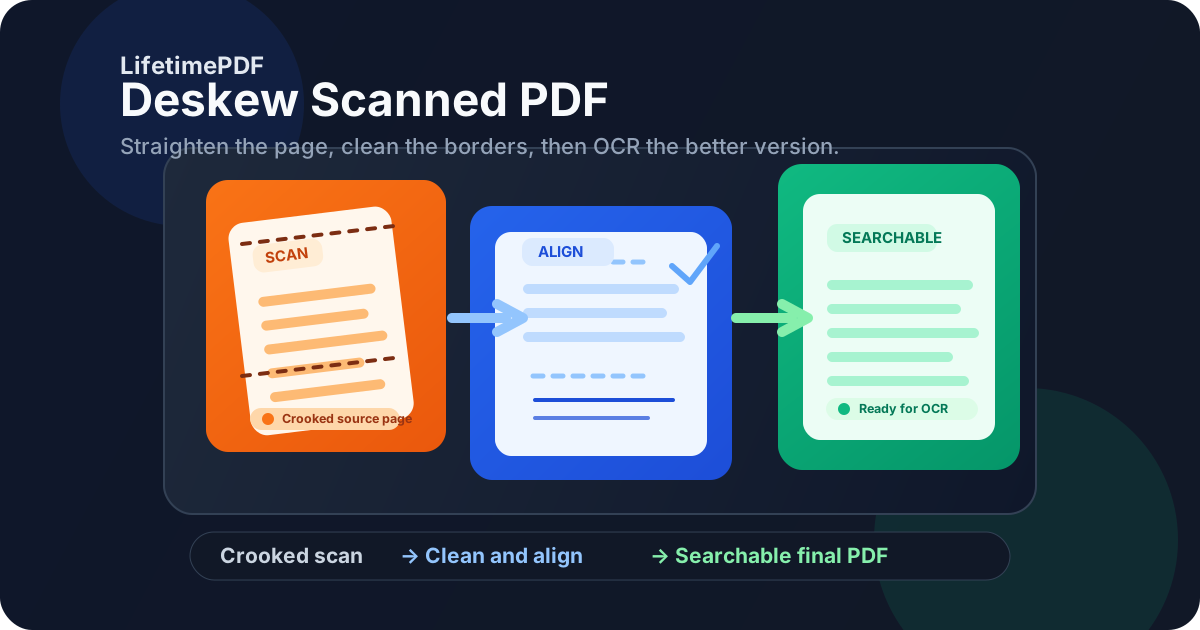
Table of contents
- Quick start: deskew a scanned PDF in a few minutes
- What deskew means and why people actually need it
- Step-by-step: a practical deskew workflow
- Deskew vs rotate vs rescan
- Why straighter scans improve OCR, review, and archives
- Fix one bad page or a whole scanned packet?
- Common real-world deskew cases
- Troubleshooting shadows, black borders, warped pages, and large files
- Related LifetimePDF tools and companion guides
- FAQ (People Also Ask)
Quick start: deskew a scanned PDF in a few minutes
If you just need the shortest useful workflow, do it in this order:
- Open the scan and decide whether the page is sideways or merely slanted.
- If the page is turned left, right, or upside down, fix that first with Rotate PDF.
- Use Crop PDF to remove black borders, copier shadow, giant margins, and edge clutter.
- Run OCR PDF on the cleaned version so the file becomes searchable and easier to reuse.
- If one page is still obviously warped or unreadable, isolate that page with Extract Pages and rescan it instead of reprocessing the whole document.
What deskew means and why people actually need it
In plain English, deskewing means making a scanned page sit straight again. The text lines should feel level instead of slowly drifting uphill or downhill. That sounds small, but it matters more than people think. A slightly crooked page can make a document feel amateur, reduce OCR accuracy, and force readers to work harder than they should.
The reason this keyword is so common is that scanning mistakes are ordinary. Paper feeds a little off-center. One receipt gets dropped on the glass at an angle. A phone capture looks fine at first glance but is actually warped. A copier adds dark edges that make a page look even more slanted than it really is. In all of those cases, the real goal is not technical perfection. The goal is a PDF that another human can read, search, archive, or upload without friction.
| If the problem looks like this... | It usually means... | Best first move |
|---|---|---|
| The whole page is sideways | Orientation is wrong, not skew | Use Rotate PDF |
| The page is upright but text lines lean | True skew or off-axis capture | Clean the page, then OCR the best version |
| Black borders and shadow make the page feel crooked | Visual clutter is exaggerating the problem | Use Crop PDF |
| The page looks stretched or photographed from an angle | The source capture is weak | Rescan or recapture that page |
Step-by-step: a practical deskew workflow
The best workflow is the one that gets you to a readable, searchable final file with the least wasted effort. For most people, that means a few calm steps instead of hunting for a mythical one-click miracle.
1) Check the obvious first: is the page actually sideways?
Many people say they need to deskew a scan when the page simply needs rotation. If the top of the document points left or right, fix that first with Rotate PDF. A lot of “deskew” problems disappear the moment the page is facing the right direction.
2) Remove the visual junk around the document
Black borders, copier-lid shadows, giant margins, and camera edge clutter make a page look worse and give OCR more noise to fight with. Use Crop PDF to tighten the page around the content that matters. This often makes a scan feel much straighter even before you do anything else.
3) Run OCR on the cleanest version, not the messiest one
OCR is most useful after the page is upright and visually calmer. Once you run OCR PDF, the file becomes easier to search, copy, summarize, compare, and archive. If you OCR a noisy, crooked scan too early, you often lock in a weaker result.
4) Test the repaired PDF like a normal reader
Open the file once and ask a few blunt questions. Can you read the page without mentally tilting your head? Can you search for a visible word? Does text selection roughly follow the lines? If yes, you probably solved the real problem even if the scan is not mathematically perfect.
5) Stop early when the source is the problem
If the page still looks twisted, blurry, cut off, or photographed from an angle, the PDF wrapper is not the real issue. Rescanning that page is usually the fastest path to a better final document. Good cleanup improves decent scans. It does not magically turn a bad capture into a high-quality archive.
Best working sequence for most crooked scans: Rotate → Crop → OCR → Verify.
Deskew vs rotate vs rescan
This is the decision that saves the most time. If you choose the wrong fix, you can spend fifteen extra minutes polishing the wrong problem.
| Situation | What it usually means | Better move |
|---|---|---|
| The page is turned 90°, 180°, or 270° | Orientation error | Rotate it first |
| The text lines are upright but slope slightly | Light skew from scanning | Clean the page, then OCR the result |
| The page looks trapezoid-shaped or perspective-warped | Phone or camera capture problem | Rescan or recapture it |
| Only one page in a long PDF is bad | Local page issue, not document-wide damage | Extract and repair that page only |
My bias is simple: fix the smallest real problem first. Do not rebuild an entire fifty-page packet if one receipt page came through crooked. Do not keep rerunning OCR when the underlying page is obviously photographed at a bad angle. And do not call a rotation problem “deskew” just because the result looks awkward.
Why straighter scans improve OCR, review, and archives
People often treat deskewing as a cosmetic step, but it is really a usability step. Straighter scans behave better in almost every downstream workflow.
OCR usually performs better
Optical character recognition works by finding patterns that look like letters and lines of text. Cleaner page framing and more stable text alignment make that job easier. Crooked scans, shadows, and black edges create more opportunities for OCR to guess badly.
Readers trust the document more
A slightly crooked scan may still be legible, but it feels careless. That matters for contracts, invoices, compliance documents, onboarding packets, and paper archives where the whole point is clarity and recordkeeping.
Search and copy-paste become more useful
Once OCR is done on a cleaner page, text selection tends to follow the content more naturally. That makes search, text extraction, AI summarization, and comparison workflows more dependable.
Long-term archives become easier to live with
If you are building a paper-file archive, even small improvements matter because you will feel them every time someone opens the file later. A calm, searchable scan ages better than a crooked image-only PDF that looks rushed.
Fix one bad page or a whole scanned packet?
Not every deskew job deserves full-document treatment. In real life, many PDFs contain one offender: one skewed receipt, one tilted ID page, one crooked appendix, or one page that came through the feeder badly.
Fix the whole packet when
- the scanner feed was consistently crooked across the document,
- every page has the same black borders or shadow problem,
- the whole file needs OCR and cleanup anyway, or
- you are preparing a long-term archive that should feel consistent front to back.
Fix only one page when
- the rest of the packet is already readable,
- only one insert or attachment is misaligned,
- one phone capture is worse than the other pages, or
- you can save a lot of time by isolating the actual problem page.
If only part of the document is bad, use Extract Pages to isolate the troublemaker. Repair or rescan that page, then use Merge PDF to rebuild the final packet if needed. That is usually much calmer than repeatedly processing dozens of pages that were already fine.
Common real-world deskew cases
This keyword exists because crooked scans show up in ordinary work. These are the places where deskewing matters most.
Feeder-scanned contracts and forms
A multi-page packet looks mostly fine, but a few sheets fed slightly off-angle. Fix the orientation, clean the borders, and make the final file searchable before approval or filing.
Receipts, IDs, and admin attachments
These pages often enter a larger PDF from phones or small flatbed scans. They are the most likely to look crooked, shadow-heavy, or oddly framed inside an otherwise normal packet.
Paper archives and historical records
If you are digitizing old folders, small improvements compound. Straighter scans and better OCR make old documents far easier to search and revisit later.
Phone-captured scans that need rescue
Mobile capture is fast, but some pages end up slightly twisted or heavily warped. Light skew can be cleaned up; perspective distortion usually means a fresh capture is the smarter answer.
In every case, the value is the same. A straighter page reduces friction for the next human and gives your tools a better chance of doing their jobs properly.
Need to clean a messy scan before you share or archive it? Start with the bad pages, not the whole workflow.
Troubleshooting shadows, black borders, warped pages, and large files
The page still feels crooked after rotation
That usually means the page was not simply sideways. Crop away the extra edge noise and check whether the document itself now feels straighter. If the text lines still lean noticeably, the source scan may just be poor.
Black borders are making the page look worse
Heavy borders exaggerate skew and make OCR less clean. Use Crop PDF to remove them before doing anything else.
The page was photographed from an angle
This is the classic case where cleanup has limits. A page that looks trapezoid-shaped or perspective-warped is usually telling you the source image is the real problem. Recapture or rescan it if you can.
OCR still misses words
Check whether the text is actually selectable, whether the page is still noisy, and whether the source image is blurry. OCR is strong, but it does not fix blur, cut-off characters, or severe distortion by magic.
The final PDF is too large
Once the scan is clean and searchable, use Compress PDF on the finished file. That keeps the cleanup order logical and avoids optimizing the wrong version too early.
Related LifetimePDF tools and companion guides
Deskewing scanned PDFs usually lives inside a broader scan-cleanup workflow. These are the most useful related tools and guides:
- Rotate PDF - fix pages that are sideways before you worry about skew.
- Crop PDF - remove black borders, shadow, and extra margins that make scans feel more crooked.
- OCR PDF - make the cleaned scan searchable and easier to reuse.
- Extract Pages - isolate one bad page instead of rebuilding a long document.
- Merge PDF - rebuild the final packet after page-level repairs.
- Compress PDF - shrink the cleaned final file for email or upload limits.
For nearby reading, these guides fit naturally with this workflow: Deskew Scanned PDF Online, Rotate Scanned PDF Online, How to Create Searchable PDFs, Build a Searchable PDF Archive for Old Paper Files, Why Is My PDF Not Searchable?, and Remove Black Borders from Scanned PDF.
Bottom line: the cleanest way to deskew a scanned PDF is to fix orientation first, trim visual junk second, and OCR the straightest version you can create.
FAQ (People Also Ask)
How do I deskew a scanned PDF?
Check whether the page is sideways or truly slanted. Rotate it if needed, crop away black borders and scanner noise, then run OCR on the cleaned file. If the page still looks warped or blurry, rescanning is usually the better fix.
Is deskewing the same as rotating a PDF?
No. Rotation fixes a page that is turned left, right, or upside down. Deskewing deals with a page that is technically upright but still leans or sits crooked inside the page frame.
Will OCR fix a crooked scan by itself?
Usually not. OCR works better after the scan is cleaner. Heavy skew, black borders, shadows, blur, and perspective distortion all reduce recognition quality.
What if only one page in my scanned PDF is crooked?
Extract that page, repair or rescan it separately, and merge it back only if necessary. That is usually much faster than reprocessing a full document for one bad page.
When should I stop trying to deskew and just rescan?
When the page still looks obviously warped, blurry, cut off, or perspective-distorted after rotation and cleanup. A better source scan nearly always beats a heavily compromised original.
Published by LifetimePDF - Pay once. Use forever.