Deskew Scanned PDF Online: Straighten Crooked Pages Before OCR and Sharing
If you need to deskew a scanned PDF online, start by making sure the page is upright, then crop away scanner noise and run OCR on the cleanest version of the file.
For lightly crooked scans, that workflow is usually enough to make the PDF readable and searchable again; for heavily slanted pages, rescanning the source is often faster than trying to force a bad original.
The useful distinction here is simple: rotation fixes pages that are sideways, while deskewing fixes pages that are technically upright but still look slightly tilted or off-axis. A lot of scanned PDFs actually need a practical cleanup chain rather than one magic button, especially when the real problem is a phone photo, copier shadow, black border, or uneven page capture that will hurt OCR if you ignore it.
Fastest path: correct the page direction first, crop the mess around the scan, then run OCR only on the cleaned file.
In a hurry? Jump to Quick start: deskew a scanned PDF in a few minutes.
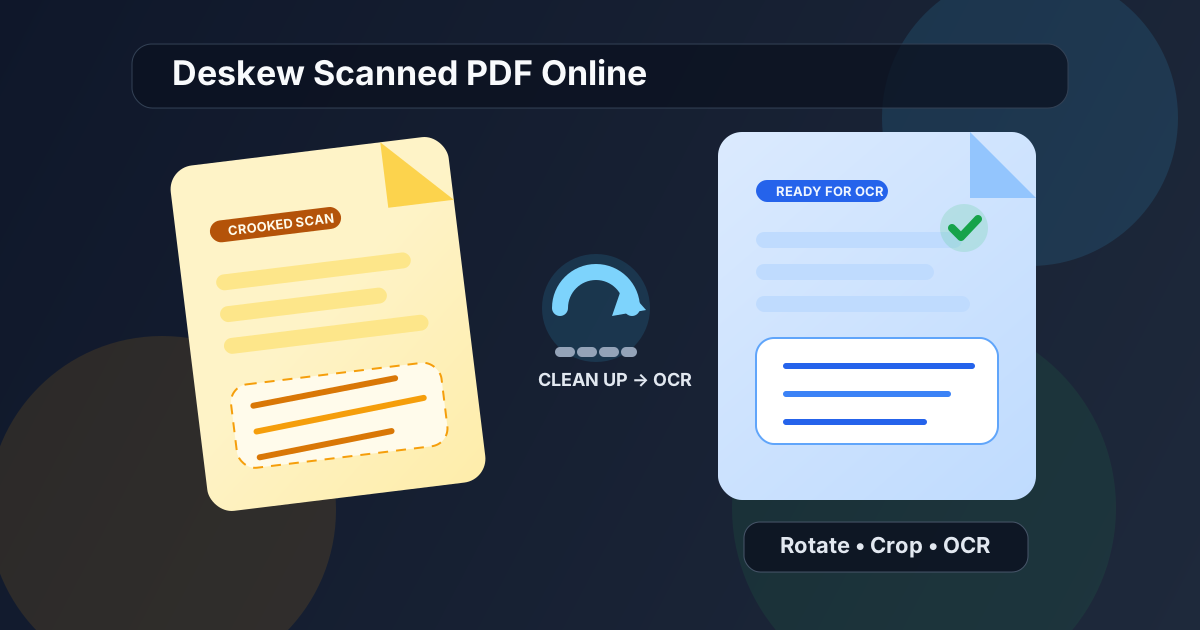
Table of contents
- Quick start: deskew a scanned PDF in a few minutes
- Deskew vs rotate: what problem do you actually have?
- Step-by-step: practical online workflow for crooked scans
- When light cleanup is enough and when it is not
- Why straighter scans lead to better OCR
- How to fix one bad page without rebuilding everything
- Common scan problems: shadows, borders, warped phone photos
- Related LifetimePDF tools and blog guides
- FAQ (People Also Ask)
Quick start: deskew a scanned PDF in a few minutes
If you only want the shortest practical route, use this order:
- Open Rotate PDF and fix any page that is obviously sideways or upside down.
- Use Crop PDF to remove black borders, scanner shadows, and wasted margins around the page.
- Run OCR PDF on the cleaned file so the text becomes searchable.
- Open the result once and check whether the page now reads naturally and whether search actually works.
- If the page still looks visibly slanted or warped, extract that page and rescan it straight instead of endlessly reprocessing a weak source image.
Deskew vs rotate: what problem do you actually have?
A lot of people say “deskew” when the page is actually just sideways. That matters because the fastest fix depends on the real problem.
| Issue | What it looks like | Best first move |
|---|---|---|
| Rotation | The whole page is turned left, right, or upside down | Use Rotate PDF |
| Light skew | The text is upright but leans slightly, often from a sloppy scan | Crop noise, keep the cleanest version, then OCR |
| Warped capture | The page looks photographed at an angle, stretched, or bowed | Recapture or rescan the source page |
| Mixed scan mess | Sideways pages, dark borders, and image-only text all at once | Rotate → Crop → OCR |
This is why “deskew scanned PDF online” is often less about one fancy correction step and more about choosing the right cleanup chain. If the page is truly rotated, fix the orientation first. If the page is upright but still a bit crooked, remove the junk around it and feed the cleanest possible version into OCR.
Step-by-step: practical online workflow for crooked scans
The goal is not to make the scan mathematically perfect. The goal is to make it readable, searchable, and calm enough that another human can use it without friction.
1) Check whether the page is actually sideways
Open the file and look at the obvious first. If the top of the document points left or right, start with Rotate PDF. A lot of “deskew” complaints disappear the moment the page is facing the correct direction.
2) Remove visual junk before doing anything clever
Large white margins, black scanner borders, copier shadows, and dark phone-camera edges make a scan feel more crooked than it really is. They also distract OCR. Use Crop PDF to tighten the page and keep attention on the document itself rather than the noise around it.
3) Run OCR on the cleaned version, not the messy one
Once the page is upright and trimmed down, run OCR PDF. This is where the file becomes much more useful because you are no longer stuck with a dead image. Search, highlight, copy-paste, summarization, translation, and text extraction all work better once OCR has a straighter page to read.
4) Test the result like a normal user
Open the new file and do three quick checks: can you read the page without mentally tilting your head, can you search for a visible word, and does the text selection follow the lines naturally? If yes, you probably solved the real problem even if the scan is not laboratory-perfect.
5) Rescan only the pages that still look bad
If one page is still severely slanted, shadow-heavy, or warped, stop forcing it. Extract the bad page, recapture it straighter, and rebuild the document only after the source is cleaner. That is usually faster than trying to rescue a terrible photo from inside a PDF container.
Best working sequence for most crooked scans: rotate if needed, crop the noise, then OCR the cleaner file.
When light cleanup is enough and when it is not
Not every crooked scan needs to be redone. Some just need a little discipline.
Cleanup is usually enough when
- the page is readable but feels slightly off-axis
- the main problem is black edges, scanner shadow, or oversized margins
- OCR is the bigger goal than visual perfection
- the file only needs to be searchable, reviewable, or uploadable
Rescanning is usually smarter when
- the page looks warped like a photo taken from the side
- text lines visibly climb or fall across the page
- corners are cut off or perspective is distorted
- the scan is blurry enough that OCR keeps guessing badly
This matters because perfectionism can waste a lot of time. If a lightly crooked invoice becomes searchable and readable after cleanup, the job is done. If a photographed contract still looks twisted after cleanup, the source is the problem, not the PDF wrapper.
Why straighter scans lead to better OCR
OCR is not magic. It is pattern recognition, which means it gets better input when the page is cleaner, straighter, and less cluttered.
What usually helps OCR
- Upright text: OCR is happier when the page is facing the correct direction.
- Tighter framing: cropped borders reduce useless visual clutter.
- Cleaner contrast: fewer shadows and fewer dark edges make letters easier to detect.
- Better source scans: a straight scanner feed normally beats a tilted phone capture.
What still hurts OCR
- warped perspective from phone photos
- small text near the page edge
- fold marks, stamps, or handwritten notes over printed content
- heavy compression or blur from already-damaged source files
That is why the practical advice is so boring and so effective: clean the scan first. A straighter, quieter page gives OCR less to fight with.
How to fix one bad page without rebuilding everything
Long PDFs often contain one offender: a crooked receipt, a tilted appendix, one phone-scanned ID, or a single page that came through the copier badly. Do not treat that like a whole-document emergency.
- Use Extract Pages to isolate the problem page.
- Clean that page with Rotate PDF and Crop PDF.
- Run OCR PDF if you need searchable text.
- Merge the fixed page back into the final packet with Merge PDF if necessary.
This keeps the repair small and prevents you from reprocessing dozens of perfectly fine pages just because one page behaved badly.
Common scan problems: shadows, borders, warped phone photos
Dark borders and scanner lids
These often make a document feel more crooked than it really is. They also create dead space and visual noise. Cropping is usually the right move.
Phone photos taken from an angle
This is the classic “not really a PDF problem” problem. The page may be embedded in a PDF, but the distortion came from the original camera angle. If the perspective looks warped, a better recapture is usually more valuable than endless post-processing.
Mixed document packets
Contract packets, expense reports, onboarding bundles, and school submissions often mix proper PDFs with scans from different sources. In those cases, clean the bad pages individually instead of flattening the whole workflow into one giant compromise.
Image-only scans that still need text extraction
Deskewing is rarely the final destination. Usually the real goal is something downstream: search, copy, summarize, translate, compare, or convert. That is why OCR matters so much after cleanup.
Related LifetimePDF tools and blog guides
Deskewing scanned PDFs usually sits inside a larger cleanup workflow. These tools and guides pair naturally with it:
- Rotate PDF - fix pages that are sideways before worrying about skew.
- Crop PDF - remove black borders, oversized margins, and scanner shadow.
- OCR PDF - make the cleaned scan searchable and easier to reuse.
- Extract Pages - isolate one bad scan instead of reworking a full document.
- Merge PDF - rebuild the final packet after repairing the problem page.
Related blog guides
- Rotate PDF 90 Degrees Online
- Why Is My PDF Not Searchable?
- How to Create Searchable PDFs
- Convert Scanned PDF to Word Online
- Remove Black Borders from Scanned PDF
Need the cleanest practical workflow?
Most useful real-world order: fix orientation → crop the scan → run OCR → verify searchability.
FAQ (People Also Ask)
1) How do I deskew a scanned PDF online?
Start by checking whether the page is sideways or merely slanted. Rotate it if needed, crop away noise and borders, then run OCR on the cleaned file. If the page still looks obviously warped, rescanning that source page is usually the better fix.
2) Is deskewing the same as rotating a PDF?
No. Rotation fixes a page that is turned left, right, or upside down. Deskewing deals with a page that is upright but still slightly crooked inside the frame.
3) Will OCR fix a crooked scan by itself?
Not reliably. OCR can make the file searchable, but it usually performs better after you clean the page first. Heavy skew, dark borders, shadows, and blur all make recognition worse.
4) What if only one page in my PDF is crooked?
Extract that page, repair it separately, and merge it back only if needed. That is usually faster than reprocessing an entire long PDF for one bad scan.
5) When should I stop trying to fix the PDF and just rescan it?
Usually when the page still looks obviously slanted, perspective-warped, blurry, or shadow-heavy after basic cleanup. A straighter source scan nearly always beats heroic post-processing.
Published by LifetimePDF — Pay once. Use forever.