Remove Black Borders from Scanned PDF: Clean Scanner Edges Without Cropping Away Real Content
To remove black borders from a scanned PDF, open the file in a Crop PDF tool, trim only the dark outer edges, review a few representative pages, then save the cleaned copy.
If the scan is crooked or sideways, rotate it first, and if you need searchable text afterward, run OCR once the borders are gone.
That is the fast answer, but the real job is not just making the file look nicer. It is making sure scanner-bed shadows, dark corners, and lid edges disappear without clipping signatures, page numbers, table borders, or tiny footnotes that still matter. A careful cleanup takes a couple of minutes and usually saves a lot more time when the file gets shared, uploaded, printed, or passed into OCR.
Fastest path: rotate the scan if needed, crop away the dark outer frame, then use OCR or compression only if the cleaned file still needs more work.
In a hurry? Jump to Quick start: remove black scan borders in about 4 minutes.
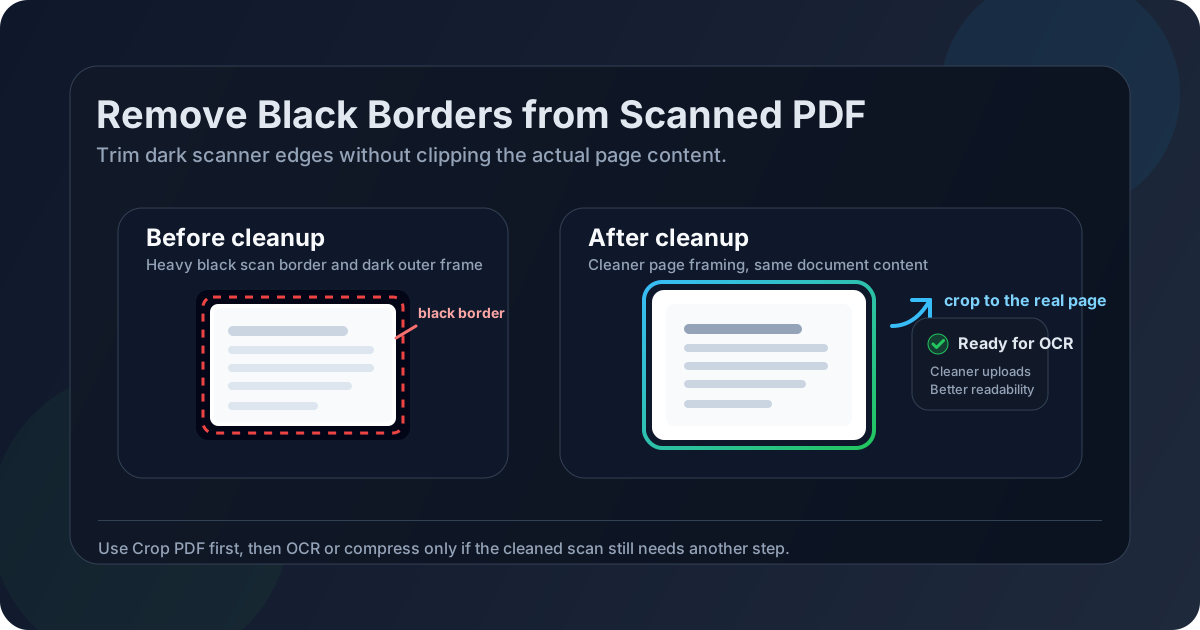
Table of contents
- Quick start: remove black scan borders in about 4 minutes
- Why black borders show up on scanned PDFs
- What to remove and what to leave alone
- Step-by-step: remove black borders safely
- How to handle mixed scan batches
- OCR, compression, and next steps after cleanup
- Mistakes that cause accidental cutoffs
- Related LifetimePDF tools and guides
- FAQ
Quick start: remove black scan borders in about 4 minutes
If you already know the problem is just the dark outer frame, use this order:
- Open Crop PDF.
- If the scan is sideways or crooked, fix that first in Rotate PDF.
- Trim only the black edge, shadow, or scanner-bed area around the page.
- Preview page 1, one middle page, and the last page before applying the same crop broadly.
- Save the cleaned file, then run OCR PDF if you need searchable text or Compress PDF if you need a smaller upload.
Why black borders show up on scanned PDFs
Black borders are usually a capture problem, not a document problem. The scanner or camera simply included too much of the outside area around the sheet.
Common causes
- Scanner-bed edges: the paper was slightly misaligned, so the dark edge of the glass became part of the page.
- Lid shadows: the scanner cover did not sit flat, which created a darker frame along one or more sides.
- Phone scan framing: the camera captured table surface, background shadows, or uneven contrast around the paper.
- Crooked originals: the page sat at an angle, which often creates triangular black corners after export.
- Mixed batches: some pages were loaded neatly while others shifted, so the framing problem is inconsistent across the file.
That is why generic "remove margins" advice often feels incomplete. A scanned border problem is usually less about whitespace and more about cleaning capture artifacts without harming the real content that sits near the edge.
What to remove and what to leave alone
The dark frame should go. The actual page should stay. That sounds obvious, but scanned documents often hide important content close to the edge.
| Usually safe to remove | Review carefully before trimming |
|---|---|
| Pure black scanner-bed edges | Page numbers near the bottom edge |
| Dark lid shadows outside the paper | Signatures placed close to a border |
| Background around a phone-scanned sheet | Table borders that run close to the page edge |
| Uneven outer framing that is not part of the page | Footnotes, stamps, initials, or approval marks |
Step-by-step: remove black borders safely
1) Rotate before you crop if the page is not upright
A sideways or tilted scan makes everything harder. You judge the border less accurately, and it becomes easier to shave off a corner that looked empty only because the page was skewed. If the file is obviously misaligned, use Rotate PDF first.
2) Open the file in Crop PDF
Upload the scanned document to LifetimePDF Crop PDF. Start with one representative page rather than applying a crop to the whole document immediately.
3) Crop to the real page, not to perfection
Drag the crop box inward until the black scanner border disappears, but stop before it pinches real content. A tiny bit of neutral margin is fine. The file only needs to look clean and trustworthy, not machine-lathed.
4) Check edge-sensitive content
Before you apply the crop more widely, look for the details that tend to get clipped first: bottom page numbers, signature lines, handwritten initials, long spreadsheet columns, stamps, or footers.
5) Apply the crop only where it actually fits
If every page has the same scan geometry, one crop can work across the batch. If pages drift, apply the crop only to the matching range or clean the problem pages separately.
6) Save and review the cleaned copy
Download the cleaned PDF and open it once before you send it anywhere. It is a boring final step, but it catches most avoidable mistakes.
How to handle mixed scan batches
Many scanned PDFs are not consistent. A packet may include a few flat pages, a couple of crooked copies, one page with a thick black bar from the scanner edge, and another page that was captured on a phone. That is where one global crop starts doing damage.
When one crop is fine
- The whole batch came from the same scanner in the same orientation.
- The dark edge is uniform across nearly every page.
- Margins and page content sit in roughly the same place.
When page-specific cleanup is safer
- Some pages are portrait and others are landscape.
- Only a few pages have heavy black corners or lid shadows.
- Tables, signatures, or stamps sit close to the border on certain pages.
- The scan packet also includes cover sheets, annexes, or mixed source documents.
If the PDF is part of a larger packet, it can also help to isolate just the pages you want before cleanup with Extract Pages. That keeps you from solving ten different layout problems inside one crop action.
OCR, compression, and next steps after cleanup
Border removal is often the middle of the workflow rather than the end.
Run OCR after the page looks clean
If the PDF is still image-based, use OCR PDF after cropping. Cleaner page framing usually makes the document easier to review and can reduce some of the visual noise around the text.
Compress only if file size is still a problem
Cropping improves presentation, but it does not always reduce file size much. If the cleaned scan still feels heavy for email, client portals, or record systems, run Compress PDF afterward.
Print or share the cleaned copy, not the original
This sounds too obvious to mention until the wrong file gets sent. Rename the corrected PDF clearly so you do not email the untouched version with the black frame still on it.
Mistakes that cause accidental cutoffs
- Cropping too tightly: the border vanishes, but the footer or signature line vanishes with it.
- Applying one crop to inconsistent pages: mixed batches almost never reward optimism.
- Skipping rotation: a crooked scan tricks your eye and leads to uneven trimming.
- Assuming cropping is redaction: it is not a privacy workflow.
- Never opening the result: the final spot-check is where most avoidable mistakes are caught.
If the border problem is not a dark scan edge but printer marks or full-bleed export noise, the better guide is How to Remove Crop Marks from a PDF Before Sharing or Printing. It is a similar cleanup task, but the reasoning is slightly different.
Related LifetimePDF tools and guides
- Crop PDF — remove black edges, shadows, or wasted outer framing.
- Rotate PDF — fix sideways or upside-down scans before cropping.
- OCR PDF — make the cleaned scan searchable.
- Compress PDF — reduce upload size after cleanup.
- How to Crop a PDF on Windows — useful if your workflow is desktop-browser based.
- How to Remove Crop Marks from a PDF Before Sharing or Printing — for print-exported files rather than scanner shadows.
Need the shortest possible route? Crop away the dark outer frame first, then OCR or compress only if the cleaned scan still needs another step.
FAQ
How do I remove black borders from a scanned PDF?
Open the scanned file in a PDF crop tool, trim away the black outer edges, review a few representative pages, then save the cleaned PDF. If the page is crooked, rotate it first. If you need searchable text, run OCR after cleanup.
Should I rotate or crop first when a scan has black borders?
Rotate first if the scan is sideways or noticeably crooked. Once the page is upright, it is much easier to place a careful crop that removes the dark border without clipping real content.
Will removing black borders improve OCR?
Often yes. Border cleanup reduces visual noise and usually makes the page easier to inspect before OCR. It does not magically fix a poor scan, but it often gives the recognition step a cleaner document area.
Can I clean only some pages in a scanned PDF?
Yes. That is usually the best choice when only certain pages have heavy shadows, black corners, or different framing. Mixed scan batches rarely benefit from one identical crop on every page.
Is removing black borders the same as redacting information?
No. Cropping changes what is visible on the page. Redaction is the correct workflow for permanently removing sensitive information from a PDF.