How to Remove Crop Marks from a PDF Before Sharing or Printing
If you need to remove crop marks from a PDF, crop the page to the finished trim area so the crop marks, registration marks, and extra bleed sit outside the visible page.
The safe workflow is to preview one representative page first, leave a small margin around real content, then apply the crop to matching pages and export a clean PDF for sharing, upload, or final viewing.
This is one of those PDF problems that looks small until the file lands in the wrong place. A printer may expect crop marks, but a client, teammate, upload portal, or embedded website preview usually does not. Marks around the edge can make the file look unfinished, distract from the actual content, or create confusion about page size. The good news is that most of the time you do not need to rebuild the document. You just need to crop it carefully and avoid trimming away live artwork, signatures, page numbers, or full-bleed elements that were meant to survive to the edge.
Fastest path: review one page, crop to the true finished area, then export a clean PDF without visible printer marks.
In a hurry? Jump to Quick start: remove crop marks in under 5 minutes.
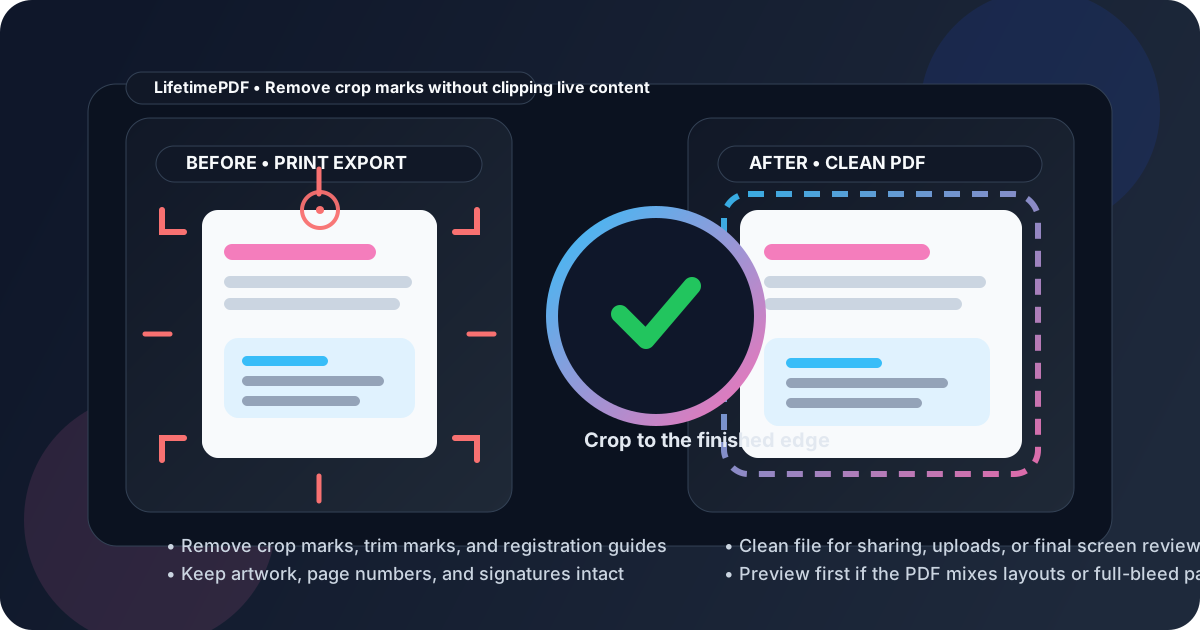
Table of contents
- Quick start: remove crop marks in under 5 minutes
- What crop marks are and why they show up in PDFs
- When you should remove crop marks and when you should not
- Step-by-step: how to remove crop marks from a PDF
- How to avoid cutting off live content
- Crop marks vs white margins vs bleed
- A practical cleanup workflow for print-exported PDFs
- Related LifetimePDF tools and guides
- FAQ (People Also Ask)
Quick start: remove crop marks in under 5 minutes
If you already know the file should not keep the printer marks, use this order:
- Open Crop PDF.
- Upload the PDF and inspect one representative page first.
- Drag the crop area to the finished page edge so the crop marks sit outside the new visible page.
- Leave a small safety margin if text, signatures, or artwork sit close to the edge.
- Preview a few pages before applying the crop more broadly.
- Export the clean PDF and compress it afterward only if you need a smaller upload file.
What crop marks are and why they show up in PDFs
Crop marks are small guide lines near the corners of a page. They tell a print shop where the finished page should be trimmed. You will often see them on brochures, flyers, booklets, packaging proofs, or PDFs exported from design software with print-production settings turned on.
In the right context, they are normal. In the wrong context, they make the PDF look unfinished. That is why people search for this exact problem after a designer export, a Canva download, an InDesign proof, or a vendor handoff that ended up being shared more widely than intended.
| Production element | What it does | Should it stay in a normal shared PDF? |
|---|---|---|
| Crop marks | Show the final trim edge | Usually no |
| Registration marks | Help align print plates or output | Usually no |
| Bleed area | Extends artwork past the trim edge to prevent white slivers | Not visible in a clean shared PDF |
| White margins | Extra empty page space | Optional, depending on readability |
The important distinction is that crop marks are usually deliberate production guides, not accidental blank space. That means you should remove them with a little more care than you would use for simple white-margin cleanup.
When you should remove crop marks and when you should not
The right answer depends on the destination of the file.
Remove crop marks when
- you are sending the PDF to a client for review
- you are uploading the PDF to a portal, LMS, CRM, or website
- the file is meant for email attachments, downloads, or screen viewing
- the marks make the page look unfinished or visually distracting
- the PDF needs to look like the final reader-facing version rather than the production version
Keep crop marks when
- a print vendor specifically requested a production-ready PDF with marks and bleed
- the document is still in print-proof stage
- the file will be trimmed physically and the marks are part of that workflow
- removing them would create uncertainty about final page size during prepress
Step-by-step: how to remove crop marks from a PDF
1) Check one page before you do anything global
Do not crop the whole file blindly. Open a representative page and look at how close the live content sits to the edge. Some PDFs have generous bleed and safe margins. Others put page numbers, signatures, charts, or background artwork very close to the trim line.
2) Open the file in Crop PDF
Use Crop PDF to define the visible page area. Your goal is not to guess the original export settings. Your goal is to keep the finished page and remove the production guides around it.
3) Set the crop box to the real page edge
Drag the crop area so the crop marks, registration marks, and extra outer bleed are no longer inside the visible page. If the design runs all the way to the edge, leave a tiny buffer rather than cutting aggressively. The last thing you want is a clean file with a clipped logo or chopped-off footer.
4) Preview multiple pages if the document is mixed
Many print-exported PDFs are not perfectly uniform. A cover page may be centered differently from interior pages. Landscape inserts may sit differently from portrait pages. If the file is mixed, preview a few pages before applying one crop to everything. If only a portion of the file needs cleanup, use page-specific cropping instead of forcing one box onto the entire document.
5) Export the cleaned file
Once the crop looks right, export the PDF and do a quick spot check. Open the first page, a middle page, and the last page. Make sure the marks are gone and the live content still has breathing room.
Best sequence: inspect one page → crop carefully → preview a few more pages → export → compress only if you need a smaller final file.
How to avoid cutting off live content
This is the part that matters most. Removing crop marks is easy. Removing them without damaging the real page is the skill.
Watch the corners first
Corner areas are where people most often lose content. Page numbers, footnotes, signatures, rule lines, and full-bleed background shapes often sit closer to the edge than you remember.
Be careful with full-bleed artwork
If the design color, image, or background is meant to run all the way to the edge, the crop marks may sit just outside artwork that still matters. In that case, crop to the finished edge, not into the design itself.
Check whether the marks are flattened into the page image
Some PDFs keep printer marks as separate export-area content. Others effectively flatten everything into one page image. When that happens, cropping still works, but you need to preview even more carefully because there is less structural separation between the guides and the artwork.
Use a small safety margin when in doubt
If you are unsure whether a line or image should survive to the edge, leave a little space. A slightly wider clean edge is better than visibly clipped content.
Crop marks vs white margins vs bleed
People often mix these up, and that is where accidental over-cropping starts.
Crop marks
These are the little guide lines that show where the final page should be cut. They exist outside the final visible page.
White margins
These are simply empty borders. They are not production instructions. Removing white margins is usually more forgiving than removing crop marks from a print-oriented file.
Bleed
Bleed is extra artwork that extends past the trim edge so printers do not leave hairline white gaps after cutting. In a normal screen-ready PDF, you do not want the bleed or the marks visible. But you also do not want to cut inside the finished edge of the design.
If your real goal is margin cleanup rather than prepress cleanup, you may also want our white-margin cropping guide. That workflow is similar, but the risk profile is lower because you are usually trimming empty space rather than trimming around production guides.
A practical cleanup workflow for print-exported PDFs
When a PDF comes out of a print workflow and needs to become a clean reader-facing file, this sequence works well:
- Rotate first if needed. Use Rotate PDF if pages are tilted or mixed in orientation.
- Crop to remove marks. Use Crop PDF to remove the production guides and extra outer area.
- Split or isolate exceptions. If only some pages need different handling, use Split PDF.
- Compress the final copy. If the cleaned file is still large, run Compress PDF afterward.
- Share the reader-facing version, not the production export.
That last point matters. Many teams accidentally circulate the production PDF because it is the latest version on hand. A two-minute crop pass can make the document look far more intentional without needing a full rebuild in the original design app.
Related LifetimePDF tools and guides
Removing crop marks is usually one step in a broader file-cleanup workflow. These LifetimePDF pages fit naturally around it:
- Crop PDF - remove crop marks, registration guides, extra bleed, and other unwanted outer page areas
- Rotate PDF - fix page orientation before cropping
- Split PDF - separate mixed layouts or isolate the pages that need different crop settings
- Compress PDF - shrink the cleaned file for upload or email after the crop is finished
- Crop PDF Online Free - broader guide to trimming borders, resizing pages, and cleaning scans
- Why Is My PDF So Slow to Open? - helpful if a production export is also oversized or awkward to share
FAQ (People Also Ask)
What are crop marks in a PDF?
Crop marks are small guide lines near the corners of a page that show where the final trim should happen. They are useful in production and prepress workflows, but they usually do not belong in a normal shared or reader-facing PDF.
Can I remove crop marks without affecting the actual content?
Yes, if the marks sit outside the live content and you crop carefully. Preview one page first, leave a small safety margin, and spot-check multiple pages before you export the final file.
Should I remove crop marks before sending a PDF to a printer?
Usually no if the printer specifically asked for a production-ready file with marks and bleed. Remove them when the PDF is meant for clients, upload portals, web sharing, or final on-screen reading rather than commercial print production.
What is the difference between crop marks and white margins?
Crop marks are deliberate print guides outside the trim area. White margins are simply empty page space. Both can be reduced with cropping, but crop-mark cleanup requires more care because the file may include bleed or edge artwork.
Why are crop marks still visible after exporting my PDF?
They may be part of the page artwork, included in the original export settings, or left inside a crop box that was too loose. Reopen the file, tighten the crop area carefully, and preview again before you export another clean copy.
Ready to turn a production-style PDF into a clean shareable file?
Best practical workflow: keep marks for print production, remove them for normal sharing, and always preview before applying the crop broadly.
Published by LifetimePDF - Pay once. Use forever.