Why Is My PDF So Slow to Open? Fix Browser Loading With Fast Web View
If your PDF is slow to open, the cause is usually one of three things: the file is not optimized for fast web view, it is packed with heavy scanned images, or it is simply too large for the way you are sharing it. In most cases, the fix is to linearize the PDF first, then compress it if the scans themselves are still making the file drag.
This is the practical answer people usually need when a brochure, proposal, report, court filing, handbook, or appendix opens instantly on one machine but takes forever inside a browser tab, portal preview, or chat attachment. Below, we will break down what fast web view actually means, when linearizing helps, when compression matters more, and the cleanest workflow to get a sluggish PDF moving again.
Fastest path: optimize the file for fast web view first, then compress it if large scans or image-heavy pages are still slowing browser delivery.
In a hurry? Jump to Quick start: make a slow PDF open faster.
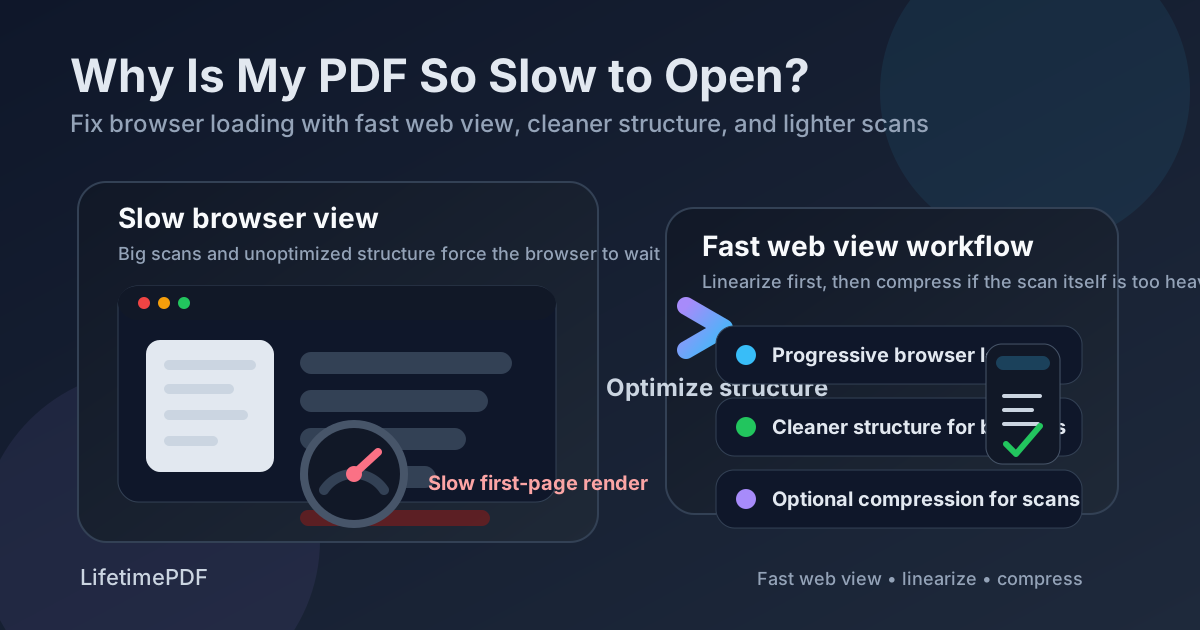
Table of contents
- Quick start: make a slow PDF open faster
- Why PDFs open slowly in the first place
- What fast web view actually means
- Step-by-step: use LifetimePDF to fix a slow-opening PDF
- When to compress as well as linearize
- What linearizing fixes and what it does not
- Scanned PDFs, giant reports, and other real-world slow files
- Common mistakes that keep PDFs slow
- Related LifetimePDF tools
- FAQ (People Also Ask)
Quick start: make a slow PDF open faster
If you do not need the theory first, use this workflow:
- Open Linearize PDF.
- Upload the PDF that is opening slowly in the browser.
- Run the optimization for fast web view.
- Test the new file in a browser tab or portal preview again.
- If the PDF is still bulky because it is scan-heavy, open Compress PDF and reduce the file size.
- If the file is a giant packet with appendices nobody needs at once, split it with Split PDF.
Why PDFs open slowly in the first place
People often treat slow PDFs like a mystery, but the usual causes are pretty predictable. The PDF either has a structure that is awkward for browser delivery, contains lots of heavy page images, or bundles more material than the viewer needs right away.
| Likely cause | What it feels like | Best first fix |
|---|---|---|
| Not optimized for fast web view | The PDF sits in a browser tab longer than expected before the first page appears | Linearize the file for progressive loading |
| Heavy scanned pages or oversized images | Every page feels sluggish, scrolling is choppy, and the total file size is large | Compress the PDF after linearizing |
| Huge combined packet | The file includes dozens or hundreds of pages, appendices, exhibits, or high-res inserts | Split large sections into smaller working files |
| Messy source exports | The file came from multiple tools, scans, screenshots, or repeated save cycles | Rebuild structure with linearization, then compress if needed |
This matters because different fixes solve different problems. A linearized PDF may open faster in the browser without becoming dramatically smaller. A compressed PDF may shrink a lot but still benefit from better loading order. If you guess wrong, you often waste time doing the least relevant step first.
What fast web view actually means
Fast web view is the browser-friendly way of arranging a PDF so the first pages can start rendering sooner while the rest of the file continues loading. Instead of making the viewer wait too long before anything useful appears, the file is organized for more progressive delivery.
In plain English: if someone opens a PDF from a website, portal, shared link, or browser tab, a fast-web-view-friendly structure helps the file feel more responsive. That is why people also talk about this as linearizing a PDF.
- Good fit: proposals on landing pages, downloadable reports, onboarding packets, brochures, case files, client guides, and any PDF people open in-browser.
- Especially helpful: files that are not absurdly huge, but still feel slower than they should for the first page preview.
- Less dramatic: local desktop viewing where the file is already fully downloaded and the bottleneck is mostly image weight.
Step-by-step: use LifetimePDF to fix a slow-opening PDF
If the pain point is a PDF that lags in browser previews, shared links, or portal tabs, this is the cleanest workflow to try first.
1) Start with the exact file people are complaining about
Do not optimize an older draft if the current slow file is a newer export with extra scans, appendices, or merged pages. Use the real version that is causing the delay.
2) Open the Linearize PDF tool
Go to Linearize PDF and upload the document. This step focuses on the file structure for faster progressive rendering on the web.
3) Run the optimization for fast web view
Let the tool rebuild the PDF into a cleaner browser-delivery format. If your main complaint is "people click the link and nothing useful appears for too long," this is the step most directly aimed at that problem.
4) Re-test the result where the slowness actually happens
Open the optimized PDF the same way your reader does: in a browser tab, inside a customer portal, from a shared drive link, or from your site. Testing only in a desktop PDF viewer can hide whether the web-loading problem actually improved.
5) If the file is still heavy, compress it next
If the PDF is still large because it is filled with image-based scans, exported slides, or photo-heavy pages, follow up with Compress PDF. That reduces the raw file weight, which helps download time as well as general responsiveness.
Best practical sequence: Linearize for web delivery first, then compress if the file itself is still too heavy.
When to compress as well as linearize
Some PDFs are slow for two reasons at once: they are not arranged well for browser delivery, and they are simply too large. That is common with scans, image-based brochures, slide decks exported at huge resolution, and long reports with charts pasted in as images.
Good signs you also need compression
- The file size is obviously large for what the document is
- Every page feels heavy, not just the opening preview
- Scrolling is sluggish after the file finally opens
- The PDF came from scans, phone photos, or repeated screenshot-based workflows
Compression helps by reducing the amount of data the browser has to fetch and decode. That can matter more than linearization when the real bottleneck is giant embedded imagery.
What linearizing fixes and what it does not
Linearizing is useful, but it is not magic. It solves the right problem well and the wrong problem only a little.
| Situation | Will linearizing help? | Notes |
|---|---|---|
| PDF opens slowly in browser tabs | Usually yes | This is the most direct use case for fast web view optimization |
| PDF is enormous because of scans | Partly | Linearize first, but compression may be the bigger win |
| PDF is slow after full download too | Sometimes | Often points to image weight, complexity, or poor source exports |
| Reader only needs one appendix, not a 300-page packet | Not enough by itself | Split the PDF so people are not opening far more than they need |
The goal is not to worship one technique. The goal is to use the smallest number of steps that actually match the problem.
Scanned PDFs, giant reports, and other real-world slow files
The slowest PDFs are often not elegant digital originals. They are messy real-world documents: scanned binders, merged legal exhibits, budget decks exported at oversized settings, school packets with photos, insurance claim bundles, and client reports assembled from several sources.
Scanned PDFs
Scan-heavy files often contain large page images even when they look visually simple. That means the browser has to download and render a lot more data than the page count alone suggests. In these cases, linearization helps the opening behavior, but Compress PDF often delivers the bigger overall performance gain.
Long reports and appendices
If the PDF includes a 20-page report plus 180 pages of attachments, exhibits, or backup screenshots, the better answer may be to split the appendix away. Use Split PDF so the main report opens quickly and the backup material stays available separately.
Merged multi-source documents
PDFs merged from many source files can inherit all kinds of baggage: inconsistent image settings, odd export structures, repeated saved versions, and pages that were never meant to live in one document. Linearizing the finished combined file is a clean reset for web delivery.
Common mistakes that keep PDFs slow
Testing in the wrong place
If the complaint is about browser previews, test in the browser. A local desktop app can make the file seem fine even though a web viewer still struggles.
Compressing first without checking the real problem
Compression is useful, but it is not the only answer. If the file mainly needs better progressive loading, you can waste time shrinking it when linearization was the more direct fix.
Keeping giant appendices attached to everything
Not every recipient needs every page. Splitting a huge PDF into logical parts often improves usability more than squeezing one monster file a little harder.
Assuming page count equals file weight
A 12-page photo-based scan can be heavier than a 90-page text report. The number of pages matters less than what is embedded on them.
Re-exporting repeatedly from messy sources
Screenshot-based workflows, repeated print-to-PDF cycles, and layered re-exports can all add inefficiency. When possible, optimize the final deliverable instead of endlessly passing around the bloated source.
Related LifetimePDF tools
Slow-opening PDFs are usually easier to fix when you treat them as part of a broader file-delivery workflow.
- Linearize PDF - optimize file structure for faster web viewing and progressive browser loading
- Compress PDF - reduce file size when scans, images, or exports are too heavy
- Split PDF - separate giant appendices or oversized packets into smaller working files
- Merge PDF - rebuild a cleaner combined file before optimizing delivery
- OCR PDF - make scan-based files more usable after cleanup when searchability also matters
Related articles
- Linearize PDF: Optimize for Fast Web View
- Linearize PDF Online
- Optimize PDF for Fast Web View Without Monthly Fees
FAQ: Why is my PDF so slow to open?
1) Why is my PDF slow to open in the browser?
Usually because the file is not optimized for fast web view, contains heavy scans or images, or bundles more content than the browser can show quickly. Start with Linearize PDF, then compress if the file is still too heavy.
2) What is fast web view in a PDF?
Fast web view means the PDF is structured for more progressive browser loading. That helps the first page show sooner instead of making the viewer wait longer before anything useful appears.
3) Does linearizing a PDF make it smaller?
Not necessarily. Linearizing mostly improves loading order and browser delivery. If the file size itself is the bigger problem, use Compress PDF after linearization.
4) Should I compress or linearize first?
If the complaint is slow opening in a browser, linearize first. If the file is still huge or scan-heavy afterward, compress it next.
5) Why is my scanned PDF still slow after I optimize it?
Because the scan images themselves may still be heavy. In that case, compression or splitting large sections of the file often matters more than structure alone.
Ready to make a sluggish PDF behave better in the browser?
Best workflow for slow web PDFs: Linearize → Re-test → Compress if needed → Split giant appendices.
Published by LifetimePDF — Pay once. Use forever.