OCR Scanned PDF: Turn Image-Only Pages Into Searchable, Selectable Text
To OCR a scanned PDF, upload the image-only file to an OCR PDF tool, let it add a searchable text layer, then test the result by searching for a visible word or copying one short paragraph.
If the scan is sideways, bordered, blurry, or mixed into a huge packet, clean that up first because better input usually produces better OCR.
That is the short answer. The more useful answer is that scanned-PDF OCR is not really about the acronym. It is about getting a document to behave like a normal file again. Once the scan becomes searchable and selectable, you can find invoice numbers, pull text into notes, translate content, ask AI questions about the file, or archive it without trapping the words inside page images forever.
Fastest practical path: confirm the PDF is image-only, fix obvious scan problems, run OCR, then verify the important details once before sharing or archiving the result.
Need the short version? Jump to Quick start: OCR a scanned PDF in about 5 minutes.
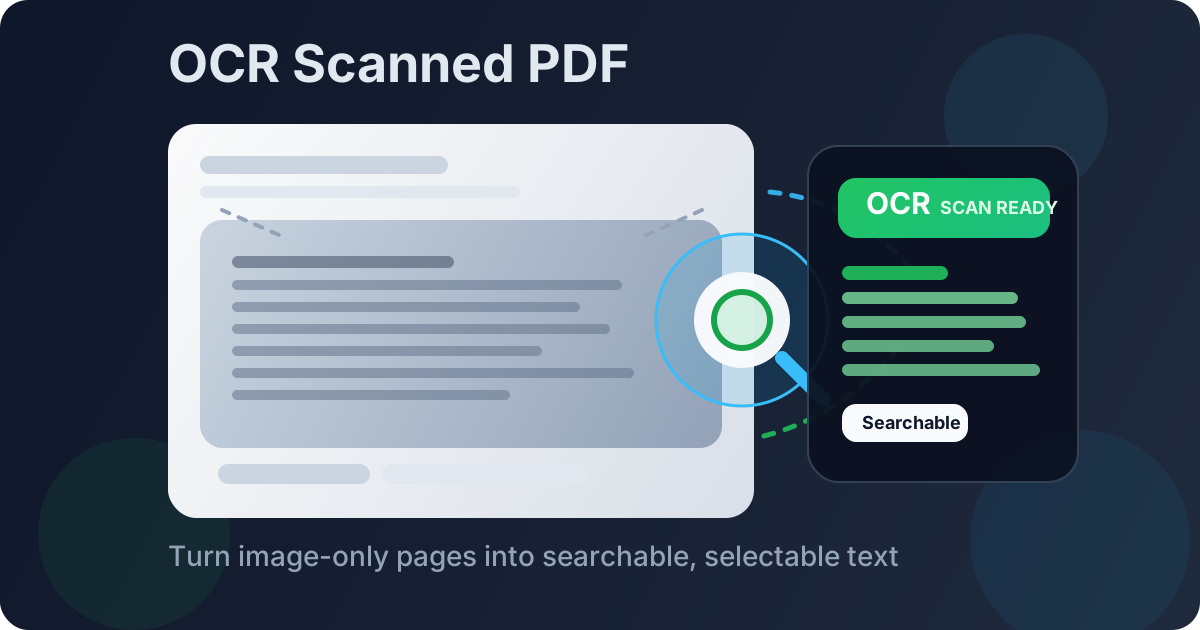
Table of contents
- Quick start: OCR a scanned PDF in about 5 minutes
- How to tell whether a scanned PDF really needs OCR
- The best cleanup moves before OCR
- Step-by-step: OCR a scanned PDF without making a mess
- Searchable PDF vs extracted text: what should you keep?
- How to improve OCR accuracy on real scanned documents
- What to do after OCR
- Related LifetimePDF tools and guides
- FAQ
Quick start: OCR a scanned PDF in about 5 minutes
If the document came from a scanner, copier, phone, or old paper archive and you just need it to act like a normal document again, this workflow is usually enough:
- Open OCR PDF.
- Check whether the file is image-only by trying to highlight or search one visible word.
- If the pages are sideways or messy, fix them first with Rotate PDF or Crop PDF.
- Run OCR on the cleaned version of the scan.
- Test the result by searching for a visible word, copying one short paragraph, and manually checking the details that matter most.
How to tell whether a scanned PDF really needs OCR
The word “scanned” gets used loosely. Some PDFs are true scans. Some are already searchable. Some are half-good and half-broken because they were printed, rescanned, merged, or flattened at some point. Before you run anything, do three quick checks.
1) Try selecting one normal sentence
If you drag across a line and the words highlight naturally, the PDF may already have usable text. If the whole page acts like one large picture, OCR is probably needed.
2) Search for a visible word
Use Ctrl+F or Cmd+F and look for a word you can clearly see on the page. If search returns nothing, the text layer is either missing or too broken to trust.
3) Copy one short paragraph
A fast copy-paste test reveals a lot. If the result is blank, scrambled, or missing obvious words, you are usually dealing with an image-only or damaged scan workflow.
| What you notice | What it usually means | Best next step |
|---|---|---|
| You can highlight and search text normally | The PDF already contains usable text | Try PDF to Text instead of rerunning OCR |
| The whole page behaves like one image | The file is truly scan-based | Use OCR PDF |
| Search fails on words you can see | No reliable text layer exists | Run OCR, then retest immediately |
| Copied text is garbled or incomplete | The file may need cleanup before OCR | Rotate, crop, then OCR |
The best cleanup moves before OCR
OCR quality is usually decided before OCR starts. A strong engine still benefits from a cleaner source, and a weak source can make even a good engine look disappointing.
Rotate the pages if they are sideways or upside down
Upright text is easier to recognize than sideways text. If the scan faces the wrong direction, correct that first with Rotate PDF. For more orientation-specific guidance, see Rotate Scanned PDF.
Crop away heavy borders or wasted background
Black scanner edges, giant margins, or desk background from phone captures can distract both the human reviewer and the OCR workflow. Use Crop PDF or review Remove Black Borders from Scanned PDF if the scan looks cluttered.
Extract only the pages you actually need
A 120-page packet does not always need 120 pages of OCR. If only part of the file matters, isolate it first with Extract Pages. Smaller sets are easier to review and less annoying to redo if one section turns out messy.
Recommended sequence for messy scans: Rotate → Crop → OCR → Verify.
Step-by-step: OCR a scanned PDF without making a mess
Step 1: Confirm the job you actually need done
Sometimes you only need the PDF to become searchable. Sometimes you need reusable text in a note, spreadsheet, translation workflow, or AI summary. Knowing the destination helps you decide whether the final output should stay as a searchable PDF or move into extracted text afterward.
Step 2: Clean the scan only as much as necessary
Do not overcomplicate this. If the only problem is page orientation, rotate it. If the text area is fine but the page has ugly borders, crop it. If the scan is already clean, move on. The goal is not to perform cosmetic surgery on every page. The goal is to remove the obvious blockers to readable OCR.
Step 3: Run OCR on the cleaned file
Upload the scan to LifetimePDF OCR PDF and let it create a searchable text layer. At this point the file stops being just a picture of a document and starts acting like a document again.
Step 4: Verify the details that are expensive to get wrong
You do not need to proofread every line before moving on. Focus first on the fields where a mistake would hurt:
- Names of people, companies, and places
- Dates, due dates, and clause references
- Invoice numbers, totals, account IDs, and prices
- Headings, labels, and any phrase you plan to search later
Step 5: Keep the right output for the job
If layout still matters, keep the OCRed PDF. If the words matter more than the original page look, pull the text out with PDF to Text after OCR.
Searchable PDF vs extracted text: what should you keep?
This is where many people hesitate, but the choice is simpler than it looks.
| If your goal is... | Best output | Why |
|---|---|---|
| Keep the original page layout for records or sharing | Searchable PDF | You gain search and selection without losing the visual structure |
| Reuse wording in notes, email, spreadsheets, or summaries | Plain text | Text is faster to copy, clean, and repurpose |
| Ask questions or summarize content with AI | Either works, but text-first often feels cleaner | Text-based workflows reduce friction |
| Translate the document after OCR | Searchable PDF first, then translated output | You preserve the readable source while still enabling text-based translation |
A good default is simple: keep the searchable PDF if you still care about the page layout, and extract the text if you mainly care about the words.
Need the words outside the PDF? OCR first, then move into the next tool that matches the real job.
How to improve OCR accuracy on real scanned documents
The best advice is boring but true: clear input wins. Still, different document types have different weak spots, and knowing them saves time.
Receipts and invoices
These often fail because the scan is narrow, crumpled, low-contrast, or photographed at an angle. Check totals, dates, tax lines, merchant names, and invoice numbers manually after OCR.
Contracts and forms
These usually need careful review of clause numbers, signature blocks, names, addresses, and dates. If pages were scanned sideways, fix orientation first. If the file includes irrelevant attachments, isolate only the useful pages before OCR.
Old archives and historical scans
Faded type, stamps, fold marks, and uneven paper tone can all make recognition weaker. In those cases, the goal is often “searchable enough to retrieve the file later,” not perfect transcription of every decorative detail.
- Upright pages with clear orientation
- Minimal black borders and scanner shadows
- Focused page sets instead of giant mixed packets
- Clear printed text with decent contrast
- One quick human verification pass on risky fields
- Sideways or upside-down pages
- Blur, glare, desk background, or clipped edges
- Dense tables, handwritten notes, or tiny type
- Throwing unrelated pages into one huge batch
- Assuming OCR success means every field is correct
If the source scan is truly awful and you can rescan it, that often beats trying to force perfect OCR out of a weak image.
What to do after OCR
OCR is rarely the final destination. It is the step that makes the rest of the workflow stop fighting you.
Extract reusable text
If you need notes, copy-paste, or structured follow-on work, send the OCRed file into PDF to Text.
Translate the document
OCR first, then use Translate PDF. Translators usually work better when they receive readable text instead of page images.
Summarize or ask questions
Searchable scans work much better with PDF Summarizer and AI PDF Q&A because the tools can finally see the underlying words clearly.
Protect or redact sensitive files
If the document contains personal, legal, HR, or financial information, use Redact PDF or PDF Protect before wider sharing.
Related LifetimePDF tools and guides
- OCR PDF - add a searchable text layer to image-only scans.
- Rotate PDF - fix sideways pages before OCR.
- Crop PDF - remove heavy borders and wasted margins.
- Extract Pages - isolate just the section you need.
- PDF to Text - pull usable text out after OCR.
- OCR PDF - broader guidance on PDF OCR workflows.
- How to Convert Scanned Documents Into Searchable PDFs - paper-record workflow for archives and admin files.
- Deskew Scanned PDF - when the page is upright but still slanted.
- Convert Scanned PDF to Text - when extracted words matter more than preserving layout.
Ready to make that scanned PDF usable again?
Best order for most image-only documents: Confirm it needs OCR → Clean the scan → OCR → Verify key fields → Keep the searchable PDF or extract text.
FAQ
How do I OCR a scanned PDF?
Upload the scanned or image-only PDF to an OCR tool, let it add a searchable text layer, then test the result by searching for a visible word or copying one short paragraph. If the scan is sideways or messy, rotate or crop it first.
What if my scanned PDF is sideways or has black borders?
Fix those problems before OCR. Rotate sideways pages first and crop heavy borders or shadows second, because cleaner input usually produces cleaner text recognition.
Does OCR make a scanned PDF searchable?
Yes. OCR adds a machine-readable text layer so the scanned PDF becomes searchable and selectable. That also makes extraction, translation, summarization, and AI Q&A workflows much more reliable.
Should I keep the OCRed PDF or extract text from it?
Keep the OCRed PDF when the layout still matters. Extract text when you mainly need the words for notes, spreadsheets, summaries, translation, or copy-paste into another system.
What should I verify after OCR on a scanned PDF?
Check names, dates, invoice numbers, totals, account IDs, clause references, and any wording that would be costly to misread. OCR can be strong on clean scans, but important details still deserve a quick human review.