Convert Scanned PDF to Text: OCR Image-Only Pages Into Copyable, Searchable Words
Yes — you can convert scanned PDF to text by running OCR first, then reviewing the recognized words before you copy, search, summarize, or reuse them.
If the PDF behaves like one big image, plain text extraction is usually the wrong first step; OCR is what turns the scan into usable text.
That distinction saves a lot of frustration. People usually search this phrase when a document looks readable but refuses to behave like text. A contract cannot be searched. A receipt cannot be copied into bookkeeping notes. A scanned report cannot be summarized cleanly. A stack of old paper files needs to become searchable without being retyped by hand. Once you switch to an OCR-first workflow, the job gets much simpler.
Fastest practical path: clean obvious scan problems, run OCR, verify the important details, then move into PDF to Text if you want a cleaner text-only output.
In a hurry? Jump to Quick start: convert a scanned PDF to text in about 4 minutes.
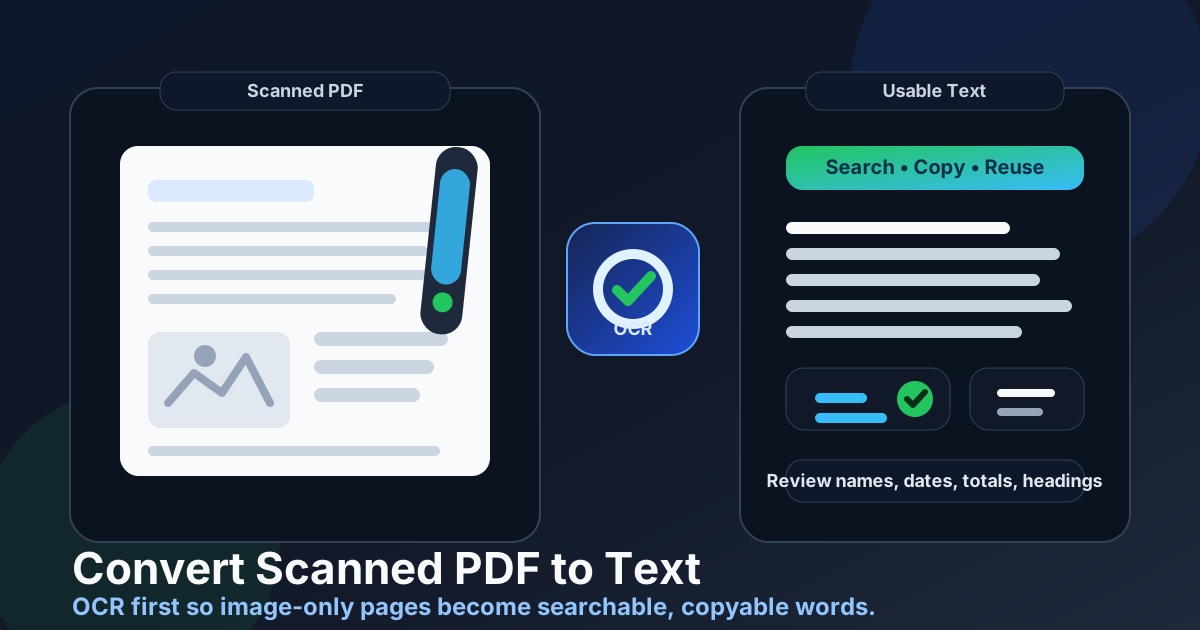
Table of contents
- Quick start: convert a scanned PDF to text in about 4 minutes
- Why scanned PDFs resist normal text extraction
- OCR first, PDF to Text second
- Step-by-step: the clean workflow
- What to review before trusting the extracted text
- What to do after the text is usable
- Common scanned PDF to text problems and fixes
- Privacy and safer document handling
- Related LifetimePDF tools and guides
- FAQ (People Also Ask)
Quick start: convert a scanned PDF to text in about 4 minutes
If your PDF came from a scanner, phone camera, fax workflow, or photocopier, use this order:
- Open OCR PDF.
- Upload the scanned file and fix sideways pages or giant borders first if needed.
- Run OCR so the page images become searchable text.
- Check names, dates, totals, headings, and reference numbers.
- Copy the text directly or continue with PDF to Text for a cleaner extraction step.
Why scanned PDFs resist normal text extraction
A regular digital PDF often contains real text behind the layout. That is why you can search it, highlight sentences, and copy whole paragraphs. A scanned PDF is different. It may look like a document, but under the hood it often behaves like a stack of images.
That is the root of the problem. When the file only contains pictures of words, a text extractor does not have much to work with. It can return nothing, break lines strangely, confuse letters and numbers, or miss sections completely. The fix is not a more aggressive copy-and-paste attempt. The fix is turning the scan into readable text first.
| Workflow | What the software sees | Typical result |
|---|---|---|
| Scan → PDF to Text directly | Mostly page images | Weak output, missing words, or no useful text at all |
| Scan → OCR → PDF to Text | Recognized text with real characters | Cleaner copying, searching, summarizing, and reuse |
OCR first, PDF to Text second
People often confuse these two jobs because both mention “text.” In practice, they solve different problems.
OCR solves the image problem
OCR PDF recognizes letters inside scanned pages. It is what makes an image-only PDF readable to software in the first place.
PDF to Text solves the extraction problem
PDF to Text is most useful after the file already contains a working text layer. It helps you pull the words out more cleanly for notes, AI workflows, Word documents, spreadsheets, research, or archiving.
Start with OCR when:
- You cannot highlight any words in the PDF
- The file came from a scanner or camera
- Search does not find obvious text on the page
- Copying creates gibberish or blank output
Move to PDF to Text when:
- The OCRed PDF is now searchable
- You want plain text for notes or reuse
- You need text for summarizing or translation
- You want cleaner output than manual copying
Step-by-step: the clean workflow
The best way to convert scanned PDF to text is to treat it as a short sequence rather than one magic click.
1. Fix the obvious page problems first
If the scan is sideways, rotate it with Rotate PDF. If it has giant dark borders or wasted space, tighten it with Crop PDF. If you only need a few pages, isolate them with Extract Pages so you are not reviewing noise you do not need.
2. Run OCR on the scanned file
Open OCR PDF and process the document. This is the step that changes the PDF from an image problem into a text workflow.
3. Review the important details before you trust the output
OCR can be excellent and still make small mistakes where the cost is highest. Check names, dates, money amounts, totals, clause numbers, headings, IDs, and unusual spellings before you reuse the text elsewhere.
4. Extract or copy the text in the format you need
If you only need a paragraph or two, copying may be enough. If you want a cleaner plain-text result, move into PDF to Text after OCR is complete.
5. Use the text for the real job
Once the content is usable, the scan stops being a dead-end file. You can paste the text into Word, summarize it, translate it, ask questions about it, rebuild it into a new document, or archive it in a searchable form.
Best practical sequence: clean the scan, OCR it, review the risky details, extract the text, then move straight into the real document task.
What to review before trusting the extracted text
Most OCR mistakes are not evenly distributed. They cluster around the parts that are hardest to read or most sensitive to get wrong. That is why a short review pass matters.
- Names: people, companies, places, and product names
- Dates and deadlines: especially on contracts, forms, and records
- Totals and numbers: invoices, prices, quantities, percentages, account references
- Headings and labels: section names, warnings, table titles, field names
- Dense legal or technical wording: one changed character can matter more than the rest of the page
If those pieces are correct, the rest of the extraction is usually good enough to keep moving. If those pieces are wrong, the output can create confident but expensive mistakes.
What to do after the text is usable
Extracting text is often the beginning of the useful work, not the end.
Summarize long scans
If the source is a report, policy, or research paper, use PDF Summarizer once the text layer is readable.
Ask targeted questions
If you need one answer from a long document, open AI PDF Q&A and work from the OCRed content instead of reading line by line.
Translate the recognized text
OCR plus Translate PDF is a much stronger workflow than trying to translate a raw scan directly.
Rebuild or share a cleaner document
If you want a fresh, simpler file, move the content into Text to PDF or another editing workflow. If the final document is sensitive, protect it with PDF Protect before sharing.
Common scanned PDF to text problems and fixes
The output is messy or incomplete
That usually points back to the source pages. Crooked scans, low contrast, dark borders, blur, and camera glare make OCR guess more often. Clean the pages and try again.
The text is mostly right but the layout is ugly
That is normal. Text extraction focuses on the words, not on perfectly rebuilding the visual design. If layout matters, use the output as raw material and rebuild the document in Word or another editor.
The PDF is huge and the review feels slow
Split the job down. Use Extract Pages to keep only the section you need. Smaller files are faster to process and much easier to verify.
The file is locked
If you are authorized to work with it, remove the restriction first with PDF Unlock. Permission barriers can interrupt the rest of the workflow.
The scan contains sensitive information
Use Redact PDF when personal, legal, medical, or financial details should not survive in the outgoing copy.
Privacy and safer document handling
Scanned PDFs often contain the most personal kinds of files: IDs, signed forms, invoices, archived letters, school records, contracts, and internal business documents. A good workflow reduces exposure instead of spreading the entire file around unnecessarily.
- Upload only the pages you actually need.
- Trim or extract relevant sections before OCR when possible.
- Review the output before forwarding it to anyone else.
- Redact visible sensitive details if they should not leave the workflow.
- Protect the finished copy if it will be stored or shared.
Cleaner workflows are safer workflows. The faster you turn a dead scan into the exact working copy you need, the less duplicated sensitive material you create.
Need the full scan-to-usable-document workflow?
A useful rhythm for many teams is OCR → review → extract text → summarize or translate → protect the final share copy.
Related LifetimePDF tools and guides
Converting a scanned PDF to text usually works best as part of a short document workflow. These tools and companion articles fit naturally around the same job:
- OCR PDF - recognize text inside image-only scans.
- PDF to Text - pull text out once the file is searchable.
- Rotate PDF - fix sideways or upside-down pages.
- Crop PDF - remove heavy borders and scanner noise.
- Extract Pages - keep only the pages that matter.
- AI PDF Q&A - ask targeted questions after OCR makes the text usable.
- Translate PDF - translate the recognized content more cleanly.
- Redact PDF - remove sensitive information before sharing.
- PDF Protect - secure the finished copy when needed.
Related blog guides
- Convert Scanned PDF to Text Online
- Convert Scanned PDF to Text Online Free
- Convert Scanned PDF to Text Without Monthly Fees
- Convert Scanned PDF to Word
- Translate Scanned PDF
- PDF to Text
- OCR PDF
FAQ (People Also Ask)
How do I convert a scanned PDF to text?
Use an OCR-first workflow. OCR turns the image-only pages into recognizable text, and then you can copy, search, export, summarize, or reuse the result much more easily.
Why can't I copy text from my scanned PDF?
Because many scanned PDFs are only page images. Until OCR recognizes the words, your device does not have real selectable text to copy.
What is the difference between OCR and PDF to Text?
OCR recognizes text inside image-based pages. PDF to Text extracts text that already exists in a searchable PDF. For scanned files, OCR is what makes later extraction useful.
How can I improve scanned PDF to text accuracy?
Straighten pages, crop heavy borders, keep only the needed pages, and verify names, dates, totals, and headings after OCR. Better inputs usually produce better text.
What should I do after converting a scanned PDF to text?
Most people then search the document, summarize it, translate it, paste it into notes or Word, ask questions about it, or rebuild it into a cleaner file for sharing.