PDF to Text: Extract Clean Words, Know When OCR Matters, and Reuse the Result Faster
Yes — use PDF to Text when the PDF already contains selectable text, and use OCR first when the file is scanned or image-only.
Once the text is extracted, review headings, line breaks, names, dates, and tables once before you copy, search, summarize, translate, or reuse it anywhere else.
Most people looking for this are not trying to admire plain text as a format. They are trying to get useful words out of a PDF fast enough to do real work: search a contract, quote a report, feed content into an AI tool, reuse documentation, clean up meeting notes, or move a document into another system without retyping everything. The trick is knowing when simple extraction is enough and when the document needs one more step first.
Fastest practical path: extract text directly from normal digital PDFs, OCR scanned files first, and trim long documents down to only the pages you actually need.
In a rush? Jump to Quick start: convert a PDF to text in a few minutes.
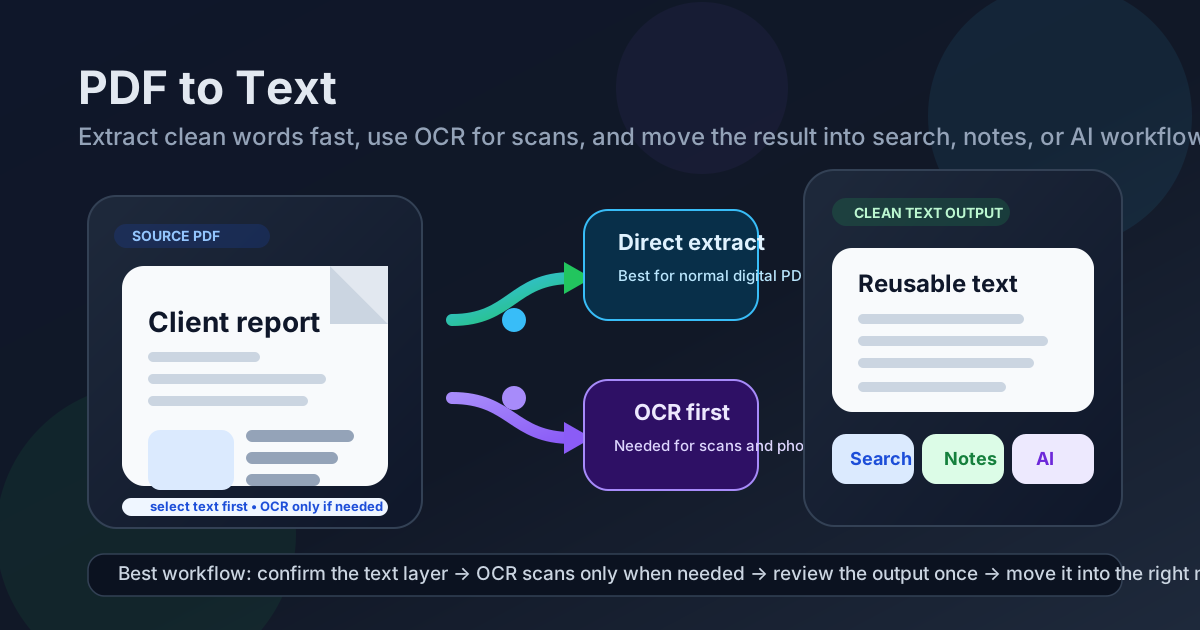
Table of contents
- Quick start: convert a PDF to text in a few minutes
- When PDF to text is the right output
- PDF to text vs OCR vs Word vs Excel
- Step-by-step: how to use LifetimePDF PDF to Text
- How to get cleaner extracted text
- What changes when the PDF is scanned
- Best use cases for PDF to text
- Privacy and safer handling
- Related LifetimePDF tools and next steps
- FAQ
Quick start: convert a PDF to text in a few minutes
If the PDF already contains selectable text, the shortest useful workflow is wonderfully boring: upload the file, extract the text, skim the output, and move on with your day. You do not need a giant document platform just to get words out of a report, contract, proposal, or manual.
- Open PDF to Text.
- Upload the cleanest PDF you have.
- Wait for the text extraction to finish.
- Review the result for line breaks, headings, tables, names, dates, and totals.
- Copy the text, download it, or move it into the next tool you actually need.
If the document is a scan, phone photo, or image-based export, add one step before that workflow:
- Run OCR PDF.
- Then send the searchable result into PDF to Text.
When PDF to text is the right output
PDF to text is best when the words matter more than the layout. If your job is to quote something, search it, summarize it, feed it into AI, archive it, translate it, or paste it into another system, plain text is often the fastest format to work with.
It is less ideal when the document depends on design, exact tables, slide layout, or highly structured formatting. In those cases, you may still want the content from the PDF, but you probably want a different destination format.
| Goal | Best path | Why |
|---|---|---|
| Reuse the words | PDF to Text | Fastest way to copy, search, summarize, or archive plain content |
| Handle a scanned file | OCR first, then PDF to Text | Scans are page images until OCR creates a text layer |
| Keep editable formatting | PDF to Word | Better when paragraphs, headings, and visual structure still matter |
| Extract tables | PDF to Excel | Rows and columns survive better than in plain text |
| Understand the document fast | PDF Summarizer | Useful when your real problem is comprehension, not extraction |
PDF to text vs OCR vs Word vs Excel
A lot of frustration comes from using the right tool at the wrong stage. People often blame text extraction when the real problem is that the source is scanned, the layout is too complex, or the final destination should never have been plain text in the first place.
Use PDF to Text when
- You need the wording more than the layout.
- You want to search or quote a long document quickly.
- You plan to paste the output into notes, email, a CMS, a knowledge base, or an AI prompt.
- The PDF already behaves like a normal digital document with selectable text.
Use OCR first when
- The PDF is a scan, a phone capture, or a flattened image export.
- Copy and paste returns garbage, blanks, or nothing at all.
- You cannot search for a word that is visibly on the page.
Use Word, Excel, or another format when
- You need to preserve paragraphs, headings, or editing structure.
- You care about tables as tables, not just raw text lines.
- The PDF will be revised by other people after conversion.
- The layout itself carries meaning, such as in slide decks, forms, or reports with visual hierarchy.
Step-by-step: how to use LifetimePDF PDF to Text
Once you know the file is a good fit, the workflow is simple. The quality of the result mostly depends on the source PDF and whether you trimmed the document down to what actually matters.
- Start with the cleanest PDF available. Original exported PDFs usually extract better than printouts or screenshots turned back into PDF.
- Remove noise first. If the document is long, use Extract Pages to isolate the section you need.
- Open PDF to Text. Upload the file and let the tool read the text layer.
- Review the extracted content once. Scan headings, bullet lists, footnotes, totals, and names before reusing the output anywhere important.
- Move it into the right next step. Copy it into notes, search it, summarize it, translate it, or send it into another editable format.
That last step matters more than it sounds. Text extraction is rarely the final goal. It is usually the bridge between a hard-to-reuse PDF and whatever task comes next.
How to get cleaner extracted text
Even clean PDFs can produce weird line breaks or awkward reading order because PDFs are designed for visual consistency, not plain-language export. The output usually improves a lot if you make a few calm, boring adjustments before conversion.
- Convert fewer pages. Smaller inputs usually produce cleaner outputs.
- Remove obvious junk first. Cover pages, blank pages, repeated appendices, and scans of signatures rarely help the text output.
- Fix page rotation before OCR. Sideways pages make recognition worse and can scramble reading order.
- Expect tables to need interpretation. Plain text can preserve values but not always the neat grid you saw on the page.
- Choose another format when necessary. If the output needs structure, use Word, HTML, or Excel instead of forcing TXT to do everything.
Helpful cleanup stack:
- Extract Pages for isolating the useful section
- Delete Pages for removing junk
- Rotate PDF for sideways pages
- Crop PDF for messy margins and scan borders
- OCR PDF for scanned content
What changes when the PDF is scanned
Scanned PDFs are the main reason people think PDF-to-text tools are broken. They are not broken. They are simply being asked to extract text that does not exist yet as text.
A scanned PDF often looks readable to a human, but the computer mostly sees page pictures. OCR changes that by recognizing letters, words, and lines so the file becomes searchable and extractable. After OCR, normal text extraction usually becomes much more useful.
This matters for receipts, printed contracts, signed forms, old manuals, photographed pages, and documents created by office scanners that saved images instead of proper digital text. If the output from plain extraction looks blank, chaotic, or incomplete, OCR is usually the missing step.
Best use cases for PDF to text
Plain-text extraction is especially useful when speed matters more than visual polish. Some of the most practical use cases are surprisingly ordinary.
- Research and reference: extract text from reports, papers, or manuals so you can search them quickly.
- Notes and knowledge bases: move useful content into internal docs, wikis, or CRM records without retyping it.
- AI workflows: send the cleaned text into PDF Summarizer or follow up with PDF Q&A when you need precise answers.
- Translation prep: extract or OCR the text first, then move to Translate PDF if the real goal is another language.
- Compliance and review: pull wording out of policies, contracts, or evidence packets so teams can quote and compare faster.
In other words, PDF to text is usually not the star of the workflow. It is the quiet step that makes the next tool faster and more reliable.
Privacy and safer handling
Text extraction feels low-risk because the output looks simple, but it can still contain the most sensitive parts of the document: names, phone numbers, addresses, totals, contract clauses, patient data, or internal notes. Once the words are extracted, they are also easier to paste into places you did not originally plan.
- Upload only the pages you actually need.
- Remove obviously irrelevant personal data when possible.
- Review the extracted text before sending it into email, chat, or AI tools.
- If the document is highly sensitive, follow your own policy for online versus offline processing.
This is another reason page extraction matters. Smaller, cleaner inputs are not just faster. They are often safer too.
Related LifetimePDF tools and next steps
After text extraction, the next useful move usually falls into one of four buckets: understand the content, translate it, edit the structure, or capture tables properly. LifetimePDF already covers each of those paths.
- PDF Summarizer for turning long output into a short brief
- PDF Q&A for precise follow-up questions
- Translate PDF for multilingual workflows
- PDF to Word when you want editable structure
- PDF to Excel when tables matter more than paragraphs
If you want related guides, see AI PDF Summarizer, Translate PDF, and Convert PDF to Excel for the next branch of the workflow.
Bottom line: use PDF to Text for normal digital files, use OCR first for scans, and do not force plain text to solve layout problems it was never meant to solve.
FAQ
How do I convert PDF to text?
Use a PDF to Text tool if the document already contains selectable text. If the file is scanned or image-only, run OCR first so the text becomes machine-readable before you extract it.
Can PDF to text work on scanned documents?
Yes, but scanned documents usually need OCR first. Without OCR, a text extractor often sees page pictures instead of real words.
Why does extracted text from a PDF look out of order?
PDFs are built for page layout, not always for natural reading order. Columns, headers, footers, tables, and sidebars can all create awkward plain-text output.
When should I use Word or Excel instead of PDF to text?
Use Word when you need editable paragraphs and formatting. Use Excel when the real goal is structured tables, rows, and columns. Use plain text when you mostly need the words themselves.
Is PDF to text useful for AI workflows?
Very often, yes. Clean text is easier to summarize, search, quote, translate, or send into follow-up question tools than a raw PDF with mixed layout and scanning problems.