Convert PDF to Excel: Turn Tables, Statements, and Reports into Editable Spreadsheets
Yes — the cleanest way to convert PDF to Excel is to start with the pages that actually contain the table or structured data, export them to XLSX, and then review columns, totals, and date formats before you trust the sheet.
If the PDF is scanned or image-only, run OCR first, because a spreadsheet can only be as clean as the text and table structure the converter is able to detect.
That sounds obvious until a real file lands in front of you. Some PDFs are clean digital reports that convert with only light cleanup. Others are screenshots in disguise, photographed receipts, bank statements with repeated headers, or exported dashboards that look tidy on the page but break apart when you need rows and columns back. The goal is not just to make an Excel file appear. The goal is to end up with a spreadsheet you can sort, filter, total, reuse, and share without quietly introducing errors.
Fastest practical path: convert normal digital PDFs straight to Excel, but OCR scanned PDFs first and isolate only the useful pages before exporting.
In a hurry? Jump to Quick start: convert PDF to Excel in a few minutes.
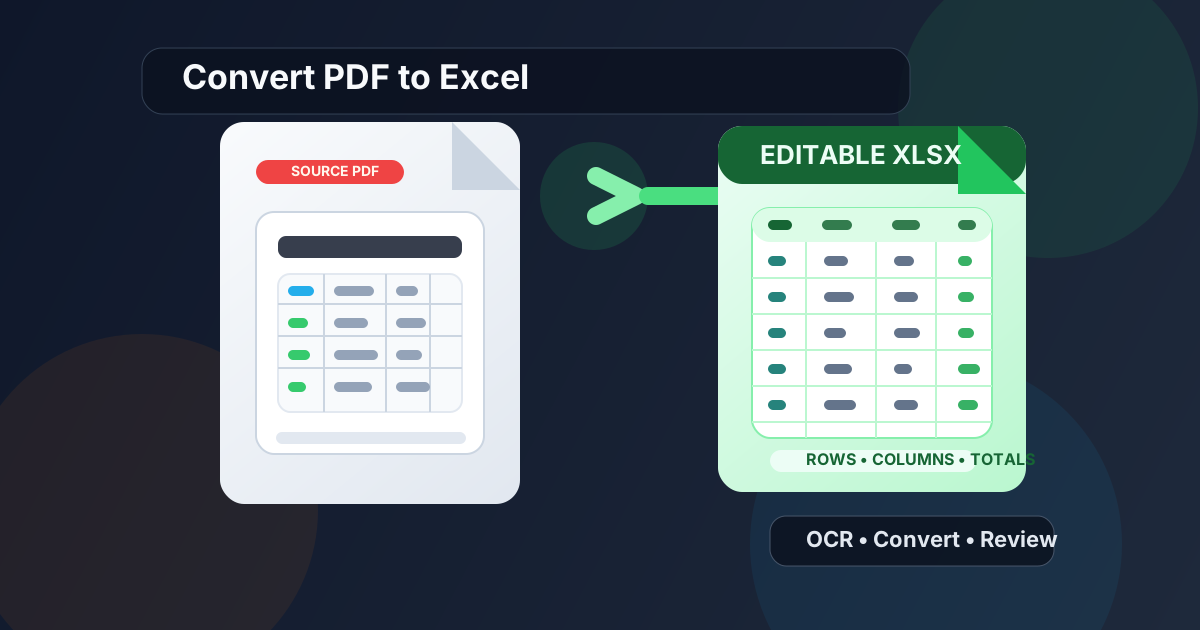
Table of contents
- Quick start: convert PDF to Excel in a few minutes
- What kinds of PDFs convert cleanly?
- Step-by-step: how to convert PDF to Excel
- Scanned PDFs and OCR: when one extra step saves a lot of cleanup
- What to check before you trust the spreadsheet
- XLSX vs CSV: which output is better?
- Common PDF-to-Excel problems and practical fixes
- Privacy and safer handling for sensitive tables
- Related LifetimePDF tools and next steps
- FAQ (People Also Ask)
Quick start: convert PDF to Excel in a few minutes
If the PDF already contains selectable text and the data is laid out in reasonably clear rows or tables, this is the shortest useful workflow:
- Open PDF to Excel.
- Upload the PDF that contains the statement, report, invoice, list, or table you want to reuse.
- If the file includes extra pages, first trim it with Extract Pages.
- Export the file as XLSX.
- Open the spreadsheet and review headers, amounts, dates, totals, and row alignment before using it downstream.
If the PDF behaves like an image instead of text, add one step first:
- Run OCR PDF.
- Then send the searchable result into PDF to Excel.
What kinds of PDFs convert cleanly?
PDF-to-Excel conversion works best when the source document already behaves like structured data. That includes exported reports, invoices, statements, purchase logs, inventory tables, schedules, price lists, or analytics summaries where columns are visually consistent and the text is machine-readable.
It gets harder when the PDF is built for reading rather than reuse. Multi-column layouts, forms with floating labels, scans with shadows, photographed receipts, and pages that mix paragraphs with tables can still convert, but they usually need either OCR, page cleanup, or a post-conversion review before you should rely on the output.
| Type of PDF | What the converter sees | Typical result |
|---|---|---|
| Digital report or exported statement | Real text with consistent rows and columns | Usually the cleanest Excel output |
| Scanned paper document | Page images until OCR is added | Often weak without OCR, much better after OCR |
| Mixed-layout PDF | Tables plus side notes, footers, logos, or repeated headers | Usable, but more likely to need cleanup |
| Photographed or mobile-captured page | Uneven text, skew, shadows, and inconsistent spacing | Usually needs OCR and careful review |
This is why conversion success is less about the phrase PDF to Excel and more about source quality. The better the text layer and table structure, the less repair work you do later.
Step-by-step: how to convert PDF to Excel
Here is the practical version that works for most real-world files:
- Start with the final PDF, not an old draft. Extra appendix pages, covers, or outdated exports only make the spreadsheet noisier.
- Keep only the useful pages. If you only need pages 3 to 7 of a report, extract those pages before converting.
- Convert to XLSX first. XLSX is usually easier to clean because it preserves spreadsheet structure better than plain-text export formats.
- Review the spreadsheet immediately. Check whether headers drifted, negative values moved, or repeated page headers were inserted as extra rows.
- Only then start analysis or sharing. Never assume the first converted file is safe to use in formulas, imports, or reporting without a quick human review.
Scanned PDFs and OCR: when one extra step saves a lot of cleanup
OCR matters because Excel conversion depends on recognizing characters, spacing, and table boundaries. A scanned PDF often looks readable to a person while still being almost useless to a converter. From the software's point of view, it may just be a page-sized image.
If the file came from a printer scan, a phone camera, an email attachment that was printed and rescanned, or an archival system that stores image-only PDFs, OCR is usually the difference between a frustrating spreadsheet and a workable one. Once OCR adds a text layer, the converter has a much better chance of finding rows, amounts, item names, and dates in the right order.
OCR does not magically fix everything. Blurry scans, crooked pages, low contrast, handwritten notes, and cramped tables can still produce messy output. But OCR gives the conversion process a real foundation. Without it, you are often asking Excel to reconstruct a table from a picture of a table.
What to check before you trust the spreadsheet
The most common mistake is treating a successful export as proof of accuracy. Conversion can look fine at first glance and still hide subtle problems that matter later.
Review these first:
- Column alignment: make sure amounts, dates, item names, and IDs stayed in the correct columns.
- Repeated headers and footers: long PDFs often insert page titles or footers as normal spreadsheet rows.
- Negative numbers and decimals: check that minus signs, currency symbols, commas, and decimal separators survived properly.
- Date formatting: confirm whether dates stayed as dates instead of plain text.
- Merged or wrapped cells: wide reports often split one visual row into multiple spreadsheet rows.
- Totals: compare a few source totals against the converted result before trusting formulas downstream.
A two-minute spot check here is worth far more than an hour of cleaning downstream analysis that was built on top of a flawed first pass.
XLSX vs CSV: which output is better?
For most people, XLSX is the better default. It is easier to open in Excel, better for preserving worksheet structure, friendlier for cleanup, and more flexible when you need formatting, formulas, or multiple steps of review.
CSV makes more sense when your real goal is import, not editing. If the spreadsheet is headed into another system and you only need plain rows and columns with no formatting, CSV can be cleaner. But for first-pass human review, XLSX is usually the better working format.
Common PDF-to-Excel problems and practical fixes
A few patterns show up again and again:
- Columns drift sideways: the source spacing is inconsistent or the table is too complex. Try fewer pages at once or OCR first if the file is scanned.
- Extra junk rows appear: page numbers, repeated report titles, or footers are being read as data. Delete those rows during review.
- Amounts split into separate cells: currency symbols, commas, or alignment gaps confused the converter. Recheck the source row and standardize formatting in Excel.
- Everything arrives as plain text: convert first, then use Excel cleanup tools to turn dates and numeric columns into usable formats.
- Wide tables break badly: extract only the needed section or use smaller page sets so the converter is not juggling unrelated layout elements.
When a PDF is especially messy, the best workflow is often extract pages → OCR if needed → convert → review. Cleaning the source almost always beats trying to brute-force the same noisy file again and again.
Privacy and safer handling for sensitive tables
Finance reports, invoices, HR exports, medical paperwork, legal exhibits, and customer statements can all contain information that becomes easier to spread once it lands in a spreadsheet. A PDF feels fixed. An Excel file feels portable. That portability is useful, but it also increases the chance that sensitive data will be copied, filtered, or forwarded farther than intended.
If the file contains personal, legal, financial, or operationally sensitive data, keep the workflow narrow. Extract only the pages you need, redact information that should not survive into the spreadsheet, and review the converted file before sharing it with anyone else. The goal is not paranoia. It is normal document hygiene.
Related LifetimePDF tools and next steps
PDF to Excel is the main tool for this workflow, but a few related tools make the result cleaner:
- OCR PDF for scanned or image-only files.
- Extract Pages to isolate only the useful tables.
- Compress PDF if the source file is oversized before upload or sharing.
- Excel to PDF when you need to send the cleaned spreadsheet back out as a fixed final document.
Ready to try it? Start with the smallest useful set of pages, convert to XLSX, and do one fast review before you build anything important on top of the output.
FAQ (People Also Ask)
How do I convert PDF to Excel?
Start with the pages that contain the real table or structured data, convert the PDF into XLSX, and then review columns, totals, and date formats before using the spreadsheet. If the PDF is scanned, run OCR first so the converter has real text to work with.
Can I convert a scanned PDF to Excel?
Yes, but scanned PDFs usually need OCR first. Without OCR, the spreadsheet is more likely to come out with broken columns, missing text, or rows that do not line up properly.
Why does PDF to Excel sometimes create messy columns?
Because PDFs are often designed for reading, not for structured spreadsheet reuse. Merged cells, repeated headers, inconsistent spacing, scan quality, and wide tables can all confuse column detection.
Should I export to XLSX or CSV?
XLSX is usually the better first choice because it is easier to review and clean in Excel or Google Sheets. CSV is better when you only need plain rows and columns for importing into another system.
Is it safe to convert PDF to Excel online?
It can be, especially if you upload only the pages you need and remove sensitive information first when necessary. Always review the resulting spreadsheet before sharing it more widely, because spreadsheets make data easier to move around.