Translate PDF: Keep Meaning, Handle Scans, and Share Clear Documents in Another Language
Yes — the safest way to translate a PDF is to check whether it already contains selectable text, translate only the pages you need, and run OCR first if the file is scanned.
If names, dates, totals, legal wording, or technical instructions matter, review the translated result before you export or share it.
That sounds simple until a real document shows up: a contract with definitions that cannot drift, a manual with tables and warnings, a hospital form with tiny labels, or a scan that is really just a photograph of paper. Good PDF translation is not about replacing every word one by one. It is about producing a result another human can actually trust enough to read, act on, or send forward.
Fastest practical path: translate text-based PDFs directly, OCR scanned PDFs first, and review the final wording before you share anything important.
In a hurry? Jump to Quick start: translate a PDF in a few minutes.
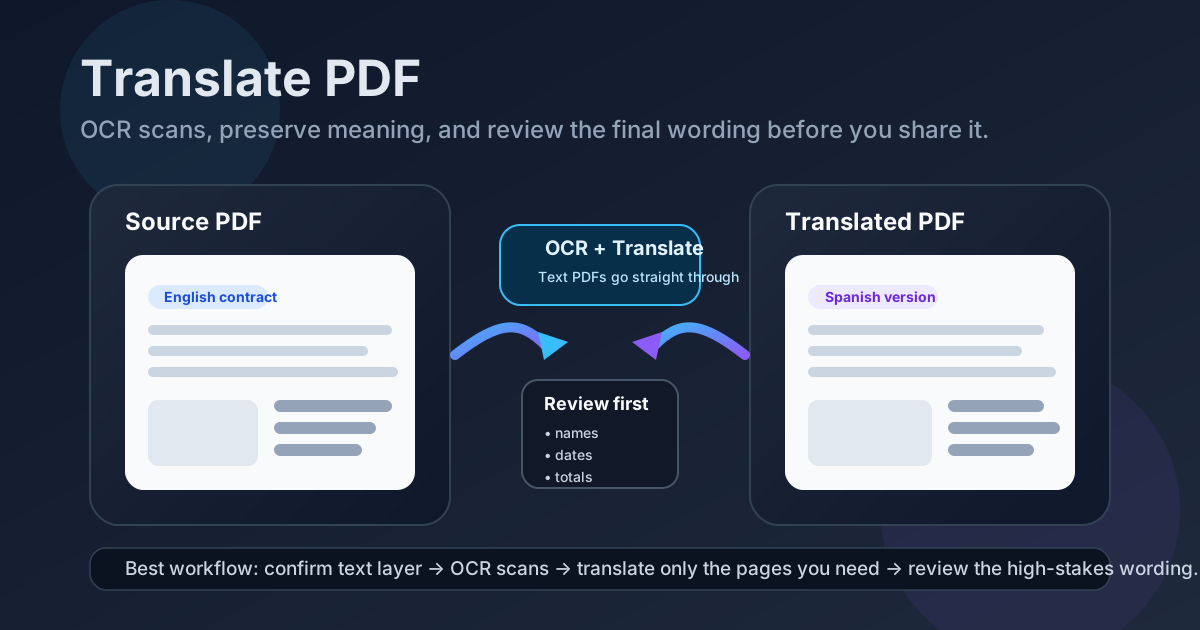
Table of contents
- Quick start: translate a PDF in a few minutes
- Why people need PDF translation in the first place
- Text PDFs, scans, forms, and tables: choose the right path
- Step-by-step: how to translate a PDF cleanly
- How to preserve meaning instead of just swapping words
- Where PDF translation usually gets messy
- Review checklist before you send the translated file
- Privacy and safe handling for sensitive PDFs
- Related LifetimePDF tools and guides
- FAQ (People Also Ask)
Quick start: translate a PDF in a few minutes
If your PDF already contains selectable text, this is the fastest reliable workflow:
- Open Translate PDF.
- Choose the target language.
- Upload the PDF or, if it is long, first trim it with Extract Pages.
- Generate the translation and read the result once for names, dates, totals, and instructions.
- Export the translated file and protect it before sharing if the contents are sensitive.
Start with OCR PDF first. Translation quality jumps when the tool can read actual text instead of a flat image.
Why people need PDF translation in the first place
Most people searching for translate PDF are not trying to do literary translation. They are trying to get through a practical task without copying paragraphs into chat windows all afternoon.
- Contracts and agreements: understand the obligations before review or signature.
- Manuals and instructions: make technical content readable for another team or customer.
- Invoices and reports: confirm totals, dates, line items, and supporting notes.
- Forms and supporting documents: make labels and response fields understandable before submission.
- Research, policy, or training material: get the content into a language the reader can actually use.
The job is usually not “give me a perfect mirrored copy of the original design.” The real job is “help me understand this document accurately enough to do something with it.” That is why a clean workflow matters more than a flashy one.
Text PDFs, scans, forms, and tables: choose the right path
Not every PDF should go through the same translation route. The right first step depends on what kind of file you actually have.
| PDF type | Best first move | Why it works |
|---|---|---|
| Text-based PDF | Translate directly | The text layer already exists, so the tool can work with the real content immediately. |
| Scanned or image-only PDF | Run OCR first | OCR turns a picture of text into machine-readable text, which improves both accuracy and readability. |
| Long mixed document | Extract relevant pages first | You avoid wasting time on covers, appendices, blank pages, or sections nobody actually needs translated. |
| Tables, invoices, or forms | Translate, then review structure carefully | Labels, rows, and multi-column content often survive less cleanly than plain paragraphs. |
| Sensitive business or legal file | Limit scope and protect the output | Reducing unnecessary pages and securing the final file is often more important than finishing 30 seconds faster. |
Step-by-step: how to translate a PDF cleanly
A clean translation workflow is usually less about clever prompts and more about doing the steps in the right order.
1. Check the text layer
Try selecting a sentence or searching for a word inside the PDF. If text selection works, the file is probably ready for direct translation. If it behaves like a flat image, start with OCR.
2. Cut the document down if needed
A 60-page PDF often contains sections you do not need: covers, indexes, legal boilerplate, duplicated appendices, or scans of receipts that nobody needs in the translated copy. Use Extract Pages first when the job is really only five important pages.
3. Translate into the target language
Open Translate PDF, choose the destination language, and run the file. For straightforward text documents, this is usually the fast part. The more important part is what comes next.
4. Review meaning before appearance
Start with the details that can change decisions: proper names, dates, currency, quantities, deadline wording, warnings, and definitions. If those are correct, cosmetic cleanup becomes much less risky.
5. Export and protect the final file
Once the translated result reads correctly, export it and use PDF Protect when the file contains personal, legal, medical, or business-sensitive information.
How to preserve meaning instead of just swapping words
This is the part people care about but do not always name clearly. A translated PDF can look polished while still getting the important part wrong.
- Watch proper nouns: company names, product names, laws, place names, and people should often stay exactly as they are.
- Check units and numbers: decimal separators, dates, time formats, and currency symbols can quietly create expensive mistakes.
- Respect defined terms: if a contract defines a phrase once, later wording should still point back to that same meaning.
- Review warnings and instructions: manuals, safety sheets, and compliance documents should not be skimmed just because the body text looks readable.
- Use PDF to Text when needed: if a sentence still feels fuzzy, inspect the extracted wording through PDF to Text so you can compare source and output more directly.
In other words, the goal is not translation that merely sounds fluent. The goal is translation that still means the same thing when somebody relies on it.
Where PDF translation usually gets messy
PDF translation tends to break down in the same places again and again:
- Tables: a translated phrase becomes longer and suddenly one row wraps into another.
- Forms: short field labels become longer than the original box was designed to hold.
- Multi-column brochures: the reading order can become confusing if the source layout was already tight.
- Scans with stamps or handwritten notes: OCR may recover most of the text while still misreading a signature line or margin note.
- Dense legal pages: even a small wording shift can matter more than the rest of the paragraph combined.
When that happens, do not chase visual perfection too early. First make the wording accurate and readable. Then decide whether the final output should stay in PDF form, be rebuilt more cleanly, or be sent as translated text for review.
Review checklist before you send the translated file
Before the translated PDF leaves your hands, run a short review pass:
- Recheck all names, dates, and addresses.
- Confirm money, totals, units, and percentages.
- Scan headings and warnings for meaning drift.
- Make sure key tables and labels are still understandable.
- Open a few random sections to ensure the translation did not quietly skip a page or repeat one.
That five-point review does not take long, and it catches a surprising number of avoidable mistakes. On real documents, that matters far more than whether a paragraph shifted down three lines.
Privacy and safe handling for sensitive PDFs
Translation jobs are often personal or confidential. Tax records, HR files, contracts, passports, certificates, customer support threads, and medical paperwork all show up as PDFs sooner or later.
- Translate only the pages you actually need.
- Remove obviously unnecessary personal information first when possible.
- Do not share a translated file until you have checked the meaning-sensitive sections.
- Use PDF Protect before sending the final version if the file should not travel openly.
Cleaner workflows are not just faster. They also reduce how much private material you move around in the first place.
Related LifetimePDF tools and guides
If you are translating PDFs regularly, these tools and companion guides make the workflow smoother:
Helpful tool links
- Translate PDF - translate the document into your target language
- OCR PDF - turn scans into searchable text before translation
- Extract Pages - keep only the pages that actually need translation
- PDF to Text - inspect wording more directly when a sentence needs closer review
- PDF Protect - secure the final translated file before sending
Suggested internal blog links
- Translate PDF Online
- Translate PDF Online Free
- Translate PDF Without Monthly Fees
- Translate Scanned PDF Online
- PDF to Text Online
- Convert Scanned PDF to Text Online
- Browse all LifetimePDF articles
FAQ (People Also Ask)
How do I translate a PDF?
Check whether the PDF already contains selectable text, OCR it first if it is scanned, translate the pages you actually need, and then review names, dates, totals, and important wording before exporting the final result.
Can I translate a scanned PDF?
Yes, but scanned PDFs usually work much better after OCR. Once the image-only pages become real text, the translation step becomes far more dependable.
Will translating a PDF keep the formatting?
Plain paragraphs usually remain readable, but tables, forms, brochures, and multi-column layouts often need cleanup because translated text expands and wraps differently from the source language.
What should I review before sharing a translated PDF?
Recheck names, dates, addresses, currency, totals, technical terms, headings, warnings, and any sentence that changes legal or operational meaning. Those details matter more than perfect cosmetic alignment.
Should I translate the whole PDF or only the important pages?
If only part of the document matters, translating fewer pages is usually faster, cleaner, and safer. Extracting the needed pages first reduces noise and keeps the review workload smaller.