Translate PDF Online: Convert Documents Into Another Language Without Losing the Thread
Yes — you can translate a PDF online by uploading the file, choosing a target language, and exporting a readable translated version in minutes.
The cleanest workflow is to confirm whether the PDF already contains selectable text first, then run OCR before translation if the file is scanned so headings, names, and meaning survive the process better.
That sounds straightforward until the real-world problems show up: contracts with dense clauses, brochures with two columns, forms with tiny labels, invoices full of tables, or scanned pages that are really just photos of text. A good online translation workflow is not just about swapping one language for another. It is about getting a result that still makes sense when someone has to read, sign, submit, archive, or act on the document afterward.
Fastest path: translate text-based PDFs directly, OCR scanned PDFs first, then review the translated output before you export or share anything important.
In a hurry? Jump to Quick start: translate a PDF online in a few minutes.
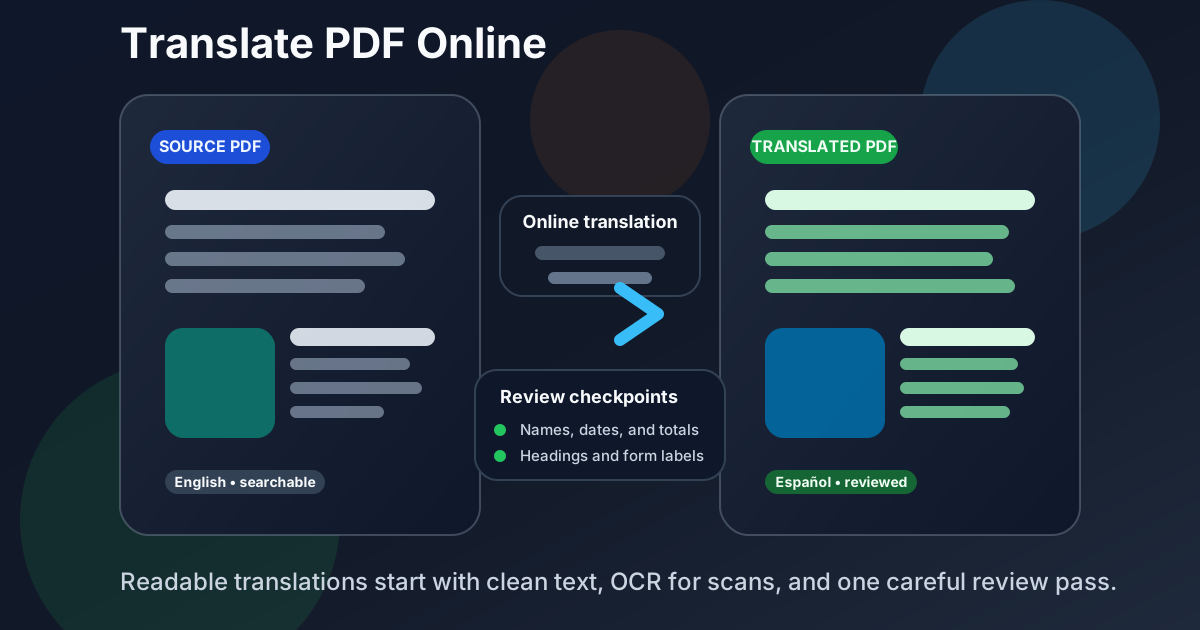
Table of contents
- Quick start: translate a PDF online in a few minutes
- When online PDF translation works best
- Text-based PDFs vs scanned PDFs
- Step-by-step: translate PDF online
- How to keep translated PDFs readable
- Tables, forms, signatures, and other trouble spots
- Review checklist before you share the translated file
- Related LifetimePDF tools and guides
- FAQ (People Also Ask)
Quick start: translate a PDF online in a few minutes
If your PDF already contains selectable text, this is the fastest reliable workflow:
- Open Translate PDF.
- Choose the target language you want.
- Upload the PDF and let the text extraction finish.
- Review names, headings, numbers, and section labels before exporting.
- Save the translated result and protect it if the document is sensitive.
If the PDF is scanned or image-only, run OCR PDF first. That one extra step is usually the difference between a translation that feels usable and one that feels like guesswork.
When online PDF translation works best
Online PDF translation is most useful when the goal is understanding, reuse, or faster handoff rather than pixel-perfect desktop publishing. That includes contracts you need to read quickly, onboarding documents for multilingual teams, reports shared across offices, manuals from overseas vendors, receipts, invoices, and education materials.
| PDF type | Why translation helps | Best workflow |
|---|---|---|
| Reports and proposals | Lets another team understand the content without rebuilding the whole document | Translate directly, then review headings and summaries |
| Contracts and policies | Makes clauses readable before legal or business review | Translate, then manually recheck names, dates, and obligations |
| Invoices and forms | Clarifies field labels, notes, and instructions | Translate carefully and verify tables and totals afterward |
| Scanned paperwork | Turns image-only documents into something you can actually work with | OCR first, translate second, review line by line if the scan is weak |
Where translation struggles is when a PDF is heavy on decorative layout, tiny labels, legal nuance, handwritten notes, or multi-column design. You can still get value from the result, but the right expectation is clear understanding first, polished formatting second.
Text-based PDFs vs scanned PDFs
Before you translate anything, figure out what kind of PDF you actually have. This single check explains why some files translate cleanly and others fall apart.
Text-based PDFs
These are the easy ones. You can highlight text, copy a sentence, or search the file. Documents exported from Word, Google Docs, a billing system, or a modern form platform usually land here.
Scanned or image-only PDFs
These look readable to a human but not to the software. The page is really a photo inside a PDF shell. Without OCR, the translator has to work with very little structured text, which is why the output often becomes messy or incomplete.
Two quick tests
- Selection test: try highlighting a sentence. If you cannot select it, the file may be scanned.
- Search test: use
Ctrl+ForCmd+F. If visible words do not show up in search, OCR is probably needed.
Text-based PDF: go straight to Translate PDF.
Scanned PDF: run OCR PDF first, then translate.
Step-by-step: translate PDF online
Here is the workflow that usually gets the best balance of speed and clarity.
1. Decide whether you need the whole file or only part of it
If the PDF is long but only three pages matter, translate only those pages. That reduces review time and lowers the risk of passing unnecessary private information through the workflow. If needed, split first with Split PDF.
2. Clean the source if it is a scan
Crooked pages, dark shadows, and sideways scans make OCR weaker before translation even begins. If the file is messy, rotate or clean it first, then run OCR so the translator sees better text.
3. Translate into the target language
Open Translate PDF, choose the destination language, and upload the document. For straightforward reports and letters, the output may already be good enough for internal use. For contracts, compliance files, or customer-facing content, treat the result as a strong first pass that still deserves review.
4. Review the sections where wording matters most
Start with titles, names, dates, currency amounts, deadlines, signatures, instructions, and anything that creates an obligation or approval. Those are the parts where even a small translation wobble matters more than a paragraph that merely sounds a little awkward.
5. Export and secure the result
Once the translation reads correctly, export the new version. If it contains sensitive information, finish by using PDF Protect before sending it onward.
Practical rule: if the translated PDF will influence a decision, a signature, or a payment, spend your review time on meaning first and cosmetics second.
How to keep translated PDFs readable
The main reason translated PDFs feel clumsy is that languages do not expand at the same rate. A short heading in English can become much longer in German or Portuguese. A compact label can spread across two lines in French. A form field can suddenly look too small for the translated phrase.
Prefer clean source files over visually busy ones
Plain reports, letters, manuals, and business docs usually translate far more cleanly than flyers, brochures, or page designs with text floating around images. If you can choose the source version, use the simplest one.
Watch headings and section breaks
Headings carry the structure of the whole document. If a translated heading becomes vague or wraps awkwardly, readers lose the thread fast. Fix the big section labels first because that improves the experience of the entire file.
Tables need extra attention
Tables often survive translation well enough to stay understandable, but narrow columns can create overlap or clipped text. Recheck totals, dates, units, and row labels after translation, especially for invoices, product lists, and schedules.
Use a fresh export when the old layout fights you
Sometimes the smartest move is not trying to preserve every line break from the source. If the original design becomes too awkward after translation, export a clean new PDF that favors readability over strict visual loyalty.
Tables, forms, signatures, and other trouble spots
Some PDF elements almost always deserve a closer second look.
Forms and field labels
Tiny labels can become cramped after translation, and some form instructions rely on very specific wording. Make sure the translated field names still match what the person filling out the form is supposed to do.
Signatures and approvals
A translated PDF may help someone understand a signed document, but it does not replace the legal force of the original signature language by itself. Keep the source file alongside the translation when the approval trail matters.
Charts, screenshots, and embedded images
Text inside an image may not translate cleanly unless OCR or image text extraction catches it first. If a chart label or screenshot caption is important, check whether it was actually captured as text or only appeared visually.
Multi-column brochures and dense layouts
These are usually the hardest documents to translate cleanly online because reading order itself can become ambiguous. If the content matters more than the design, aim for a clear translated reading copy rather than forcing the brochure layout to survive unchanged.
Review checklist before you share the translated file
A fast review pass catches most real-world translation mistakes.
- Names: people, companies, products, and locations should usually stay consistent.
- Dates and times: confirm formats and deadlines still read clearly.
- Totals and currencies: check numbers, symbols, and decimal conventions.
- Headings: make sure section labels still describe the right content.
- Instructions and obligations: re-read anything that tells the reader what they must do.
- Privacy: remove or redact unnecessary personal data before wider sharing.
If the translated PDF is heading to a client, court, agency, school, or business partner, this review step is worth more than rushing the export out thirty seconds faster.
Related LifetimePDF tools and guides
Translation gets easier when the source file is already clean and the final file is safe to share. These tools pair well with the workflow:
- Translate PDF — convert the document into the language you need.
- OCR PDF — make scanned PDFs readable before translation.
- Split PDF — isolate only the pages that need translation.
- PDF Protect — secure the translated file before you send it.
If you need a language-specific path next, see Translate PDF to Spanish Online or Translate PDF to French Online. If the source is image-only, Translate Scanned PDF Online is the better companion guide.
Want the cleanest result? Translate the PDF, review the meaning-heavy sections, then protect the final file only after you know the content is correct.
FAQ (People Also Ask)
How do I translate a PDF online?
Upload the document to an online PDF translator, choose the target language, review the translated output, and export the result. If the file is scanned, OCR should come first so the translation works with real text.
Can I translate a scanned PDF online?
Yes, but OCR first is usually the difference between readable output and a frustrating mess. Once the scan becomes searchable text, translation quality usually improves a lot.
Will the translated PDF keep the original formatting?
Simple pages often stay readable, but tables, brochures, forms, and multi-column layouts may need cleanup because translated phrases can be longer or break differently than the source language.
What should I check before sharing a translated PDF?
Recheck names, dates, totals, headings, instructions, and any clause that changes what the document means. Those details matter more than perfect layout when the file will be used for real decisions.
Is it safe to translate confidential PDFs online?
It can be, but limit what you upload, redact information you do not need to translate, and protect the final file before sending it to anyone else.