AI PDF Summarizer: Turn Long PDFs Into Clear Briefs, Action Items, and Next Steps Faster
Yes — an AI PDF summarizer can turn a long PDF into a short, readable brief with the main ideas, useful details, and likely next steps in minutes.
It works best when you start with a clean PDF, OCR scanned files first, and switch to PDF Q&A only when you need exact wording, dates, numbers, or clauses.
The real value is not getting a shorter paragraph. It is getting a document you can actually use. A strong summary should help you answer practical questions fast: what this file is about, what matters, what changed, what still needs checking, and whether you should keep reading or move on. That makes AI PDF summarization useful for contracts, reports, manuals, research papers, proposals, policies, and any other PDF that is too long to skim casually but too important to ignore.
Fastest path: upload the PDF, generate the summary, scan the key points and action items, then move into OCR or PDF Q&A only if the document needs more precision.
Want the short version? Jump to Quick start: summarize a PDF in a few minutes.
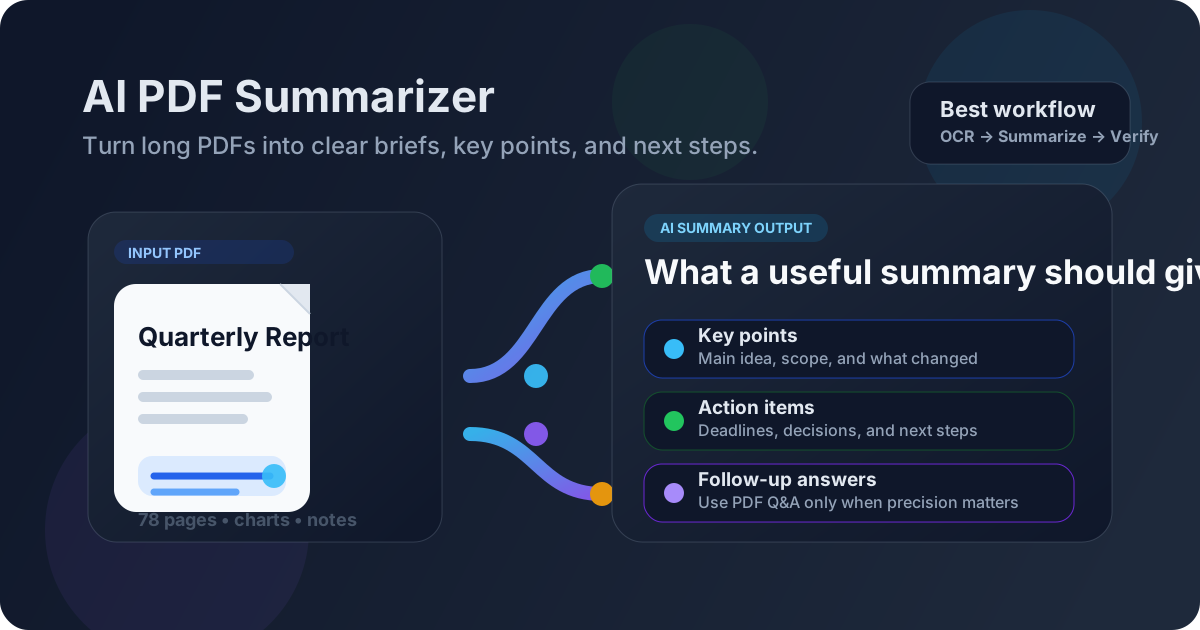
Table of contents
- Quick start: summarize a PDF in a few minutes
- What a good AI PDF summarizer should actually give you
- Step-by-step: how to use an AI PDF summarizer well
- AI summary vs PDF Q&A vs OCR
- Best document types for AI PDF summarization
- How to get better results from long or messy PDFs
- How to handle scanned PDFs before summarizing
- What to verify manually after reading the summary
- Related LifetimePDF tools and guides
- FAQ (People Also Ask)
Quick start: summarize a PDF in a few minutes
If your real goal is simply understand this PDF fast without getting lost in it, the clean workflow is usually this:
- Open PDF Summarizer.
- Upload the exact PDF you want to understand.
- Generate the summary and read the overview first.
- Look for the points that actually move decisions: deadlines, obligations, findings, risks, recommendations, or action items.
- If the PDF is a scan or image-based file, run OCR PDF before trusting the result.
- If the summary surfaces something important that needs exact wording, switch to PDF Q&A for precise follow-up questions.
What a good AI PDF summarizer should actually give you
The phrase sounds simple, but a useful summary is not just a shorter version of the original PDF. It should help you make sense of the file, not just prove that the tool read it.
A strong AI PDF summary usually gives you four things at once:
- The main point - what the document is about and why it exists.
- The important details - the facts, arguments, sections, findings, or obligations that actually matter.
- The next-step layer - deadlines, approvals, risks, action items, or questions worth checking.
- The handoff signal - whether you should read more closely, ask targeted questions, extract a section, or stop there.
| What you need | Best first tool | Why |
|---|---|---|
| Big-picture understanding | AI PDF Summarizer | Fastest way to turn the whole document into a readable brief |
| Exact clause, number, or date | PDF Q&A | Better when precision matters more than overview |
| Image-based scan | OCR PDF first | Bad text extraction leads to weaker summaries and weaker follow-up answers |
| Only one chapter or section matters | Extract Pages or Split PDF | Smaller focused input often produces a clearer summary |
Step-by-step: how to use an AI PDF summarizer well
The best workflow is not just upload and trust. It is still fast, but it has a little judgment built into it.
1) Start with the cleanest PDF you have
If you have both a native export and a photographed or re-scanned copy, use the cleaner original. Better input usually creates better summaries. When the text is fuzzy, crooked, or trapped inside page images, the summarizer has to guess more than it should.
2) Know what you want from the summary
Are you screening a report before a meeting? Pulling action items from a proposal? Deciding whether a research paper deserves a full read? Surfacing risks in a contract before a deeper review? A summary gets much more useful when you know the job it needs to do.
3) Read the summary for decisions, not just information
Ask whether the output helps you decide what happens next. A useful summary should answer questions like these:
- What is this document mostly about?
- Which points deserve a closer read?
- What deadlines, claims, obligations, or findings are likely important?
- What should I verify in the original file before acting on this?
4) Narrow the workflow if the PDF is too broad
One giant all-purpose PDF often produces a blurrier summary than a smaller focused section. If only chapter 4, pages 20 to 32, or the appendix matters, isolate that part first with Extract Pages or Split PDF.
5) Use exact Q&A only when the summary earns the next question
Once the overview shows you where the important material probably lives, follow-up questions get better fast. At that point, PDF Q&A becomes a precision tool instead of a fishing expedition.
Best practical sequence: summarize first, verify the parts that matter, then ask narrower follow-up questions instead of rereading the whole PDF from scratch.
AI summary vs PDF Q&A vs OCR
These tools work best together, but they do different jobs. Using the right one first saves time and usually improves accuracy.
Use an AI PDF summarizer first when:
- you want a quick overview of the whole file
- you are screening several documents quickly
- you need a brief before a meeting or handoff
- you want to know whether the file deserves deeper review
Use PDF Q&A first when:
- you already know the exact question you need answered
- you need a clause, figure, exception, or page-specific detail
- the task is precision, not orientation
Use OCR first when:
- you cannot highlight or search the text in the PDF
- the document behaves like a stack of images
- the pages are scans, photos, or flattened printouts
Best document types for AI PDF summarization
AI PDF summarizers help most when the document is long enough to be annoying but structured enough to shrink into a useful brief.
Reports and slide-style briefs
These often contain findings, trends, recommendations, and next steps spread across many pages. Summarization helps you reach the useful part faster.
Contracts, policies, and formal documents
A summary can surface likely obligations, deadlines, risks, and exceptions before you inspect the exact wording. It is a strong orientation tool, not a replacement for careful review.
Manuals, SOPs, and handbooks
When a PDF contains procedures, prerequisites, warnings, and repeated instructions, a summary gives you the operational outline before you dive into the exact steps.
Research papers, white papers, and long articles
Summaries help you decide what deserves a full read, what the central claim is, and where the limitations or evidence likely live.
| Document type | Why summarization helps | Best next step |
|---|---|---|
| Business report | Condenses findings, recommendations, and trends fast | Verify the sections that drive decisions |
| Contract or policy | Surfaces likely obligations, dates, and risk areas | Use PDF Q&A or manual review for exact wording |
| Manual or SOP | Turns a long guide into a workable overview | Jump to the exact procedure afterward |
| Research paper | Helps you judge relevance before reading in full | Review methods, results, and limitations directly |
How to get better results from long or messy PDFs
Better summaries usually come from better input and a tighter workflow, not from hoping the tool will magically repair a messy file.
Use the original export when possible
Native PDFs almost always summarize better than screenshots, photocopies, or flattened reprints. If the cleaner version exists, use it.
Summarize only the part you actually care about
If you only need one section, isolate it first. Smaller focused input often creates a cleaner and more relevant summary than feeding the tool an oversized file full of unrelated pages.
Think in terms of output, not just speed
Sometimes you need a short executive brief. Sometimes you need action items. Sometimes you need a risk list or a section-by-section outline. The most useful summary is the one that matches the next decision you need to make.
Use the summary to decide what not to read
People often think the goal is to avoid reading everything forever. The more practical goal is to avoid wasting attention on the wrong pages. A good summary tells you where the useful detail probably lives and what can safely wait.
Keep a human check on high-stakes details
If the PDF contains dates, money, legal language, technical instructions, medical content, or compliance requirements, always go back to the source before you act. Summary is for speed. Verification is for trust.
How to handle scanned PDFs before summarizing
Scanned PDFs are where many AI summaries fall apart. The pages may look readable to you, but the tool may only see images unless the file has searchable text underneath.
Signs the PDF is scanned or flattened
- You cannot highlight or copy the text normally.
- Search inside the document finds almost nothing.
- The pages behave more like photos than text.
Recommended scanned-PDF workflow
- Open OCR PDF.
- Run OCR so the document becomes searchable and selectable.
- Then upload the improved file into PDF Summarizer.
- If something still needs exact wording afterward, continue with PDF Q&A.
Scanned file? OCR first and save yourself a weaker summary later.
What to verify manually after reading the summary
Even a very useful summary should not be the final word on the few details that can actually cause trouble.
- Dates and deadlines - renewal dates, due dates, milestones, notice periods, and expiry windows.
- Money and quantities - prices, totals, limits, thresholds, penalties, or counted results.
- Exact legal or policy language - especially where one sentence changes responsibility or risk.
- Technical steps - ordered procedures, setup requirements, parameter values, and warnings.
- Exceptions and carve-outs - the details that make a rule narrower than it first appears.
A good AI PDF summarizer should reduce reading time. It should not encourage careless reading. The smarter workflow is fast first-pass understanding followed by selective verification where it counts.
Related LifetimePDF tools and guides
AI PDF summarization works best as part of a broader document workflow. These tools pair naturally with it:
- PDF Summarizer - generate a readable brief and key points from long PDFs
- PDF Q&A - ask targeted follow-up questions after reading the summary
- OCR PDF - make scanned documents searchable before summarizing them
- Extract Pages - isolate only the section that matters
- Split PDF - break a huge file into smaller logical parts
- PDF to Text - export the source text when exact wording matters
- Redact PDF - remove sensitive details before wider sharing
Related guides worth reading
- AI PDF Summarizer Online
- AI PDF Summarizer Online Free
- AI PDF Summarizer Without Monthly Fees
- Chat with PDF
- Ask Questions About a PDF Online
- Summarize PDF Online: Instant Summary
- Make PDF Searchable Online Free
Want the simple version? Use the summarizer for the overview, OCR only when the PDF is a scan, and PDF Q&A only when you need exact answers afterward.
FAQ (People Also Ask)
What is an AI PDF summarizer?
An AI PDF summarizer is a tool that reads a PDF and turns it into a shorter overview with the main points, useful details, and likely next steps. It is best for fast orientation before deeper review.
How do I summarize a PDF with AI?
Open a PDF summarizer, upload the file, generate the summary, and review it for the main idea, key points, action items, and anything that still needs verification. If the PDF is scanned, run OCR first for a cleaner result.
Can AI summarize scanned PDFs?
Yes, but scanned PDFs usually work much better after OCR because the text starts out trapped inside page images. Once the file becomes searchable, summary quality usually improves a lot.
Is an AI PDF summarizer the same as chat with PDF?
No. A summarizer is better for a fast overview of the whole document, while chat with PDF or PDF Q&A is better when you need a specific answer, clause, date, figure, or follow-up question.
How do I get better AI summaries from a PDF?
Use the cleanest PDF you have, OCR scanned files first, isolate only the pages that matter when possible, and treat the summary as a guide that helps you verify the important details faster.
Published by LifetimePDF — Pay once. Use forever.