Chat with PDF: Ask Better Questions, Find Key Clauses Faster, and Understand Long Documents Without Reading Every Page
To chat with a PDF, upload the document, ask one orientation question first, then follow with narrower questions about deadlines, clauses, numbers, risks, or next steps.
That usually works best when you OCR scanned files first and verify important answers in the source before you act on them.
The point of chat with PDF is not to avoid thinking. It is to stop wasting time on blind skimming. A good workflow helps you move from What is in this document? to Show me the exact section I need without missing the details that actually change a decision. Used well, it is a fast research tool. Used lazily, it becomes a confident-sounding shortcut that skips context, definitions, and exceptions.
Fastest path: open LifetimePDF's AI PDF Q&A tool, ask one map-the-document question first, then use tight follow-ups to pull the exact answer you need.
Need the short version? Jump to Quick start: chat with a PDF in a few minutes.
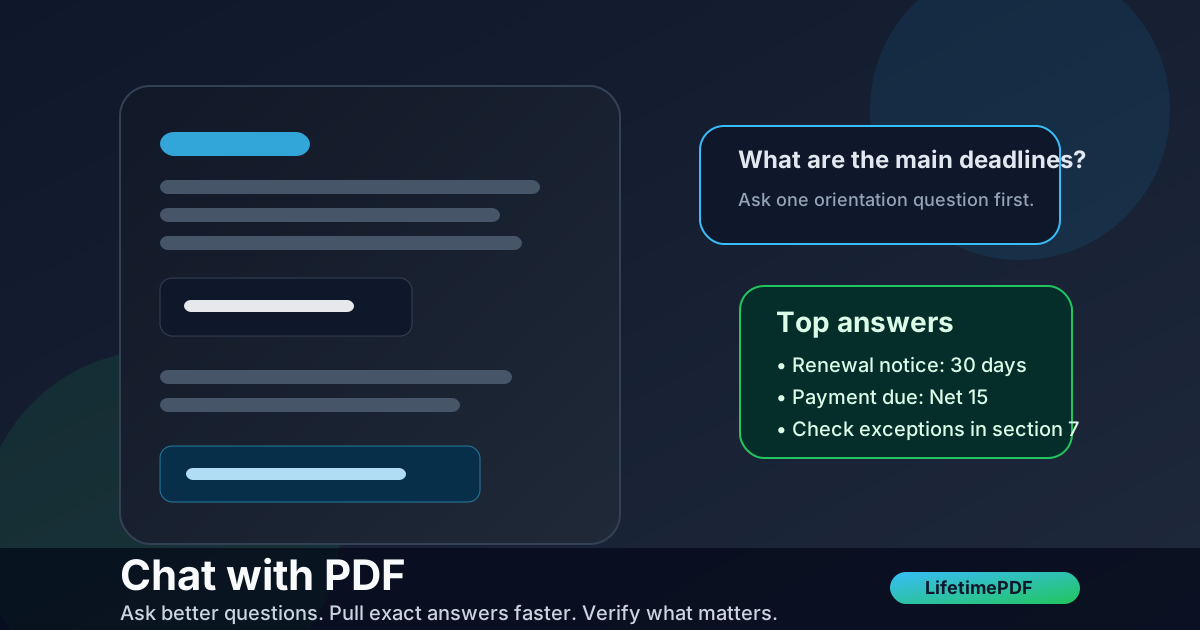
Table of contents
- Quick start: chat with a PDF in a few minutes
- What chat with PDF is actually good at
- The best first questions to ask
- Step-by-step: a better chat with PDF workflow
- Prompt templates that save time
- Scanned PDFs: OCR before you ask
- How to catch wrong or incomplete answers
- When chat with PDF is the wrong tool
- Related LifetimePDF tools and internal links
- FAQ (People Also Ask)
Quick start: chat with a PDF in a few minutes
If your real goal is simply understand this PDF faster without getting lost in it, this workflow is the reliable starting point:
- Open AI PDF Q&A.
- Upload the exact file you want to review.
- Ask one orientation question first, such as What is this document about? or What actions, deadlines, and risks should I care about first?
- Use that first answer to decide your next, narrower questions.
- Ask by task: extract terms, explain a section, list deadlines, compare requirements, or identify exceptions.
- If the PDF is a scan, run it through OCR PDF before trusting the output.
- Verify the high-stakes parts of the answer in the source file before you sign, send, publish, approve, or rely on it.
What chat with PDF is actually good at
Chat with PDF works best when you need orientation first and precision second. You are not trying to memorize every page equally. You are trying to find the important parts faster, ask useful follow-ups, and move from a long document to a practical answer.
That makes it especially useful for contracts, reports, manuals, policies, research PDFs, board packets, proposals, and technical documentation. In those workflows, the real bottleneck is rarely opening the file. It is figuring out which three sections deserve attention before you burn twenty minutes scrolling.
| Document type | What to ask first | What to verify manually |
|---|---|---|
| Contracts | Deadlines, payment terms, renewal rules, termination rights, liability limits | Exact clauses, exceptions, defined terms, notice periods |
| Research papers and reports | Key findings, methodology, limitations, action points | Sample sizes, caveats, quoted numbers, appendix details |
| Policies and handbooks | Rules, timelines, responsibilities, exceptions | Edge cases, carve-outs, formal definitions |
| Manuals and SOPs | Main steps, prerequisites, warnings, troubleshooting logic | Exact sequences, safety language, parameter values |
| Proposals and scopes | Deliverables, assumptions, exclusions, milestones, next steps | Quoted pricing, acceptance criteria, dependencies |
The best first questions to ask
Your first question controls the quality of everything that follows. If you open with something vague like Tell me about this PDF, you often get a vague answer back. If you give the tool a job, the answers get better fast.
Good first-question patterns
- Orientation: What is this document about, and what are the main sections?
- Action-first: What actions, deadlines, approvals, or decisions does this document require?
- Risk-first: What risks, exclusions, penalties, or exceptions should a careful reader notice?
- Decision support: Summarize this for a busy stakeholder and list the three points that matter most.
- Comparison prep: Which sections would I need to compare against another version of this document?
These work because they create a map. Once you have the map, your follow-ups can target the right pages instead of guessing where the useful detail lives.
Step-by-step: a better chat with PDF workflow
Good results come less from “AI magic” and more from sequence. This order tends to produce clearer, more trustworthy answers.
1) Start with the exact document you really need
Do not upload a bloated archive if only one section matters. If the file contains irrelevant appendices, duplicate pages, or unrelated exhibits, trim it first with Extract Pages or Delete Pages. Cleaner PDFs usually lead to cleaner answers.
2) Ask one map-the-document question
Start with a question that creates context. For example: Summarize this for a busy reader and list the top deadlines, obligations, and risks. That answer tells you what the document thinks is important before you zoom in.
3) Switch to task-based follow-ups
Once you have orientation, stop asking general questions. Ask for the exact outcome you need: payment terms, cancellation clauses, findings, citations, page ranges, definitions, required actions, or unresolved questions.
4) Break complex reviews into smaller passes
Do not ask for summary, red flags, legal review, action items, and executive talking points in one blob. Split those into separate passes. You will notice gaps faster and get answers you can actually use.
5) End with the next useful artifact
Sometimes the next step is another question. Sometimes it is a short summary for a teammate, a redacted copy, a text export, or a smaller PDF that is easier to share. A strong workflow ends with something reusable, not just a chat history.
Ready to try it now? Start with a broad question, then narrow down by task.
Prompt templates that save time
These prompt styles work because they define the format and the job.
Executive overview prompt
Summarize this PDF for a busy reader.
Include:
1) one-paragraph overview
2) 7 key points
3) top 3 risks, decisions, or open questions
Contract extraction prompt
Extract the payment terms, renewal rules, termination rights,
notice periods, liability limits, and any important exceptions.
Then list the questions a careful reviewer should still verify.
Research or report prompt
Summarize the findings, methodology, limitations,
and practical takeaways.
Then tell me what a decision-maker should read first in the original PDF.
Manual or SOP prompt
Explain the procedure in plain English.
List the prerequisites, ordered steps, warnings,
and the mistakes that would cause rework or failure.
If the answer feels generic, the fix is usually not to give up. It is to tighten the task. Ask for the answer in bullets. Ask for the relevant sections. Ask it to focus on one type of information at a time.
Scanned PDFs: OCR before you ask
If your PDF is really a stack of images, chat with PDF has less to work with. It may still catch some structure, but accuracy usually improves once the file has a searchable text layer.
That is why OCR PDF matters. OCR turns a scan into a document the tool can actually read instead of just look at. This is especially useful for old scans, signed forms, photographed paperwork, archival packets, and low-quality office copies.
Signs you should OCR first
- You cannot highlight or copy text from the PDF.
- Search inside the document finds nothing obvious.
- The pages behave like pictures instead of text.
- The tool keeps missing details that are visibly on the page.
How to catch wrong or incomplete answers
The fastest way to make chat with PDF more trustworthy is simple: treat the answer as a guide, not a verdict. Use it to find the right section faster, then verify the parts that can actually hurt you if they are wrong.
Always verify these items
- Dates and deadlines - renewals, due dates, effective dates, expiry windows, and notice periods.
- Money and quantities - prices, penalties, fees, totals, page counts, limits, or thresholds.
- Defined terms - especially in legal, financial, and policy documents where one familiar word may have a narrow meaning.
- Exceptions and carve-outs - the lines that change a rule, add a condition, or limit an obligation.
- Procedural steps - because manuals and SOPs often fail when one ordered step gets summarized too loosely.
If the answer is going into a client email, approval chain, legal review, or operational decision, go back to the source. One extra minute of checking is cheaper than being confidently wrong.
When chat with PDF is the wrong tool
Chat with PDF is excellent for orientation and guided review. It is not always the best first step.
Use a summary instead when you only need the big picture
If you mostly want a fast overview, start with PDF Summarizer. Then switch to PDF Q&A once you know which follow-up questions are worth asking.
Use text extraction when exact wording matters most
If you already know the phrase, code, invoice number, or clause label you need, PDF to Text may be the cleaner move. Raw text is often better than conversational output when precision is everything.
Use redaction or extraction before upload when privacy is the real concern
If the file contains sensitive information you do not need for the task, reduce it first. Extract the relevant pages. Redact the unnecessary private content. Smaller, tighter PDFs are often safer and easier to question.
Related LifetimePDF tools and internal links
Chat with PDF works best as part of a broader document workflow. These tools pair naturally with it.
Helpful tool links
- AI PDF Q&A - ask direct questions and pull answers from your document
- OCR PDF - make scans searchable before you ask questions
- PDF Summarizer - get quick orientation before deeper follow-ups
- PDF to Text - inspect the exact wording when precision matters
- Redact PDF - remove sensitive information before upload or sharing
- Compress PDF - make the final file easier to share once review is done
Suggested internal blog links
- Chat with PDF Online
- Chat with PDF Online Free
- Chat with PDF Without Monthly Fees
- Ask Questions About a PDF Online
- Ask Questions About a Scanned PDF Online Free
- Make PDF Searchable Online Free
- Browse all LifetimePDF articles
FAQ (People Also Ask)
How do I chat with a PDF?
Upload the PDF to a PDF Q&A tool, ask one overview question first, then follow with narrower questions about deadlines, clauses, numbers, actions, or risks. Verify the high-stakes answers in the original PDF before you rely on them.
Can I chat with a scanned PDF?
Yes, but scanned files usually work much better after OCR. If the document behaves like an image instead of searchable text, add a text layer first.
What should I ask a PDF first?
Start with an orientation question such as what the document is about, what the main deadlines are, what actions are required, or what the biggest risks appear to be. That first answer helps you ask much better follow-ups.
Is chat with PDF better than a summary?
They solve different problems. A summary is better for a quick big-picture read, while chat with PDF is better when you need follow-up questions, targeted extraction, and detail on demand.
How do I get more accurate answers from a PDF Q&A tool?
Ask task-based questions, keep the scope tight, OCR scanned files first, and manually verify dates, money, definitions, obligations, and exceptions in the source document.