Chat with PDF Online: Ask Better Questions, Get Faster Answers, and Understand Long Documents
If you need to chat with PDF online, upload the file, ask one overview question first, then follow with specific questions about deadlines, clauses, numbers, or next steps.
That is the fastest way to understand a long contract, report, manual, or research paper without reading every page top to bottom before you even know what matters.
The smartest PDF workflow is not just “use AI.” It is knowing when to ask for an overview, when to drill into one section, when to run OCR on a scanned file first, and when to verify the answer against the source before you act on it. Done well, chat with PDF saves time. Done lazily, it can miss the clause, date, exception, or footnote that actually matters. This guide walks through the useful version.
Fastest path: upload your file to LifetimePDF's AI PDF Q&A tool, ask one orientation question first, then use targeted follow-ups to pull the exact answer you need.
In a hurry? Jump to Quick start: chat with a PDF in a few minutes.
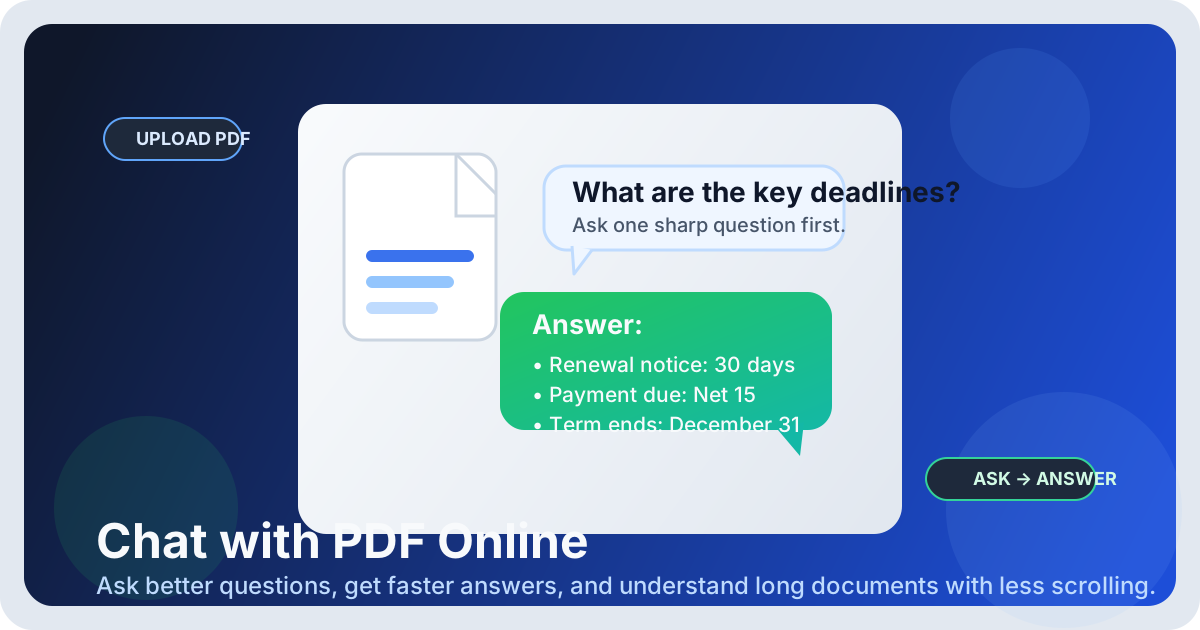
Table of contents
- Quick start: chat with a PDF in a few minutes
- What chat with PDF online is actually good at
- Chat with PDF vs summary vs search
- Step-by-step: how to chat with a PDF online
- Prompt ideas that lead to better answers
- Scanned PDFs: OCR before you ask questions
- How to verify important answers
- Privacy and safer document handling
- Related LifetimePDF tools and internal links
- FAQ (People Also Ask)
Quick start: chat with a PDF in a few minutes
If your real goal is simply understand this document faster, use this workflow:
- Open AI PDF Q&A.
- Upload the PDF you need to review.
- Ask one overview question first, such as What is this document about? or What are the main deadlines and obligations?
- Use the first answer to decide your follow-up questions.
- Ask narrower questions about clauses, dates, numbers, definitions, payment terms, exceptions, risks, or next actions.
- If the PDF is a scan, run it through OCR PDF first.
- Verify anything important in the source before you send it onward, sign it, rely on it, or use it in a decision.
What chat with PDF online is actually good at
Chat with PDF is most useful when you do not need to read everything with equal depth. You need orientation first, then detail on demand. That is why it works so well for contracts, reports, manuals, proposals, policy documents, onboarding guides, and research PDFs.
In those situations, the hard part is rarely opening the file. The hard part is figuring out where the useful answer lives. A good PDF Q&A workflow helps you move from Where do I even start? to Here are the three sections I actually need to read closely.
Strong use cases
- Contract review: find renewal language, termination rights, payment terms, liability limits, and notice periods faster.
- Research and reports: pull key findings, methodology notes, limitations, and action items.
- Policies and compliance docs: identify rules, timelines, responsibilities, and exceptions without scanning every heading manually.
- Manuals and SOPs: ask how-to questions, required steps, or troubleshooting queries against the document.
- Proposals and statements of work: extract scope, deliverables, assumptions, exclusions, and deadlines quickly.
Chat with PDF vs summary vs search
A lot of people use the wrong tool for the wrong job. That is why the experience feels worse than it should. Here is the clean way to think about it.
Use chat with PDF when you need interaction
Chat with PDF is the better choice when your next question depends on the last answer. You are not just collecting a summary. You are exploring the document: What are the deadlines? Which clause covers refunds? Does the policy say anything about exceptions? What changed between the introduction and the appendix?
Use a summary when you need orientation
If you mostly want a quick top-level understanding, a summary is often the cleaner first move. Start with PDF Summarizer, then switch to PDF Q&A when you know what to ask next.
Use search or text extraction when precision matters
If you already know the exact phrase, invoice number, case ID, or section label you need, plain text extraction or document search may be faster. In those cases, PDF to Text can help you inspect the raw content directly.
Simple rule: summary for orientation, chat for follow-up questions, OCR for scans, and raw text when you need exact wording.
Step-by-step: how to chat with a PDF online
Good results come less from magic and more from order. Follow this sequence and the answers usually improve.
1) Start with an orientation question
Your first question should create a map of the document. Ask something like: Summarize this for a busy reader and list the top deadlines, responsibilities, and risks. That gives you a cleaner base than jumping straight into tiny details with no context.
2) Ask by task, not by topic
“Tell me about this PDF” is weak. “List the payment terms, renewal rules, and notice periods in plain English” is much stronger. Good prompts give the tool a job.
3) Split complicated reviews into separate questions
Do not ask for summary, legal risk review, invoice extraction, action items, and comparison notes all at once. Break those into smaller requests. You will usually get clearer answers and notice gaps faster.
4) Check the pages that matter most
Once the answer points you toward a clause, table, or section, open that part of the document and verify it. That is especially important for money, deadlines, obligations, exceptions, and anything you plan to quote.
5) Save the next-step output you actually need
Sometimes the next step is not another question. It might be a summary for a teammate, a cleaned text export, or a smaller PDF that is easier to share. A good workflow ends with a usable output, not just a chat transcript.
Prompt ideas that lead to better answers
These prompt styles work because they tell the tool what kind of answer you need.
Executive summary prompt
Summarize this PDF for a busy reader.
Include:
1) one-paragraph overview
2) 8 key points
3) top 3 risks, questions, or unknowns
Contract review prompt
Review this contract and extract:
- payment terms
- renewal / auto-renew language
- termination rights
- notice periods
- liability limits
Then list the questions I should ask before signing.
Policy or handbook prompt
Explain this policy in plain English.
Highlight the rules, deadlines, exceptions, and actions required from the reader.
Research paper or report prompt
Summarize the key findings, methodology, limitations, and practical takeaways.
Then tell me what a decision-maker should pay attention to first.
If the first answer feels generic, do not abandon the tool immediately. Tighten the question. Ask for a format. Ask for page-specific facts. Ask it to focus on one kind of detail at a time.
Scanned PDFs: OCR before you ask questions
If your PDF is really just a pile of page images, chat with PDF will have less to work with. The tool may still pick up some structure, but accuracy usually improves when you make the document searchable first.
That is where OCR PDF matters. OCR adds a searchable text layer so the document behaves more like text and less like a photograph. This is especially useful for old scans, printed forms, scanned contracts, receipts, or low-quality office copies.
Signs you should OCR first
- You cannot highlight or copy text from the file.
- Search inside the PDF does nothing.
- The pages look like flat images.
- Answers keep missing obvious text that is clearly visible to you.
How to verify important answers
The fastest way to make AI PDF answers more trustworthy is simple: do not treat every answer as final just because it sounds fluent. Use the answer as a guide, then confirm the parts that matter.
Verify these items every time
- Dates and deadlines - renewal windows, payment due dates, delivery dates, response periods, and expiry dates.
- Numbers - pricing, quantities, page counts, limits, penalties, and fees.
- Obligations - what each party must do, and when.
- Exceptions - carve-outs, exclusions, termination conditions, or policy exceptions.
- Definitions - especially in contracts and formal policies where one word may be defined narrowly.
If you are using the answer to brief a client, send a document onward, sign something, or make a money decision, go back to the source. That extra minute is cheaper than being confidently wrong.
Privacy and safer document handling
PDF Q&A is convenient, but convenience should not erase judgment. Before you upload a file, think about what is inside it. Contracts, employee files, legal paperwork, medical records, financial statements, and internal planning docs all deserve more care than a random public brochure.
- Redact sensitive information before upload if the full content is not necessary.
- Use the minimum document needed for the job instead of the entire archive.
- Extract only the relevant pages when the rest of the file is irrelevant or sensitive.
- Protect final files before forwarding them if they contain private information.
In practice, safer workflows are often simpler workflows. A smaller, cleaner, more focused PDF is easier to review and easier to handle responsibly.
Related LifetimePDF tools and internal links
Chat with PDF works best as part of a broader document workflow. These tools fit naturally around it.
Helpful tool links
- AI PDF Q&A - ask direct questions and get answers from your document
- OCR PDF - make scanned PDFs searchable before Q&A
- PDF Summarizer - get a quick overview before drilling deeper
- PDF to Text - inspect raw text when exact wording matters
- Redact PDF - remove sensitive information before sharing or uploading
- Protect PDF - secure the final file before you send it onward
Suggested internal blog links
- Chat with PDF Online Free
- Chat with PDF Online Without Monthly Fees
- Ask Questions About a PDF Online
- PDF Q&A Online Free
- Ask Questions About a Scanned PDF Online Free
- Make PDF Searchable Online Free
- Browse all LifetimePDF articles
FAQ (People Also Ask)
How do I chat with a PDF online?
Open a PDF Q&A tool in your browser, upload the file, ask one overview question first, then follow with narrower questions about dates, clauses, numbers, or actions. Verify important answers in the PDF before you rely on them.
Can I chat with a scanned PDF online?
Yes, but scanned files usually work better after OCR. If the PDF is image-only, make it searchable first so the tool can read the text layer more accurately.
Is chat with PDF better than a summary?
They solve different problems. A summary is better for fast orientation, while chat with PDF is better when you need specific answers, follow-up questions, and detail on demand.
What should I ask a PDF first?
Start with one orientation question such as what the document is about, what deadlines it contains, what actions are required, or what the main risks are. That first answer will tell you where to go next.
How do I get more accurate answers from a PDF Q&A tool?
Ask clear task-based questions, keep the scope narrow, OCR scanned files first, and verify the important parts of the answer against the original document. Dates, money, obligations, and exceptions deserve a manual check.