Convert Scanned PDF to Word: OCR First So the Output Is Editable, Searchable, and Easier to Fix
Yes — the fastest reliable way to convert scanned PDF to Word is to run OCR first so the file becomes real text, then export that searchable version to DOCX.
If you skip OCR, scanned PDFs often turn into blank pages, pasted images, or messy text instead of a Word document you can actually edit.
That is why this job feels harder than it should. A scan looks readable to you, but the converter may only see a photo of words. Once you treat the problem correctly, the workflow becomes straightforward: clean the scan, OCR it, sanity-check the risky details, convert to Word, and only then spend time fixing layout.
Fastest practical path: fix obvious scan issues first, OCR the file, convert the searchable result with PDF to Word, and review the names, numbers, and headings that matter most.
In a hurry? Jump to Quick start: scanned PDF to Word in 5 minutes.
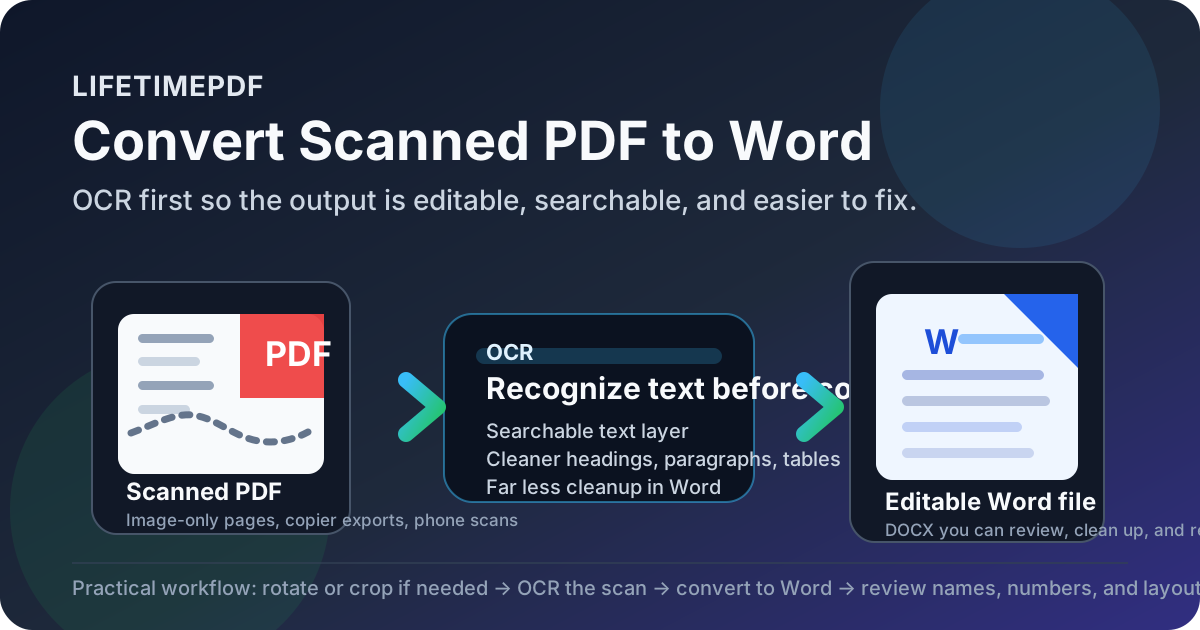
Table of contents
- Quick start: scanned PDF to Word in 5 minutes
- Why scanned PDFs fail in direct Word conversion
- How to tell whether your PDF needs OCR first
- Step-by-step: convert scanned PDF to Word
- What formatting usually survives and what does not
- How to improve OCR and DOCX accuracy
- Best use cases for scanned PDF to Word
- Privacy and safer document handling
- Related LifetimePDF tools and guides
- FAQ (People Also Ask)
Quick start: scanned PDF to Word in 5 minutes
If your PDF came from a scanner, a copier, an old archive, or a phone camera, this is the shortest reliable workflow:
- Open OCR PDF.
- Upload the scanned or image-only PDF.
- Run OCR so the text becomes selectable and searchable.
- Review one or two important pages for names, dates, totals, headings, and labels.
- Open PDF to Word.
- Upload the OCRed file and export it as DOCX.
- Open the Word file and fix only the formatting issues that actually matter.
Why scanned PDFs fail in direct Word conversion
A digital PDF usually contains real text characters. A scanned PDF usually does not. It often contains nothing more than page images inside a PDF wrapper. So even though the document looks normal to you, the converter may only see pixels.
That is why direct conversion produces such uneven results. Without OCR, a PDF to Word tool may return:
- A blank DOCX because there was no readable text layer
- A Word file full of page images instead of editable paragraphs
- Broken line breaks or strange characters from weak text recognition
- Tables and forms that collapse badly because the scan quality gave the software too little structure to work with
| Workflow | What the software sees | Typical outcome |
|---|---|---|
| Scan → Word | Mostly page images | Weak editability and more cleanup |
| Scan → OCR → Word | Recognized text plus more usable structure | Cleaner DOCX and faster editing |
How to tell whether your PDF needs OCR first
Sometimes it is obvious that a PDF is scanned. Sometimes it only becomes obvious when copy, search, or editing fails. Use these quick checks before you waste time on conversion:
- Selection test: try to highlight one sentence. If the whole page highlights like one image, the file probably needs OCR.
- Search test: use
Ctrl+ForCmd+Ffor a visible word. If search finds nothing, the text layer may be missing. - Copy test: paste a paragraph into a text editor. If you get nothing useful, the file is likely image-based.
- Archive clue: old records, printed forms, signed packets, fax-style documents, and copier exports almost always benefit from OCR first.
Step-by-step: convert scanned PDF to Word
The cleanest workflow is not complicated. The key is doing the steps in the right order.
1. Clean obvious scan problems first
OCR works better when the input is not fighting it. If pages are sideways, rotate them with Rotate PDF. If the file has giant black borders or wasted margins, trim them with Crop PDF. If the packet contains junk pages, remove them before conversion.
2. Run OCR on the scanned PDF
Use OCR PDF to create a searchable text layer. This is the step that turns a photo-like document into something software can actually work with. For many files, OCR is the difference between a frustrating Word export and a usable draft.
3. Sanity-check the high-risk details
Before you convert, look at the parts that cause real-world mistakes: names, dates, invoice totals, form labels, legal clauses, and table headings. If OCR misreads those, Word conversion will carry the errors forward. A 20-second check here is cheaper than fixing the wrong document later.
4. Convert the OCRed file to DOCX
Open PDF to Word, upload the searchable version, and export it. At this point the converter is no longer trying to guess letters from a picture. It is working from recognized text, which gives you a much better shot at editable paragraphs, lists, and basic tables.
5. Fix only the parts that matter
Do not chase pixel-perfect reproduction unless you truly need it. Most people want a Word file they can edit, copy from, reuse, or send for review. Clean up spacing, page breaks, tables, and odd headings where needed, then move on.
Practical sequence to remember: clean scan → OCR → check critical text → convert to Word → final cleanup.
What formatting usually survives and what does not
People often ask whether scanned PDF to Word conversion will preserve formatting perfectly. The honest answer is: sometimes the structure survives well enough, but exact visual fidelity depends heavily on scan quality and document complexity.
- Usually survives reasonably well: plain paragraphs, simple headings, numbered lists, and straightforward tables
- Often needs cleanup: multi-column layouts, forms, stamps, signatures, footnotes, and tightly packed financial tables
- Common trouble spots: handwritten marks, skewed scans, faded originals, low-resolution phone photos, and pages with mixed languages
The right expectation is not “this must look identical to the PDF.” The right expectation is “this should become editable fast enough that I can finish the actual work without retyping the whole thing.”
How to improve OCR and DOCX accuracy
Better input almost always beats more cleanup later. If accuracy matters, these habits help:
- Use the clearest scan available. A direct copier scan usually beats a rushed phone photo.
- Rotate pages before OCR. Sideways text lowers recognition quality.
- Crop heavy borders. Cleaner edges help the software focus on real content.
- Check names and numbers manually. OCR mistakes are most expensive where precision matters.
- Split huge mixed packets when necessary. A uniform batch converts more cleanly than a random stack of forms, photos, and annexes.
- Use PDF to Text as a quick audit. If the extracted text looks wrong there, the DOCX will not magically be right.
| If you see this problem | Most likely cause | Best next step |
|---|---|---|
| Blank or image-only Word output | No usable text layer | Run OCR first |
| Strange characters or broken words | Poor scan quality or skewed text | Rotate, crop, and re-run OCR |
| Table structure falls apart | Dense layout or unclear cell borders | Expect manual cleanup in Word |
| Names or totals are wrong | OCR misread high-risk text | Review and correct before sharing |
Best use cases for scanned PDF to Word
This workflow is especially useful when you need to reuse the content rather than just look at it.
Archived reports and records
Old scanned reports often need a few updates, quotations, or searchable excerpts. OCR plus Word conversion is usually faster than retyping.
Contracts, forms, and business paperwork
If you received a scan of a contract, proposal, or intake form and need to adapt it, Word output gives you a workable draft instead of starting from zero.
School packets and research material
Students and researchers often need to quote, annotate, summarize, or restructure old scanned material. Getting the text into Word makes that much easier.
Internal process documents
Teams often inherit scanned SOPs, onboarding sheets, and forms that were never born digital. Converting them cleanly once can save repeated manual work later.
Privacy and safer document handling
Scanned PDFs are often sensitive: IDs, contracts, HR forms, invoices, records, legal paperwork, or signed documents. So the best conversion workflow is not just about speed. It is also about handling the file responsibly.
- Upload only the pages you actually need.
- Review confidential content before resharing the DOCX.
- Redact sensitive material first with Redact PDF if private details should not survive.
- Protect the final copy with PDF Protect when access should stay controlled.
- Follow workplace or client policy for regulated documents.
Need more than one conversion button? LifetimePDF works best when OCR, conversion, cleanup, protection, and resharing happen in one toolkit.
A clean sequence for sensitive files is often: OCR → Convert → Review → Redact if needed → Protect final copy.
Related LifetimePDF tools and guides
Scanned PDF to Word conversion usually sits inside a larger workflow. These tools and guides fit naturally around the same job:
- OCR PDF - turn image-only pages into selectable text first.
- PDF to Word - export the searchable file as DOCX.
- PDF to Text - sanity-check extracted text quickly.
- Rotate PDF - fix sideways scans before OCR.
- Crop PDF - remove borders and visual noise.
- Redact PDF - remove sensitive information before sharing.
- PDF Protect - secure the final file again if needed.
Related blog guides
- Convert Scanned PDF to Word Online
- Convert Scanned PDF to Word Online Free
- Convert Scanned PDF to Word Online Without Monthly Fees
- Convert Scanned PDF to Word Without Monthly Fees
- Translate Scanned PDF
- PDF to Text
- Convert PDF to Word
- Make PDF Searchable OCR Guide
FAQ (People Also Ask)
How do I convert a scanned PDF to Word?
The most reliable workflow is OCR first, Word conversion second. OCR turns the scan into selectable text, and then a PDF to Word tool can build an editable DOCX from that recognized text.
Why does my scanned PDF turn into a blank or uneditable Word file?
Because many scanned PDFs are only page images. Without OCR, the converter may have no real text layer to work with, so the result can be blank, image-based, or badly formatted.
Will formatting stay the same when I convert a scanned PDF to Word?
Simple paragraphs, headings, and basic tables often survive reasonably well after OCR, but stamps, handwriting, low-resolution scans, forms, and multi-column layouts usually need some cleanup in Word.
How can I improve scanned PDF to Word accuracy?
Rotate crooked pages, crop large borders, use the clearest scan available, OCR the file first, and review names, numbers, totals, and headings before sharing the final DOCX.
Is it safe to convert scanned PDFs online?
It can be safe when you use a trusted service, upload only the pages you need, and follow your privacy or workplace rules for sensitive documents.