Translate Scanned PDF: OCR First, Catch Critical Errors Early, and Export a Readable Translation
Yes — the safest way to translate a scanned PDF is to run OCR first so the file becomes selectable text, then translate and review names, dates, totals, headings, and warnings before exporting.
If you translate an image-only PDF directly, you are far more likely to get skipped text, broken layout, or mistakes in the parts that actually matter.
That is the real difference between a translation that is merely “finished” and one another person can actually use. Scanned PDFs look readable to humans, but software often sees them as page images. Once you understand that, the workflow gets simpler: clean the scan, OCR it, translate it, review the risky details, and only then share the result.
Fastest practical path: OCR the scan first, translate the readable file second, and use PDF to Text for a quick sanity check if anything still looks suspicious.
In a hurry? Jump to Quick start: translate a scanned PDF in about 5 minutes.
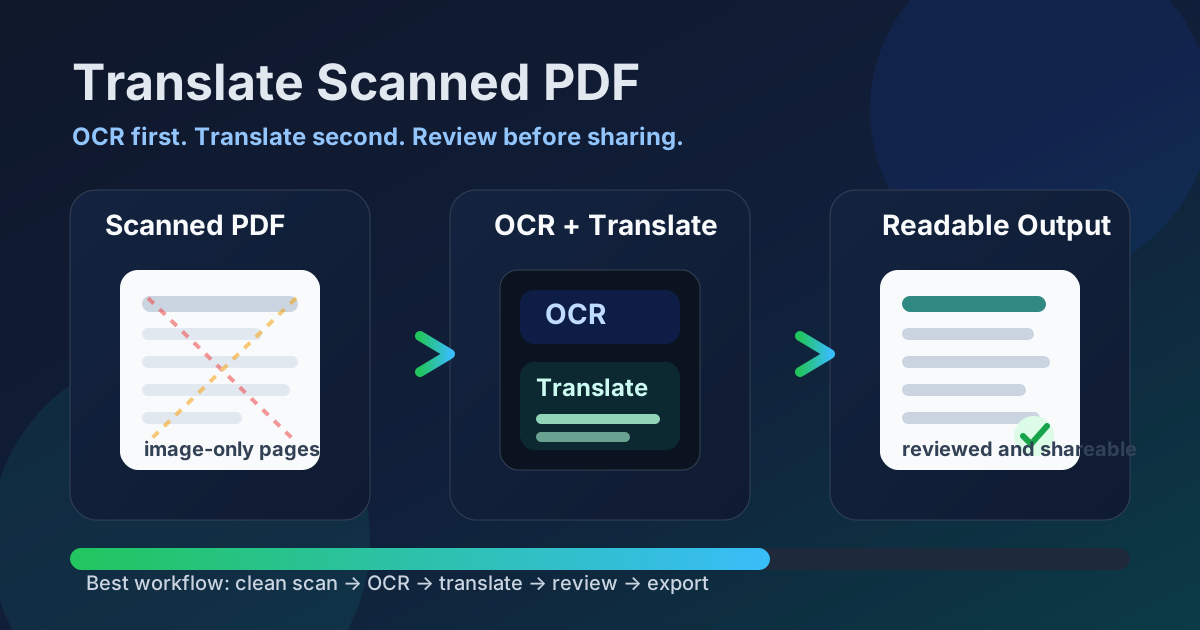
Table of contents
- Quick start: translate a scanned PDF in about 5 minutes
- Why direct translation fails on scanned PDFs
- Best workflow: clean the scan, OCR, translate, review, export
- Step-by-step: how to translate a scanned PDF with LifetimePDF
- How to improve OCR and translation accuracy
- What usually breaks after translation
- Review checklist before you share the final file
- Privacy and safe handling for sensitive scans
- Related LifetimePDF tools and guides
- FAQ (People Also Ask)
Quick start: translate a scanned PDF in about 5 minutes
If your PDF is a scan and you need a readable translation quickly, this is the shortest dependable workflow:
- Open OCR PDF.
- Upload the scan and make sure sideways pages or giant borders are fixed first if needed.
- Run OCR so the document becomes searchable and selectable.
- Open Translate PDF and upload the OCRed file.
- Review names, dates, totals, headings, labels, and warnings.
- Export the translated result and protect it before sharing if the file is sensitive.
Why direct translation fails on scanned PDFs
A normal digital PDF usually contains real text. A scanned PDF often does not. It may look like a document, but under the hood it behaves more like a set of images. That is why people upload a scan into a translator and get partial output, strange spacing, missing lines, or obvious errors in names and numbers.
Translation tools work best when they receive actual characters, words, and sentence structure. Without OCR, they may be guessing from blurry letter shapes, uneven lighting, skewed pages, stamps, or copier artifacts. The result can be readable enough to create false confidence while still being wrong in the exact places that change decisions.
| Workflow | What the software sees | Typical result |
|---|---|---|
| Scan → translate directly | Mostly page images and guesswork | Missing text, weaker accuracy, messy structure |
| Scan → OCR → translate | Selectable text with real sentence boundaries | Cleaner translation, better reviewability, fewer hard errors |
That is why the goal is not “find a magical translator.” The goal is to give the translator better input. OCR is the step that changes a scan from a picture of text into something the rest of the workflow can actually understand.
Best workflow: clean the scan, OCR, translate, review, export
The best way to translate scanned PDF files is to treat the job as a short sequence, not a one-click promise.
1) Clean the file when the scan is obviously messy
Crooked pages, huge black borders, blank sheets, and upside-down inserts all make OCR work harder. A few seconds of cleanup can improve recognition more than people expect.
2) OCR the scan into machine-readable text
OCR stands for optical character recognition. It turns page images into searchable text so translation can work on actual words instead of shapes. This is usually the step that changes a frustrating file into a manageable one.
3) Translate the OCRed file
Once the text layer exists, the translation step becomes far more dependable. Paragraphs, headings, labels, and sentence boundaries are easier to interpret when the source has been recognized properly.
4) Review the details that carry risk
Names, dates, totals, units, addresses, warnings, and legal or technical wording deserve a manual pass. A translation can look polished while still getting those high-impact details wrong.
5) Export a file another human can actually use
The final result should be readable, not just technically generated. Sometimes that means a translated PDF. Sometimes it means translated text for review first, followed by a cleaner final export once the meaning-sensitive details are confirmed.
Step-by-step: how to translate a scanned PDF with LifetimePDF
LifetimePDF gives you the core pieces for this workflow in one place. Here is the practical sequence that works for most scanned forms, contracts, manuals, invoices, records, and archived paperwork.
Step 1: Fix the obvious scan issues first
Before OCR, remove the problems a human can spot immediately. If a page is sideways, rotate it. If the scan has giant empty margins, crop it. If only part of the document matters, extract or keep only those pages.
- Rotate PDF for sideways or upside-down pages.
- Crop PDF to remove heavy borders and wasted paper space.
- Extract Pages if you only need the pages that actually require translation.
Step 2: Run OCR
Open OCR PDF and process the scan. This creates the text layer the translation step needs. If the source scan is decent, this is usually where the entire workflow improves dramatically.
Step 3: Translate the OCRed file
Open Translate PDF, choose the target language, and translate the OCR-friendly file. Because the text is now readable to software, the output is usually much cleaner than a direct scan upload.
Step 4: Sanity-check the raw text if needed
If a paragraph still looks strange, inspect the recognized text with PDF to Text. That makes it easier to tell whether the problem started in OCR or appeared later during translation.
Step 5: Export and secure the final version
Once the result is readable and the critical details look right, export the final output. If the document contains personal, legal, medical, or business-sensitive information, use PDF Protect before sharing it onward.
How to improve OCR and translation accuracy
Better input almost always beats more cleanup later. If you want stronger results, focus on the parts of the document that most often confuse OCR and translation systems.
- Use the clearest scan available: faint copies, shadows, and low-resolution phone photos create recognition errors early.
- Straighten pages: skewed text lines make character recognition less reliable.
- Reduce noise: stamps, dark borders, and background speckling can interfere with letter shapes.
- Split giant jobs: when a 200-page archive contains only 12 useful pages, trim first so you are reviewing less noise.
- Review the risk-heavy fields first: names, invoice totals, serial numbers, dates, and headings deserve attention before you worry about perfect spacing.
What usually breaks after translation
Even when the wording is correct, layout can get awkward after translation. That is normal. Translated text expands, wraps differently, and interacts badly with rigid PDF layouts.
- Tables: longer phrases can push rows out of alignment.
- Forms: field labels may grow longer than the original boxes were designed to hold.
- Multi-column pages: reading order can become less obvious after OCR and translation.
- Stamps and handwritten notes: these are common weak spots for both OCR and translation.
- Dense legal or technical pages: one small wording shift can matter more than the rest of the page combined.
That is why the first goal should be accuracy and readability, not perfect visual mimicry. A clean translated PDF that preserves meaning is more useful than a prettier file that quietly mistranslates the key sentence.
Review checklist before you share the final file
Before sending the translated scan to anyone else, run a short review pass:
- Recheck names, company names, and place names.
- Confirm dates, times, totals, percentages, and currency.
- Scan headings, warnings, and instructions for meaning drift.
- Make sure tables, labels, and form sections are still understandable.
- Open a few random sections and confirm no page was skipped, repeated, or cut off.
That takes only a few minutes and catches the kinds of mistakes that cause embarrassment, delays, or expensive misunderstandings. For real-world document work, that matters far more than whether every paragraph landed in the exact same position as the source file.
Privacy and safe handling for sensitive scans
Scanned PDFs often contain the most personal kinds of documents: IDs, onboarding forms, archived contracts, signed letters, invoices, medical records, immigration paperwork, or legal evidence bundles. A good workflow reduces unnecessary exposure instead of pushing the entire file around by default.
- Translate only the pages you actually need.
- Trim blank or irrelevant pages before upload.
- Review the translation before forwarding it to anyone else.
- Use PDF Protect when the final file should not travel openly.
Cleaner workflows are not just faster. They also reduce how much sensitive material gets duplicated, exported, and shared in the first place.
Related LifetimePDF tools and guides
If you work with scanned or multilingual documents regularly, these supporting tools and companion articles make the workflow smoother:
Helpful tool links
- OCR PDF - turn scanned pages into searchable, selectable text
- Translate PDF - translate readable PDF content into another language
- PDF to Text - inspect OCR output and compare questionable sections
- Extract Pages - keep only the pages that need translation
- PDF Protect - secure the translated file before sharing
Suggested internal blog links
- Translate Scanned PDF Online
- Translate PDF
- Translate PDF Online
- Translate PDF Without Monthly Fees
- Convert Scanned PDF to Text Online
- PDF to Text
- Browse all LifetimePDF articles
FAQ (People Also Ask)
How do I translate a scanned PDF?
Use an OCR-first workflow. Convert the scan into selectable text, translate the OCRed file, then review names, dates, totals, labels, and warnings before exporting the final result.
Can I translate a scanned PDF without OCR?
Sometimes, but the results are usually weaker. Direct scan translation often misses text, confuses page structure, and makes important details harder to verify.
Will the translated file keep the same formatting?
Plain paragraphs often stay readable, but tables, forms, stamps, handwritten notes, and multi-column layouts commonly need cleanup after translation because the text expands and wraps differently.
How can I improve scanned PDF translation accuracy?
Start with a cleaner scan, rotate crooked pages, crop large borders, OCR first, and manually review names, dates, totals, headings, and technical terms before sharing the output.
What should I do before sharing a translated scanned PDF?
Recheck the meaning-sensitive sections, make sure the layout is still understandable, and protect the final PDF if it contains personal, legal, financial, medical, or confidential business information.