Convert PDF to Word: How to Get an Editable DOCX Without Rebuilding the Document
To convert PDF to Word, upload a text-based PDF to a converter and export it as an editable DOCX file.
If the PDF is scanned or image-only, run OCR first or the Word result will usually come out blank, messy, or barely editable.
This job sounds simple right up until the file has tables, signatures, headers, page numbers, or a scan hiding behind a normal-looking PDF icon. Some documents turn into clean editable Word files in minutes. Others need a smarter workflow so you do not waste time fixing a broken export. The reliable path is to identify what kind of PDF you have, convert it in the right format, then review the handful of elements that usually drift after conversion.
Fastest path: test whether the PDF has selectable text, convert it to DOCX, review the tables and headings, then export back to PDF if you need a clean final copy.
Need the short version? Jump to Quick start: convert PDF to Word in 5 minutes.
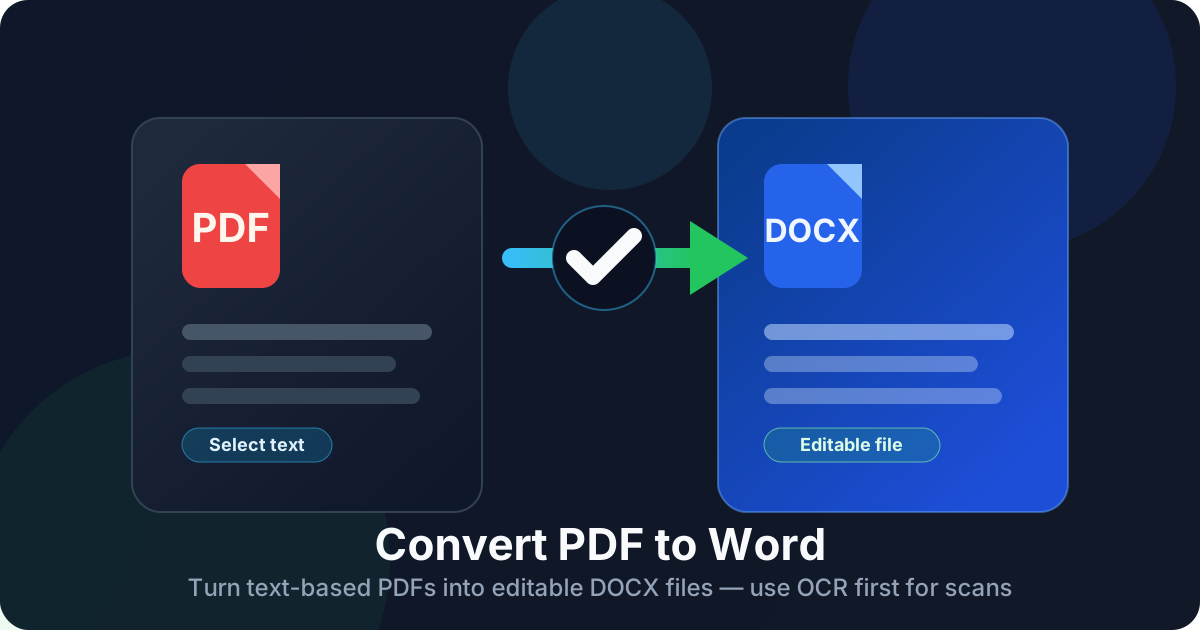
Table of contents
- Quick start: convert PDF to Word in 5 minutes
- The first thing to check before converting anything
- Step-by-step: how to convert PDF to Word
- What formatting usually survives and what usually slips
- Scanned PDFs: when OCR comes first
- DOCX vs DOC and when to rebuild instead of forcing it
- Common PDF to Word problems and quick fixes
- Privacy and safer file handling
- Related LifetimePDF tools and guides
- FAQ
Quick start: convert PDF to Word in 5 minutes
If the PDF already contains selectable text, this is the simplest workflow:
- Open PDF to Word.
- Upload the PDF.
- Export it as DOCX.
- Open the result in Microsoft Word, Google Docs, or LibreOffice.
- Review headings, tables, page breaks, totals, and images before you share it.
If the PDF is a scan, copier export, photographed page, or fax-style file, add one step first:
- Run OCR PDF.
- Then send the searchable result into PDF to Word.
The first thing to check before converting anything
The biggest difference between a smooth conversion and an annoying one is not the converter itself. It is whether the source PDF already contains real text.
A normal digital PDF usually comes from Word, Google Docs, Pages, Excel, PowerPoint, or another app that exported a proper document. A scanned PDF is different. It may look sharp on screen, but underneath it is often just a picture of a page. Word converters can rebuild text and structure from a real digital PDF much more cleanly than from a page image.
| Type of PDF | What the converter sees | Typical result |
|---|---|---|
| Normal digital PDF | Selectable text, paragraph blocks, and basic layout structure | Usually converts well into editable Word |
| Scanned or image-only PDF | Pictures of pages instead of actual text | Needs OCR before Word conversion makes sense |
| Design-heavy PDF | Text mixed with tight layout tricks, floating elements, and graphics | Editable output is possible, but cleanup is more likely |
You can test the PDF in about 10 seconds:
- Try selecting a sentence with your mouse or trackpad.
- Search for a visible word using
Ctrl+ForCmd+F. - Copy a paragraph and paste it into a notes app to see whether it stays readable.
Step-by-step: how to convert PDF to Word
Step 1: Start with the actual editing goal
Ask what you need from the Word file. Are you changing clauses in a contract? Reusing a report? Updating a resume? Pulling text out of an old manual? The answer changes how perfect the conversion needs to be.
If you only need a few pages, isolate them first with Extract Pages so you are converting a smaller, easier document.
Step 2: Open PDF to Word and export as DOCX
Start with LifetimePDF PDF to Word. In most cases, DOCX is the best output format because it behaves better in modern editors than older DOC files.
Step 3: Review the pages that usually shift
Do not stop after looking at page one. The first page can look fine while the rest of the file quietly falls apart. Check these areas first:
- Headings and subheadings
- Bulleted and numbered lists
- Tables, totals, and aligned columns
- Headers, footers, and page numbers
- Images, signatures, and captions
Step 4: Make edits, then export back to PDF if needed
Once the Word file is editable, make the changes you actually need. Then use Word to PDF to create a clean shareable version for email, printing, approval, or upload.
Best real-world workflow: test the PDF first, convert to DOCX, fix only the weak spots, then export the polished version back to PDF.
What formatting usually survives and what usually slips
PDF to Word conversion is not magic. It is a reconstruction job. The converter reads text, tables, images, and spacing from the PDF, then rebuilds them as a Word document. Some elements transfer beautifully. Others arrive close enough to use but not perfect.
Usually converts well
- Single-column text documents
- Letters, contracts, and standard business files
- Reports with clear headings and bullet lists
- Simple tables with obvious borders
- Common fonts and ordinary paragraph spacing
More likely to need cleanup
- Multi-column layouts
- Tables with merged cells
- Headers, footers, and inserted page numbers
- Charts mixed tightly into body text
- Floating images and wrapped text blocks
Often better handled another way
- Scanned PDFs with no text layer
- Heavily secured PDFs
- Brochure-style, catalog-style, or magazine-style layouts
- Forms whose exact visual layout matters more than editable text
| Document element | How it usually converts | What to check afterward |
|---|---|---|
| Paragraph text | Very well | Line breaks, spacing, and font substitutions |
| Headings and lists | Usually well | Hierarchy, numbering, and indentation |
| Tables | Good to mixed | Cell alignment, borders, merged cells, totals |
| Images and signatures | Mixed | Placement, scale, wrap, and captions |
| Scanned text | Poor without OCR | Run OCR before converting to Word |
Scanned PDFs: when OCR comes first
This is the step people skip most often, and it is the reason many of them decide a PDF-to-Word tool "doesn't work." A scanned PDF is often just a stack of page images. Word cannot edit letters that do not exist as real text yet.
That is why OCR PDF matters. OCR turns visible characters inside those page images into machine-readable text. Once that text layer exists, the Word converter has something useful to rebuild.
Signs you need OCR first
- You cannot highlight words in the PDF.
- Search cannot find text that is clearly visible on the page.
- The Word export comes out empty or feels like a pile of images.
- Copy and paste produces gibberish.
Recommended OCR-first workflow
- Open OCR PDF.
- Upload the scanned file.
- Run OCR and confirm the output is now searchable.
- Send the OCRed file to PDF to Word.
- Review names, totals, dates, and unusual words for OCR mistakes.
DOCX vs DOC and when to rebuild instead of forcing it
Most people should choose DOCX and move on. It is the best default unless you are working with older legacy software that specifically requires DOC.
| Format | Best for | Why choose it |
|---|---|---|
| DOCX | Most users | Better compatibility, cleaner structure, and stronger support in modern editors |
| DOC | Older systems | Mainly useful when you must support outdated Word versions or legacy workflows |
Sometimes the smarter move is not to force a full Word conversion at all. If the PDF is visually complex but the text itself is what matters, PDF to Text can help you recover content cleanly and rebuild the layout in Word from scratch.
Common PDF to Word problems and quick fixes
The Word file is blank
This is the classic sign of an image-only or scanned PDF. Run OCR first, then convert again.
Tables broke across lines or pages
Complex tables often need manual cleanup. If the PDF contains one important section, isolate it first with Extract Pages so you are converting a smaller, easier document.
The layout looks off even though the text is there
That usually means the original PDF used columns, text boxes, or tightly controlled spacing. Fix the large structure first: headings, section spacing, tables, and page breaks. Small polish is easier after the main layout is stable.
Images or signatures moved around
Repositioning images in Word is normal after conversion, especially when the original PDF used floating graphics or tight text wrap.
The document is confidential
Use Redact PDF first if private details should not travel with the upload.
| Problem | Likely cause | Best fix |
|---|---|---|
| Blank output | Scanned PDF | Run OCR first |
| Broken tables | Complex PDF table structure | Convert smaller sections or clean the table manually |
| Odd line breaks | Text boxes or multi-column layout | Reformat paragraphs and review flow section by section |
| Images out of place | Positioned graphics in the original PDF | Reinsert or reposition images in Word |
| Private information still visible | Source file was uploaded without cleanup | Redact before converting and review the editable result |
Privacy and safer file handling
PDF to Word conversion often involves contracts, resumes, HR files, invoices, application packets, or internal reports. So this is not just a formatting task. It is also a file-handling decision.
- Upload only what you need: use Extract Pages if the full document is unnecessary.
- Redact sensitive details first: use Redact PDF when confidentiality matters.
- Review the output before forwarding: editable files can expose comments, OCR mistakes, or details you did not mean to keep.
- Re-export a clean final PDF: after editing, use Word to PDF to create the version you actually share.
Related LifetimePDF tools and guides
PDF to Word conversion is rarely the only step. These companion tools usually make the job smoother:
- PDF to Word - convert PDFs into editable DOCX files.
- OCR PDF - make scanned PDFs searchable before converting them.
- PDF to Text - extract plain text when clean content matters more than layout preservation.
- Word to PDF - export the edited document back to PDF.
- Extract Pages - isolate only the pages you need before conversion.
- Redact PDF - remove confidential details before uploading.
- Compress PDF - reduce file size after re-exporting the final version.
Related blog guides
- Convert PDF to Word Online
- Convert PDF to Word Online Free
- Convert PDF to Word Without Monthly Fees
- Convert PDF to Word Online Without Monthly Fees
- Convert Scanned PDF to Word Online
- Can I Convert a PDF to Word for Free?
Need an editable Word file now? Start with PDF to Word, and switch to OCR first if the source PDF behaves like a scan.
Best practical sequence: test the PDF → OCR if needed → convert to DOCX → edit → export the final PDF.
FAQ
1) How do I convert PDF to Word?
Upload a text-based PDF to a converter and export it as DOCX. If the source file is scanned or image-only, run OCR PDF first so the converter has real text to rebuild.
2) Will formatting stay the same when I convert PDF to Word?
Basic formatting usually survives well, including paragraphs, headings, lists, and many simple tables. Complex layouts, multi-column pages, and floating graphics may still need light cleanup after conversion.
3) Can I convert a scanned PDF to Word?
Yes, but scanned PDFs need OCR first. OCR creates a searchable text layer that the Word converter can then turn into an editable document.
4) Should I choose DOC or DOCX?
DOCX is the better default for most people because it works best with current versions of Microsoft Word, Google Docs, and LibreOffice. DOC is mainly useful for older legacy systems.
5) Why did my PDF to Word result come out blank or messy?
That usually means the original PDF is scanned, image-only, heavily designed, or structurally complex. OCR first, smaller page ranges, or PDF to Text can often produce a better starting point.
6) Is it safe to convert PDF to Word online?
It can be, if you use a trusted service and handle sensitive files carefully. Upload only the pages you need, redact confidential information first when appropriate, and review the editable result before sharing it onward.
Published by LifetimePDF — Pay once. Use forever.