Check PDF Tab Order Online: Fix Keyboard Flow in Fillable Forms
To check PDF tab order online, open the form, move through every interactive field with the Tab key, and confirm the cursor follows the same path a person would use to complete the document.
If focus jumps to the wrong column, footer, signature box, or next page too early, the PDF needs cleanup before you share it.
This is not quite the same problem as reading order. Reading order is about how text content is read or extracted. Tab order is about how keyboard focus moves through fillable fields, checkboxes, dropdowns, and signature areas. A PDF can look polished and even read fine as text while still feeling broken the second someone tries to complete it with a keyboard.
Fastest path: tab through the live form first, run an accessibility check second, repair the field flow if it jumps around, and retest before you send the file to anyone.
In a hurry? Jump to quick start: check PDF tab order in 5 minutes.
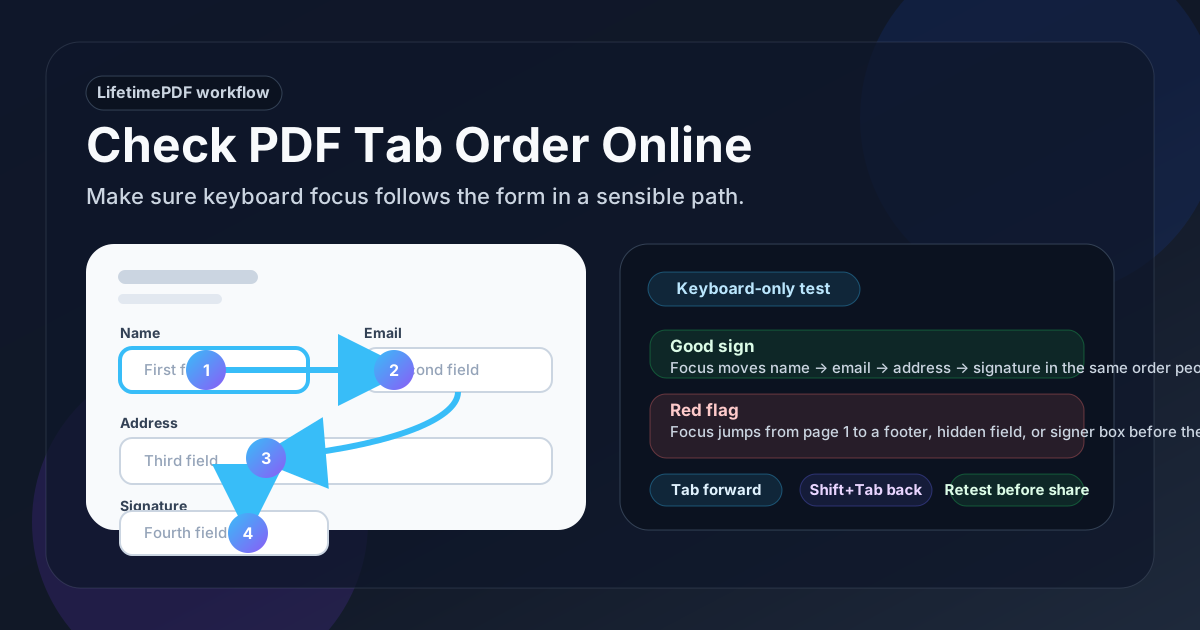
Table of contents
- Quick start: check PDF tab order in 5 minutes
- What PDF tab order actually means
- Tab order vs reading order
- Where bad tab order usually shows up
- Step-by-step: practical online workflow
- What causes broken tab order
- When you should rebuild the form instead of patching it
- Final checklist before you share the PDF
- Related LifetimePDF tools and guides
- FAQ
Quick start: check PDF tab order in 5 minutes
If you want the shortest useful workflow, use this order:
- Open the form in PDF Form Filler or the live PDF viewer you plan to share.
- Click into the first field a user should complete.
- Press Tab and follow the focus through every field on the page.
- Press Shift + Tab a few times too, so you know the reverse path is sensible.
- If focus jumps to the wrong section, open PDF Field Editor and clean up or rebuild the field structure.
- Run one more full keyboard-only test before you email, upload, or route the form for signatures.
What PDF tab order actually means
Tab order is the sequence your cursor follows when someone presses the Tab key inside an interactive PDF. It controls how focus moves through text fields, checkboxes, dropdowns, radio buttons, date fields, initials, and signature areas.
A healthy tab order feels boring in the best possible way. The cursor simply moves from one expected field to the next. A broken one is obvious: focus lands in a footer before the address block is done, jumps to the signature box halfway through page one, or skips to page three before the user finishes page two.
This matters for more than strict accessibility checklists. Clean keyboard flow helps:
- people who rely on keyboards instead of a mouse
- screen reader users completing fillable PDFs
- staff processing lots of forms quickly
- signers moving through contracts on laptops or tablets with keyboards
- anyone who expects a form to behave logically instead of feeling improvised
Tab order vs reading order
These topics overlap, but they are not interchangeable. People often search for one when they actually mean the other.
| Question | Tab order | Reading order |
|---|---|---|
| What does it control? | Keyboard focus through interactive fields | How text content is read, copied, or extracted |
| Typical problem | Cursor jumps to the wrong field or page | Text comes out in the wrong sequence |
| Best first test | Press Tab and Shift+Tab through the whole form | Copy text or extract it and inspect the order |
| Useful tools | PDF Form Filler and PDF Field Editor | PDF Accessibility Checker, PDF to Text, and OCR PDF |
If your issue is about form completion, approvals, signatures, or data entry, tab order is usually the right lens. If your issue is about columns, captions, copied text, or screen reader text flow, you are closer to reading order.
Where bad tab order usually shows up
Not every PDF form breaks the same way. The worst offenders tend to come from a few repeat patterns.
Old templates that have been edited too many times
A reused onboarding packet, intake form, or approval sheet may have fields copied from older versions and then moved around visually without cleaning up the logical sequence.
Forms that were merged, split, or page-reordered late in the process
When pages are rearranged after the fields already exist, the keyboard path can drift away from the page order people now see.
Multi-signer PDFs
Contracts with initials, dates, checkboxes, and signature boxes often get messy fast. One signer should not tab into the other signer’s field halfway through their own section.
Visually polished exports from design-heavy tools
A PDF can look very clean and still have a strange interactive structure underneath. Visual alignment does not guarantee logical keyboard flow.
Forms rebuilt after flattening or partial conversion
When some pieces of the PDF are recreated and others are left behind, hidden or duplicated fields can survive in places users never expect.
Step-by-step: practical online workflow
1. Test the form the way a real user will
Start with PDF Form Filler or the final live version of the PDF. Do not judge tab order from the visual editor alone. Click into the first field and move through the form with the keyboard only.
2. Watch for focus jumps, not just missing fields
Some broken PDFs do not skip fields entirely. They visit them in a confusing order. Watch for jumps between columns, leaps to headers or footers, and early visits to signature or submission areas.
3. Check role-based sections carefully
In HR packets, client forms, and approval workflows, separate the path for each person mentally. A signer should not tab into manager-only fields before finishing their own section, and supporting notes should appear before the field they explain.
4. Run an accessibility check for broader structural clues
Open PDF Accessibility Checker after the keyboard pass. It is not a substitute for manual tab testing, but it helps surface wider PDF issues while you are already auditing the file.
5. Repair the form structure instead of hiding the problem
If the sequence is wrong, open PDF Field Editor and clean up the form itself. In mild cases that means adjusting or recreating a few fields in a more logical flow. In worse cases it means rebuilding the form section so the keyboard path matches the document layout again.
6. Retest with Tab and Shift+Tab before you share the file
A quick second pass catches a surprising number of mistakes. If the forward and reverse keyboard paths both make sense, the form is far less likely to frustrate the next user.
Reliable sequence: test the live form, inspect the focus path, repair the fields, then retest before routing the PDF for signatures or approvals.
What causes broken tab order
Most tab-order problems come from editing history, not from one dramatic error. Here are the patterns worth checking first.
| Cause | What you notice | Best next move |
|---|---|---|
| Copied template fields | Focus jumps to old positions or weird leftovers | Recreate the affected fields in a clean sequence |
| Late page reordering | Tab leaves the current page too early | Retest the full document after page changes |
| Multi-signer clutter | One person tabs into another signer’s area | Separate roles clearly and rebuild the field flow |
| Design-first exports | Visual layout looks fine but keyboard flow feels random | Clean the form fields or rebuild from a more structured source |
| Partial rebuild after flattening or conversion | Some fields behave correctly while others feel haunted | Create one consistent interactive version and retest it fully |
One useful clue: if the form feels unpredictable in only one section, you may be able to fix that section directly. If the whole document is chaotic, rebuilding is usually faster than pretending a small patch will save it.
When you should rebuild the form instead of patching it
Sometimes the right answer is not a tiny fix. It is a cleaner form.
Rebuild when the sequence breaks across multiple pages
If focus jumps back and forth between pages or roles, you will spend more time chasing symptoms than solving the real issue.
Rebuild when fields were obviously copied from older templates
Hidden remnants, duplicated names, and odd jumps are all signs the form has too much baggage. A clean rebuild produces a better user experience than incremental rescue work.
Rebuild when signatures and approvals are part of the workflow
Sign-ready documents need calm structure. If a signer can tab into the wrong block, the file is inviting avoidable mistakes. Use a clearer field layout and pair it with a proper signature-field setup.
Rebuild when the source form is gone or unreliable
If the original authoring file no longer exists, you may still be able to recover and clean the workflow using form editing and structured rebuild steps. The goal is not to preserve every historical quirk. It is to produce a form people can complete confidently.
Final checklist before you share the PDF
Before you upload the form to a portal, email it to a client, or send it for signature, run this short checklist:
- Start at the first field: does the form begin where a user expects?
- Tab through the whole document: does the cursor follow the visible flow of the form?
- Reverse with Shift+Tab: does the path still make sense backward?
- Check signatures and dates: do signers reach those fields only when they should?
- Review multi-page sections: does focus stay on the current page until that section is really done?
- Keep the file interactive while testing: flatten only after the form is complete if you need a final locked record.
If you need the final completed document to stop changing, use Flatten PDF Form Data after the workflow is finished. That is the closing step, not the diagnostic step.
Related LifetimePDF tools and guides
Tab-order work usually sits inside a bigger form-quality workflow. These tools and guides fit well together:
- PDF Form Filler - test the live form the same way a real user will complete it.
- PDF Field Editor - adjust or rebuild fillable form fields in a cleaner structure.
- PDF Accessibility Checker - spot broader structural issues while reviewing the form.
- Flatten PDF Form Data - lock the final completed form after all testing and signing are done.
Helpful related reading
- Check PDF Reading Order Online
- PDF Accessibility Checker
- Edit PDF Form Fields Online
- Create Fillable PDF Forms Online
- Add Signature Field to PDF
Need to test a form fast and fix the keyboard flow before someone else touches it?
Best workflow for most forms: test the live keyboard path → repair the field sequence → retest → flatten only after completion if needed.
FAQ
How do I check PDF tab order online?
Open the form in a fillable PDF tool, click into the first field, and press Tab through every interactive element. If focus follows a sensible path from one field to the next, the tab order is healthy. If it jumps unpredictably, it needs work.
What is the difference between tab order and reading order in a PDF?
Tab order controls keyboard focus through interactive fields. Reading order controls how text content is read, copied, or extracted. A form can have acceptable reading order and still have poor tab order.
Why does my PDF jump to the wrong field when I press Tab?
The fields may have been copied from an older template, added in a strange sequence, rearranged after page edits, or left behind during a messy rebuild. The visible layout can look fine while the field sequence underneath is wrong.
Can OCR fix PDF tab order?
Usually no. OCR helps text in scanned PDFs become searchable and readable, but tab order is about interactive form focus. If the keyboard path is broken, the form fields need to be cleaned up or rebuilt.
Should I flatten the PDF before testing tab order?
No. Keep the file interactive while you test and fix it. Flatten only after the form is fully completed if you need a final non-editable record.
Published by LifetimePDF — Pay once. Use forever.