Add Signature Field to PDF: Prepare Forms for Others to Sign Without Breaking the Layout
To add a signature field to a PDF, open the file in a PDF form editor, place a signature box where the signer should act, size it cleanly, test the workflow, and save the updated PDF.
If you need to sign the file yourself right now instead of preparing it for someone else, use a signing tool rather than adding a blank signature field.
That distinction saves a lot of confusion. People often search for a signature field when what they really need is a fast way to sign the document themselves. Other times they are building a form, contract, approval page, onboarding packet, or internal workflow and need to leave a clear place for the next person to sign. Those are different jobs, and the cleanest results come from choosing the right one up front.
Fastest path: use PDF Field Editor to place the signature field, test the file with PDF Form Filler or Sign PDF, and only flatten the final copy after the form is completed.
In a hurry? Jump to quick start: add a signature field in a few minutes.
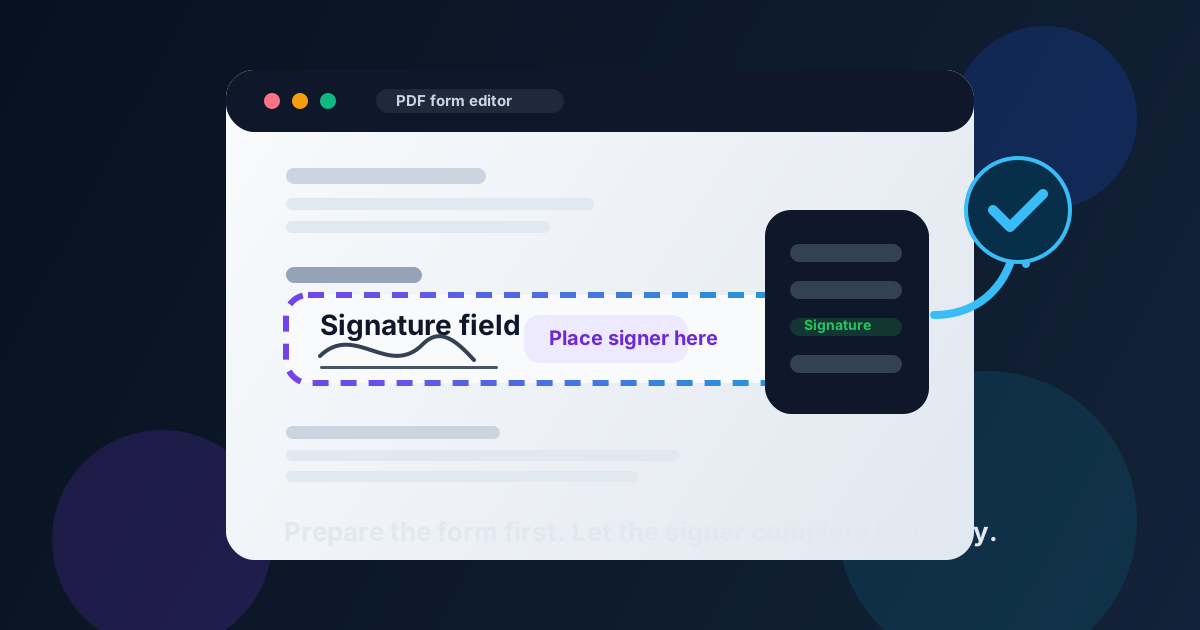
Table of contents
- Quick start: add a signature field in a few minutes
- What a signature field actually does
- Signature field vs signing the PDF yourself
- When adding a signature field makes sense
- Step-by-step: how to add a signature field to a PDF
- Placement, size, and labeling tips
- How to handle multiple signers cleanly
- What to do after the PDF is signed
- Common mistakes that make forms harder to sign
- Related LifetimePDF tools and articles
- FAQ
Quick start: add a signature field in a few minutes
If you are preparing a PDF for someone else to sign, this is the clean workflow:
- Open PDF Field Editor.
- Upload the PDF you want to prepare.
- Add a signature field where the signer should act.
- Resize and align the field so it fits naturally beside the label or signature line.
- If more than one person must sign, add a separate clearly labeled field for each signer.
- Save the updated PDF.
- Open the result in PDF Form Filler or Sign PDF and test it once before sending it out.
What a signature field actually does
A signature field is a sign-ready area inside a PDF form. It tells the signer where to act and gives the document a cleaner structure than simply dropping a blank line onto the page.
In practice, people use signature fields when they are preparing:
- client agreements and approvals
- internal signoff forms
- HR and onboarding documents
- service confirmations
- intake packets that need acknowledgment
- fillable PDFs that must be returned after signing
The field itself is not the signature. It is the place where the signature will happen later. That sounds obvious, but it is the source of a lot of wrong-tool frustration.
| Task | Best tool | Why |
|---|---|---|
| Prepare a PDF for someone else to sign later | PDF Field Editor | Adds a real signature field in the right place |
| Sign the PDF yourself right now | Sign PDF | Places the actual signature instead of a blank field |
| Check whether the finished form behaves correctly | PDF Form Filler | Lets you test the result like a real recipient |
| Lock the completed form after signing | Flatten PDF Form Data | Turns the final interactive content into a non-editable result |
Signature field vs signing the PDF yourself
This is the most important distinction in the whole workflow.
Adding a signature field
You are building the form. The signature is still missing. Another person may sign it later, or you may return to it later after the document is routed through a wider approval process.
Signing the PDF
You already have the final document and you are placing the actual signature now. In that case, go straight to Sign PDF instead of editing the form structure.
That is also why this topic is not a duplicate of a generic signing guide. One is about preparing the document; the other is about completing it.
When adding a signature field makes sense
Signature fields are most useful when the PDF is part of a process rather than a one-person quick sign job.
Common real-world use cases
- Contracts and statements of work: prepare a sign-ready final page without asking recipients to guess placement.
- HR forms and acknowledgments: add a clear signature area for employees, managers, or both.
- Vendor and procurement approvals: separate requester, approver, and finance signoff areas.
- Customer intake or consent forms: keep the document fillable up to the final acknowledgment step.
- Internal PDF templates: build the form once, then reuse it repeatedly.
If the document is only missing your personal signature and nothing else, a signature field is usually unnecessary extra work. But if the file is meant to travel from one person to another, or if the signer is not you, the structure helps a lot.
Step-by-step: how to add a signature field to a PDF
1. Start with the layout you actually plan to send
Finalize the wording, spacing, page order, and obvious form content first. If you keep editing the surrounding layout after placing fields, you create a good chance that the signature area will end up drifting out of place.
2. Open the PDF in a field editor
Use PDF Field Editor when the goal is to prepare a form. This is the right stage for adding text fields, checkboxes, dropdowns, and signature boxes in one pass if the document needs them.
3. Place the signature field where the signer expects it
The best location is usually next to a clear label such as “Signature,” “Applicant Signature,” “Manager Approval,” or “Authorized Signer.” A field can technically exist almost anywhere, but a signer should not need to hunt for it.
4. Size the field for real use, not just visual neatness
A tiny field might look tidy in the editor and still feel cramped when someone tries to sign on a phone or tablet. Give the signer enough room that the field feels intentional, not accidental.
5. Save and test the PDF before sending it out
This is the step people skip when they are in a hurry, and it is where avoidable problems show up. Open the file in PDF Form Filler or run a signing pass in Sign PDF so you can confirm the field is obvious, usable, and in the right place.
Short reliable workflow: edit the field structure first, test the sign-ready result second, then share the PDF only after you know it works.
Placement, size, and labeling tips
A signature field is a small element, but it carries a lot of responsibility. If it is badly placed, the whole form feels amateurish.
Keep the label obvious
“Signature” is fine when there is only one signer. If more than one person is involved, be specific: “Client Signature,” “Manager Approval,” or “Authorized Representative Signature.” Clear labels reduce wrong-person mistakes.
Leave enough white space around the field
Do not squeeze the box between paragraphs, footers, or legal text. The signer needs a visually calm area, especially on smaller screens.
Match the field to the document rhythm
If the page already has aligned form fields, make the signature area feel like part of the same system. If the document uses a printed signature line, place the field over or just above that line rather than floating it elsewhere.
| Good practice | Why it helps | Watch out for |
|---|---|---|
| Clear signer label | Prevents confusion when forms move between people | Generic labels on multi-signer forms |
| Comfortable field size | Makes the form easier to sign on desktop and mobile | Tiny fields that feel cramped |
| Open space around the field | Keeps the signature step readable and intentional | Dense text or footer clutter around the box |
| One clean alignment system | Makes the document feel professionally built | Random placement that looks improvised |
How to handle multiple signers cleanly
Multi-signer PDFs get messy fast if every field looks the same and none of them are labeled clearly.
Use one field per signer
Do not expect one shared signature area to solve a two-person approval workflow. Each signer should have a dedicated place to act.
Label the role, not just the action
“Signature” repeated three times is an invitation to mistakes. “Prepared by,” “Approved by,” and “Client Signature” are far more useful.
Think about order
If signatures happen in sequence, the page should make that obvious. Put the fields in a logical reading order and make sure the signer can tell whether they are the first approval, the second review, or the final acceptance.
What to do after the PDF is signed
Once the form is complete, you may want to turn it into a finished record rather than leaving it interactive forever.
Flatten the final form when you need a locked copy
Use Flatten PDF Form Data after signing when the goal is to preserve the completed state and reduce accidental edits.
Protect the file if it contains sensitive information
If the signed PDF includes financial, HR, legal, or client information, consider PDF Protect before sending or archiving it.
Do not flatten too early
Flattening before the signer finishes the form removes the interactivity you just created. It belongs at the end of the workflow, not the beginning.
Common mistakes that make forms harder to sign
Using a signature field when you really needed to sign the PDF yourself
This is the classic mismatch. If the document is final and you are the signer, start with Sign PDF instead.
Making the field too small
A neat-looking box in the editor may feel unusable on a phone. Leave enough room for real signing behavior.
Not labeling multiple signer roles clearly
If two people can both plausibly sign the wrong field, the form design is part of the problem.
Skipping the test step
Most signing issues are not mysterious. They come from never opening the finished form the way a recipient will.
Flattening before the process is over
A flattened form cannot keep behaving like a form. Save that step until every required field and signature is finished.
Related LifetimePDF tools and articles
Adding a signature field is usually part of a bigger form workflow. These are the most useful next steps:
- PDF Field Editor - add or adjust signature fields, text boxes, checkboxes, and other form elements.
- Sign PDF - place the actual signature when the document is ready to sign.
- PDF Form Filler - test the file and complete form fields before sending it out.
- Flatten PDF Form Data - turn the completed form into a stable non-editable result.
- PDF Protect - add password protection if the signed form contains sensitive information.
Helpful related reading
- Edit PDF Form Fields Online
- Create Fillable PDF Forms Online
- Add Signature to PDF
- Sign PDF
- Flatten PDF Form Data
Ready to prepare a sign-ready PDF?
Best workflow for most forms: build the field → test the signer experience → collect the signature → flatten or protect the final copy if needed.
FAQ
How do I add a signature field to a PDF?
Open the PDF in a form field editor, place the signature field where the signer should act, size it clearly, save the file, and test the result before sending it out.
What is the difference between adding a signature field and signing a PDF?
Adding a signature field prepares the document for a future signer. Signing a PDF means placing the actual signature on the file right now.
Can I add more than one signature field to the same PDF?
Yes. Use one clearly labeled field per signer so each person knows exactly where to act and the approval path stays easy to follow.
Should I flatten the PDF after it is signed?
Often yes, if you want a finished non-editable record. Just do it after the signing workflow is complete, because flattening removes form interactivity.
Why is my signature field not working for the recipient?
The field may be too small, badly placed, labeled unclearly, or flattened too early. A quick test pass in a form filler or signing tool usually shows the problem before the PDF goes out.
Published by LifetimePDF — Pay once. Use forever.