Sign PDF: Add Your Signature Cleanly, Finish Required Fields, and Return the Right File Fast
Yes — the fastest way to sign a PDF is to open the final version of the document, complete any required fields first, add your signature, and review the finished file once before sending it back.
If the request actually calls for certificate-backed proof or tamper verification, use a digital-signature workflow instead of treating every PDF like a basic sign-and-send job.
That distinction matters more than most people expect. Sometimes you just need to sign a form, approval sheet, NDA, or school packet without printing it. Other times the PDF is part of a legal, compliance, procurement, or finance workflow where placement, completeness, and file handling matter almost as much as the signature itself. The clean workflow is not complicated, but it does reward doing the right steps in the right order.
Fastest path: fill blanks first if the file still needs them, sign the final draft, review the page once, and only then protect or compress the finished copy if the destination actually requires it.
In a hurry? Jump to Quick start: sign a PDF in a few minutes.
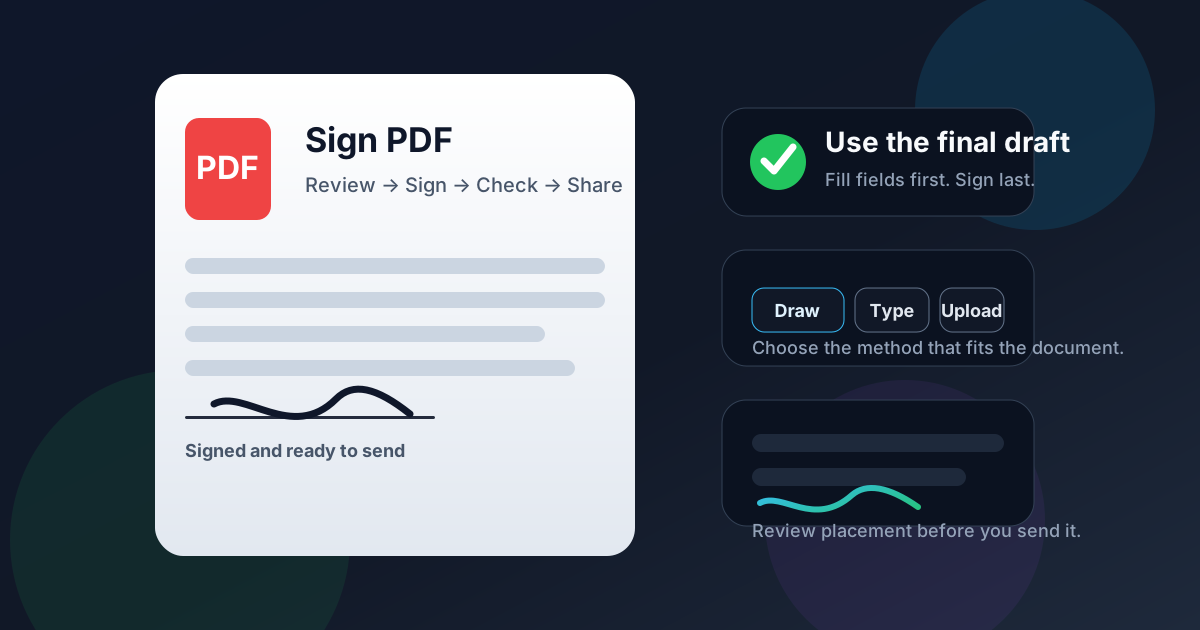
Table of contents
- Quick start: sign a PDF in a few minutes
- When basic PDF signing is enough and when it is not
- Step-by-step: how to sign a PDF cleanly
- Draw vs type vs upload: choosing the right signature method
- Why filling fields first usually saves time
- Electronic signature vs digital signature
- How to sign a PDF on your phone without making it messy
- What to check before you send the signed file
- Related LifetimePDF tools and guides
- FAQ (People Also Ask)
Quick start: sign a PDF in a few minutes
If you want the shortest reliable workflow, do it in this order:
- Open the exact PDF you actually plan to send back.
- If the document still needs dates, initials, typed fields, or checkboxes, complete those first with PDF Form Filler.
- Open Sign PDF and upload the final version.
- Create your signature by drawing it, typing it, or uploading a clean signature image.
- Place the signature on the correct page and resize it so it fits naturally.
- Download the finished file and open it once before you send or upload it anywhere.
When basic PDF signing is enough and when it is not
Most searches for sign PDF are about ordinary document return, not enterprise signing infrastructure. A lease addendum, volunteer waiver, onboarding form, school document, freelance agreement, invoice approval, or purchase confirmation often just needs a readable signature on the right page.
In those cases, a straightforward browser-based signing workflow is the right answer. You are not trying to rebuild the document ecosystem. You are trying to complete a document quickly and send back a file another human can open without confusion.
But some requests mean something more specific. If a counterparty mentions certificate validation, tamper evidence, signature verification, or compliance requirements, do not assume a visual signature image covers the same need. That is where digital-signature expectations start to matter.
| Situation | Best first move | Why |
|---|---|---|
| You only need to sign and return the file | Sign PDF | Fastest path when the document is already complete and just needs your signature. |
| The PDF still has blanks, dates, or checkboxes | Fill fields first | Keeping the signature as the last visible change usually produces the cleanest result. |
| The signed file is confidential | Protect it after signing | Security belongs at the end of the workflow, once the content is final. |
| The recipient needs certificate-backed proof | Use a digital-signature workflow | A visible signature image and a certificate-based digital signature are not the same thing. |
Step-by-step: how to sign a PDF cleanly
A clean signed PDF is usually the result of a simple sequence done carefully once, not a dozen tool hops.
1. Start with the final draft
This sounds obvious until you have three versions of the same form in Downloads. Check the filename, page count, and contents before signing. The easiest signing mistake is putting the right signature on the wrong file.
2. Fill visible blanks before you sign
If the document still needs names, dates, short answers, initials, or checkmarks, handle those first. Use PDF Form Filler when the job is not just a signature. Once the visible content is complete, move to the signing step.
3. Create the signature using the method that fits the document
Open Sign PDF and choose whether to draw, type, or upload your signature. None of those methods is universally best. The right choice depends on whether you care most about speed, consistency, or a handwritten feel.
4. Place it carefully instead of quickly
Put the signature on the correct page, then resize it so it sits naturally on the line or inside the designated box. Slightly smaller and well placed usually looks more professional than large and loud.
5. Review the finished file once before sending it
Open the signed PDF and check that the signature does not cover labels, dates, or form fields. If the document is sensitive, protect it afterward with PDF Protect. If someone needs to inspect a certificate-backed signature, use Verify PDF Signature on the final file.
Simple, dependable order: fill → sign → review → protect or verify if needed.
Draw vs type vs upload: choosing the right signature method
The best signature method depends less on abstract "correctness" and more on what you are signing, how often you do it, and what device you are using.
- Draw works well when you want a handwritten look and you are using a touchscreen, stylus, or a reasonably patient trackpad.
- Type is usually the fastest option for routine internal approvals, acknowledgments, and paperwork where consistency matters more than handwriting style.
- Upload is usually the cleanest option when you already have a tidy signature image and want the same result across many documents.
If you sign PDFs often, uploaded signatures usually create the most consistent final result. If you sign rarely and just need the document back out the door, a typed or drawn signature is often the most practical choice.
Why filling fields first usually saves time
Signing feels like the "main event," so people often do it first. That is backwards more often than not.
A PDF that still needs a date, initials, yes-no choice, typed name, address, or short note is not really ready for the final signature placement. If you sign early, there is a good chance you will end up shifting the signature later because the page changed, a field appeared more crowded than expected, or you realized there was another blank farther down.
Filling first also makes the review step easier. When the signature is the last addition, you can inspect the finished page exactly as the recipient will see it.
- Fill text fields.
- Add dates and initials.
- Check page order and required blanks.
- Only then add the signature.
Electronic signature vs digital signature
This is one of the most common PDF misunderstandings. In everyday conversation, people use "sign PDF" to mean almost anything that puts a signature on the page. But in stricter document workflows, that may not be enough.
An electronic signature is often a drawn, typed, or uploaded signature placed onto the PDF. That covers a lot of real-world documents just fine. A digital signature usually means certificate-based signing that can provide stronger proof about identity and whether the file changed after signing.
If someone specifically asks for validation, trust indicators, certificate details, or tamper checks, treat that as a clue that they mean more than just a visual signature. In those cases, review the signed file with Verify PDF Signature or follow the workflow required by the receiving system.
How to sign a PDF on your phone without making it messy
Phone signing is often easier than desktop signing because drawing with a finger can feel more natural than using a trackpad. The tradeoff is that placement errors are easier to miss on a small screen.
- Open the tool in your phone browser.
- Upload the PDF from local storage, cloud storage, or downloads.
- Draw or upload your signature.
- Zoom in before placing it.
- Download the file and reopen it once before sending it to anyone else.
The extra zoom step matters. A signature that looks centered enough in a thumbnail preview can sit awkwardly once the recipient opens the full page.
What to check before you send the signed file
A 20-second review catches a surprising number of avoidable problems. Before the signed PDF leaves your device, check these things:
- Correct file: you signed the final version, not an outdated draft.
- Correct page: the signature is on the intended page and not a similar-looking page elsewhere in the packet.
- Clear placement: the signature does not overlap dates, labels, boxes, or printed instructions.
- Required fields complete: there are no obvious blanks the recipient expects you to fill.
- Appropriate final handling: only protect, compress, or verify the file after the visible content is fully done.
That last point matters because people often over-process PDFs. Not every signed document needs password protection. Not every signed document needs compression. But every signed document benefits from one calm final review.
Related LifetimePDF tools and guides
If your document needs more than a signature alone, these tools and guides keep the workflow tidy:
Helpful tool links
- Sign PDF - add a signature to the document without printing it
- PDF Form Filler - complete blanks, dates, and short fields before signing
- Verify PDF Signature - inspect certificate-backed signatures when validation matters
- PDF Protect - lock the final file after signing if it contains sensitive information
- Compress PDF - reduce file size if the signed document needs to fit an email or upload limit
Suggested internal blog links
- Sign PDF Online
- Sign PDF Online Free
- How to Add Signature to PDF Online
- Verify PDF Signature Online
- Protect PDF Online
- Browse all LifetimePDF articles
FAQ (People Also Ask)
How do I sign a PDF?
Start with the final version of the document, fill any required fields first, add your signature, place it neatly, and review the finished file once before sending it back.
Should I fill fields before signing a PDF?
Usually yes. Filling dates, checkboxes, initials, or typed answers first keeps the signature as the last visible change and makes the final layout easier to review.
What is the best way to sign a PDF on a phone?
Use a browser-based signing tool, upload the PDF, draw or upload your signature, zoom in for careful placement, and reopen the downloaded file before sending it.
Is signing a PDF the same as a digital signature?
Not always. Many signing workflows use a drawn, typed, or uploaded electronic signature, while a digital signature usually refers to certificate-based signing with identity and tamper checks.
What should I check before sending a signed PDF?
Confirm you signed the correct version, the signature is on the right page, all required fields are complete, and any protection or compression happens only after the content is final.