Sign PDF Online: Fastest Way to Add Your Signature and Send a Clean Copy
Yes — you can sign a PDF online by uploading the file, creating your signature, placing it on the right page, and downloading the finished copy in a couple of minutes.
If the document also needs dates, initials, or typed fields, fill those first and add the signature last so the final PDF stays clean.
Most people searching this do not need a complicated document platform. They need a simple way to get a contract, form, approval sheet, school packet, onboarding file, or landlord document signed and back out the door without printing, rescanning, or wrestling with bloated software. The practical workflow is short: choose the right signature method, place it neatly, review the final file once, and only use extra PDF steps when the job actually calls for them.
Fastest path: upload the PDF, create a drawn, typed, or uploaded signature, place it precisely, and download the finished file before sending it anywhere important.
In a hurry? Jump to Quick start: sign a PDF online in a few minutes.
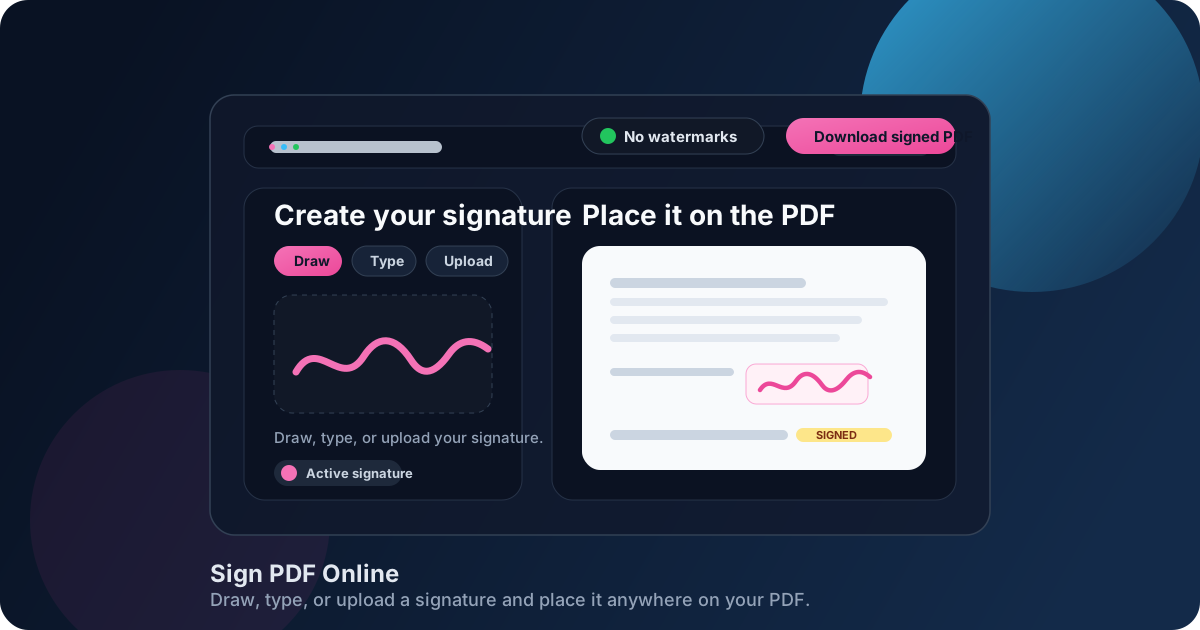
Table of contents
- Quick start: sign a PDF online in a few minutes
- When to use Sign PDF vs PDF Form Filler
- Step-by-step: how to sign a PDF online
- Draw vs type vs upload: which signature method is best?
- How to sign a PDF on your phone
- What to check before you send a signed PDF
- Common signing mistakes that make PDFs look messy
- A better fill → sign → protect → compress workflow
- Related guides
- FAQ (People Also Ask)
Quick start: sign a PDF online in a few minutes
If you only need the short version, use this order:
- Open Sign PDF if the file only needs your signature.
- If the document also needs typed fields, dates, or notes, open PDF Form Filler first.
- Upload the final version of the PDF you actually intend to return.
- Create your signature by drawing it, typing it, or uploading a saved signature image.
- Place the signature on the correct page and size it so it looks natural on the line or inside the signature box.
- Download the signed PDF and open it once before you send it.
When to use Sign PDF vs PDF Form Filler
The most useful choice is not really about the signature itself. It is about the state of the document in front of you.
Use Sign PDF when the file is already complete and you only need to add your signature. This is the fastest route for contracts, offer letters, approvals, consent forms, NDAs, and routine paperwork that is otherwise finished.
Use PDF Form Filler first when the document still needs dates, typed answers, initials, checkboxes, or short notes. Once those pieces are in place, add the signature last. That order usually gives the cleanest-looking result and saves you from having to re-place a signature because the page shifted after edits.
| Situation | Best starting tool | Why |
|---|---|---|
| The PDF is already complete | Sign PDF | You only need to place the signature and download the finished copy. |
| The PDF still has blanks to complete | PDF Form Filler | Fill the file first so the signature is the last visual change instead of something you have to reposition later. |
| The final file is sensitive | PDF Protect after signing | Add a password after the content is final rather than protecting an incomplete draft. |
| The file is too large for email or upload | Compress PDF after signing | Reduce file size only after you know the final version is correct. |
Step-by-step: how to sign a PDF online
Once you start with the right tool, the actual signing flow is straightforward. The main goal is not speed for its own sake. It is getting a signed PDF that looks intentional instead of rushed.
1. Upload the final PDF
Start with the exact file you plan to send back. If a document has gone through several drafts, compare the filename, page count, and visible content before you do anything else. A wrong version with the right signature is still the wrong file.
2. Choose how you want to create the signature
LifetimePDF lets you draw, type, or upload a signature image. None of those methods is universally best. The right choice depends on whether you care most about speed, consistency, or a handwritten look.
3. Place the signature carefully
Drag the signature onto the correct page, then resize it so it fits the line or signature box naturally. A signature that is slightly smaller and well aligned usually looks more professional than one that is oversized and visually loud.
4. Review the page once at normal reading size
Look for small problems that are easy to miss in the middle of the workflow: a signature covering a date field, sitting a little too high, running into surrounding text, or appearing on the wrong page. Catching those now is much easier than hearing about them later.
5. Download and send the finished file
Once the signed PDF looks right, download it. If it contains personal, legal, HR, or financial information, protect it with PDF Protect before sharing. If it is too large for email or a portal, reduce the size with Compress PDF.
Ready to finish the document now?
Draw vs type vs upload: which signature method is best?
The best signature method depends on the document, the device you are using, and how polished you want the final PDF to look.
- Draw is best when you want a handwritten feel and you are signing a one-off document on a touchscreen, stylus, or reasonably cooperative trackpad.
- Type is best when speed and consistency matter more than handwriting style, especially for routine internal approvals, acknowledgments, or simple admin paperwork.
- Upload is usually best when you already have a clean PNG or JPG of your signature and want the result to look the same across many documents.
If you sign PDFs often, uploaded signatures are usually the easiest way to stay consistent. If you sign rarely and just need the job done fast, typed or drawn signatures are often perfectly practical.
How to sign a PDF on your phone
Signing on a phone is usually easier than people expect. In fact, touch input can make the draw option feel more natural than using a laptop trackpad.
The mobile-friendly order is simple:
- Open the PDF signing tool in your phone browser.
- Upload the file from your device, cloud storage, or downloads folder.
- Draw the signature with your finger or upload a saved signature image.
- Zoom enough to place the signature carefully on the correct line or field.
- Download the finished PDF and open it once before sending.
On a smaller screen, placement matters more. Take the extra five seconds to zoom and check alignment instead of assuming the preview is good enough.
If you regularly sign from a phone, you may also want these platform-specific guides: iPhone, Android, iPad, and Chromebook.
What to check before you send a signed PDF
Many signing problems happen after the signature is technically on the page but before anyone verifies that the document is actually ready to leave your device. A 20-second review prevents a lot of unnecessary back-and-forth.
- Correct page: make sure the signature is on the intended page, not a similar page elsewhere in the packet.
- Correct version: confirm you did not sign an outdated draft.
- Readable placement: the signature should not cover dates, text, initials, or checkboxes.
- Required blanks completed: if the file still has required fields, fill them before you send it.
- Appropriate sharing method: use password protection for sensitive files and compression only when delivery limits actually require it.
That last point matters more than people think. Not every signed PDF needs extra processing. Sometimes the smartest workflow is just sign, review, and send.
Common signing mistakes that make PDFs look messy
The goal is not just to get a signature onto the document. The goal is to make the final file look competent and easy to trust. These are the mistakes that usually get in the way:
- Oversizing the signature. Bigger is rarely better. A natural fit looks more professional.
- Signing before filling required fields. This often forces extra editing and awkward repositioning later.
- Using a low-quality uploaded image. A blurry or badly cropped signature image makes the whole document feel rough.
- Skipping the final review. Many embarrassing errors are visible the moment you reopen the finished file.
- Protecting or compressing too early. Finish the content first, then apply the final delivery step only if you need it.
A better fill → sign → protect → compress workflow
Most signed PDFs do not live alone. They are part of a short document workflow. If you handle the steps in the right order, everything feels simpler.
- Fill first with PDF Form Filler if the file needs text fields, dates, or checkboxes.
- Sign second with Sign PDF once the visible content is already final.
- Protect third with PDF Protect if the signed file contains information that should not travel openly.
- Compress last with Compress PDF if you need the final version to fit an inbox or portal limit.
This order works well because each step builds on a finalized previous step. You are not compressing a file that still needs edits or protecting a document that still needs another round of changes.
Build the full workflow only when you need it. Otherwise, keep it simple: sign the PDF, review it once, and move on.
Related guides
If your signing workflow needs a more specific walkthrough, these guides are worth opening next:
- How to Add Signature to PDF Online: Draw, Type, or Upload Step by Step
- Sign PDF Online Free: Add Your Signature to Any PDF Fast
- Verify PDF Signature Online
- Compare PDF Versions Online
- Password Protect PDF for Email Online
FAQ (People Also Ask)
How do I sign a PDF online?
Upload the PDF to an online signing tool, create your signature by drawing, typing, or uploading it, place it on the correct page, and download the finished file. If the document still has blanks to complete, fill those first and sign last.
Should I draw, type, or upload my signature?
Draw is useful for a quick handwritten appearance, type is fastest for clean routine approvals, and upload is usually best when you want the same polished signature across many files.
Can I sign a PDF on my phone?
Yes. A browser-based signing tool lets you upload the file from your phone, create a signature with touch input or a saved image, place it carefully, and download the signed copy.
What should I do before sending a signed PDF?
Reopen the final file once, confirm the signature placement, make sure the document is complete, and only then protect or compress it if the destination actually requires those extra steps.
Is signing a PDF online the same as a digital signature?
Usually no. Most people mean an electronic signature when they sign a PDF online. A digital signature usually refers to certificate-based signing with stronger identity and tamper-verification features.