Protect PDF Online: Best Way to Lock Sensitive Files Before You Share Them
To protect a PDF online, upload the file to a PDF protection tool, add a strong password, download the secured copy, and send the password separately from the document itself.
If the file contains anything sensitive, remove extra pages or redact private information before you lock the final version so you are not protecting more than you actually need to share.
Most people do not want a complicated security workflow here. They want a simple way to send a contract, invoice, HR file, report, school record, or client deliverable without handing over an unlocked attachment. The part that actually matters is not just adding the password. It is doing the surrounding steps in the right order so the PDF is still easy for the right person to open and much harder for the wrong person to see casually.
Fastest path: finish the PDF first, then use LifetimePDF's protection tool to lock the final copy and share the password separately.
In a hurry? Jump to Quick start: protect a PDF in a few minutes.
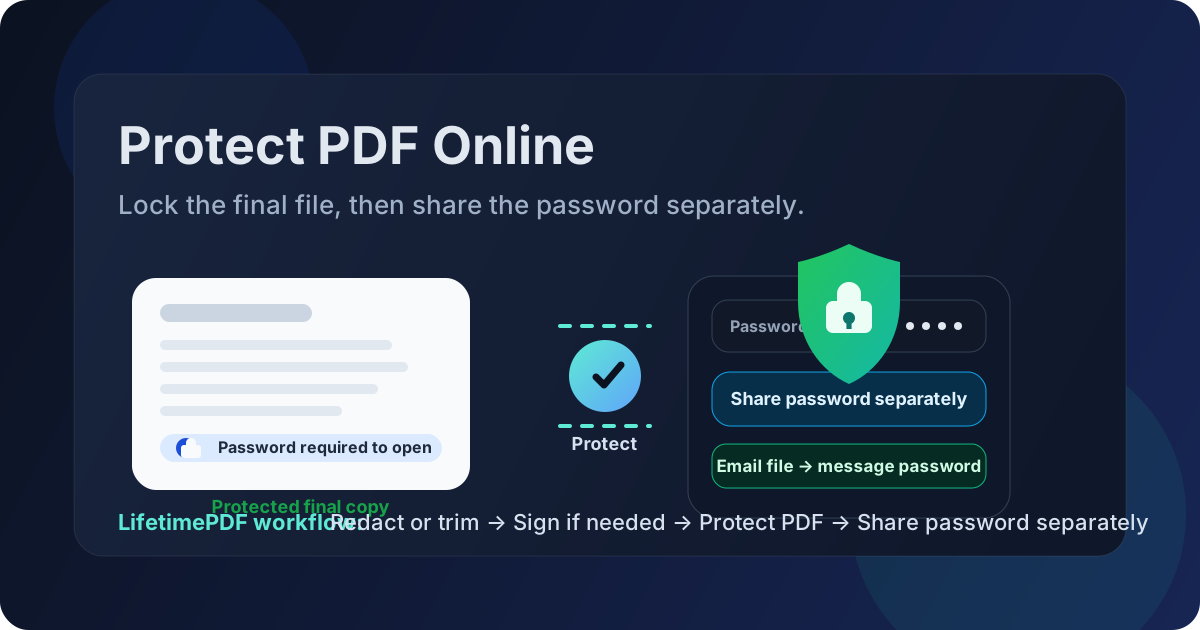
Table of contents
- Quick start: protect a PDF in a few minutes
- When protecting a PDF is the right move
- Step-by-step: clean protection workflow
- Best order for redact, sign, compress, and protect
- Password and sharing habits that actually help
- Common mistakes and the fastest fixes
- Related LifetimePDF tools and guides
- FAQ (People Also Ask)
Quick start: protect a PDF in a few minutes
If you just need the short version, this order works well:
- Open PDF Protect.
- Upload the finished PDF you actually plan to send.
- Add and confirm a strong password or passphrase.
- Download the secured copy and open it once to confirm the password prompt appears.
- Send the PDF and share the password through a different channel.
When protecting a PDF is the right move
A PDF already feels finished, so people often assume it is private by default. It is not. An ordinary PDF attachment usually opens immediately for anyone who receives it. Protecting the file is useful when access itself should be controlled, even if only at a practical everyday level.
| Your situation | Best move | Why it helps |
|---|---|---|
| Sending a contract, invoice, or HR document | Protect the final PDF with a password | Reduces casual access if the attachment is forwarded or opened by the wrong person |
| The PDF contains private data that should not be visible at all | Use Redact PDF before protection | Password protection controls access, but redaction removes information permanently |
| You only need to share one section | Use Extract Pages, then protect the smaller file | Smaller, cleaner files expose less and are easier to send |
| The document still needs signatures or edits | Finish those steps first | Otherwise you will end up unlocking and redoing the protection step |
In plain terms, protect a PDF when the file should not open freely. Redact it when certain details should not exist in the shared copy at all. Those are related goals, but they are not the same job.
Step-by-step: clean protection workflow
The smartest protection workflow is simple because it respects the order of operations. Most problems show up when people protect the file too early, then have to undo the step later.
1. Finish the content first
If the file still needs a signature, final page cleanup, or a merge step, do that now. Good companion tools here are Sign PDF, Extract Pages, and Compress PDF.
2. Remove anything the recipient should not get
This is where many people save themselves trouble. If the PDF includes extra pages, remove them. If it includes account numbers, IDs, addresses, or internal notes that do not belong in the outgoing copy, use Redact PDF before you lock the file.
3. Upload the clean file to PDF Protect
Open PDF Protect and upload the version you actually intend to share. This should be the near-final or fully final copy, not a working draft from earlier in the process.
4. Add and confirm the password carefully
Use a password strong enough to avoid guessing but realistic enough to store and share safely. A secure file nobody can open is still a failed workflow, so accuracy matters as much as strength.
5. Download and test the secured PDF
Open the protected copy once before you send it. That quick test catches typos, copy-paste mistakes, and rare output issues before they become someone else's problem.
6. Share the password separately
A protected PDF works better when the file and the password travel through different channels. Send the attachment by email or upload, then send the password by chat, text, or a quick call.
Simple sequence to remember: finish → trim or redact → protect → test → share password separately.
Best order for redact, sign, compress, and protect
People often mix these steps up because each one sounds like "file cleanup." The right order saves time and prevents avoidable rework.
| Task | When to do it | Why |
|---|---|---|
| Redact PDF | Before protection | Redaction removes information from the outgoing copy instead of merely hiding it behind a password |
| Sign PDF | Before protection | It is easier to sign the finished document than unlock it later and repeat the process |
| Compress PDF | Usually before protection | If you already know the file must fit an email or portal limit, shrink it before you lock the final copy |
| Watermark PDF | Before or after, depending on the workflow | Watermarks help with ownership and discouraging casual redistribution, but they do not replace redaction |
| PDF Unlock | Later, only when authorized | Useful if you need to update a password-protected file that you are allowed to edit |
The broader principle is easy: do the content-changing steps first, then lock the version you are actually ready to send.
Password and sharing habits that actually help
A protected PDF is only as good as the way you handle the password around it. The safest practical habits are also the least annoying ones once you get used to them.
Use a passphrase you can store safely
Very short passwords are easy to guess and surprisingly easy to mistype. A longer passphrase stored in a password manager is usually a better trade-off than trying to invent something memorable on the spot.
Do not send the password in the same message as the file
If the point is to create some separation, sending both together defeats most of the benefit. Email plus chat is often enough. For especially sensitive files, a quick call works even better.
Keep the file as small and focused as possible
The best protected PDF is often not the full original. It is the smallest version that still does the job. Trim the page range, redact what is unnecessary, then protect the result.
Common mistakes and the fastest fixes
"I protected the PDF, then realized I still needed to sign it."
If you are authorized, use PDF Unlock, finish the change, and protect the final copy again. Better yet, move signing ahead of protection next time.
"The recipient says the password is wrong."
Check for accidental spaces, case mismatches, or password-manager paste issues. If there is any doubt, create a new protected copy rather than troubleshooting a damaged send forever.
"The file is still too large for email."
Run Compress PDF on the finished file, or extract only the pages the recipient needs before protecting it.
"I need privacy, not just access control."
Then start with Redact PDF. Protection helps control who opens the file. Redaction helps control what information is still inside it.
"I want to discourage forwarding or screenshots too."
Password protection alone does not stop screenshots. If that matters, keep the shared copy minimal, remove what should never be visible, and consider using Watermark PDF as an extra deterrent.
Related LifetimePDF tools and guides
Protecting a PDF usually works best as part of a short workflow rather than one isolated click. These tools and related guides fit naturally around the same job:
- PDF Protect — add a password to the final file.
- Redact PDF — permanently remove sensitive text or visual details before sharing.
- Sign PDF — add signatures before you lock the final document.
- Compress PDF — reduce size for email and portal uploads.
- Extract Pages — share only the pages that matter.
- PDF Unlock — remove a password later when you are authorized to do so.
- Watermark PDF — add ownership or confidentiality cues.
For related reading, these internal guides pair well with the same workflow: Protect PDF Online Free, Protect PDF Online Without Monthly Fees, Password Protect PDF Without Monthly Fees, Remove Password From PDF Online, Redact PDF Online Permanently, and Sign PDF Online.
Need the least annoying workflow? Clean the file first, protect the final version second, and send the password through a different channel.
Best workflow: trim or redact → sign if needed → compress if needed → protect the final copy → share password separately.
FAQ (People Also Ask)
How do I protect a PDF online?
Upload the file to a PDF protection tool, add and confirm a password, download the secured copy, and test it once before sending it. If the file contains extra pages or sensitive details, clean those up before you protect the final version.
Is protecting a PDF the same as password protecting it?
In most everyday usage, yes. People usually mean adding an open password so the file cannot be viewed without it. Some tools also add editing restrictions, but access control is the main thing most users are after.
Should I sign a PDF before or after I protect it?
Usually before. Finish the document, add the signature, review the final layout, and then protect the finished copy so you do not have to undo the password step later.
Can I compress a protected PDF?
Yes, but it is usually cleaner to compress the finished file before protection when you already know size limits matter. That keeps the final send-ready copy simple.
What should I do if the recipient cannot open the protected PDF?
Check the password carefully for typos, spaces, and case mismatches. If the file still fails, test it yourself again and create a fresh protected copy rather than guessing where the problem came from.
Ready to secure your document?
Start with the version you actually plan to send, then protect that final copy.
Published by LifetimePDF - Pay once. Use forever.