Check PDF Reading Order Online: Fast Tests for Columns, Screen Readers & Forms
To check PDF reading order online, test the file as text, not just as a page image: run an accessibility check, copy or extract the text, and confirm headings, columns, tables, captions, and form labels come out in the right sequence. If the text jumps from sidebar to footer to column two, the PDF may look fine visually but still be frustrating for screen readers, keyboard users, and anyone copying content.
Reading order problems hide in otherwise polished PDFs. A brochure may have a nice two-column layout but extract in zigzags, a scanned form may look complete but behave like a picture, and a report with floating captions can sound chaotic when read aloud. The fastest useful workflow is simple: check the structure first, test real text output, OCR scans before judging them, and fix the original export when the file is fundamentally weak.
Fastest path: run an accessibility check, test text extraction, and OCR scans before you trust the reading order.
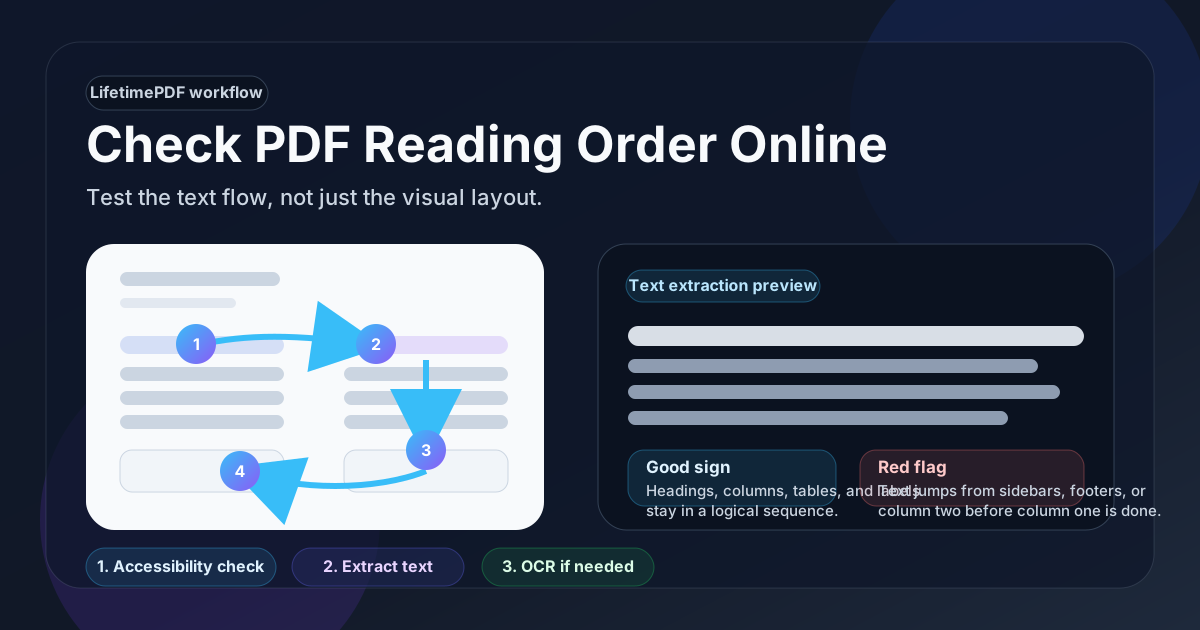
Table of contents
- Quick start: check PDF reading order in 10 minutes
- Why reading order matters more than people think
- What usually breaks PDF reading order
- Step-by-step: practical online workflow
- Scanned PDFs, OCR, and image-only files
- When the real fix belongs in the source document
- Final checklist before you publish or send the PDF
- Related LifetimePDF tools and guides
- FAQ
Quick start: check PDF reading order in 10 minutes
If you want the shortest reliable workflow, use this order:
- Run the file through PDF Accessibility Checker for a first-pass review.
- Try selecting a paragraph and copying it into plain text.
- If you want a clearer test, use PDF to Text and read the extracted output in order.
- Inspect two-column sections, tables, figure captions, callout boxes, headers, footers, and form labels first. Those areas reveal trouble faster than plain paragraphs.
- If the PDF is a scan or image-based export, run OCR PDF before you decide the reading order is broken.
- If the sequence is still messy after OCR, rebuild the source with PDF to Word or clean the original document and export a better final PDF.
Why reading order matters more than people think
Many PDF problems are obvious: blank pages, missing fonts, broken links. Reading order is harder because the file can look normal while the experience underneath is scrambled. That affects more than accessibility compliance.
Screen readers depend on the underlying sequence
If the export order is wrong, a screen reader may announce the right words in the wrong path. A heading can show up after the body text, a caption can arrive before the image context, and a sidebar can interrupt a sentence halfway through.
Copying and searching also expose weak structure
Users do not need assistive technology to run into the problem. Anyone who copies text into email, a note, a chatbot, or a translation tool will notice when the output arrives out of order. Search can also feel unreliable when text layers are weak or fragmented.
Forms become harder to understand
In forms, bad reading order creates confusion fast. A label may not line up with the field it describes, checkbox text can be separated from the control, and instructions may appear after the answer area instead of before it.
Two-column and magazine-style layouts are common troublemakers
Brochures, reports, white papers, newsletters, research summaries, and slide exports often rely on columns, side notes, floating quotes, and decorative blocks. Those files deserve extra scrutiny because visual polish often hides structural weakness.
What usually breaks PDF reading order
You do not need to inspect every PDF the same way. Start with the patterns most likely to fail.
| Pattern | What often goes wrong | Best first check |
|---|---|---|
| Two-column pages | Text jumps from left column to right at the wrong time or mixes lines from both columns. | Extract the text and read the paragraph flow from top to bottom. |
| Sidebars and callouts | Boxes interrupt the main article before the primary paragraph is finished. | Copy a full section including the sidebar and inspect the order in plain text. |
| Tables and captions | Headers, rows, and notes appear in an illogical sequence. | Extract the surrounding text and confirm the table intro, labels, and notes stay together. |
| Headers and footers | Page numbers or repeated navigation text cut into the middle of the content. | Look for repeated footer text in the extracted output. |
| Forms | Labels, hints, and fields do not read in the order a person completes them. | Check each label-field pair in extraction and in the accessibility checker. |
| Scanned PDFs | The file is just an image until OCR creates a usable text layer. | Run OCR before evaluating reading order seriously. |
If your PDF includes more than one of these patterns, do not rely on appearance alone. That is exactly when a quick extraction test saves time.
Step-by-step: practical online workflow
1) Start with a first-pass accessibility check
Open PDF Accessibility Checker first. It is the fastest way to surface obvious risk before you spend time manually reviewing the file. Think of it as triage: useful for finding likely issues, not as proof that the PDF is perfect.
2) Test real text, not just the visual page
Highlight a paragraph, copy it, and paste it into plain text. Then try a section with more complexity: a two-column spread, a table note, or a form area. If the sequence is logical in plain text, that is a strong sign the file is structurally healthier than it looks.
For a cleaner readout, use PDF to Text. That strips away visual styling and forces you to judge the order directly.
3) Review the hard zones first
Do not waste time testing the easiest page in the file. Jump straight to the parts most likely to fail:
- two-column layouts
- tables with notes or footnotes
- sidebars, pull quotes, or callout cards
- captions near images or charts
- interactive forms and checkbox groups
- pages with repeated headers or footer legal text
4) Check whether labels still make sense without the layout
This matters most for forms and application PDFs. Strip away the visual alignment mentally and ask: if a user only heard the content in sequence, would the instructions still be clear? If a label, helper note, or required-field warning lands after the answer area, the form needs more work.
5) Confirm the document title and surrounding metadata are sensible
Reading order is not the only usability signal. When the document title is vague, users may not even know what they opened. Use PDF Metadata Editor to clean up document title details while you are already reviewing structure.
Scanned PDFs, OCR, and image-only files
A scanned PDF often gets blamed for bad reading order before it even has a real text layer. That is not a fair test. Until OCR runs, the file may simply be a picture of a page.
Run OCR before you judge the order
Use OCR PDF so the document becomes searchable and extractable. Once OCR adds a text layer, repeat the same checks: selection, copy/paste, and text extraction.
Clean scans still matter
OCR performs better when the scan is straight, readable, and not filled with shadowing, skew, or cropped margins. If the source scan is messy, reading order issues can be partly OCR issues and partly source quality issues.
Know when OCR helped enough
OCR is a good outcome if the extracted text becomes logical, searchable, and readable with only minor cleanup. It is not enough if the content still jumps between columns, misses form labels, or breaks tables into nonsense fragments.
When the real fix belongs in the source document
Some PDFs are worth repairing directly. Others are telling you the export itself was weak from the beginning. If the file keeps failing after OCR and basic cleanup, the better move is usually to fix the original source document and export again.
Good reasons to rebuild the source
- The file mixes columns, captions, and callouts unpredictably.
- Form labels no longer match the fields they describe.
- Headers and footers interrupt the main reading flow on every page.
- The PDF came from slides, design software, or a scan-heavy workflow that prioritizes appearance over structure.
- OCR improved searchability but not the logical order.
Use the PDF as recovery material when needed
If the source file is gone or outdated, PDF to Word can help you recover editable content. After cleaning headings, columns, labels, and layout behavior in the source, export a better final file with Word to PDF.
Do not confuse visual cleanup with structural cleanup
A PDF can be compressed, rotated, cropped, or even protected and still have poor reading order. Those tools solve different problems. Reading order usually improves when the text layer, layout structure, and source export are healthier.
Final checklist before you publish or send the PDF
Before you upload the file to a portal, website, or email thread, run through this short checklist:
- Search: can you search for a visible word in the document?
- Selection: can you highlight and copy a complex section without the order collapsing?
- Columns: do multi-column pages read in the intended sequence?
- Forms: do labels and instructions make sense in the order a person completes them?
- Captions and notes: do charts, figures, and footnotes stay attached to the right content?
- Repeated page furniture: are headers, footers, and page numbers staying out of the main flow?
- Title: does the document identify itself clearly before anyone starts reading?
Related LifetimePDF tools and guides
A strong reading-order workflow usually involves more than one step. These tools and guides fit together well:
- PDF Accessibility Checker for first-pass structural review
- PDF to Text for direct reading-order inspection
- OCR PDF for scanned and image-only documents
- PDF to Word when you need to recover and repair the source
- Word to PDF for a cleaner final export
- Check PDF Accessibility Online Free for a broader accessibility audit workflow
- How to Make PDF Accessible for the bigger accessibility picture
FAQ
1) How do I check PDF reading order online?
Start with a first-pass accessibility check, then copy or extract text from the PDF and read it in plain order. Focus on columns, tables, captions, repeated headers and footers, and form labels because those parts reveal structural issues fastest.
2) Can a PDF look fine but still have bad reading order?
Yes. Visual layout and structural order are not the same thing. A polished report or brochure can still extract in the wrong sequence, which creates friction for screen readers and even for ordinary copy-paste use.
3) Do I need OCR before checking a scanned PDF?
Usually yes. Without OCR, many scanned PDFs are just images. OCR creates a text layer so you can test whether the content is searchable, selectable, and logically ordered.
4) Is OCR enough to fix every reading-order issue?
No. OCR often helps a lot, but it does not automatically fix every multi-column layout, floating sidebar, complex table, or weak export structure. Sometimes the cleanest fix is rebuilding the source document and exporting again.
5) What is the fastest way to improve a PDF with bad reading order?
If it is a scan, OCR it first. If it is already text-based but still scrambled, recover or clean the source, fix headings and layout flow there, then export a cleaner PDF. That usually works better than trying to patch a structurally weak final file.
Need to test reading order fast, then repair the file if it fails?
Best practical workflow: check structure first, test extracted text, OCR scans, then fix the source if the export is weak.
Published by LifetimePDF — Pay once. Use forever.