Check PDF Tab Order: Catch Keyboard Jumps, Signature Detours, and Broken Field Flow Early
To check PDF tab order, open the form, click into the first field, and move through every interactive field with Tab and Shift + Tab to confirm focus follows the same path a real person would use to complete it.
If the cursor jumps to the wrong column, a footer, a signer block, or the next page too early, the form needs cleanup before you send it to anyone.
That is the direct answer. The useful part is knowing where broken tab order hides: old templates, multi-signer packets, page reordering, copied fields, and forms that look neat visually while the keyboard path underneath is a mess. A five-minute keyboard pass catches the problem early and saves users from fighting the PDF later.
Fastest practical path: test the form with the keyboard, confirm the field sequence, repair the broken section, then retest before you share or flatten the file.
In a hurry? Jump to quick start: check PDF tab order in about 7 minutes.
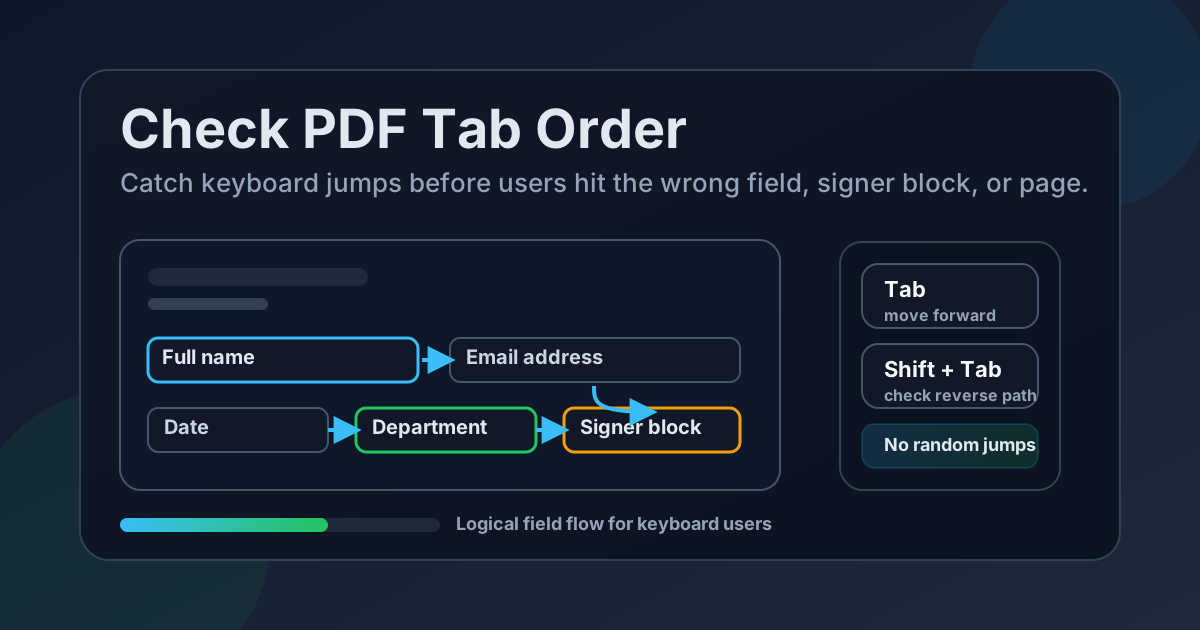
Table of contents
- Quick start: check PDF tab order in about 7 minutes
- What PDF tab order actually means
- Where tab order usually breaks first
- Step-by-step: practical PDF tab-order workflow
- Signatures, approvals, and multi-page form packets
- Tab order vs. reading order
- When to rebuild the form instead of patching it
- Final checklist before you share the PDF
- Related LifetimePDF tools and guides
- FAQ
Quick start: check PDF tab order in about 7 minutes
If your goal is simply tell me whether this form will behave properly for keyboard users, this workflow catches most real problems quickly:
- Open the file in PDF Form Filler or the same viewer you expect users to open.
- Click into the first field a person should complete.
- Press Tab through the full page and watch whether focus follows the visible layout.
- Press Shift + Tab through a few sections too, especially around signatures, checkboxes, and page transitions.
- If focus jumps to the wrong section, use PDF Field Editor to clean up or recreate the affected fields.
- Run one more keyboard-only pass before you send, upload, or flatten the form.
What PDF tab order actually means
PDF tab order is the sequence keyboard focus follows when someone presses Tab inside a fillable document. It controls how the cursor moves through text fields, date boxes, dropdowns, radio buttons, checkboxes, initials, signatures, and other interactive elements.
Good tab order feels invisible. The form simply moves forward the way a human expects. Broken tab order feels irritating immediately: focus lands in a footer before the address section is done, jumps into another signer’s block, or skips to page three while page one is still half empty.
Why it matters beyond strict compliance
- Accessibility: keyboard and assistive-technology users depend on a predictable focus path.
- Speed: staff processing lots of forms can complete them much faster when the cursor behaves logically.
- Signatures and approvals: wrong-field jumps increase the chance of missed initials, wrong signer actions, and awkward resubmissions.
- Trust: a form that fights the keyboard feels sloppy even if the layout looks polished.
- Support burden: bad form flow creates needless “why won’t this PDF work?” tickets.
Where tab order usually breaks first
You do not need to assume every form is broken everywhere. Most failures cluster in the same few places.
Old templates that were edited again and again
Reused HR forms, intake packets, checklists, and contracts often carry copied fields from older versions. The visible layout gets refreshed while the logical keyboard sequence stays tangled underneath.
Page reordering late in the workflow
When pages are inserted, removed, or rearranged after fields already exist, the focus path can drift away from the order people now see on screen.
Signature-heavy or multi-role PDFs
Initials, dates, approver sections, witness blocks, and signer-only areas create a lot of opportunities for the cursor to jump into the wrong person’s part of the document.
Multi-column or side-by-side field layouts
A visual left-to-right layout might still tab in a strange pattern if fields were created top-to-bottom in a different order or copied from another section.
Partial rebuilds after flattening, conversion, or OCR work
Some PDFs get rebuilt in pieces. That is where hidden leftovers and strange focus jumps tend to survive.
Step-by-step: practical PDF tab-order workflow
1. Test the live form instead of guessing from the layout
Start in PDF Form Filler or the actual viewer people will use. A visual editor can make the form look organized while the keyboard sequence is still wrong. Real tab testing reveals the truth faster than staring at the page.
2. Follow the full path, not just the first few fields
Some forms behave well for the first section and then collapse around attachments, signatures, or the next page. Test the first page, a middle section, and the last page at minimum.
3. Watch for wrong-section jumps, not only skipped fields
A broken form does not always skip fields entirely. Sometimes it visits the right fields in the wrong order. Focus that jumps into a signature block too early is still a real problem even if every field is eventually reachable.
4. Check backward navigation with Shift + Tab
Reverse navigation matters more than people think. Users go backward to correct dates, change dropdowns, or revisit a missed checkbox. If the reverse path feels chaotic, the form still needs attention even if forward tabbing looked mostly acceptable.
5. Use accessibility checks as supporting evidence
Run PDF Accessibility Checker while you are already reviewing the file. It will not replace hands-on keyboard testing, but it helps expose broader form and document structure issues at the same time.
6. Repair the field structure instead of explaining it away
If the order is wrong, fix the sequence in PDF Field Editor or rebuild the messy section. Do not rely on instructions like just click the signature box manually when Tab goes weird. That is not a fix. It is a warning label.
Reliable sequence: test the live form, inspect the keyboard path, repair the field flow, then retest before routing the document to users or signers.
Signatures, approvals, and multi-page form packets
Signature workflows deserve extra attention because the cost of bad tab order is higher there. A skipped initials box, a date field reached too early, or a jump into the wrong signer’s section creates confusion fast.
What to verify in signature-heavy PDFs
- one signer does not tab into another signer’s fields before finishing their own section
- date fields appear when the surrounding section is actually ready
- checkboxes and acknowledgments appear before the signature line they support
- page breaks do not send focus backward or forward unpredictably
- the final signature block is reached only after the supporting fields are complete
If the PDF is being prepared for signatures, pair this review with Add Signature Field to PDF so the placement and the keyboard flow both make sense.
Tab order vs. reading order
These are related, but they are not the same problem. People mix them up all the time.
| Question | Tab order | Reading order |
|---|---|---|
| What does it control? | Keyboard focus through interactive fields | How text content is read, copied, or extracted |
| Typical problem | Cursor jumps to the wrong field or page | Text comes out in the wrong sequence |
| Best first test | Tab and Shift + Tab through the entire form | Copy or extract text and inspect the sequence |
| Useful LifetimePDF tools | PDF Form Filler and PDF Field Editor | PDF Accessibility Checker, PDF to Text, and OCR PDF |
If the issue is about forms, signatures, or keyboard completion, tab order is the right lens. If the issue is about columns, copied text, sidebars, or screen-reader sequence, you are closer to Check PDF Reading Order.
When to rebuild the form instead of patching it
Sometimes a tiny fix is enough. Sometimes the form is telling you it wants a rebuild.
Rebuild when multiple pages feel chaotic
If focus leaps between pages or roles again and again, you will waste more time chasing symptoms than fixing the real structure.
Rebuild when copied-template leftovers keep appearing
Hidden remnants, duplicated field names, and jumps to strange places usually mean the file has too much history inside it. A clean rebuild is often faster and calmer.
Rebuild when the document is going to be reused often
If this is an HR packet, sales intake form, legal template, or routine approval sheet, every future user benefits from a proper repair now. Repeated friction is more expensive than one clean rebuild.
Rebuild when signers or clients will judge the workflow
External-facing forms should not feel improvised. A smooth keyboard path quietly signals competence.
Final checklist before you share the PDF
- The first field receives focus where users expect to begin.
- Tab moves through the visible form in a logical sequence.
- Shift + Tab behaves sensibly in reverse.
- Signatures, dates, and acknowledgments are reached at the right time.
- Multi-page sections do not jump forward or backward unexpectedly.
- Accessibility review was used as supporting validation, not as a replacement for real keyboard testing.
- The form was retested after repair, not just assumed to be fixed.
- If a final locked copy is needed, flattening happens only after the interactive workflow is complete.
If you need a non-editable record after completion, use Flatten PDF Form Data only after the form has been tested and filled correctly.
Related LifetimePDF tools and guides
Need the simple workflow? Test the keyboard path, fix the broken field sequence, retest, and only then send the PDF to clients, staff, applicants, or signers.
FAQ
How do I check PDF tab order quickly?
Open the form, click into the first field, and press Tab through every interactive field while watching whether focus follows the visible order of the form. Then test a few sections with Shift + Tab too.
Can a PDF look correct and still have bad tab order?
Yes. A form can look polished on screen while the keyboard path underneath still jumps into the wrong field, signature area, or page sequence.
What is the difference between tab order and reading order?
Tab order is about keyboard focus through interactive fields. Reading order is about how text content is read or extracted. A PDF can pass one and still fail the other.
Why does my PDF jump to the signature field too early?
That usually means the fields were created or copied in the wrong sequence, or the document was edited later without cleaning up the field structure.
Should I flatten the PDF before testing tab order?
No. Keep the file interactive while you test and repair it. Flatten only after the form is complete if you need a final locked record.
Published by LifetimePDF — Pay once. Use forever.