Check PDF Links: Catch Broken Hyperlinks Before You Share or Publish
To check PDF links, click every important hyperlink, bookmark jump, and email link and make sure the destination matches what the reader expects.
If the link text is vague, the page no longer loads, or the jump lands in the wrong place, repair the source and export a cleaner PDF before you send, submit, or publish the file.
That is the short answer. The useful part is knowing which links matter most, how to spot trust-breaking link problems fast, and why a PDF can still be frustrating even when every paragraph looks polished. Bad links waste time, hurt credibility, and quietly break accessibility because readers cannot tell where a click will take them or whether a navigation shortcut still works.
Fastest practical path: click the important links first, review the wording people actually click, test internal jumps, then fix the source file before you republish the PDF.
In a hurry? Jump to quick start: check PDF links in about 8 minutes.
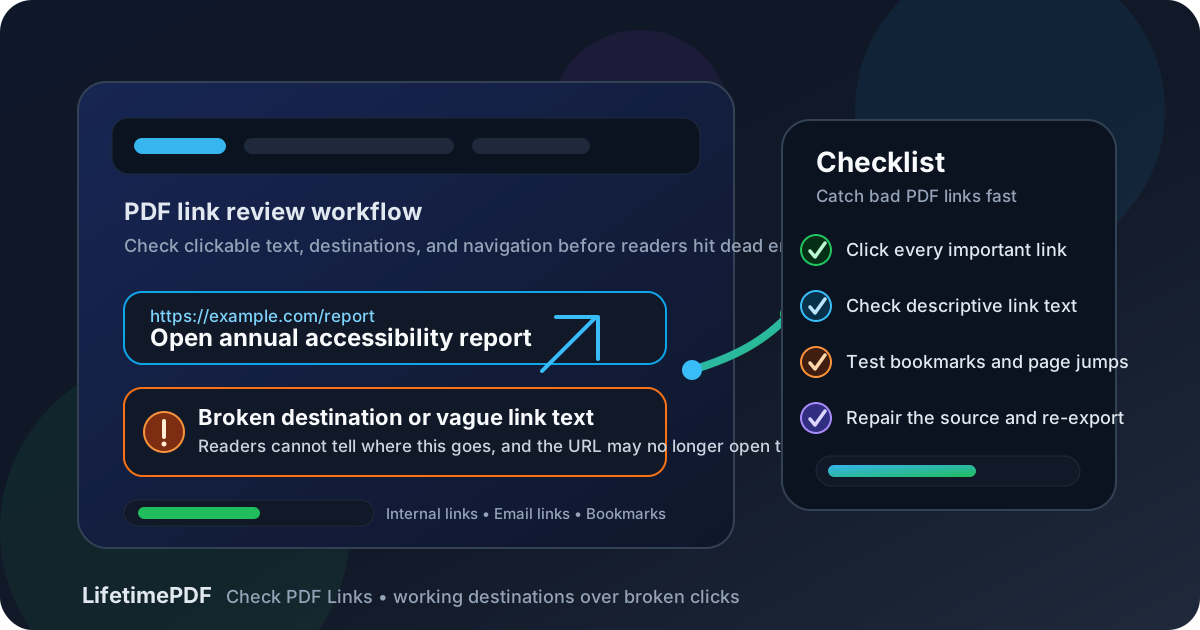
Table of contents
- Quick start: check PDF links in about 8 minutes
- What PDF links actually do
- What to check besides whether the URL opens
- Step-by-step: practical PDF link review workflow
- Common PDF link failures
- Reports, forms, ebooks, and exported slide decks that need extra care
- When to fix the source instead of patching the PDF
- Final checklist before you share or publish the PDF
- Related LifetimePDF tools and guides
- FAQ
Quick start: check PDF links in about 8 minutes
If your goal is simply tell me whether the links in this PDF are safe to ship, this quick review catches the failures that matter most:
- Click every important link first, not every decorative reference. Start with calls to action, citations, forms, support links, and contact details.
- Check whether the link text explains the destination. If the PDF says click here, website, or read more without context, it is weak even if the URL technically works.
- Test internal navigation such as table-of-contents jumps, cross-references, and bookmarks in long PDFs.
- Verify email links and download links too. Broken contact links quietly waste leads, support requests, and approvals.
- Use PDF Accessibility Checker as triage, then do a human pass because automatic tools cannot judge trust, clarity, or whether the destination still matches the promise of the link text.
What PDF links actually do
PDF links are not just convenience features. They carry navigation, trust, and workflow. A call to action might drive someone to a signup page. A citation might back up a legal or academic claim. A bookmark might save a reader several minutes inside a long manual. A broken mailto link might quietly stop support requests or sales inquiries.
That is why link reviews matter even when the file looks fine on screen. A polished PDF can still hide dead URLs, vague link wording, outdated destinations, internal jumps that land on the wrong page, or copied text that looks linked but is not actually clickable. Those problems hurt usability, accessibility, and confidence all at once.
| What a healthy PDF link does | What a weak PDF link does instead | Why it matters |
|---|---|---|
| Tells the reader where the click goes | Uses vague text like click here or more | Readers cannot judge whether the destination is relevant or safe |
| Loads the intended destination | Returns a 404, redirect loop, login wall, or wrong page | The PDF loses trust and wastes time |
| Supports navigation inside long documents | Bookmarks and page jumps land in the wrong place or do nothing | Readers struggle to move through the file efficiently |
| Preserves contact and workflow links | Email, download, or form links break after export | Support, sales, and approvals quietly fail |
| Still works after export and sharing | Looks clickable but loses behavior outside the source app | What worked in editing mode may fail for real readers |
In plain English: the link is not done just because it is blue, underlined, or present in the layout. It is only done when a real reader can trust it.
What to check besides whether the URL opens
Many people reduce link testing to one question: does the page open? That is necessary, but it is not enough. A useful PDF link review also checks whether the link text makes sense, whether the destination still matches the promise, and whether the click behaves well in the context of the document.
Link text
Descriptive link text is better for accessibility, scanning, and trust. A reader should be able to tell whether a link goes to pricing, a policy page, a source document, a contact form, or a download before clicking.
Destination quality
A technically live URL can still be wrong. Maybe the destination now redirects to a homepage, a generic dashboard, an outdated product, or a page that requires a login the audience does not have. That still counts as a broken experience.
Internal navigation
Long PDFs often depend on bookmarks, section links, references, and table-of-contents jumps. Those are easy to forget and easy to break during export, page reordering, or version updates.
Email and download behavior
PDFs used for sales, support, HR, education, and compliance often include mailto links, attachment downloads, or portal links. If those fail, the document may still look finished while quietly losing real business or reader action.
Step-by-step: practical PDF link review workflow
1. Start with the links people actually depend on
You do not need to click every tiny citation first. Begin with the links most likely to affect outcomes: signup buttons, contact links, payment or upload flows, support resources, legal references, source documents, and in-document navigation in long reports. If those are wrong, the PDF is already not ready.
2. Read the link text before you click
Ask whether the clickable words tell the truth about the destination. A label like Download onboarding packet is clear. A label like here or this page is much weaker, especially for screen readers and skimming. If you need to read the whole paragraph to guess the destination, the link wording probably needs help.
3. Click the link and judge the whole landing experience
The right test is not merely whether a browser tab opens. The real test is whether the reader reaches the expected destination without confusion. Watch for redirects to the wrong product, retired help pages, broken anchors, expired file shares, login walls, or regional routing that sends people somewhere unintended.
4. Test internal links and bookmarks deliberately
If the PDF has a table of contents, appendix references, or “jump to section” links, click them all. Long PDFs often feel accessible only because internal navigation exists. When those jumps fail, the document becomes much heavier to use, especially on mobile or with assistive technology.
5. Inspect the text layer when links feel suspicious
If you suspect a sloppy export, use PDF to Text to inspect how the content behaves outside the polished layout. If the links or surrounding wording are messy, repeated, or truncated, the source file may be carrying problems into the PDF.
6. Repair the source and export again if the link logic is weak
If the PDF came from Word, Docs, PowerPoint, Canva, or another editable workflow, fix the link text and destinations there first. If the source is gone, recover the content with PDF to Word, repair the links, and export a clean replacement with Word to PDF.
Reliable sequence: read the link text, click the destination, test internal jumps, run an accessibility check, then fix the source and re-export.
Common PDF link failures
Link problems repeat themselves. Once you know the usual failure patterns, you can catch them much faster.
| Failure pattern | What goes wrong | Better approach |
|---|---|---|
| Vague link wording | The click works, but the reader cannot predict where it goes. | Use descriptive text that explains the destination or action. |
| Old destination, live URL | The page still loads, but it no longer matches the document's promise. | Retest the landing page, not just the status code. |
| Broken internal jumps | Bookmarks or TOC links land on the wrong page or nowhere at all. | Retest internal navigation after page edits or exports. |
| Looks clickable but is not | Styled text suggests a link, but nothing happens for the reader. | Make sure the export preserved actual clickable behavior. |
| Mailto or support links ignored | Contact actions silently fail even though the PDF feels polished. | Test contact and workflow links with the same care as web URLs. |
One useful smell test: if the reader has to trust you blindly rather than trust the link itself, the PDF probably needs another pass.
Reports, forms, ebooks, and exported slide decks that need extra care
Some PDFs are much more likely to hide bad links than others. These formats deserve extra scrutiny:
Long reports and compliance documents
These files often depend on internal navigation, citations, appendices, and cross-references. One bad bookmark or dead appendix link can make the whole PDF feel harder to trust.
Lead magnets, brochures, and sales PDFs
These documents live or die by calls to action. If the pricing page, demo link, signup flow, or contact email fails, the PDF stops doing its job even if the design is excellent.
Forms and operational documents
Application packets, onboarding packs, support PDFs, and policy manuals often include email links, portal links, downloadable attachments, and jump links to later sections. Those are high-value links because people use them to complete real tasks, not just browse.
Slide-deck exports and repurposed presentations
PDFs exported from presentation tools can easily preserve visual styling while losing real link quality. Buttons, linked shapes, and repeated slide elements may survive visually but behave inconsistently in the final PDF.
Where people get fooled
The link is blue, underlined, and sitting inside a beautiful layout, so everyone assumes it works. That visual confidence hides a lot of broken behavior. The only real proof is a deliberate click test combined with a quick judgment about whether the wording and destination still match.
When to fix the source instead of patching the PDF
Source-first repair usually wins when the link problem is broad rather than isolated. If several destinations are outdated, if internal links drift after page edits, or if vague wording appears throughout the document, the PDF itself is usually the wrong place to fight every symptom one by one.
Repair the source when:
- multiple calls to action use vague or repeated link text,
- internal bookmarks break after reordering pages or sections,
- the PDF came from Word, Docs, PowerPoint, Canva, or another editable source you still control,
- the document will be revised again later,
- link issues appear alongside reading-order, tab-order, or accessibility problems.
If the file is part of a broader accessibility review, pair this link check with accessibility, reading order, headings, alt text, and tab order. Links work best inside a document that already has clear structure and predictable navigation.
Final checklist before you share or publish the PDF
- Every important external link was clicked and checked against the expected destination.
- Link text tells readers where they are going instead of hiding behind vague wording.
- Internal navigation such as bookmarks, section jumps, and table-of-contents links was tested deliberately.
- Email, upload, support, and download links were checked along with ordinary web URLs.
- The landing experience was judged, not just whether a tab opened.
- Weak exports were repaired in the source file when possible.
- The final PDF was retested after export instead of being assumed correct.
Related LifetimePDF tools and guides
Useful tools
Need a cleaner PDF workflow without guessing which exports kept their links intact? LifetimePDF combines accessibility checks, source-recovery tools, OCR, and conversion utilities in one pay-once toolkit.
FAQ
How do I check PDF links quickly?
Start with the important links, read the anchor text, click through to the destination, and test internal bookmarks and contact links before you assume the PDF is ready.
Can a PDF have working URLs but still have bad links?
Yes. A URL can technically open while still going to the wrong page, using vague wording, or sending readers through a confusing experience that does not match the promise of the link text.
Do bookmarks and table-of-contents jumps count as links I should test?
Absolutely. In long PDFs, internal navigation is often just as important as external web links because it controls how easily readers can move through the document.
Should I avoid vague text like click here in a PDF?
Usually yes. Descriptive link text makes the destination clearer for screen readers, fast skimming, and readers who want to know what will happen before they click.
Should I fix links in the final PDF or in the original document?
If you still control the source, fix it there first. A clean export from the source document is usually faster, more repeatable, and easier to maintain than repeated PDF-only patching.
Published by LifetimePDF — Pay once. Use forever.