Check PDF Forms: Catch Broken Fields Before People Fill, Sign, or Submit
To check PDF forms, test every fillable field, label, and tab stop and make sure the form can be completed, saved, signed, or submitted without guesswork.
If fields are unlabeled, tab order jumps around, required inputs are unclear, or the file only looks fillable until someone tries it, repair the source and export a cleaner PDF before you share or publish it.
That is the short answer. The useful part is learning how to tell the difference between a form that merely looks official and a form that still works when a real person has to move through it quickly, use a keyboard, reopen it later, sign it, or complete it on a phone. A fast form review catches broken workflows, accessibility issues, and trust-killing mistakes before the PDF reaches applicants, clients, patients, parents, employees, or the public.
Fastest practical path: confirm the form is truly fillable, test the tab order and labels, try real input, then save and reopen the file before you call it ready.
In a hurry? Jump to quick start: check PDF forms in about 9 minutes.
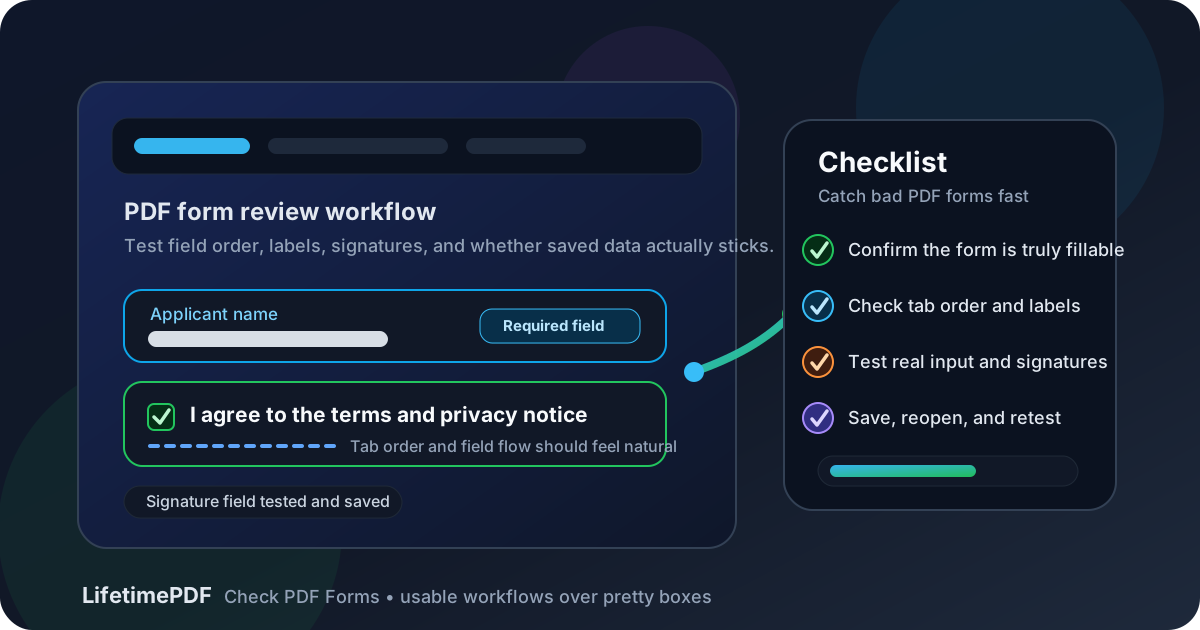
Table of contents
- Quick start: check PDF forms in about 9 minutes
- What good PDF forms actually do
- What to check besides whether a field is clickable
- Step-by-step: practical PDF form review workflow
- Common PDF form failures
- Scans, application packets, contracts, and other forms that need extra care
- When to fix the source instead of patching the PDF
- Final checklist before you share or publish the PDF
- Related LifetimePDF tools and guides
- FAQ
Quick start: check PDF forms in about 9 minutes
If your goal is simply tell me whether this form is safe to send out, this workflow catches the failures that matter most:
- Confirm the PDF is a real fillable form, not just a scan or a visual mockup with blank lines.
- Move through the form with Tab and make sure the cursor follows a sensible order instead of bouncing around randomly.
- Check whether each field has a clear label, helper text, and required-state cue so the person filling it out knows what belongs where.
- Type into the fields, click the checkboxes, test radio buttons, and try date or signature areas instead of assuming the controls work because they look right.
- Save the file, reopen it, and confirm the entered data stays put instead of vanishing, flattening badly, or breaking the layout.
- For scanned or image-heavy forms, run OCR PDF first, then decide whether the real fix is to rebuild the form properly.
What good PDF forms actually do
A good PDF form does more than show empty boxes on a page. It guides someone through a task: what to enter, where to go next, what is required, how to save, and whether the document can be signed or submitted with confidence.
That matters for accessibility, but it also matters for everyday completion speed. Job applicants, patients, parents, HR teams, clients, vendors, and customers are often filling forms quickly under mild pressure. If the cursor jumps unpredictably, labels are vague, required inputs are hidden, or the file loses data after saving, the form stops being a document and starts being friction.
| What a healthy PDF form does | What a weak PDF form does instead | Why it matters |
|---|---|---|
| Guides the cursor in a sensible order | Jumps between unrelated fields or pages | People lose focus, miss fields, and make avoidable mistakes |
| Makes every field obvious | Uses unlabeled boxes, tiny hints, or vague instructions | Readers have to guess what belongs where |
| Preserves data after saving | Clears entries, breaks signatures, or flattens strangely | Trust disappears fast when work is lost |
| Works for keyboard and screen-reader users | Relies on visual layout alone | Accessibility and completion speed both suffer |
| Survives export and sharing | Looks fine in the source app but fails in the actual PDF | The file breaks for the real audience, not the editor |
In plain English: the form is not done just because it looks official. It is done when a person can complete it without guessing, fighting the interface, or worrying that the file will eat their work.
What to check besides whether a field is clickable
Many people test a PDF form by typing into one box and declaring victory. That catches almost nothing. A useful form review checks flow, clarity, persistence, and whether the form still works once the person filling it out stops being the same person who built it.
Tab order
The cursor should move through the form in a logical sequence. If it jumps from the top of page one to the bottom of page three and back again, the form may be technically fillable but practically miserable.
Field labels and instructions
A box is not self-explanatory. Labels, examples, helper text, and required markers need to make sense even when someone is moving fast or using assistive technology.
Input behavior
Test the real controls. Checkboxes should toggle cleanly, radio buttons should behave as a group, date fields should not trap the user, and long text areas should not clip important information unexpectedly.
Save, reopen, sign, and submit
Many form failures do not appear until the file is saved, reopened, emailed, printed, or signed. A form that loses data after the first real workflow step is not a finished form.
Step-by-step: practical PDF form review workflow
1. Confirm the PDF is really fillable and not just pretending
Open the file and try a few fields immediately. If you are dealing with blank lines on a scan, a photographed paper form, or a flattened export from a design tool, you may not have a real fillable PDF at all. Run OCR PDF if the file is image-based, but remember that OCR restores text more reliably than it builds a great form experience.
2. Move through the form in keyboard order
Press Tab and watch where focus goes. A strong form follows the natural reading and completion order. A weak one jumps sideways, skips required fields, revisits old sections, or lands in fields that do not match the surrounding labels.
3. Inspect labels, required cues, and helper text
The person filling out the form should never have to guess whether a box expects a name, account number, date, signature, or freeform explanation. Make sure each field has context, that required fields are obvious, and that any examples or formatting instructions are actually useful.
4. Try real input instead of cosmetic testing
Type short answers and long answers. Test numbers, dates, dropdowns, checkboxes, radio buttons, initials, and signatures if the form includes them. If a form is meant to be completed in-browser, try it in PDF Form Filler. If the workflow includes approval or signing, test the handoff in Sign PDF too.
5. Save, reopen, and review the next step
A form may work while you are typing and still fail the moment it is saved, shared, or reopened. Save the file, reopen it, and confirm the entries, selections, and signatures are preserved. If the form is meant to be printed or emailed, spot-check that flow too.
6. Repair the source and re-export when the structure is weak
If the PDF came from Word, Acrobat, a design tool, or a dedicated form builder, the cleanest fix is usually upstream. If the source is gone, recover what you can with PDF to Word, repair the form logic, then export a clean replacement with Word to PDF.
Reliable sequence: confirm fillability, test tab order, check labels, try real input, then save and reopen before sending the form anywhere important.
Common PDF form failures
Form problems repeat themselves. Once you know the usual failure patterns, you can spot them much faster.
| Failure pattern | What goes wrong | Better approach |
|---|---|---|
| Visual-only fields | The PDF shows blank lines or boxes but offers no real fillable controls. | Build true form fields instead of relying on appearance alone. |
| Broken tab order | Focus jumps unpredictably across the document. | Set the field order to match natural reading and completion flow. |
| Weak labels or missing instructions | People do not know what belongs in a field or how to format it. | Use clear labels, examples, and required markers. |
| Input that fails after saving | Data disappears, signatures break, or the layout changes after reopen. | Test the save-and-reopen workflow before publishing. |
| Scan mistaken for a real form | The file looks official but behaves like a static image. | Use OCR as recovery, then rebuild the form properly when needed. |
One useful smell test: if the form depends on the person already knowing how it is supposed to work, the form probably needs another pass.
Scans, application packets, contracts, and other forms that need extra care
Some PDFs are much more likely to hide form failures than others. These deserve deliberate extra testing.
Scanned paper forms
A scanned intake sheet or application can look legitimate while offering almost no usable form behavior. Even after OCR, the field logic may still be weak, because OCR can recover words without rebuilding a coherent completion flow.
Application, onboarding, and compliance packets
These forms often include many repeated field types, initials, signatures, dates, optional sections, and conditional instructions. One bad tab sequence or missing label becomes a much bigger problem across multiple pages.
Contracts and approval forms
Signature workflows deserve more than a casual glance. If approvals, initials, witness lines, or date fields fail after sharing, the document can create real delays and avoidable resubmission work.
Forms exported from design tools
Design-first workflows often produce PDFs that look clean but rely too heavily on visual spacing. What looks like an elegant form on screen may turn out to be a brittle export with weak fields, poor keyboard flow, or missing semantics underneath.
Where people get fooled
The boxes line up, the typography looks serious, and the page feels official, so everyone assumes the form works. That visual confidence hides a lot of broken behavior. The only real proof is deliberate completion testing with saving, reopening, and a quick accessibility-minded review of the field flow.
When to fix the source instead of patching the PDF
Source-first repair usually wins when the form problem is broad instead of isolated. If multiple fields are mislabeled, the tab order drifts across pages, signatures misbehave, or the file was never truly fillable to begin with, the final PDF is usually the wrong place to fight every symptom one by one.
Repair the source when:
- multiple pages in the form behave differently,
- keyboard order is broken across large sections,
- the PDF came from Word, Acrobat, a design tool, or a form builder you still control,
- the form will be revised and reused again later,
- form problems appear alongside reading-order, tab-order, or tagging issues.
If the document is part of a broader accessibility review, pair this form check with accessibility, reading order, tab order, and tagged-PDF review. Forms work best inside a document structure that is already predictable and coherent.
Final checklist before you share or publish the PDF
- The PDF is truly fillable, or the scanned source was OCRed and rebuilt where needed.
- Tab order follows a sensible completion path.
- Fields have clear labels, instructions, and required-state cues.
- Real input was tested in text fields, checkboxes, radio buttons, dates, and signature areas.
- The file was saved, reopened, and checked for preserved entries.
- Broad form issues were repaired in the source file when possible.
- The final exported PDF was tested again instead of being assumed correct.
Related LifetimePDF tools and guides
Useful tools
Need a cleaner form workflow without juggling scattered tools? LifetimePDF combines form filling, signing, OCR, source-recovery, and conversion utilities in one pay-once toolkit.
FAQ
How do I check PDF forms quickly?
Confirm the form is truly fillable, move through it in tab order, test real inputs, and save then reopen the file to make sure the workflow still holds up.
Can a PDF form look polished and still be broken?
Yes. Many forms look professional on screen while still having broken keyboard flow, unclear labels, missing required cues, or save behavior that fails once someone actually uses the file.
Should I test form labels and tab order, not just the text boxes?
Absolutely. A fillable field by itself is not enough if the user cannot tell what belongs in it or if the cursor moves through the document in a confusing order.
What if the PDF form is just a scan?
Run OCR first, then decide whether the form needs to be rebuilt as a real fillable PDF. A scan can preserve appearance without preserving usable form behavior.
Should I fix form problems in the PDF or in the original source?
If you still control the source, fix it there first. A clean export from the original form builder or document usually produces a better long-term result than repeated PDF-only patching.
Published by LifetimePDF — Pay once. Use forever.