Edit PDF Metadata: Change Title, Author, Keywords, and Document Properties Without Breaking the File
To edit PDF metadata, open a metadata editor, review the current document properties, change the title, author, subject, keywords, or dates you actually need, then save the file and check the properties once before you share it.
If your real goal is privacy rather than organization, remove or redact the metadata you do not want exposed instead of blindly rewriting every field.
That is the short answer. The useful part is knowing which fields matter, which ones are usually just noise, and when editing metadata helps the file look cleaner in search results, client handoffs, shared folders, and internal archives. A good metadata pass should make a PDF easier to find and safer to send, not turn into a pointless cleanup ritual.
Fastest path: check the title and author first, fix obvious draft or stale values, add keywords only if they help future search, then save and recheck the file properties once.
In a hurry? Jump to Quick start: edit PDF metadata in a few minutes.
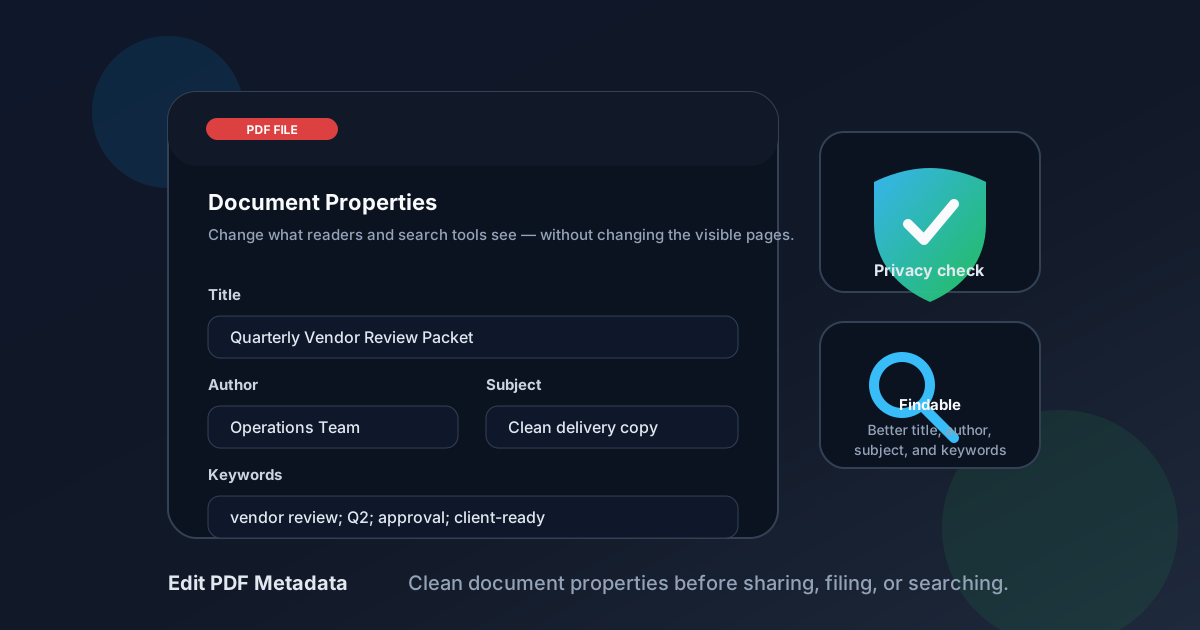
Table of contents
- Quick start: edit PDF metadata in a few minutes
- What PDF metadata actually controls
- The fields worth editing first
- Step-by-step: the cleanest metadata editing workflow
- When to edit metadata and when to remove it instead
- Real-world use cases that actually justify the work
- Common metadata mistakes that make PDFs look sloppy
- Privacy and sharing checklist
- Related LifetimePDF tools and next steps
- FAQ (People Also Ask)
Quick start: edit PDF metadata in a few minutes
If you already know the file needs cleanup, this is the fastest sensible workflow:
- Open PDF Metadata Editor.
- Upload the PDF and inspect the current title, author, subject, keywords, and date fields.
- Fix the obvious problems first: generic titles, old author names, draft labels, or irrelevant keywords.
- Save the updated PDF and reopen its properties once to confirm the changes stuck.
- If the file is sensitive, follow up with Redact PDF or PDF Protect before sharing.
What PDF metadata actually controls
PDF metadata is the information about the document, not the visible document itself. It is the layer that tells operating systems, search tools, document libraries, and sometimes other readers what the file is called, who created it, what it covers, and how it should be categorized.
This matters more than people expect because a PDF often spends more time being searched, filed, emailed, reopened, or reviewed in a folder than being read from page one to the end. If the metadata is vague or stale, the file starts looking messy even if the pages themselves are fine.
| Field | What it does | When it helps most |
|---|---|---|
| Title | Gives the document a readable name beyond the raw filename | Shared folders, browser tabs, previews, client handoffs |
| Author | Shows the person, team, or organization tied to the file | Internal archives, branded deliverables, handoffs between teams |
| Subject | Adds a short description of what the PDF covers | Large libraries, compliance folders, repeated monthly reporting |
| Keywords | Improves filtering and search when used sensibly | Research sets, shared repositories, admin document bundles |
| Dates | Signals when the document was created or modified | Version tracking, historical files, audit-friendly organization |
The fields worth editing first
Not every metadata field deserves equal attention. If you want the highest payoff with the least effort, start with the fields that another human or search system is most likely to notice.
1. Title
This is the biggest win. A title like Final Proposal - North Region - July 2026 is instantly more useful than document(12), scan001, or untitled. If the PDF will travel outside your own machine, title quality matters.
2. Author
The author field should reflect the right owner of the document. Sometimes that is a person. Often it is a team or company. If the file still shows an old employee name, test account, or a software-generated value that means nothing to anyone, fix it.
3. Subject
Subject is helpful when the title alone is not enough. Think of it as one clean sentence or phrase that explains what the file is for, not a dumping ground for extra keywords.
4. Keywords
Keywords help when the file lives in a real archive or repeatedly needs to be found later. But this is the field people overdo. A short set of useful terms is better than a giant list of barely related phrases.
5. Dates
Dates matter most for version-sensitive work: contracts, approvals, board packets, monthly reporting, policy updates, or historical scans. If the date information is misleading, clean it up. If it is already fine, do not invent busywork.
Best default order: title first, author second, subject third, keywords only if they add real value, then dates if the document history actually matters.
Step-by-step: the cleanest metadata editing workflow
The easiest way to make metadata editing useful is to treat it like a short review pass, not a perfection exercise.
Step 1: Open the metadata editor
Go to PDF Metadata Editor and upload the file. Before touching anything, look at the current properties so you know whether the file is truly messy or only mildly imperfect.
Step 2: Decide why you are editing it
Are you cleaning a file for a client? Standardizing a folder? Removing embarrassing draft labels? Making a scan easier to archive? The answer changes which fields matter. Without a reason, metadata edits turn into random polishing.
Step 3: Fix the fields another person will actually notice
Start with the title and author, then the subject if needed. Those usually do the most work. Keywords can wait until you know whether they are genuinely useful.
Step 4: Save the file and verify once
Download the updated PDF and reopen its properties. Make sure the file now presents itself correctly in the system you care about. You do not want to assume the update worked and then send the wrong metadata anyway.
Step 5: Apply privacy cleanup only if the file needs it
If the problem is more than messy properties — for example, hidden identifiers, sensitive names, or client-specific information — move to Redact PDF or protect the document with PDF Protect. Metadata editing is not a full privacy workflow by itself.
When to edit metadata and when to remove it instead
One of the biggest mistakes people make is assuming every metadata problem should be solved by editing. Sometimes the better answer is to remove information, not replace it.
Edit metadata when:
- the file needs a better title for filing or search
- the author should show the correct team or organization
- you want cleaner subject lines or more useful keywords
- the document is legitimate and just needs better presentation
Remove or redact information when:
- the file exposes names, identifiers, or labels that should not travel
- draft or internal notes are embedded where recipients should not see them
- the PDF is part of a privacy-sensitive workflow
- you are preparing a public or client-safe version from an internal original
In plain language: if the information should still exist but be cleaner, edit it. If the information should not be there at all, remove or redact it.
Real-world use cases that actually justify the work
Metadata editing is most useful when the PDF has to survive outside the moment it was created.
Client deliverables
A clean title and author make the file feel intentional. That matters when a proposal, review packet, audit output, or board deck is being forwarded around by people who did not create it.
Shared team folders
When many people are touching the same document library, metadata keeps files from turning into a graveyard of vague scans, exports, and near-duplicates.
Compliance and record keeping
If a PDF needs to be found six months later, metadata is cheap insurance. Titles, subjects, and dates help more than most people realize when the archive gets crowded.
Historical scans and digitized records
A scanned PDF might be readable but still hard to identify later. Metadata gives the file context even before someone opens page one. If the scan also needs searchable text, pair the workflow with OCR PDF.
Cleanup before external sharing
Many PDFs carry sloppy leftovers: old usernames, default titles, software-generated labels, or internal naming that makes no sense to the recipient. Editing metadata is the fastest way to make the handoff feel more professional.
| Situation | Best metadata fix | Why it helps |
|---|---|---|
| Proposal exported with a generic name | Rewrite the title | The file looks cleaner in previews, downloads, and client folders |
| Old employee still listed as author | Update the author | Ownership and attribution stay accurate |
| Repeated monthly reporting packet | Add a clear subject and useful date info | Future retrieval gets much easier |
| Research or policy archive | Add restrained keywords | Search becomes more useful without creating clutter |
Common metadata mistakes that make PDFs look sloppy
Bad metadata usually comes from either neglect or overcorrection.
Leaving the default title untouched
A file named after the export process instead of the document purpose wastes the main advantage metadata gives you.
Stuffing the keywords field
Ten weak terms are worse than three useful ones. If the keywords would feel embarrassing pasted into an email, they are probably not helping the file either.
Changing fields just because they exist
Not every property needs manual care. Editing every field can introduce new errors and makes the process feel more complicated than it is.
Assuming metadata cleanup equals privacy cleanup
Metadata work can reduce some exposure, but it does not replace redaction, password protection, or sound judgment about where the file is going.
Forgetting to verify the saved file
One quick check after download is usually enough. Skipping that check is how people send files they thought were fixed but were not.
Best practical sequence: inspect the current properties, fix only the meaningful fields, save, verify, then protect or redact if the handoff is sensitive.
Privacy and sharing checklist
If a PDF is going to a client, recruiter, partner, regulator, or public repository, do one last sanity pass before you send it.
- Check the title: does it describe the file clearly and professionally?
- Check the author: is the right person, team, or organization attached?
- Check for draft leftovers: remove old labels, internal names, or junk values.
- Check whether keywords help or hurt: keep only the useful ones.
- Check whether privacy is the real concern: use Redact PDF if content or details should disappear entirely.
- Check whether the file needs protection: use PDF Protect when a password-secured handoff makes sense.
Metadata cleanup is one of those rare PDF tasks where two extra minutes can make the file feel much more deliberate.
Ready to make your PDF properties look intentional instead of accidental?
Fix the title, author, subject, and keywords that matter, save once, then share a cleaner file.
Related LifetimePDF tools and next steps
Metadata editing is often one step in a broader cleanup workflow. These tools pair well with it:
- PDF Metadata Editor for changing title, author, subject, keywords, and document properties.
- Redact PDF for removing sensitive information that should not stay in the file.
- PDF Protect for password-protecting a client-ready or sensitive copy.
- OCR PDF for making scanned PDFs searchable before they enter your archive.
- PDF to Text for extracting usable content when the workflow goes beyond filing and into reuse.
Related blog guides
- Edit PDF Metadata Online Free
- Edit PDF Metadata Without Monthly Fees
- OCR PDF
- PDF Protect
- PDF to Text
- Browse all LifetimePDF articles
FAQ (People Also Ask)
How do I edit PDF metadata?
Open a PDF metadata editor, upload the file, review the current title, author, subject, keywords, and date fields, change what needs cleanup, save the updated PDF, and verify the new properties once before you share it.
What PDF metadata should I change before sending a file?
Usually the most valuable fields are title, author, subject, and sometimes keywords. Those fields affect how the PDF looks in search, previews, folders, and document properties.
Does editing PDF metadata change the visible content?
No. Metadata editing changes document properties, not the visible text, images, signatures, or page layout inside the PDF itself.
Should I edit metadata or remove it?
Edit metadata when the file needs better organization, searchability, or cleaner presentation. Remove or redact information when the real goal is privacy and the details should not remain in the file at all.
Can I edit metadata in scanned PDFs?
Yes. Scanned PDFs can still have their metadata updated. If you also need searchable text inside the scan, run OCR PDF as a separate step.
Published by LifetimePDF — Pay once. Use forever.