PDF Protect: How to Lock a File for Sharing Without Making the Workflow Messier Than It Needs to Be
To PDF Protect a file, open a PDF protection tool, upload the final version, add and confirm a password, download the locked copy, and test it once before you share it.
The smart workflow is to finish edits, signatures, page cleanup, and redaction first, because protection should secure the finished copy rather than force you to redo work on a file you locked too early.
That is the short answer. The part that causes most avoidable friction is not clicking the protect button. It is protecting the wrong version, sending the password in the same thread as the attachment, or using protection when the document really needed redaction first. A good PDF Protect workflow is simple, but simple does not mean careless.
Fastest path: finalize the PDF, open PDF Protect, add a password you can retrieve later, download the locked copy, test it once, and share the password separately when the file matters.
In a hurry? Jump to Quick start: PDF Protect in a few minutes.
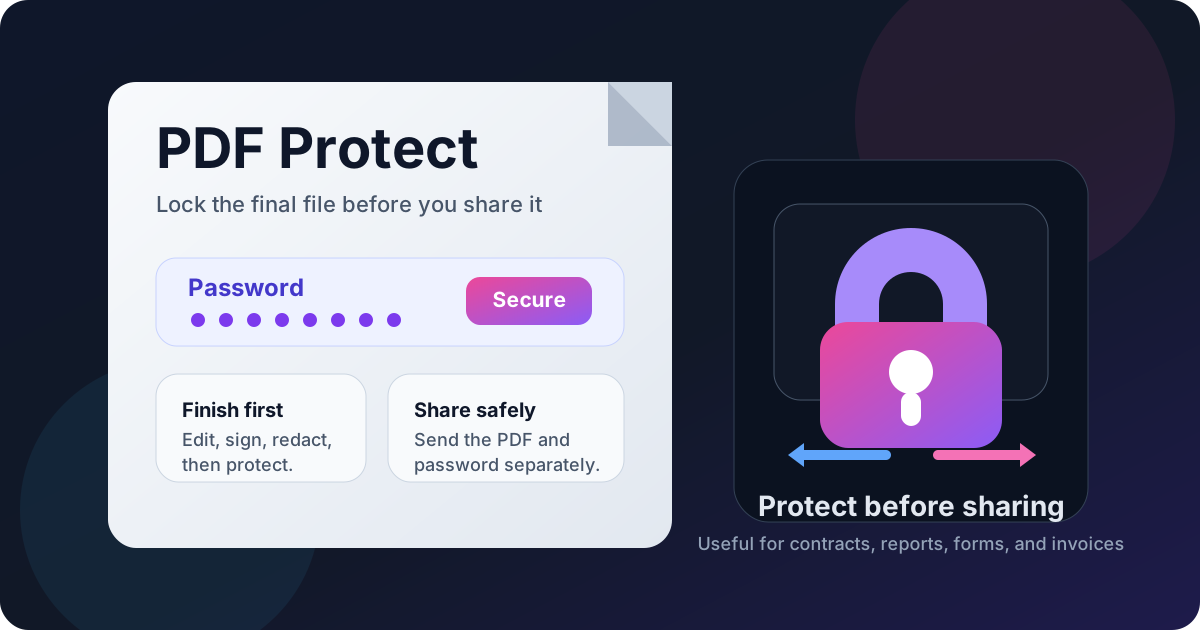
Table of contents
- Quick start: PDF Protect in a few minutes
- What PDF Protect actually does
- Step-by-step: how to protect a PDF cleanly
- What to do before you protect the file
- How to choose a password that is strong and usable
- How to share a protected PDF without defeating the point
- What PDF Protect can and cannot do
- Related LifetimePDF tools and guides
- FAQ
Quick start: PDF Protect in a few minutes
If you already have the final document and just need to lock it before sending, this is the reliable order:
- Open PDF Protect.
- Upload the exact PDF you plan to send or archive.
- Add and confirm the password carefully.
- Download the protected copy.
- Open it once to confirm the password prompt appears and the content still looks right.
- Share the file, then share the password separately if the document is sensitive.
What PDF Protect actually does
PDF Protect adds a password barrier to the document so the file does not open freely for everyone who receives it. For everyday work, that usually means you are creating a controlled copy for a contract, invoice packet, HR file, statement, report, or client deliverable that should not be casually readable in transit.
The key point is that PDF Protect is an access-control step. It does not automatically remove confidential text from the page, clean up sloppy metadata, or decide which version of the file is correct. It simply locks the version you give it.
| Goal | Does PDF Protect help? | Better supporting step if needed |
|---|---|---|
| Stop casual opening | Yes | Add a password and test the file once |
| Remove sensitive text permanently | No | Use Redact PDF first |
| Finalize signatures | No | Use Sign PDF before protecting |
| Shrink the file for delivery | Sometimes indirectly | Use Compress PDF on the final copy if size matters |
| Prevent every form of reuse or screenshots | No | Share less data, redact what must disappear, and use careful delivery habits |
Used correctly, PDF Protect is very practical. Used as a substitute for redaction, version control, or common sense, it solves less than people hope.
Step-by-step: how to protect a PDF cleanly
The technical steps are short. The quality comes from doing them in the right order.
1) Finish the document first
If the PDF still needs content edits, page moves, signatures, or removal of private information, do that before you lock anything. Protecting a draft is a classic way to create unnecessary extra steps for yourself later.
2) Confirm you are working on the real final file
This matters more than people expect. You may have the original, a signed version, a redacted version, a compressed version, and a nearly identical copy in Downloads. Pick the one you truly plan to send.
3) Open PDF Protect
Go to LifetimePDF PDF Protect. A browser-based workflow is usually the fastest route when you already have the final PDF and just need a controlled copy without a full desktop detour.
4) Add and confirm the password
Enter the password carefully, then confirm it. Most real-world PDF password problems are ordinary human problems: a typo, case mismatch, an extra space, or a password that seemed memorable at the time and was not.
5) Download the protected copy
Save the file with a clear name if needed. Something like proposal-protected.pdf or statement-share-copy.pdf is more helpful than leaving several nearly identical filenames sitting next to each other.
6) Test it once before you send it anywhere
Open the protected PDF yourself and make sure the password prompt appears as expected. This small check is worth it. It is faster to catch a password mistake immediately than after a client, colleague, or recipient tells you the file will not open.
7) Share the file and password thoughtfully
If the document is sensitive, do not automatically put the attachment and the password in the same message. Separate channels are often a simple improvement: email plus chat, email plus call, or a shared file link plus a separate password message.
Shortest dependable sequence: finish the file → protect the correct copy → test it once → send the password separately when practical.
What to do before you protect the file
PDF Protect is stronger when it comes after a few basic decisions instead of before them.
Redact what the recipient should never see
This is the biggest distinction. Protection limits access to the file. Redaction removes content from the pages themselves. If a name, number, signature, address, or internal note should never remain visible in the copy you share, handle that first with Redact PDF.
Sign before you lock
If the file still needs approval, finish that step first with Sign PDF. Protecting the document too early can complicate a workflow that should have stayed simple.
Trim or reorder pages before the final copy
If the recipient only needs a few pages, or if the packet still has draft pages attached, clean that up before you protect the file. There is no point locking a document that contains extra content you did not mean to send.
Think about file size only after the real content is done
If delivery size becomes a problem, use Compress PDF on the finished share copy. In practice, this is easier to reason about once the content, security, and page order are already settled.
How to choose a password that is strong and usable
A protected PDF is only as useful as the password strategy around it. Strong but impossible-to-retrieve passwords create a different kind of problem. Weak or reused passwords create the one you were trying to avoid.
- Prefer a longer passphrase over a tiny clever string. Usable strength matters more than theatrical complexity.
- Avoid obvious patterns. Client names, invoice numbers, or company initials with a year are easy to guess.
- Store it somewhere sensible. If the file matters, do not rely on your memory during a busy week.
- Keep the password separate from the file when practical. That one habit improves the real-world value of protection immediately.
- Use a clear naming convention for the file. If you can find the protected copy quickly, you are less likely to resend the raw original by accident.
| Good habit | Why it works | Common mistake |
|---|---|---|
| Use a retrievable passphrase | You can reproduce it accurately later | Using something complex but easy to mistype |
| Test the file immediately | Catches typos before delivery | Assuming the download means everything worked |
| Separate password delivery | Improves practical access control | Sending both in the same email thread |
| Label the protected copy clearly | Reduces wrong-attachment mistakes | Keeping several similar filenames with no clear final version |
How to share a protected PDF without defeating the point
Once the file is protected, the next question is distribution. A locked PDF is more useful when the rest of the workflow does not hand over the key in the same breath.
Email plus separate message
This is the easiest improvement for many teams. Send the attachment by email, then share the password in chat, text, or a separate conversation. It is simple and often good enough for routine sensitive files.
Link plus separate password
If the PDF is large or needs to live in shared storage, a file link plus a separate password note can be cleaner than attaching everything to one thread.
Explain what the recipient should expect
A short note helps: “Protected PDF attached, password sent separately.” That removes confusion and reduces the chance of someone assuming the file is broken.
What PDF Protect can and cannot do
PDF Protect is useful because it is lightweight. It is not magic because it is lightweight.
It helps control who opens the file. It does not guarantee what a recipient does after that. It does not erase hidden content you forgot to remove. It does not automatically fix versioning mistakes. And it does not replace the judgment to share less in the first place when a document contains more than it should.
- Use PDF Protect when: the file is already final and you want a practical password barrier before sending or storing it.
- Do more than PDF Protect when: the document still contains information that should be removed, the wrong pages are present, or the delivery method itself needs more care.
- Expect limitations: once someone can legitimately open the file, protection is no longer the whole story.
In short: protect the final copy, but do not confuse a lock with a cleanup.
Related LifetimePDF tools and guides
PDF Protect works best as one step inside a larger document workflow. These tools and guides fit naturally around it:
- PDF Protect — lock the final PDF with a password before sharing it.
- Redact PDF — remove sensitive text or images before you protect the file.
- Sign PDF — finish approval workflows before you lock the copy.
- Compress PDF — reduce file size if the final protected copy is bulky.
- PDF Unlock — remove protection later when you know the password and have permission.
Related reading on LifetimePDF: PDF Protect Online Free, PDF Protect Online Without Monthly Fees, Password Protect PDF, and Unlock PDF.
Clean final move: finish the document, protect the share copy, test it once, and deliver the password like it matters.
FAQ: PDF Protect
What does PDF Protect do?
PDF Protect adds password-based access control to a PDF so the file does not open freely. It is most useful when the document is already final and you want a simple lock before sharing it.
Should I redact a PDF before I protect it?
Yes, if the file contains details the recipient should never see. Redaction removes content from the pages, while protection controls who can open the file. In most sensitive workflows, redact first and protect second.
When should I use PDF Protect in the workflow?
Usually near the end. Finish edits, signatures, page cleanup, and compression decisions first. Then protect the final share copy and test it once before delivery.
What if I forget the PDF password later?
You may lock yourself out of the file or create unnecessary recovery work. Use a password you can retrieve safely, test the file immediately, and store the password in a sensible place if the document matters.
Is PDF Protect enough for highly sensitive documents?
It helps with access control, but it is not the same thing as redaction, controlled distribution, or perfect downstream prevention. For sensitive files, combine protection with page cleanup, redaction, careful sharing habits, and sometimes watermarking.
Published by LifetimePDF — Pay once. Use forever.