Unlock PDF: Remove Password Friction So You Can Print, Sign, Edit, or Share the File You Are Allowed to Use
Yes — you can unlock PDF files by opening them with the correct password when needed, removing the protection you are authorized to remove, and downloading a copy you can actually use for printing, signing, editing, or sharing.
If you do not know the password for an access-locked file, the practical fix is to get it from the owner or ask for an unrestricted copy; unlocking is for legitimate document work, not bypassing someone else's security.
That distinction matters because most people are not searching this keyword out of curiosity. They are blocked in the middle of a real task. The PDF opens but will not print. Or it asks for a password every time. Or a contract needs a signature, a report needs a few pages extracted, an HR packet needs redaction, or a client file needs a cleaner final copy. The goal is not to "beat" the PDF. The goal is to get the document back into a legitimate working state and then finish the job without creating a bigger privacy or workflow mess.
Fastest practical path: unlock the file you are allowed to work with, do the real task immediately, then protect the final share copy again only if it still needs controlled access.
In a hurry? Jump to Quick start: unlock a PDF in a few minutes.
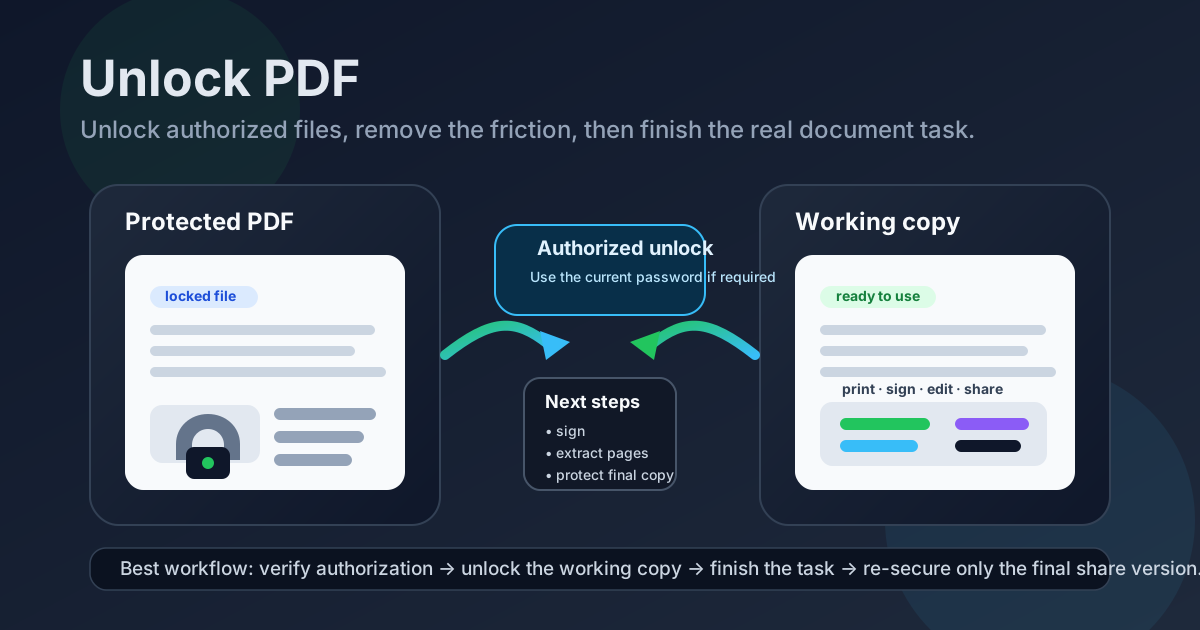
Table of contents
- Quick start: unlock a PDF in a few minutes
- When unlocking a PDF is the right move
- Open password vs permission restrictions
- Step-by-step: how to unlock a PDF cleanly
- What to do after the PDF is unlocked
- Common real-world unlock scenarios
- Authorization, privacy, and safe handling
- Related LifetimePDF tools and guides
- FAQ (People Also Ask)
Quick start: unlock a PDF in a few minutes
If you already have the current password or the right to remove the restrictions, this is the shortest useful workflow:
- Open PDF Unlock.
- Upload the protected PDF.
- Enter the current password if the tool asks for it.
- Unlock the file and download the working copy.
- Test the blocked action immediately: print it, copy text, sign it, edit it, or extract the exact pages you need.
When unlocking a PDF is the right move
People do not usually search unlock PDF because they want a lesson in document encryption. They search because the file is blocking ordinary work.
| Your situation | Best move | Why it helps |
|---|---|---|
| You can open the PDF but cannot print, copy, or edit it | Use an authorized unlock workflow | It removes the friction that is blocking the actual task you need to finish |
| The file is password-gated and you know the password | Open it with the password, unlock the working copy, then continue | You avoid re-entering protection every time you need to sign, extract pages, or edit |
| You only need two or three pages from a protected packet | Unlock first, then use Extract Pages | You share less, move faster, and reduce unnecessary exposure |
| You do not know the password and the PDF is not yours | Ask the owner or sender for help | That is the correct fix for access-controlled files you are not supposed to unlock on your own |
In plain terms, unlocking is the right move when the file is yours to work with and the protection is the only thing preventing an otherwise normal document task. It is not the right move when the real issue is missing authorization.
Open password vs permission restrictions
A lot of PDF frustration comes from not knowing what kind of lock you are actually dealing with. The fix depends on the difference.
Open password
This is the password required before you can even view page one. If the PDF asks for a password immediately when you open it, you are dealing with an access lock. Without the correct password, you generally cannot unlock that file legitimately.
Permission restrictions
In this case, the PDF opens normally, but one or more actions are blocked. You may be unable to print, copy text, sign, rearrange pages, or edit content. This is why a file can feel locked even though you can read it.
| Protection type | What it blocks | What usually fixes it |
|---|---|---|
| Open password | Viewing the PDF at all | Enter the correct password or request access from the owner |
| Permission restrictions | Printing, copying, editing, signing, or extracting pages | Use an authorized unlock workflow to remove the restriction |
| Workflow confusion | The PDF opens but you still cannot finish the real job | Unlock first, then move directly into the tool you actually need next |
Step-by-step: how to unlock a PDF cleanly
The cleanest workflow is usually the least dramatic one. Verify that you are allowed to work with the file, unlock it, test the blocked action, and keep moving.
1. Confirm you have the right to remove the protection
This sounds obvious, but it saves time. If the PDF belongs to a client, colleague, school, or legal sender, make sure the unlock step is part of the expected workflow. When in doubt, ask for the password or for a clean version first.
2. Open PDF Unlock and upload the file
Start with LifetimePDF PDF Unlock. If the PDF is large and you only need a small part of it, remember that unlocking is often just the gateway step before you trim the file down.
3. Enter the current password if required
If the PDF uses an open password or password-linked restrictions, enter it carefully. Most failures here are ordinary mistakes: wrong capitalization, an extra space, or using a password from an older version of the document.
4. Unlock and download the working copy
Once the process completes, download the unlocked version and test the exact action that was blocked. Try printing a page, copying text, signing the file, or opening the next tool in your workflow. That quick check saves you from discovering later that the restriction you cared about is still in the way.
5. Finish the real task right away
If the document needs a signature, move into Sign PDF. If you only need part of the packet, use Extract Pages. If you must remove sensitive information, use Redact PDF before the file gets shared any further.
Practical sequence to remember: unlock the file, finish the actual work, and only then decide whether the final copy should be protected again.
What to do after the PDF is unlocked
Unlocking is usually the beginning of the useful work, not the end of it.
Unlock → sign
If a document is ready for approval, go straight into Sign PDF while the file is finally usable.
Unlock → extract pages
If the only thing you need is one form, one appendix, or one signed page, use Extract Pages instead of moving the whole protected packet around forever.
Unlock → edit or convert
If your real goal is content editing, move from unlock into PDF to Word or another editing workflow. If the file is scan-based, you may need OCR PDF before the text becomes properly selectable and editable.
Unlock → redact → protect again
This is one of the smartest sequences for sensitive documents. Remove the protection, make the necessary changes, use Redact PDF for anything that should disappear permanently, then apply fresh protection with PDF Protect before the final version is sent onward.
Common real-world unlock scenarios
Contracts and client paperwork
A contract may open normally but block annotations, signatures, or page extraction. Unlocking removes that friction so you can prepare the correct working version instead of wrestling a locked packet all afternoon.
HR, payroll, and onboarding packets
Protected internal PDFs often need a signature, a field update, or a smaller page subset for the next person in the process. Unlocking first makes the downstream workflow cleaner and safer.
Archived reports and exported PDFs
Legacy files are notorious for opening fine while still blocking copying or editing. If you are rebuilding a report, quoting part of it, or extracting evidence pages, an unlock step can remove a lot of unnecessary friction.
Files that need safer resharing
Sometimes the point is not editing the entire PDF. It is removing one obstacle so you can extract the relevant pages, redact private information, and share a much cleaner final file.
Authorization, privacy, and safe handling
PDF unlocking often overlaps with sensitive material: contracts, invoices, school records, HR forms, legal packets, medical paperwork, or internal reports. So the question is not only whether the tool works. It is whether this is the right workflow for this specific file.
- Only unlock PDFs you own or are authorized to modify.
- Use the minimum necessary workflow: if you only need three pages, extract three pages.
- Redact before broad sharing: use Redact PDF when private content should not survive in the outgoing copy.
- Protect the finished version again if needed: use PDF Protect.
- Follow client or workplace policy: for highly sensitive documents, policy should beat convenience every time.
Cleaner workflows are usually safer workflows. The more quickly you turn the locked source file into the exact working copy you need, the less unnecessary exposure and rework you create.
Need the full document workflow, not just one unlock button?
Useful sequence for many teams: Unlock → Sign or Edit → Redact if needed → Protect the final copy → Share.
Related LifetimePDF tools and guides
Unlocking a PDF usually works best as part of a short workflow rather than one isolated click. These tools and guides fit naturally around the same job:
- PDF Unlock - remove password protection or permission restrictions from a file you are allowed to work with.
- Sign PDF - add a signature once the file is usable again.
- Extract Pages - keep only the pages you actually need.
- PDF to Word - move into an editable format.
- OCR PDF - make scanned text selectable before editing.
- Redact PDF - permanently remove sensitive information before sharing.
- PDF Protect - re-secure the final version when needed.
Related blog guides
- Unlock PDF Online
- Unlock PDF Online Free
- Unlock PDF Without Monthly Fees
- Unlock PDF Online Without Monthly Fees
- Unlock PDF for Editing
- Unlock PDF for Printing
- Remove Password From PDF Online
- Redact PDF Online Free
FAQ (People Also Ask)
How do I unlock a PDF?
Upload the PDF to an unlock tool, enter the current password if required, remove the protection you are authorized to remove, and download a working copy you can print, sign, edit, or share more easily.
Can I unlock a PDF without knowing the password?
If the PDF requires an open password and you do not know it, the legitimate fix is usually to ask the owner or sender for the password or for an unrestricted copy.
What is the difference between an open password and PDF restrictions?
An open password blocks access to the file until the correct password is entered. A restriction lets you open the PDF but can still block printing, copying, editing, signing, or extracting pages until the protection is removed with authorization.
Is it safe to unlock PDFs online?
It can be safe when you use a trusted service, upload only files you are allowed to process, and follow your privacy or workplace rules for sensitive documents.
What should I do after unlocking a PDF?
Most people unlock a PDF so they can sign it, extract pages, copy text, edit content, redact private details, or protect the final version again before sharing it onward.