Unlock PDF for Editing: Remove Restrictions and Edit in Minutes
Yes — you can unlock a PDF for editing by removing the document's editing restriction, usually by entering the current password in an authorized PDF unlock tool and saving an editable copy.
If the file is scanned, flattened, or digitally signed, unlocking alone may not be enough — you may also need OCR, a form-field editor, or a clean unsigned source before you can safely make changes.
That distinction matters more than people expect. Sometimes the PDF is truly locked and needs permission changes first. Sometimes it only looks locked because the text is really an image, the form fields were flattened, or the document was signed in a way that should not be altered. This guide walks through the practical workflow so you can tell what kind of problem you have, remove the right restriction when you are allowed to do so, and use the best LifetimePDF tool for the next step instead of poking angrily at an uncooperative file.
Fastest path: unlock the PDF first, then open the result in the right tool for your real job — editing text, filling fields, or fixing a scanned document.
Need the short version first? Jump to quick start: unlock a PDF for editing in about 5 minutes.
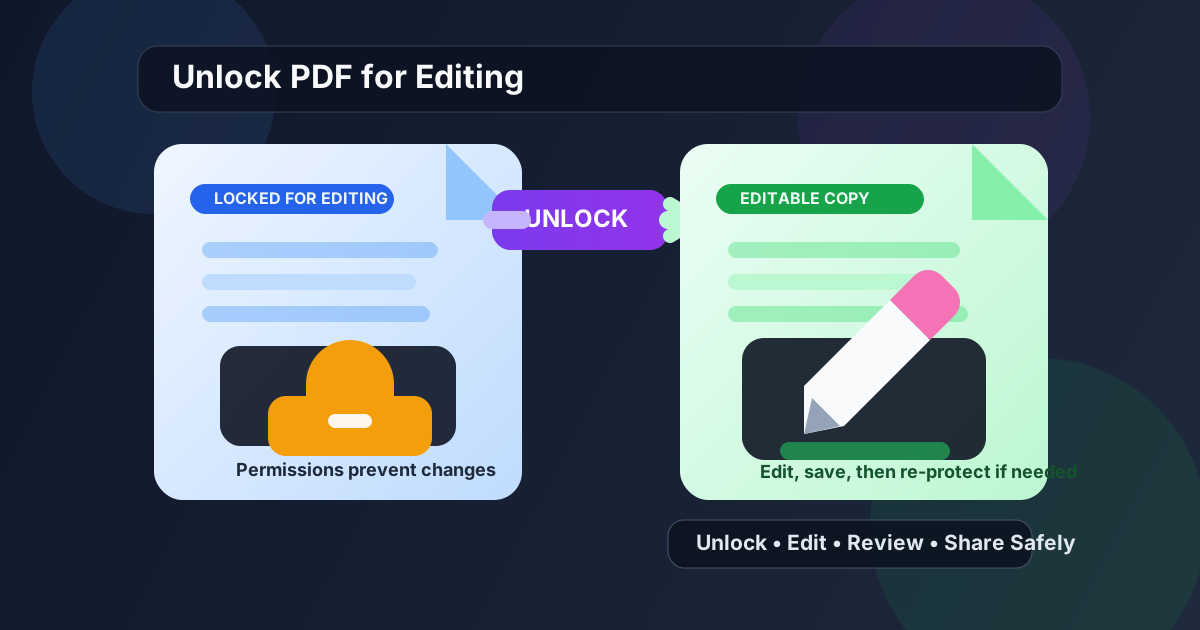
Table of contents
- Quick start: unlock a PDF for editing in about 5 minutes
- What “locked for editing” actually means
- Step-by-step: how to unlock a PDF for editing
- Why a PDF may still resist editing after you unlock it
- Which tool to use after unlocking
- How to avoid breaking signatures, forms, and compliance
- Related LifetimePDF tools and guides
- FAQ
Quick start: unlock a PDF for editing in about 5 minutes
If your real goal is simply I need to change this file and it will not let me, use this workflow:
- Open PDF Unlock.
- Upload the PDF you are authorized to change.
- If the file asks for the current password, enter it so the restriction can be removed properly.
- Download the unlocked copy.
- Open that new copy in Edit PDF, PDF Field Editor, or OCR PDF depending on what kind of changes you need to make.
- Review the finished file once, then re-protect it if the updated version should still have controlled access.
What “locked for editing” actually means
People say a PDF is “locked” when at least three different situations can be happening. If you do not identify the right one, you can waste a lot of time trying the wrong fix.
1. The file has an open password
In this case, you cannot even open the PDF without the current password. If you have that password and you are allowed to change the document, you can unlock the file and continue.
2. The file opens, but editing is restricted
This is the more common “unlock PDF for editing” scenario. You can read the document, but the owner has blocked editing, copying, printing, or form changes. When you have authorization, a PDF unlock workflow removes that restriction so you can work on a normal copy.
3. The PDF is not really editable even without restrictions
This is where people get tricked. A scanned PDF may just be a stack of images. A flattened form may show text on the page but no real fillable fields behind it. A digitally signed PDF may be technically viewable, but changing it would invalidate the signature. None of those problems are fixed by guessing passwords harder.
| What you see | What it usually means | Best next step |
|---|---|---|
| The PDF will not open at all | Open password required | Use PDF Unlock with the current password |
| The PDF opens but edit actions are blocked | Permission restriction | Unlock the restriction, then edit the new copy |
| You can click around but text will not behave like text | Image-based scan or flattened content | Run OCR PDF or return to the source file |
| The file is signed and you need to preserve trust | Changes may invalidate the signature | Verify first and keep the original signed copy intact |
Step-by-step: how to unlock a PDF for editing
Once you know the document is actually restricted, the process is straightforward.
Step 1: Confirm that you are allowed to change the file
This is the part people like to skip because it is not technical. Do not skip it. Only unlock PDFs you own or are authorized to modify. If the file came from a client, employer, court portal, or signing workflow, confirm whether you should edit the original PDF at all or whether you should request a new editable copy instead.
Step 2: Remove the restriction
Open LifetimePDF PDF Unlock, upload the file, and enter the current password if the tool asks for it. After the restriction is removed, save the unlocked copy locally so you always have a clear before-and-after version.
Step 3: Choose the correct editing path
A lot of editing problems are really format problems. If you only need light text or markup changes, open the file in Edit PDF. If the job is mostly filling or adjusting fields inside a form, go straight to PDF Field Editor or PDF Form Filler. If the pages are really just images, use OCR PDF before you expect normal editing to work.
Step 4: Review the edited result before you send it anywhere
Check names, dates, signatures, numbers, and page order. Then ask one more question: does this updated PDF still need protection? If yes, run PDF Protect on the final version rather than leaving the new copy wide open by default.
Why a PDF may still resist editing after you unlock it
If the file remains stubborn after you remove the restriction, the issue is usually one of these:
The PDF is a scan
A scanned contract, invoice, or form may look like text, but to the computer it is just an image. You can unlock permissions all day and still never get a real cursor inside the words. OCR creates the text layer you actually need.
The form was flattened
Flattened forms preserve appearance, not field behavior. So the text you see may already be baked into the page. In that case, try the original fillable source if you have it. If you do not, you may need to recreate or overlay fields instead of expecting the existing ones to come back from the dead.
The document was digitally signed
Signed PDFs are often designed to be tamper-evident. That is the point. If the file is part of an approval chain, invoice sign-off, HR packet, or legal exchange, changing it after signing may invalidate the signature or create a version-control mess. If you are unsure, check the signature status first with Verify PDF Signature.
The editor you chose is not the right one for the job
PDF editing is not one single action. There is text editing, form filling, form-field inspection, OCR repair, redaction, page organization, and signing. If you use a text editor when you really need a field tool, the file can seem locked even when it is not.
Which tool to use after unlocking
The cleanest workflow is to treat unlocking as the first step, not the whole project.
- You need to change visible content or annotations: use Edit PDF.
- You need to adjust values inside a fillable form: use PDF Field Editor.
- You just need to complete a form quickly: use PDF Form Filler.
- The document is image-based or came from a scanner: use OCR PDF.
- You need to protect the revised version again: use PDF Protect.
- You need to send the file for signature after edits: use Sign PDF.
Simple rule: unlock for permissions, OCR for scans, field tools for forms, and signature tools for signed workflows.
How to avoid breaking signatures, forms, and compliance
The fastest workflow is not always the safest workflow. If the PDF is part of a regulated or auditable process, use a little more caution.
Keep the original copy
Save the restricted or signed original before you make any change at all. That gives you a clean source if someone later asks what changed or when the signature stopped validating.
Do not casually edit signed PDFs
If a signature matters for approval, payment, compliance, or evidence, the safest move is often to request a fresh editable source or a newly signed version after corrections. Editing the signed copy may solve your immediate problem while creating a bigger trust problem later.
Re-protect final copies when appropriate
Some PDFs are unlocked only long enough to fix a typo, update a date, or complete a form. Once the content is correct, there is nothing wrong with protecting the finished file again before storing or sharing it.
Use the smallest successful change path
If all you need is one field update, do not rebuild the whole document. If all you need is searchable text, do not attempt heavy visual editing first. Smaller, cleaner workflows reduce the odds of layout drift, broken fields, and accidental version confusion.
Related LifetimePDF tools and guides
If unlocking is only one part of the job, these tools and guides usually pair well with it:
- PDF Unlock — remove authorized restrictions so editing can begin.
- Edit PDF — make direct content or markup changes after unlocking.
- PDF Field Editor — inspect and change real form fields.
- OCR PDF — turn image-only scans into searchable, selectable text.
- PDF Protect — re-secure the finished copy if needed.
- Unlock PDF for Printing — for documents that open fine but refuse to print.
- Verify PDF Signature Online — useful before changing a signed file.
FAQ
How do I unlock a PDF for editing?
Upload the file to an authorized PDF unlock tool, enter the current password if required, remove the editing restriction, download the unlocked copy, and then open it in the correct editor for your next step.
Why can I open the PDF but still not edit it?
That usually means the PDF has permission restrictions rather than an open password. The file is viewable, but editing is still blocked until the restriction is removed by someone who has the right to do that.
Will unlocking a PDF let me edit scanned text?
Not by itself. Unlocking removes the restriction, but scanned pages are still images. You normally need OCR before the text becomes searchable or selectable enough for useful editing.
Can I unlock a signed PDF and keep the signature valid?
Usually only if you do not change the document. Once you alter the content, the existing signature may no longer validate because the file is no longer identical to the signed version.
What should I do after editing the unlocked PDF?
Review the important fields and pages once, save the final copy clearly, and if the file still contains sensitive information or should not be changed again, protect the updated version before you share it.