Unlock PDF for Printing: Remove Restrictions and Print in Minutes
Yes — you can unlock a PDF for printing by removing the document's print restriction, usually by entering the current password in an authorized PDF unlock tool and downloading a printable copy.
If the file will not even open without a password and you do not know it, the right fix is to ask the owner for the password or a print-enabled version rather than guessing your way around it.
Most people who search this are not trying to "manage PDF permissions" in the abstract. They have a real file in front of them that opens normally but throws a wall in front of the printer. It might be an invoice, contract, report, government form, class handout, shipping label, application packet, or signed document that now needs a paper copy. The useful workflow is simple: figure out whether printing is blocked by a restriction or by a real open password, unlock the file you are authorized to use, test the printable copy once, and only then move on.
Fastest path: unlock the file first, confirm the print dialog works, then print or re-protect the final version depending on what happens next.
In a hurry? Jump to Quick start: unlock a PDF for printing in a few minutes.
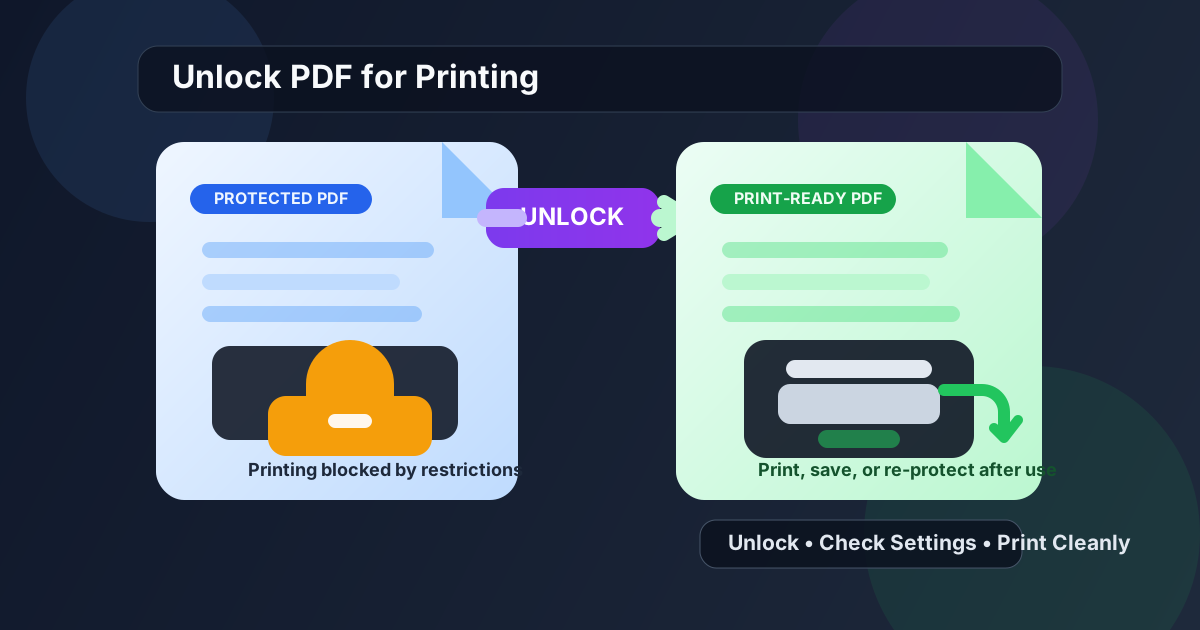
Table of contents
- Quick start: unlock a PDF for printing in a few minutes
- Why a PDF can open normally but still block printing
- Open password vs printing restriction
- Step-by-step: how to unlock a PDF for printing
- What to check before you print the unlocked copy
- Common real-world printing restriction scenarios
- What to do if the PDF still will not print
- Authorization, privacy, and safer handling
- Related LifetimePDF tools and guides
- FAQ (People Also Ask)
Quick start: unlock a PDF for printing in a few minutes
If you already have the file and the right to print it, this is the shortest clean workflow:
- Open PDF Unlock.
- Upload the PDF that is blocking printing.
- Enter the current password if the file requires it.
- Download the unlocked copy.
- Open that copy and test the print dialog once before sending it to the printer or to anyone else.
- If the file still contains sensitive information after printing, re-lock the final version with PDF Protect.
Why a PDF can open normally but still block printing
A lot of PDF frustration comes from the fact that "locked" can mean more than one thing. People often assume that if a file opens, everything should work. But many PDFs are configured so you can view them while still being blocked from printing, copying text, editing content, signing, or rearranging pages.
That setup is common in contracts, statements, class materials, policy documents, applications, bank files, and reports that the sender wants people to read without casually altering or reproducing. In practice, though, it often blocks legitimate work too.
Typical signs the printing restriction is the real issue
- The PDF opens normally, but the print option is greyed out.
- The print dialog appears, but the document refuses to continue.
- You can read the pages, but printing is denied while viewing still works.
- You only need a paper copy, not a deep edit, but the permission setting still gets in the way.
Open password vs printing restriction
This distinction matters because it tells you what kind of fix makes sense.
Open password
This is the password that blocks access to the document itself. If you cannot even see page one until you enter the password, the PDF is protected with an open password. In that case, you need the current password before any legitimate printing workflow can continue.
Printing restriction
This is different. The file opens, the content is visible, but printing is blocked. That usually means the PDF has a permission restriction rather than a full access lock. When you are authorized, unlocking that restriction is the direct fix.
| What you see | What it usually means | Best next step |
|---|---|---|
| The PDF will not open at all | Open password protection | Get the current password from the owner or sender |
| The PDF opens, but Print is blocked | Permission restriction | Use an authorized unlock workflow |
| The PDF opens and prints, but the output is wrong | Print settings or file layout problem | Check scale, page size, orientation, or raster fallback |
Step-by-step: how to unlock a PDF for printing
Once you know the restriction is the problem, the workflow becomes straightforward.
1. Confirm you are working on the right file version
Make sure you are using the exact PDF you need to print. People often have several nearly identical copies in downloads, email threads, or shared folders. Starting with the wrong one creates needless confusion when one copy prints and the other does not.
2. Open the unlock tool and upload the PDF
Go to LifetimePDF PDF Unlock and upload the file. If printing is blocked by a permission setting, this is the fastest clean way to create a usable copy.
3. Enter the current password if the tool asks for it
Some PDFs use a password-backed restriction. If the tool requests the current password, enter it carefully. That is not a detour — it is the normal authorized path for removing the block.
4. Download the unlocked version
Save the printable copy locally and name it clearly if you are working with several versions. A filename like document-printable.pdf is often better than another vague duplicate in your downloads folder.
5. Test the print dialog once before you commit
Open the unlocked copy and press print once. You do not always need to send the job immediately, but you do want to confirm that the restriction is truly gone before you email the file to a coworker, forward it to a print shop, or archive it as the fixed version.
Need the fast route? Remove the restriction first, then worry about printer settings only if the document still misbehaves.
What to check before you print the unlocked copy
Removing the restriction solves one problem. It does not automatically fix every printing issue. Before you send the job, check the basics that most often waste time.
Page size and scaling
Make sure the PDF page size matches the paper you plan to use. A legal-sized document sent to a letter-sized printer with the wrong scaling option can still look broken even after the unlock worked perfectly.
Orientation
Some PDFs print badly because the orientation is sideways or inconsistent. If needed, fix that first with Rotate PDF.
Margins and cropped content
If the unlocked file prints with clipped edges or too much empty space, the issue may be layout rather than permissions. In those cases, trimming the page with Crop PDF can produce a cleaner result.
Complex files and printer compatibility
Some older printers do not love complex PDFs with layered graphics, transparency, or unusual fonts. If the PDF still acts strange, converting pages with PDF to Image can create a more predictable print path.
Common real-world printing restriction scenarios
Contracts and signed documents
A contract may open normally but block printing because the sender wanted to limit casual copies. If you are authorized to print it for review, filing, or signature routing, unlocking the printable copy is usually the cleanest move.
School, HR, and onboarding files
Many form-heavy workflows still require paper signatures, physical packets, or printed review copies. These PDFs are often viewable but restricted, which makes the printing-focused unlock workflow especially practical.
Bank statements, invoices, and records
People often need a paper copy for expense reporting, audits, reimbursements, or personal records. In those moments, the goal is not to "change" the PDF. It is simply to make the file printable without breaking the rest of the workflow.
Print shop or office handoff
If you need to send the PDF to someone else for printing, verify the unlocked copy first. Handing off an untested file is how simple permission problems turn into back-and-forth delays.
What to do if the PDF still will not print
The restriction is gone, but the print dialog still fails
At that point, the issue may be the viewer, printer driver, or PDF structure rather than the lock itself. Try another browser or PDF viewer first. That is often enough.
The document prints with missing content
Missing elements usually point to layout, transparency, font, or rendering issues. Converting the pages to images can be a helpful fallback when accurate paper output matters more than preserving PDF internals.
The file prints, but it looks cut off or tiny
Recheck paper size, orientation, and scale settings. Many "unlock" complaints are actually print setup mismatches that only show up after the permission problem is fixed.
Authorization, privacy, and safer handling
Unlocking a PDF for printing should serve legitimate work. That means you own the file, created it, received permission to print it, or are acting within a business, academic, or administrative workflow that authorizes the step.
It is also worth thinking one step beyond printing. After the paper copy exists, do you still want the digital file left open? Sometimes yes. Sometimes the safer choice is to print what you need, then use PDF Protect to keep future digital access controlled.
Related LifetimePDF tools and guides
Unlocking for printing often sits in the middle of a broader document workflow. These tools and guides pair well with it:
- PDF Unlock to remove the restriction that is blocking printing.
- Unlock PDF Online for the broader browser-based unlock workflow.
- Print PDF Online Without Printer Headaches for scaling, paper size, and printer setup problems.
- Rotate PDF when the unlocked copy is sideways or mixed-orientation.
- PDF to Image when you need a more predictable print fallback.
- PDF Protect to re-lock the final digital version after printing if that still makes sense.
FAQ (People Also Ask)
How do I unlock a PDF for printing?
Use an authorized PDF unlock workflow: upload the file, enter the current password if required, remove the printing restriction, download the unlocked copy, and test the print dialog once before you rely on it.
Why can I open a PDF but not print it?
That usually means the file uses a permission restriction instead of a full open password. You can view the pages, but printing is blocked until the restriction is removed by someone with the right authorization.
Can I print a password protected PDF if I know the password?
Usually yes. If you know the current password and you are allowed to remove the restriction, you can unlock the PDF, save a printable copy, and continue normally.
What if the PDF still will not print after I unlock it?
Then you are likely dealing with a normal print problem rather than a permission problem. Check page size, scale, orientation, viewer choice, and printer compatibility. If necessary, rotate, crop, or convert the PDF pages to images for a cleaner fallback.
Should I protect the PDF again after printing?
If the file still contains private or controlled information and will be stored or shared again, re-protecting the final digital copy is often the safest move. The printable working copy does not always need to become the long-term copy.
Ready to make the file printable? Unlock the restriction first, then handle any remaining print setup issues with the smallest possible next step.