Check PDF Language: Fix Wrong Language Tags Before Screen Readers Guess
To check PDF language, confirm the file's primary language matches the content readers will actually hear, search, copy, or convert.
If the language is missing, stale, or wrong, fix the source document and export a cleaner PDF before you publish, submit, archive, or share it.
That is the short answer. The practical part is knowing how wrong language settings show up in real files: screen readers pronouncing words badly, OCR making suspicious choices, translated PDFs keeping the old template language, and accessibility reviews flagging issues that looked invisible on the page. A quick language check helps you catch those problems before the PDF reaches a client, student, reviewer, court filing, compliance team, or public website.
Fastest practical path: confirm the text layer, identify the main language, spot-check extracted text, repair the source if needed, and re-export the PDF before final review.
In a hurry? Jump to quick start: check PDF language in about 6 minutes.
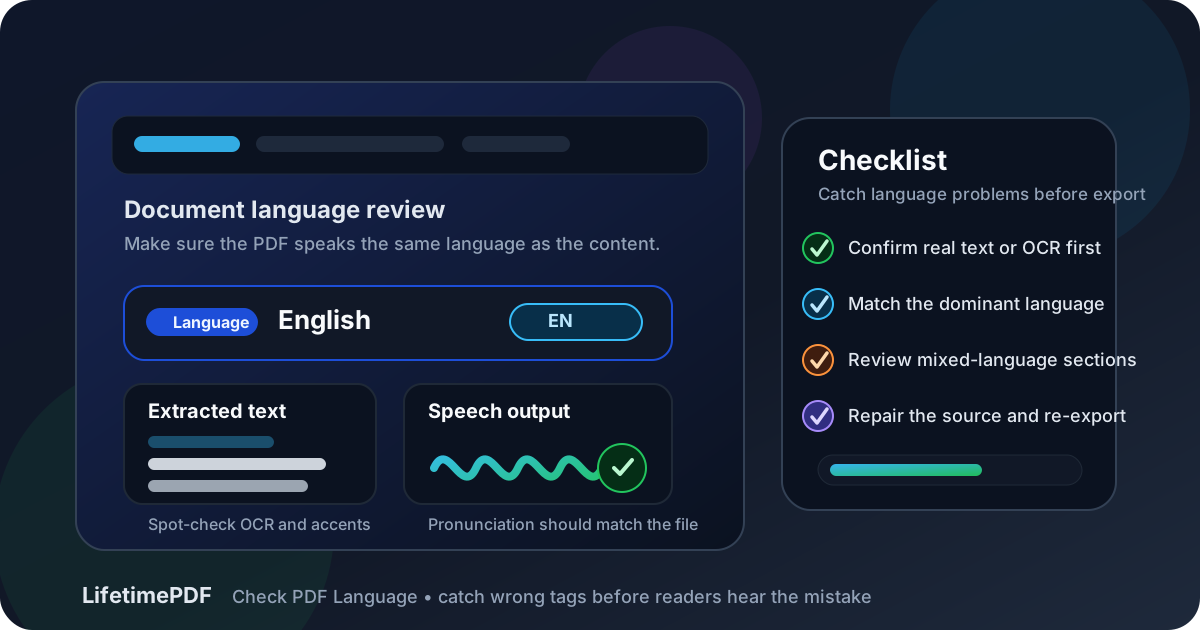
Table of contents
- Quick start: check PDF language in about 6 minutes
- What PDF language actually controls
- Common PDF language failures
- Step-by-step: practical PDF language review workflow
- Multilingual, translated, and mixed-language PDFs
- Scans, OCR, and copied text problems
- When the real fix belongs in the source file
- Final checklist before you publish or share the PDF
- Related LifetimePDF tools and guides
- FAQ
Quick start: check PDF language in about 6 minutes
If your goal is simply make sure this PDF is using the right language before it leaves my hands, this quick pass catches the most common failures fast:
- Confirm the PDF has real selectable text. If it behaves like an image, run OCR first.
- Identify the document's dominant language. Use the language most of the file is actually written in, not the old template language.
- Extract a little text with PDF to Text and spot-check headings, body copy, names, accented words, and key terms.
- Look for translated or bilingual sections that may need extra care instead of assuming one setting fits every page perfectly.
- If the language is wrong or the file needs a bigger cleanup, move it into an editable source with PDF to Word, fix the document, then export a fresh PDF with Word to PDF.
- Finish with one broader structural review using Check PDF Accessibility so language problems do not hide inside larger accessibility issues.
What PDF language actually controls
The language setting in a PDF is easy to ignore because it usually does not change what sighted readers see on the page. The file can look polished while still carrying the wrong language under the hood. That hidden mismatch matters because the language setting influences how assistive technology interprets the text and how confidently you can trust later conversions.
Why language checks matter in real workflows
- Screen readers depend on it: the wrong language can lead to terrible pronunciation, especially for names, accented words, legal phrases, or technical vocabulary.
- Accessibility reviews look for it: document language is a standard checkpoint in broader PDF accessibility work.
- OCR cleanup gets riskier when the language is off: the wrong assumptions can make extracted text look noisier than it should.
- Converted files inherit bad decisions: when you move a PDF into Word, text, or another format, language mistakes can travel with it.
- Templates drift over time: organizations reuse old source files, clone last quarter's deck, or translate content without updating the document properties.
Common PDF language failures
Most language problems fall into a few familiar buckets. Once you know the patterns, they are easier to catch before the file becomes someone else's headache.
| Failure | What goes wrong | Better fix |
|---|---|---|
| Language missing entirely | Accessibility checks flag the file, and assistive technology has to guess. | Set the document language in the source file, then export again. |
| Old template language still attached | A translated or repurposed document sounds wrong even though the visible content changed. | Update the source document properties before final export. |
| OCR run with the wrong assumptions | Extracted text looks messy, names break, and search quality drops. | Re-run OCR with the right language context and re-check the text layer. |
| Mixed-language sections treated like one language | Screen readers may handle short translated passages awkwardly or inconsistently. | Use the main document language overall, then clean up multilingual sections in the source where possible. |
| PDF fixed visually but not structurally | The page looks fine on screen, but the underlying language setting never got corrected. | Do not trust appearance alone. Recheck the editable source and export pipeline. |
One strong smell test: if the file was copied from another document, translated late in the process, or rescued from a scan, assume the language setting deserves a second look.
Step-by-step: practical PDF language review workflow
1. Confirm the PDF is not just a picture of text
If you cannot search, select, or extract text, a language review is premature. Run OCR PDF first so you have a real text layer to inspect. Without that, you are mostly guessing based on appearance.
2. Decide what the document's true primary language is
This sounds obvious, but mixed-source PDFs make it slippery. A report might have an English cover, Spanish body pages, and appendix material copied from another source. Choose the language that represents the main reading experience, not just the first page or the filename.
3. Spot-check what comes out when the text leaves the page
Use PDF to Text to see whether the words still make sense once the layout polish disappears. If headings, accented characters, apostrophes, or common terms look suspicious, language or OCR assumptions may be part of the problem.
4. Check multilingual or translated sections on purpose
A short quote in another language is not the same as a fully bilingual document. Look for contracts with translated clauses, policy PDFs with dual-language headings, school forms that repeat every section twice, or reports that include foreign-language source excerpts. Those are the places where a lazy export pipeline tends to hide mistakes.
5. Repair the source instead of patching the symptom
If the language is wrong, the cleanest move is usually upstream. Pull the document into an editable file with PDF to Word if necessary, fix the source content and document settings, then export again with Word to PDF. That approach usually beats repeatedly touching the finished PDF and hoping the fix survives.
6. Do one final structural review before sharing
Language is only one part of a usable PDF. After re-exporting, do a broader pass with Check PDF Accessibility, and if the document is meant to be navigable, review related structure questions such as whether the PDF is tagged and whether reading order makes sense.
Reliable sequence: OCR if needed, inspect extracted text, confirm the main language, repair the source, export a fresh PDF, then run a final accessibility-minded review.
Multilingual, translated, and mixed-language PDFs
Not every PDF is neatly monolingual. Some files are bilingual by design, some include short translated summaries, and some are assembled from source material written by different teams in different languages. That does not make the review impossible. It just means you should be more deliberate.
When one main language is usually enough
- A mostly English report with a short Spanish quote
- A product manual with a few untranslated model names or legal terms
- A school or HR packet where the main content is one language and the footer repeats a translated contact line
When you should slow down and inspect more carefully
- Side-by-side bilingual forms
- Contracts with translated clauses and signature instructions
- Translated annual reports or board packets that started from an old source file
- Scanned archives where OCR may have guessed the wrong language more than once
In those cases, the goal is not perfection theater. The goal is making sure the PDF's main language reflects the actual reading experience and that mixed-language sections are not quietly breaking the document for people who rely on assistive technology.
Scans, OCR, and copied text problems
Language checks become more important, not less, when a PDF comes from a scanner, camera, fax export, or messy legacy archive. In those cases, OCR is doing part of the interpretation work, so the language context can affect how believable the recovered text looks.
Scanned PDFs
A raw scan usually has no trustworthy text layer at all. Run OCR, then inspect the output with PDF to Text before assuming the document is ready. If names, street addresses, headings, or accented words look damaged, the file probably needs another cleanup pass.
Copied and repasted source documents
Teams often build a new PDF by copying old content into a template that already had a different language, author, style, or accessibility state. That workflow creates invisible leftovers. The page design may look brand new while the document properties are still living in last quarter's export.
Converted files
If the PDF needs bigger repairs, move it into an editable format with PDF to Word, fix the text and settings there, then rebuild the final version. Conversion is not only about changing format. It can be the fastest route back to a file you can actually fix with confidence.
When the real fix belongs in the source file
A lot of PDF quality problems are really source-document problems wearing a PDF costume. If the language is wrong because the original Word file kept the old template settings, or the translated content was pasted into an inherited layout without updating properties, the PDF is only the messenger.
Fixing the source usually makes several things better at once:
- The document language can be set deliberately.
- Headings, lists, and structure are easier to repair upstream.
- Exports are more consistent across revisions.
- Future updates become less error-prone because the clean master file already exists.
If you still control the original file, use that advantage. Patch the source, not just the symptom. Then export the final PDF once the content, language, and structure all agree with each other.
Final checklist before you publish or share the PDF
Before the file goes out the door, run through this short list:
- Can you search or select text, or did you OCR the file first?
- Does the document's main language match the actual body content?
- Do extracted headings and paragraphs still read cleanly?
- Did any translated, bilingual, or quoted sections get extra scrutiny?
- If the file came from a template, did you confirm old settings are gone?
- Did you re-export from a corrected source instead of only patching the finished PDF?
- Did you do one broader accessibility-minded pass before publishing?
You do not need a grand remediation ceremony for every PDF. You just need a workflow that catches the quiet mistakes before they become public, permanent, or expensive to unwind.
Related LifetimePDF tools and guides
If your PDF language check uncovers bigger issues, these are the most useful next steps:
Text and OCR recovery
- OCR PDF for scanned or image-only files
- PDF to Text to inspect what actually survives extraction
- PDF to Word when you need a repairable source
Structure and final export
- Word to PDF for cleaner re-exports
- Check PDF Accessibility for the bigger review
- How to Check if a PDF Is Tagged and Check PDF Reading Order for deeper structural checks
FAQ
1) How do I check PDF language?
Start by confirming the PDF has real searchable text. Then identify the main language of the document, extract a little text to review how it behaves outside the layout, and repair the source file if the current language setting is wrong or stale.
2) Why does document language matter in a PDF?
It affects how screen readers pronounce the content, how accessibility reviews evaluate the file, and how trustworthy later OCR cleanup or conversions feel. The page can look fine visually while the hidden language setting is still wrong.
3) Can a PDF be tagged correctly but still use the wrong language?
Yes. Tags and language are related but separate. A PDF can have decent structure while still carrying the wrong primary language, which means assistive technology may read the content awkwardly or incorrectly.
4) What should I do with bilingual or translated PDFs?
Use the language that represents the main reading experience for the overall file, then review translated clauses, repeated headings, and bilingual sections more carefully. If the source document allows it, make those language decisions upstream before exporting the final PDF.
5) Is it better to fix PDF language in the PDF itself or in the source document?
If you still control the source, fix it there. That usually produces a cleaner export, preserves structure better, and prevents the same mistake from reappearing the next time the PDF is updated.
Ready to clean up the file? Check the text layer, repair the source, and re-export a PDF that sounds right as well as looks right.
Best workflow for messy files: OCR if needed → inspect text → confirm language → repair source → export clean PDF → do one final review.
Published by LifetimePDF — Pay once. Use forever.