Check PDF JavaScript: Find Document Scripts Before You Open, Share, or Archive the File
To check PDF JavaScript, inspect the file in a properties, validation, or security-aware PDF view and confirm whether the document contains scripts tied to opening, buttons, calculations, or form actions.
If you were not expecting the file to behave interactively, treat that as a review flag before you trust it, upload it, archive it, or send it to someone else.
That is the short answer. The more useful answer is that PDF JavaScript is not automatically bad, but it is often invisible until the wrong moment. A form may auto-calculate correctly, or a file may prompt, navigate, submit data, or behave differently across viewers. Checking first helps you decide whether the interactivity is intentional, safe enough for the workflow, or better replaced with a flatter delivery copy.
Fastest practical path: inspect the PDF for scripts, decide whether the behavior is expected, then keep the interactive original only when it actually helps the workflow.
In a hurry? Jump to the 5-minute JavaScript review workflow.
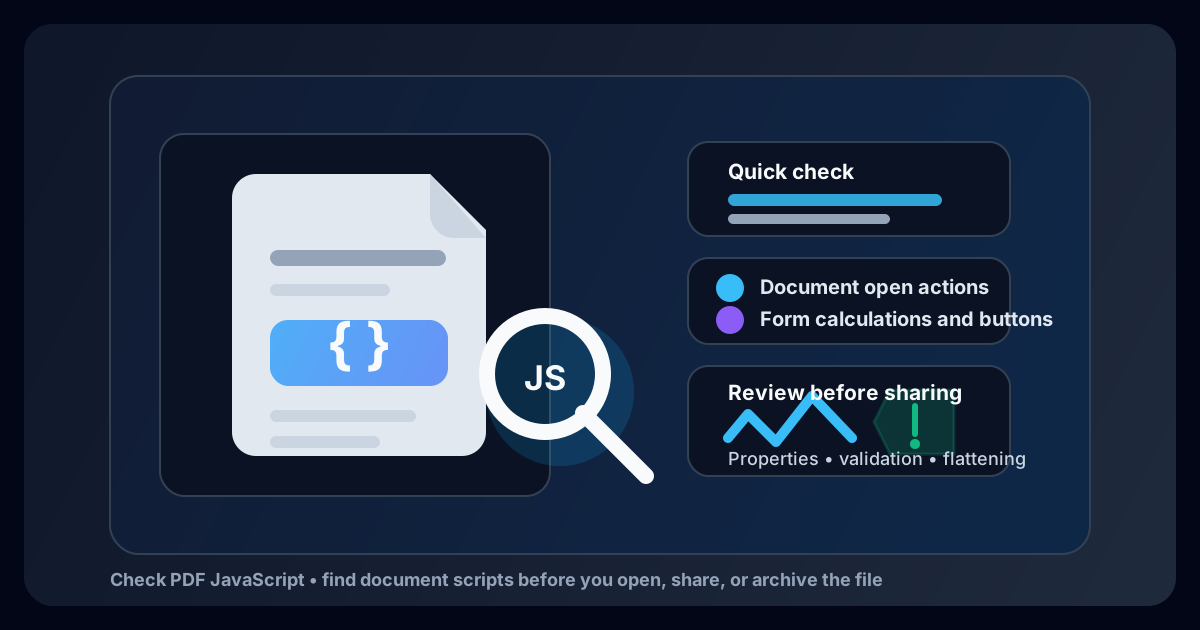
Table of contents
- Quick start: check PDF JavaScript in about 5 minutes
- What PDF JavaScript actually means
- Why you should check for scripts before sharing
- Step-by-step: practical PDF JavaScript review workflow
- Common places JavaScript shows up in PDFs
- When to keep the interactive PDF and when to flatten it
- Red flags worth treating more seriously
- Related LifetimePDF tools and guides
- FAQ (People Also Ask)
Quick start: check PDF JavaScript in about 5 minutes
If your real goal is simply find out whether this PDF contains scripts and decide whether that matters before the file moves on, this is the fastest useful workflow:
- Open the exact PDF you plan to share, upload, archive, or review.
- Inspect the file with View PDF Properties or another validation-aware PDF inspection view.
- Check whether the document contains JavaScript, actions, form calculations, or other interactive behaviors.
- Ask whether those behaviors are expected for the file's real purpose.
- If the recipient only needs a stable read-only result, create a flattened delivery copy and keep the live original separate.
- If the behavior is unexpected, investigate further before trusting the file or forwarding it.
What PDF JavaScript actually means
PDF JavaScript is script logic embedded in a PDF document. It can be attached to the document itself, to form fields, to buttons, to calculations, or to certain actions such as opening, printing, or submitting data. In other words, it lets a PDF act more like a tiny app instead of a purely static page.
That can be useful. Interactive forms often depend on JavaScript for validation, field formatting, or totals. It can also be inconvenient or risky when the file is headed to an archive, a court filing system, a print workflow, a document management system, or a recipient using a viewer that handles scripts inconsistently.
| Script behavior | What it usually does | Why it matters |
|---|---|---|
| Document-open action | Runs logic when the PDF opens | May trigger prompts, navigation, or viewer-dependent behavior before the user even starts reading |
| Form calculations | Updates totals, dates, or field values automatically | Useful in live forms, but unnecessary in a final archive or fixed delivery copy |
| Button or submit actions | Launches an event when the user clicks | Can break in simple viewers or send the file into the wrong workflow |
| Hidden workflow logic | Changes validation, visibility, or navigation behind the scenes | Can make the PDF behave unpredictably across platforms and recipients |
Why you should check for scripts before sharing
Most people only notice PDF JavaScript after something odd happens: a form refuses to behave in a browser, a portal rejects the file, an archive team wants a simpler copy, or a recipient gets a different experience than the sender saw. A quick script check helps you catch those mismatches before they become someone else's problem.
Viewer differences
One PDF app may run the script, another may ignore it, and a browser preview may only show a partial result.
Workflow stability
Archives, uploads, print pipelines, and compliance workflows usually prefer predictable files over clever interactive behavior.
Trust and review
If a PDF was supposed to be a simple static document, unexpected scripts deserve a closer look before you trust or forward it.
Checking is especially helpful when the file came from a third party, includes interactive forms, contains buttons or calculated fields, or is about to move into a long-term or highly controlled environment.
Step-by-step: practical PDF JavaScript review workflow
Here is the most useful way to review PDF JavaScript without turning a simple check into a forensic project.
1) Open the exact outgoing or incoming copy
Do not inspect an earlier draft, a browser cache copy, or a renamed attachment from a different step in the workflow. If the check matters, it should apply to the exact PDF that will actually be trusted, sent, or archived.
2) Inspect the file properties or validation details
Start with View PDF Properties and, if needed, follow up with Validate PDF. Your goal is to learn whether the file contains JavaScript, actions, or richer interactive logic beyond static pages.
3) Compare the script behavior with the purpose of the file
A tax worksheet, intake form, quote builder, or internal workflow PDF may legitimately use JavaScript. A static report, archived contract, final print piece, or court-ready exhibit usually has less reason to stay script-driven.
4) Check nearby interactive clues
If the PDF has scripts, it often also has related moving parts such as forms, links, attachments, or security restrictions. Looking at the whole interactive picture is usually more useful than only confirming that JavaScript exists.
5) Decide whether to keep, flatten, or rebuild
If the interactivity is expected and valuable, keep it. If the file only needs to look right for the recipient, a flattened copy is often cleaner and more dependable. If the script behavior is surprising or clearly wrong, the safest move may be to rebuild the delivery version from a trusted source.
6) Verify the final saved copy once
After flattening, sanitizing, or rebuilding the PDF, open the final copy once and confirm that it now behaves the way you intend. Never assume the workflow fixed the issue just because you exported a new file.
Reliable sequence: inspect the PDF for scripts, compare the behavior with the file's real purpose, then keep the live version only when interactivity actually belongs in the destination workflow.
Common places JavaScript shows up in PDFs
Once you start checking for PDF JavaScript, the same patterns show up again and again. The scripts are often not there for drama. They are there because someone wanted the PDF to behave like a form, a guided workflow, or a mini application.
Fillable forms
Field validation, date formatting, calculations, and conditional visibility often depend on scripts running in the background.
Buttons and navigation
A button may jump to another page, submit data, launch an action, or trigger logic that is invisible until clicked.
Document-open events
Some PDFs try to run logic immediately when the file opens, which is why two viewers can feel very different with the same document.
Legacy workflow files
An old interactive PDF may carry scripts that no longer help the current task, but still travel with every copy people forward around.
That is why a script check is often really a workflow cleanup check. You are not just asking whether JavaScript exists. You are asking whether the PDF is still the right kind of file for what happens next.
| Situation | Best move | Why |
|---|---|---|
| Interactive form still being filled out | Keep the live PDF | The scripts may be necessary for calculations, validation, or smoother completion |
| Final record or archive copy | Flatten or simplify | A stable non-interactive file is usually easier to preserve and review later |
| Unexpected scripts in a “simple” document | Investigate before sharing | The behavior may be inherited, outdated, or simply not appropriate for the file |
| Recipient uses limited viewers or portals | Send a flattened delivery copy | Fewer moving parts means fewer surprises across systems |
When to keep the interactive PDF and when to flatten it
The right answer is not always “remove all scripts.” The right answer is to match the file to the destination.
Keep the interactive PDF when the behavior is intentional
If the document is a live form, calculator, approval worksheet, or guided internal PDF and the scripts are expected, preserving that interactivity makes sense. In that case, the real job is simply to confirm that the logic is deliberate and that the recipients will use a viewer capable of handling it.
Flatten the delivery copy when the recipient only needs the final result
A flattened copy is often the better choice for final submissions, print, records, external sharing, or viewers that do not support the same script behaviors. Flattening reduces ambiguity by turning a live, potentially variable document into a stable visual result.
Rebuild or avoid the file when the behavior is unexplained
If the JavaScript is unexpected, outdated, or impossible to explain confidently, treat that as a reason to slow down. A clean rebuilt copy from a trusted source is often safer than forwarding a file whose hidden behavior you do not fully understand.
Red flags worth treating more seriously
Most script checks end with a simple decision: keep it, flatten it, or clean it up. But a few situations deserve more caution.
- The PDF was expected to be static, but the file contains scripts anyway.
- The document came from an unfamiliar source and its behavior is hard to explain.
- The PDF acts one way in one viewer and very differently in another.
- The file is headed to a legal, archival, or highly controlled workflow that benefits from fewer hidden behaviors.
- The scripts are attached to buttons, submits, or actions that no longer serve any obvious business purpose.
None of those automatically mean the file is malicious. They simply mean the PDF deserves intentional handling instead of blind forwarding.
Related LifetimePDF tools and guides
View PDF Properties
Start here when you want to inspect the file's hidden details before deciding whether the PDF is safe to trust as-is.
Open the guideValidate PDF
Useful when the concern is bigger than scripts alone and you want a wider quality or structure check.
Read the validation guideFlatten PDF
Ideal when the recipient only needs one stable final appearance instead of live interactive behavior.
Read the flattening guideCheck PDF Forms
Helpful when the real question is whether fields, calculations, and form logic belong in the outgoing file.
Review PDF formsCheck PDF Links
Use this when you want to review other clickable actions and navigation behavior alongside scripts.
Check the links guideCheck PDF Attachments
Useful when you want to inspect other hidden or bundled parts of the PDF before sharing it onward.
Review attachmentsFAQ (People Also Ask)
How do I check PDF JavaScript?
Open the file in a properties, validation, or security-aware PDF view and confirm whether the document contains JavaScript tied to document-open events, buttons, forms, or calculations.
Is PDF JavaScript always dangerous?
No. Some PDFs use JavaScript for legitimate form logic or workflow helpers. The important question is whether the script behavior is expected and appropriate for the file's destination.
Can a PDF have JavaScript even if nothing obvious happens when I open it?
Yes. Some viewers suppress PDF JavaScript, and some scripts only trigger on clicks, calculations, printing, or submission actions. Quiet behavior is not proof that the file is script-free.
Should I flatten a PDF if it has JavaScript?
Flattening is often the right move when the recipient only needs a stable visual copy. Keep the interactive original only when the scripts are expected, useful, and supported by the intended workflow.
Why check PDF JavaScript before archiving or uploading a document?
A quick check helps you avoid inconsistent viewer behavior, awkward portal issues, and long-term records that keep hidden interactivity nobody actually needs.
Ready to sanity-check an interactive PDF before it becomes someone else's problem?
Best default workflow: check for scripts → confirm whether the interactivity is expected → flatten the delivery copy when consistency matters more than live behavior
Published by LifetimePDF — Pay once. Use forever.